Home
» 🎮 Esports
»
Best CS2 Viewmodel Settings for Maximum Screen Visibility
Best CS2 Viewmodel Settings for Maximum Screen Visibility
For a clear starting viewmodel in CS2, try FOV 68, X offset 2.5, Y offset 0, and Z offset -1.5. This recommendation aims to keep the weapon toward the edge and below the central sightline. If you want to explore a more aggressive position, compare Y 2 and Z -2 while keeping the other values unchanged.
Neither combination is a measured, universal winner. Weapon shape, animations, handedness, and your display setup affect which part of the screen feels obstructed. The best CS2 viewmodel settings for maximum screen visibility are the ones that clear the angles you actually watch without creating distracting animation or breaking familiar visual references.
Which settings should you start with?
Use the balanced configuration first. It gives you a repeatable baseline before you start testing extreme positions. The more aggressive alternative is worth comparing when your priority is clearing the lower central area, but keep it only if the result helps with your usual weapons.
Command
Balanced starting point
More aggressive comparison
What to evaluate
viewmodel_fov
68
68
Weapon projection and apparent size
viewmodel_offset_x
2.5
2.5
Horizontal placement
viewmodel_offset_y
0
2
Forward/back placement
viewmodel_offset_z
-1.5
-2
Vertical placement
These are suggested test configurations, not Valve-endorsed competitive presets. Research was checked on October 8, 2026. The four command names appear in the original ArminC CS2 console-variable dump project, whose retrieved README identifies its command snapshot as version 1.40.7.9. That is an independently maintained extraction, not an official Valve support article or proof of the latest installed build.
The retrieved dump did not list numeric minimums or maximums for these four variables. For that reason, this guide does not label 68 or any offset as a freshly verified current-client limit. Read back the values in your own console after applying them, especially after an update.
Does viewmodel FOV let you see more of the map?
No. A viewmodel is the first-person weapon-and-hands representation. Adjusting its field of view changes that representation; it does not make opponents smaller or widen the world camera. “More visibility” here means reducing obstruction from the weapon, not revealing additional map geometry outside the normal screen edges.
This distinction matters when evaluating a setting. If a doorway is hidden behind the weapon, repositioning the viewmodel may expose it. If a doorway is outside your world view, a viewmodel adjustment cannot bring it onto the screen.
Keep resolution and aspect ratio unchanged while comparing configurations. Otherwise, you are changing two different visual systems at once and cannot tell which change produced the result you prefer. Treat claims of extra peripheral vision from viewmodel_fov alone with caution.
How do you apply the settings without losing your original setup?
1. Enable the developer console
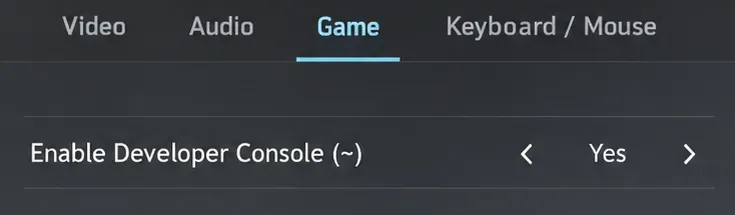
Open CS2 Settings and select the Game tab. In the Game section, set Enable Developer Console (~) to Yes. Open the console with the assigned key, commonly the tilde key on a US keyboard. Valve's developer-console support instructions document the setting. Keyboard layouts and existing key bindings can differ.
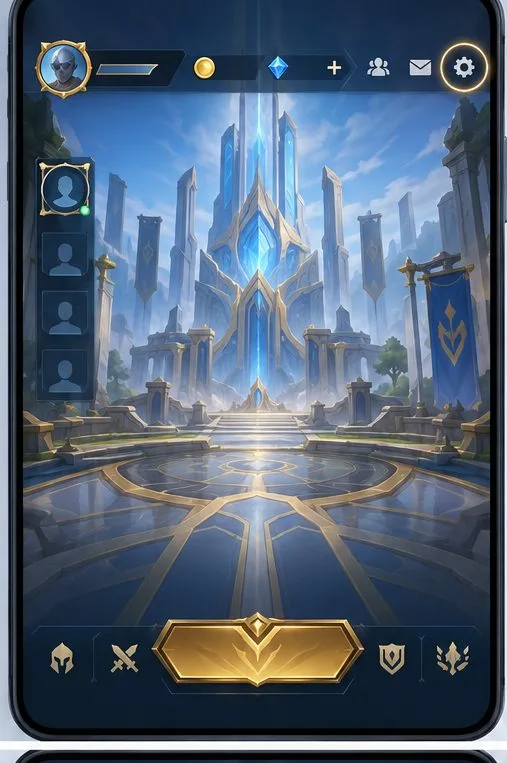
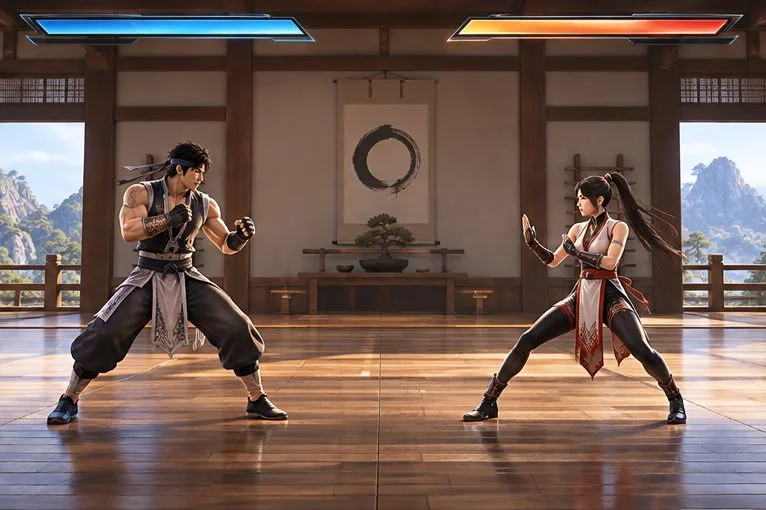
The interface illustrations in this article show settings, command examples, and blank comparison notes. They do not document a live gameplay test or demonstrate a measured visibility improvement.
Set Enable Developer Console (~) to Yes in the Game settings.
2. Record your existing values
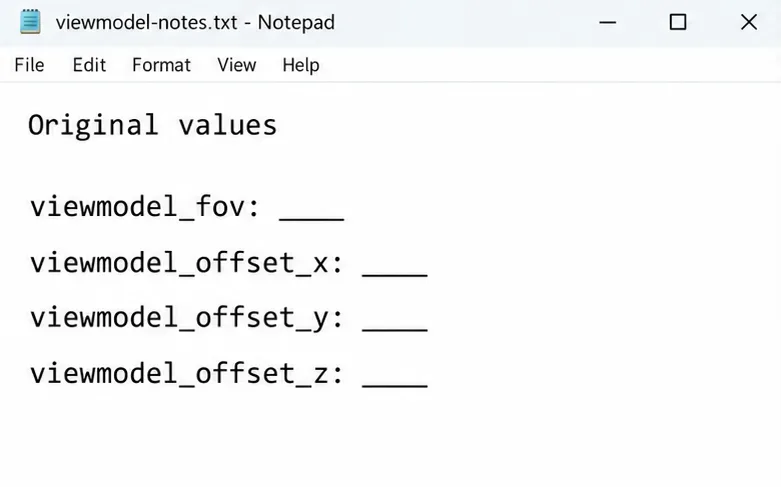
Enter each command name without a new number: viewmodel_fov, viewmodel_offset_x, viewmodel_offset_y, and viewmodel_offset_z. Record the values the client reports in a text note or take your own screenshot. This gives you a specific configuration to restore rather than relying on somebody else's definition of “default.”
If the console does not recognize a command, stop and check the spelling and your current client. Do not keep pasting unrelated configuration packs to force the setting. The relevant question is what your installed game accepts.
Save the values reported by your client before applying a new configuration.
3. Apply the baseline and read it back
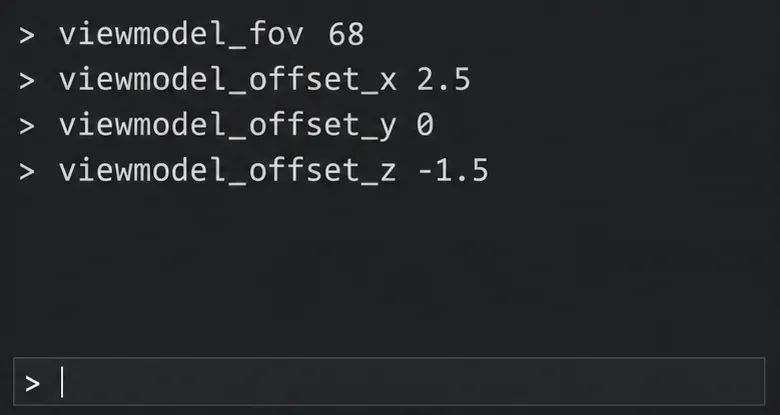
Enter the following lines individually in the console:
Query the four command names again to confirm the stored values. Then close the console and inspect the weapon in a practice session. For the aggressive comparison, change only viewmodel_offset_y 2 and viewmodel_offset_z -2, preferably one at a time so you can identify which adjustment helps.
Do not select another built-in weapon-position preset midway through the comparison: it can replace the position you were evaluating. There is no need to paste a preset-number command into this baseline. Valve deprecated the Couch position in its April 25, 2024 update, so old preset recipes should not be assumed to map cleanly to current options.
Apply the four baseline commands, then query each value to confirm it.
Should you use the left hand or right hand?
Choose the side that interferes less with the angles you watch and feels comfortable during movement. A right-side weapon can obstruct part of the lower-right screen; moving it to the left changes which side carries that obstruction. It does not eliminate the weapon altogether.
Valve's April 25, 2024 announcement and release notes introduced Preferred Viewmodel Left/Right Handedness and a Switch Viewmodel Left/Right Hand binding, defaulting to H on US keyboards. The announcement describes hand switching as redeploying the weapon.
Use the named preference and key-binding controls rather than assuming an old CS:GO hand command still applies. Test switching during practice before binding it to a key you press frequently. A deliberate switch for a particular angle is easier to evaluate than constantly changing hands during every engagement.
There is no universal rule that your dominant eye determines the best viewmodel side. Use a practical comparison: hold the same position, look at the same doorway, and check which hand keeps that doorway easier to monitor.
How can you tell whether visibility actually improved?
Compare from the same practice position with the same resolution, aspect ratio, weapon, and viewing direction. Choose an angle where the weapon previously covered a useful part of the scene, such as the lower edge of a doorway or a nearby ledge.
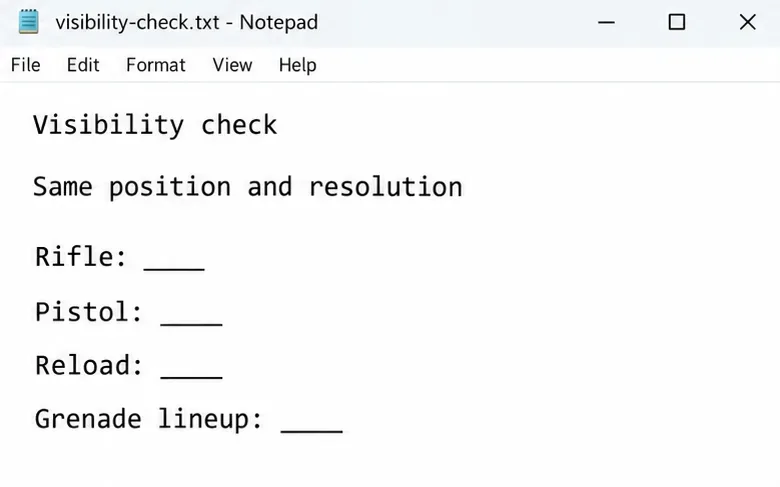
Check more than an idle rifle pose. Reload, move, crouch, switch to a pistol, and equip a grenade. A configuration that looks tidy while standing still may be distracting during animation. For a sniper rifle, evaluate the unscoped view separately; this recommendation is not a scoped-visibility tweak.
Can you monitor the intended doorway without moving your crosshair away from the angle?
Do weapon animations draw your attention away from nearby movement?
Does the pistol view remain comfortable as well as the rifle view?
Do familiar grenade references still line up the way you expect?
Does the configuration remain acceptable after a short practice session?
Take your own before-and-after screenshots if you want a reliable comparison. Judge the specific obstructed region rather than the total amount of empty screen. Clearing an irrelevant corner is less useful than clearing the place where a player is likely to appear.
Compare weapon behavior from the same position and resolution.
Will changing the viewmodel affect grenade lineups or aim?
It can affect visual references that depend on the weapon's position. For example, a lineup that uses a point on the visible gun as a guide may need rechecking after an offset change. A lineup based on the crosshair and fixed map geometry is a different case, but it is still worth confirming your important throws in practice.
Do not treat a different-looking weapon animation as evidence that recoil, bullet accuracy, or hit registration improved. This article makes no performance claim for either proposed configuration. The intended benefit is a less obstructed, more comfortable view.
If the weapon now feels unfamiliar, try a smaller positional change before abandoning the idea. You can keep FOV 68 and X 2.5 while restoring your previous Y or Z value. Comfort and consistency matter when the visual difference is marginal.
What should you do if the settings reset?
Close and reopen CS2, then query the four values again. If they changed, check whether you selected a built-in preset or have an existing configuration file that reapplies other values. Inspect your own setup before adding more startup commands.
Keep a small text copy of the accepted settings and your original values. Restore the original setup by entering those saved numbers, or choose a built-in position through the game's menu if you want a preset instead.
The practical recommendation is to start with 68 / 2.5 / 0 / -1.5, compare the more aggressive Y 2 and Z -2 option, and keep the version that improves your actual sightlines across movement and weapon changes. That gives you a defensible personal choice without pretending one four-number combination maximizes visibility for every player and every situation.