Home
» 🎮 Esports
»
How to Fix a Communication Error in Super Smash Bros. Ultimate
How to Fix a Communication Error in Super Smash Bros. Ultimate
If Super Smash Bros. Ultimate drops an online match with a communication error, first identify whether the interruption is on Nintendo’s service, your home network, or the connection between players. Nintendo’s own Smash troubleshooting points to slow or unstable internet, wireless interference, or networking equipment that is not responding. A successful browser connection on another device does not rule out a short interruption during a match.
Work through these checks in order and try one online match after each meaningful change. This makes it easier to see which step helped.
Quick checks before changing router settings
What you notice
Check first
Smash and other online services fail
Check for service maintenance, then test the console connection.
Only Smash disconnects
Restart the console and router, reduce wireless interference, and check for game updates.
You can play with some people but not one friend
Compare network conditions at both ends; Nintendo says either player’s NAT type can affect connecting.
The game says you are suspended
Follow the suspension notice and wait for its duration; connection fixes do not remove a suspension.
Online play in Smash Ultimate requires an active Nintendo Switch Online membership. Confirm that the account on the console has one and that the console is online. See Nintendo’s Smash Ultimate support page.
1. Check whether the issue is temporary
Check Nintendo Support for a service notice or maintenance before changing settings. If Nintendo reports an interruption, wait and try again later. If no notice appears, continue with the console checks. Also note the exact error wording and any code. “Communication error occurred” is often used informally for different interruptions. Nintendo’s dedicated Smash article covers “You Cannot Play Online Battles Right Now,” which it associates with a connection that cannot continuously send or receive data. If your screen shows a different message or code, search Nintendo Support for that exact text before applying a game-specific fix.
2. Restart the console, then test its connection
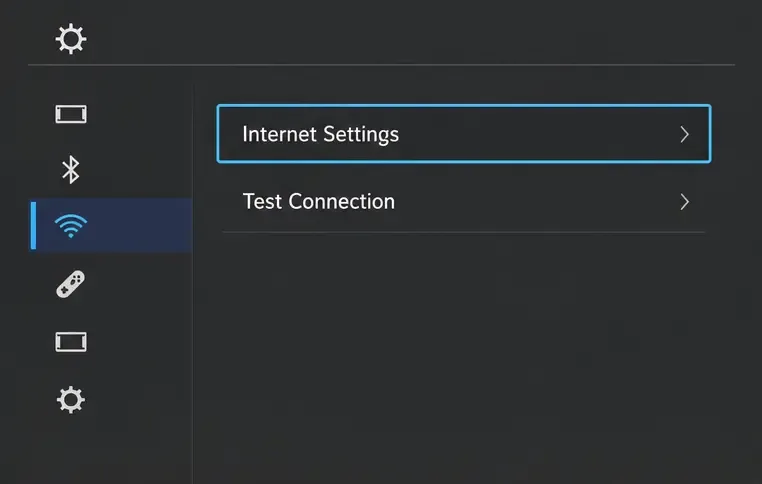
The Internet settings screen shows where to start a console connection test.
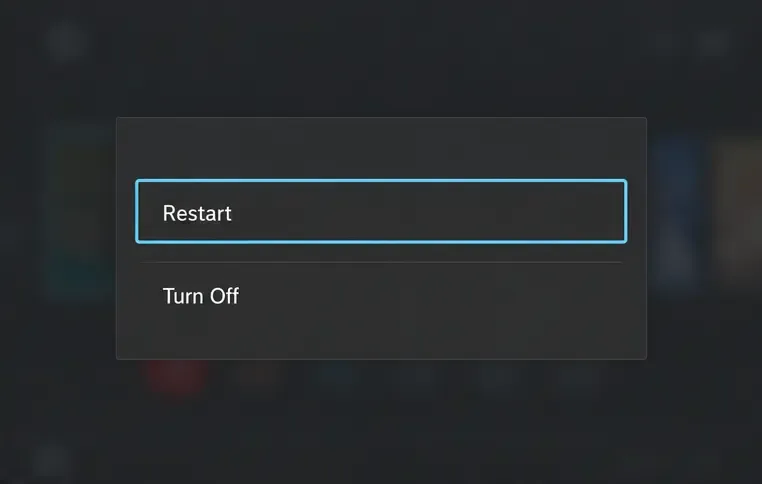
Hold the console’s POWER button for at least three seconds, choose Power Options, then select Restart. A restart clears a temporary console-side connection problem without deleting saved data.
Next, open System Settings from the HOME Menu, choose Internet, and select Test Connection. Check whether it succeeds and note the NAT type in the results. If it fails, use its error code as a clue and troubleshoot the network before reopening Smash. A successful test confirms the console reached Nintendo’s connection test, but does not guarantee every live match will remain uninterrupted.
Choose Restart from Power Options to refresh the console before testing Smash again.
3. Refresh and improve the home network
If other devices also have trouble, focus on the internet connection. Nintendo recommends checking that other devices can browse online and restarting the modem and router. Unplug both for at least 30 seconds. If they are separate, reconnect the modem first, wait until its lights settle, then reconnect the router. Do not factory-reset the router as an early step because that can erase its network configuration.
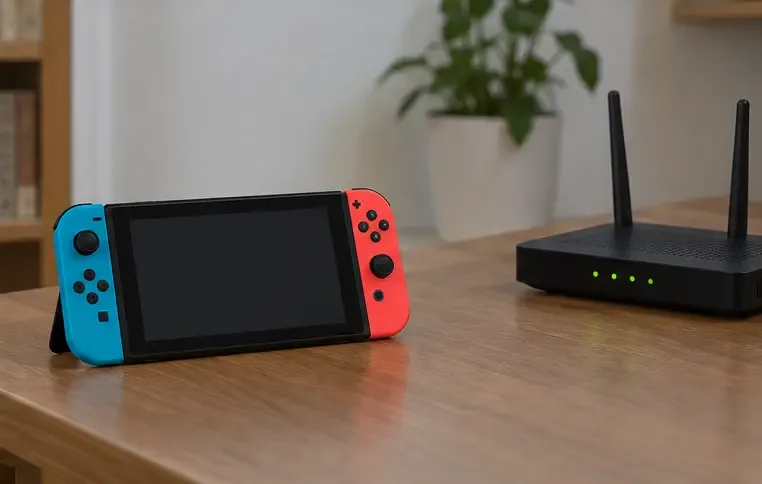
If other devices work but the Switch test or Smash match is unstable, bring the console closer to the router while testing. Nintendo’s Smash troubleshooting suggests roughly 10 to 15 feet; taking the console out of its dock can help isolate wireless interference. Keep it away from large metal objects and nearby electronics. If the router has separate 2.4 GHz and 5 GHz network names, try the other band and run the test again. Which works better depends on distance, walls, and interference.
Testing near the router helps reveal whether distance or wireless interference contributes to disconnects.
As a comparison, try another network you control, such as a phone hotspot, if your mobile plan allows. Treat this as a short diagnostic test: mobile connections may have different latency, data costs, or restrictions. If Smash works on the alternate network but repeatedly fails at home, investigate the router or internet provider.
4. Update Smash and the console
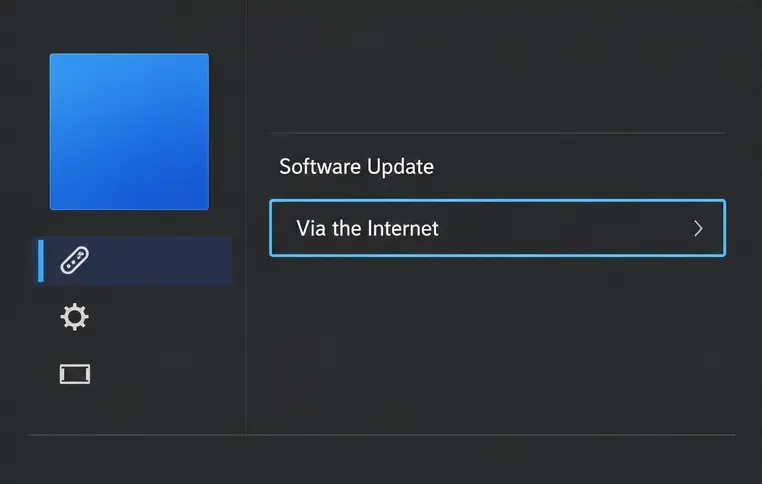
Out-of-date software can prevent online features from working with the current service. On the HOME Menu, highlight the Smash Ultimate icon without opening it, press + or −, choose Software Update, then Via the Internet.
The software update menu provides Via the Internet for checking the game version.
As checked October 8, 2026, Nintendo’s official update page lists version 13.0.5, released September 2, 2026, and says the latest update is required to use the game’s online mode. Check again when troubleshooting because a later update could have appeared. You can also check the console under System Settings → System → System Update. Updating rules out a version mismatch, but does not fix a weak or restricted network.
5. If the connection test points to NAT
NAT is a router’s method of managing connections between devices on a home network and the wider internet. Nintendo warns that a stricter NAT type may prevent some online activities, and that both players’ NAT types can affect whether they connect. This is especially relevant if the error appears only with a particular friend or arena.
Write down the NAT result from the console test. If it indicates a restriction or you cannot connect to multiple players, ask your internet provider or network administrator whether your connection uses carrier-grade NAT, multiple routers, or settings that restrict peer-to-peer game traffic. Nintendo’s NAT advice varies by network layout, so there is no single router change for everyone. Avoid enabling DMZ or copying port-forwarding instructions from an unknown source; these settings affect network security and should only be changed with advice for your specific router and connection.
How to tell whether the fix worked
The console’s internet test completes successfully.
Smash can enter an online mode and finish a match without disconnecting.
If only one opponent or arena still fails, record that detail and compare the other player’s connection.
If the issue returns, note the time, exact message, error code, NAT type, and whether other devices lost internet access.
If the Switch test fails across multiple networks, or the error persists after the service check, restart, and updates, contact Nintendo Support with the exact details. If the test works but failures recur only on one home network, ask the router manufacturer or internet provider to review its configuration.