Home
» 🎮 Esports
»
How to Fix StarCraft: Remastered Multiplayer Latency and Turn-Rate Stutter
How to Fix StarCraft: Remastered Multiplayer Latency and Turn-Rate Stutter
To fix high multiplayer latency in StarCraft: Remastered, first stabilize your connection, then test a turn rate and latency setting that the match can sustain. Forcing the highest turn rate can make pauses worse. Increasing the latency setting may smooth a match but make commands feel less immediate.
This guide separates confirmed networking behavior from troubleshooting suggestions. Sources were checked on October 8, 2026. Blizzard's detailed turn-rate explanation dates to August 2019; it is historical technical documentation, not confirmation of every menu or matchmaking detail in the current client. The interface examples below illustrate Windows checks and blank troubleshooting notes, not measured results.
What “high latency turn duration” actually means
Blizzard describes StarCraft as using turn-locked networking: progress depends on all players completing the current network turn. Turn rate, or TR, measures turns per second, up to 24. The Low, High, and Extra High latency settings control buffering rather than displaying your measured ping. More buffering trades responsiveness for smoothness; an unsustainable TR causes waiting and stuttering. Dynamic Turn Rate adjusts TR to connection conditions.
Misunderstanding: a longer turn means your graphics settings are wrong
“Turn duration” can describe the interval between network turns; it is not the same measurement as rendering time. A smooth cursor does not prove that commands are reaching the simulation promptly. Conversely, choppy scrolling offline gives you a reason to investigate local performance first.
Action: use the offline comparison below. Do not label every pause as a network failure or buy new hardware solely because multiplayer feels delayed.
Step 1: Establish an offline and online baseline
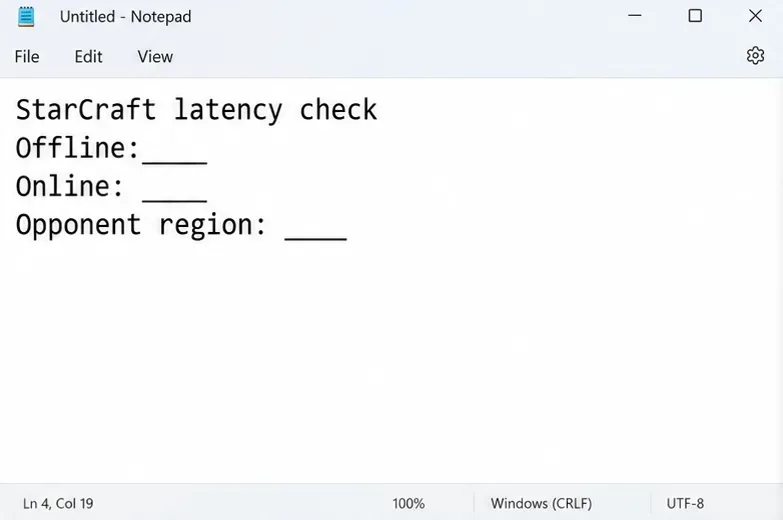
Open an offline match and issue simple movement commands, scroll the map, and watch a small battle. Then try a short custom multiplayer match with a willing player. Use similar conditions where practical. Note whether the problem appears immediately or only later.
Keep three observations separate: camera smoothness, delay after issuing commands, and moments when the simulation stops advancing. This is a diagnostic comparison, not a controlled benchmark; different maps and unit counts can affect the result.
If offline play is also choppy, prioritize background load, operating-system updates, and appropriate graphics drivers. If offline play feels normal but online commands lag, continue with the connection checks.
Record offline and online behavior separately before changing settings.
Step 2: Test a wired connection
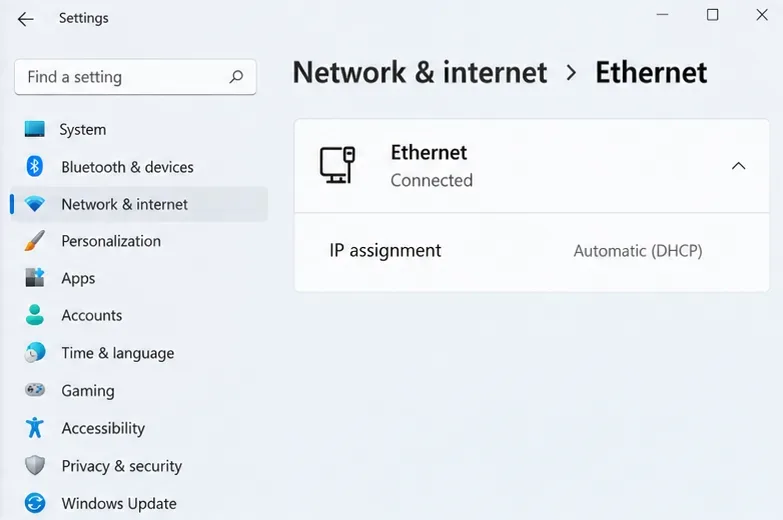
Connect the computer to your router with Ethernet if possible. On Windows 11, open Settings, select Network & internet, then Ethernet to confirm the connection. Microsoft's network settings documentation covers this path. You do not need to change IP assignment or DNS to perform this comparison.
What depends on circumstances: Ethernet can help when the wireless link is the problem, but it cannot guarantee a better route to a distant opponent. If you must use Wi-Fi, compare play closer to the router under otherwise similar conditions.
Blizzard's StarCraft: Remastered connection troubleshooting article recommends checking service notices, restarting network equipment, addressing wireless issues, and closing conflicting applications. Restart the router between matches if needed; expect other connected devices to lose connectivity temporarily.
Confirm the wired connection under Network & internet, then Ethernet.
Step 3: Remove competing traffic and background load
Pause game downloads, cloud uploads, and large file transfers. Ask whether another device on the same connection is uploading or downloading heavily. Repeat the multiplayer test after the connection has been quiet for a short period.
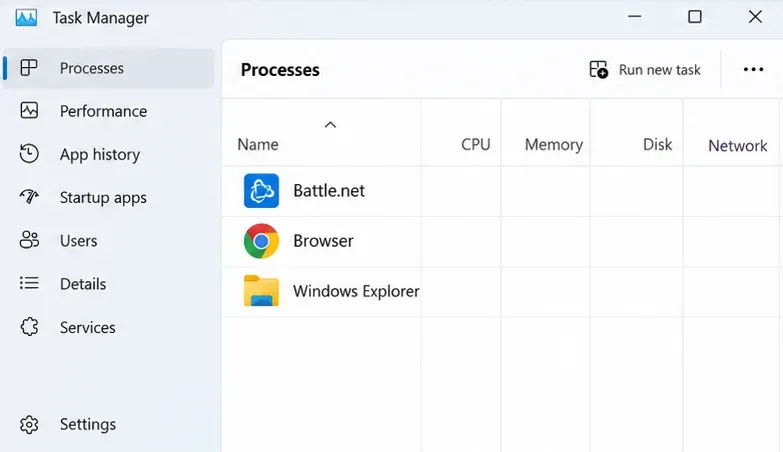
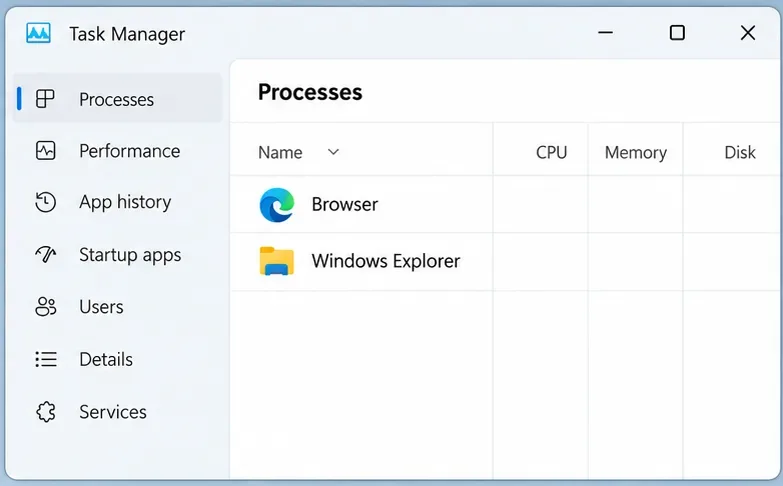
Press Ctrl + Shift + Esc to open Task Manager. Review running applications and their resource use. Microsoft documents Task Manager as a tool for examining processes and performance. Close recognizable nonessential applications normally; do not terminate unfamiliar system processes indiscriminately.
Misunderstanding: a fast download proves the connection is suitable
Bandwidth describes capacity, while latency describes delay. Jitter is variation in delay. These are distinct properties, as explained in IBM's networking reference. A large download number does not measure the route used for a particular match.
Action: compare actual matches with background transfers paused. Treat a speed test as supporting information rather than a verdict on StarCraft connectivity.
Review running applications before pausing unnecessary background activity.
Step 4: Identify your local gateway
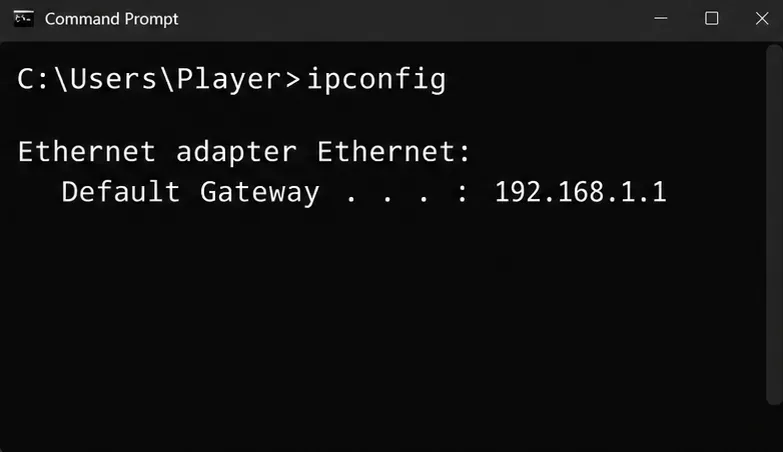
On Windows, open Command Prompt and enter ipconfig. Find the active Ethernet or Wi-Fi adapter and record its Default Gateway. This is typically your local router. Ignore disconnected adapters and avoid copying the gateway from an unrelated VPN adapter.
Microsoft's ipconfig reference confirms that the command displays adapter addressing and gateway information. The example address in the illustration is only an example; use the address shown on your own computer.
Find the Default Gateway for your active adapter; this address is an example.
Step 5: Check whether delay starts inside your home network
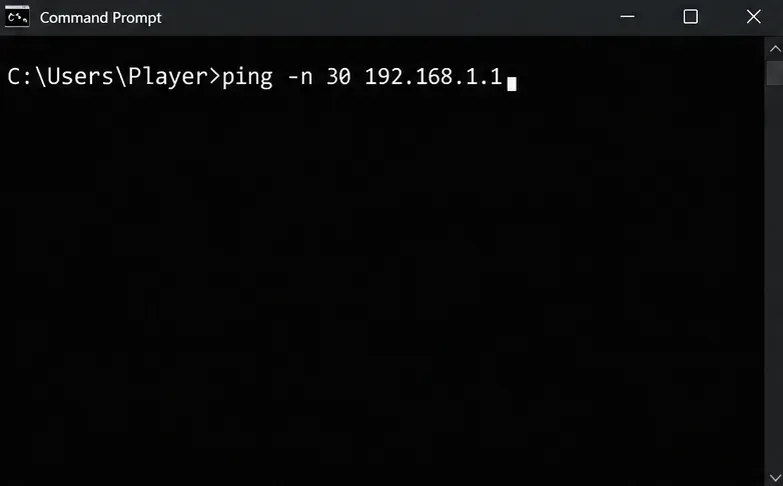
Run ping -n 30 YOUR_GATEWAY_ADDRESS, replacing the final text with the gateway you found. For example, if your gateway is 192.168.1.1, enter ping -n 30 192.168.1.1. This requests 30 replies; see Microsoft's ping command documentation.
Look for timeouts and unusually inconsistent reply times. If these appear repeatedly over Wi-Fi, compare the same check over Ethernet. Microsoft's Wi-Fi troubleshooting instructions also use a gateway ping to check local connectivity.
What remains unknown: a clean gateway test says little about the route beyond your router. A failed reply alone does not establish game-packet loss, since equipment may filter diagnostic traffic. Neither result directly measures latency to your opponent. Use it to narrow the investigation, not to declare the game fixed.
Replace the example address with your own gateway to check the local link.
Step 6: Compare sustainable turn-rate and latency settings
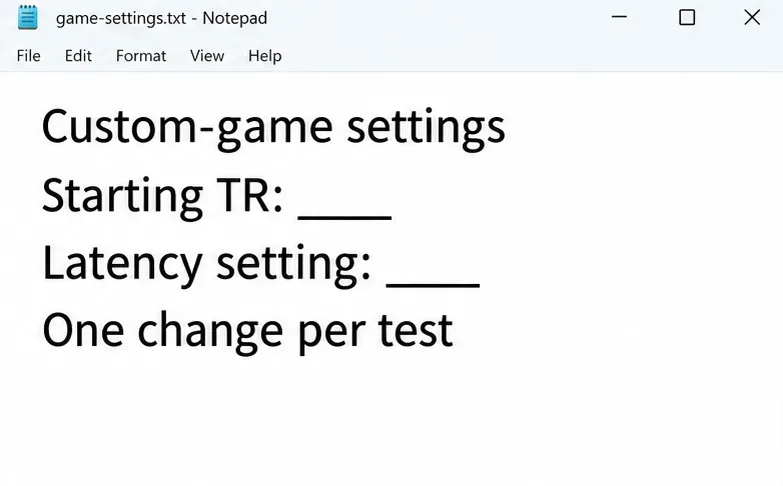
In a custom game, use the host's turn-rate control if your client exposes it. Record the starting setting, then try a lower available fixed TR if the simulation repeatedly stalls. Where the match exposes latency controls, compare Low with High. Change one variable at a time, with the other player's agreement.
Misunderstanding: TR24 is always the best fix. Blizzard's historical example says a 200 ms opponent connection could support TR14 on Low, TR20 on High, or TR24 on Extra High. These are explanatory thresholds, not guarantees for fluctuating connections. Action: choose the combination that actually plays consistently.
This guide does not verify the exact current menu path, an in-game diagnostic shortcut, or a supported method for overriding ranked-match DTR. If ranked play does not offer manual controls, use custom games for comparisons rather than assuming a lobby preference overrides matchmaking.
Blizzard's patch 1.22.0 notes documented a DTR stabilization fix. That historical change does not prove a specific current-client bug is responsible for your match.
Record the available custom-game settings and change one variable per comparison.
Step 7: Repeat the comparison with another opponent
Try another willing opponent, preferably one geographically closer, and keep your local setup unchanged. Record the region as an approximation rather than assuming it gives you an exact network distance.
If the issue happens with one player but not another, investigate that pairing before resetting your computer. If multiple opponents produce similar trouble, repeat your local checks at another time of day. These patterns suggest useful next tests; they do not identify a faulty participant conclusively.
Also compare a VPN-free connection if you normally use a VPN and can disconnect it for the test. Keep the result only if repeated matches improve. Do not assume that changing your apparent country repairs the underlying route.
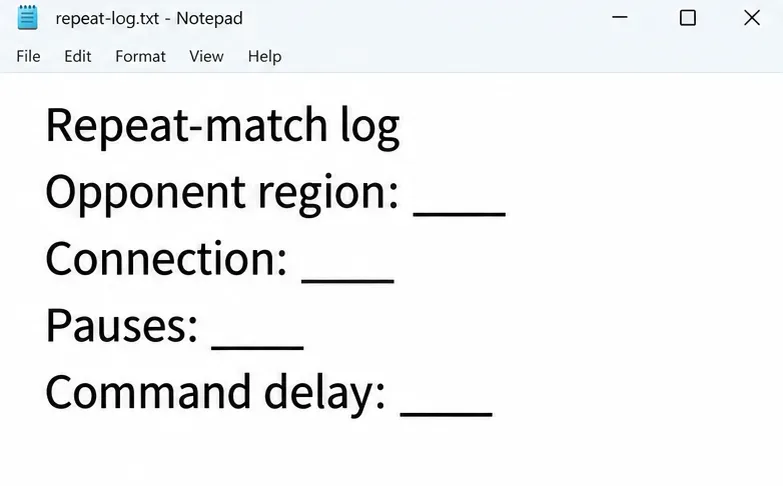
Use the same observations when comparing matches with another opponent.
Step 8: Verify improvement or prepare a support report
A useful improvement is fewer simulation freezes with acceptable command response across repeated matches. A larger TR number alone is not a successful outcome. Save the settings that work for your usual opponents and recheck them when conditions change.
Observation
Next action
Offline and online are both choppy
Investigate local load, drivers, and performance.
Ethernet repeatedly improves play
Focus on the wireless link.
Only one opponent pairing is poor
Compare another pairing and connection conditions.
Lower TR reduces pauses
Keep the stable setting for that custom-game pairing.
Problems persist across opponents and times
Collect evidence for Blizzard and, where relevant, your ISP.
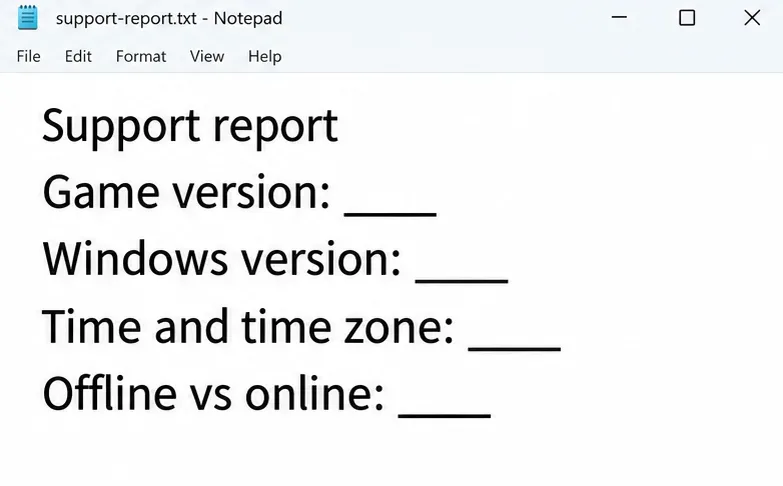
For support, record the installed game version, operating system, connection type, time and time zone, affected match type, settings actually available, and offline-versus-online behavior. Include your own screenshots and diagnostic results with personal network details removed where appropriate.
Follow Blizzard's linked connection article for additional supported checks, including IP/DNS troubleshooting and security-software exceptions when relevant. Keep protection enabled. Avoid unverified latency patches, registry recipes, or router changes presented as universal fixes. When reporting the issue, state what you observed and what each comparison changed rather than asserting an unconfirmed cause.
Prepare a concise support report using your own observations and version details.