Home
» 🎮 Esports
»
How to Fix Apex Legends Engine Error Crashes to Desktop on PC
How to Fix Apex Legends Engine Error Crashes to Desktop on PC
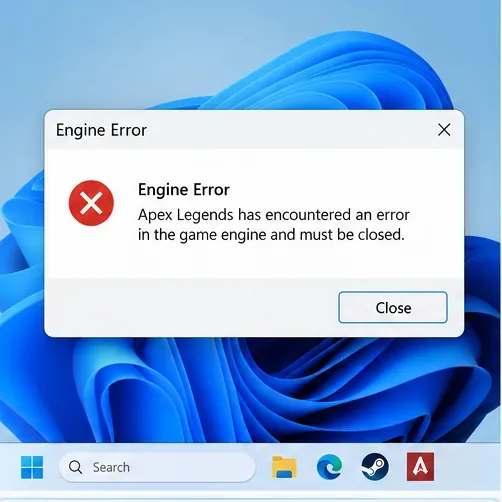
An Apex Legends match can end abruptly with an “Engine Error” dialog or a sudden return to the Windows desktop. Sometimes the message names a graphics-related error; other times it only says that the game stopped working. The fastest way to troubleshoot is to preserve the exact message, start with reversible fixes, and check the result after each change rather than changing everything at once.
What does an Apex Legends engine error mean?
An engine error means the game encountered a problem serious enough that it could not continue. It does not identify one universal cause. Damaged game files, graphics drivers, background software, instability under load, or a game-specific bug can produce similar symptoms. A crash to desktop (CTD) is simply when the running game closes and Windows becomes visible again.
Some dialogs include a DirectX or DXGI error. DirectX is a Windows graphics interface; DXGI is a related component involved in communication between software and graphics hardware. For example, DXGI_ERROR_DEVICE_HUNG points toward a graphics-device or command-processing failure, but the text alone cannot prove whether the driver, game, hardware configuration, or another component triggered it. Avoid copying obscure registry changes based only on the error name.
Record the complete error text before closing the dialog; the exact wording helps distinguish one crash from another.
Before you start: record the crash and protect your settings
Take a screenshot or write down the entire error message, including codes and file names.
Note whether the crash happens during launch, at the lobby, when entering a match, or after extended play.
Restart Windows once, then launch the game without other demanding apps.
Check whether Apex Legends, Steam or the EA app, and Windows have pending updates. Install normal updates and restart if requested.
Save any customized graphics settings or keybinds you might need to restore. Do not delete configuration folders as a first move.
These steps are written for Windows PC installations through Steam or the EA app. Menu labels can move when a launcher updates. They do not describe a verified fix for every individual engine error, and they are not instructions for console crashes.
Step 1: Repair the game installation before reinstalling
File verification checks whether locally installed game content matches the launcher’s expected files. If an update was interrupted or a file became corrupt, repairing it is less disruptive than removing the game.
For Steam
Open Steam and select Library.
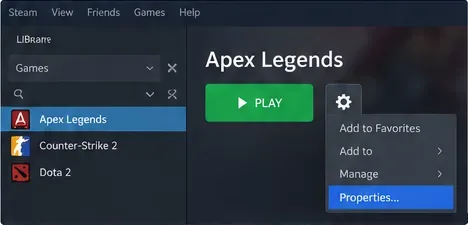
Right-click Apex Legends, then choose Properties.
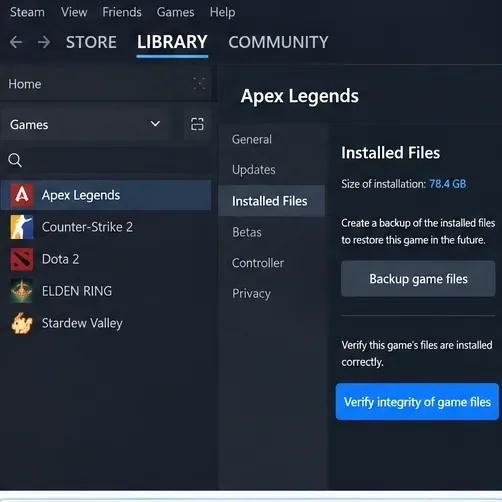
Open Installed Files.
Select Verify integrity of game files and let Steam finish.
Relaunch Apex Legends and test the same situation that previously crashed.
The Installed Files section in Steam contains the file verification command.
Steam documents this sequence and notes that a small number of local configuration files can behave differently during verification. See the Steam file-integrity instructions. Do not run multiple file verification jobs simultaneously.
For the EA app
Open the EA app and select Library.
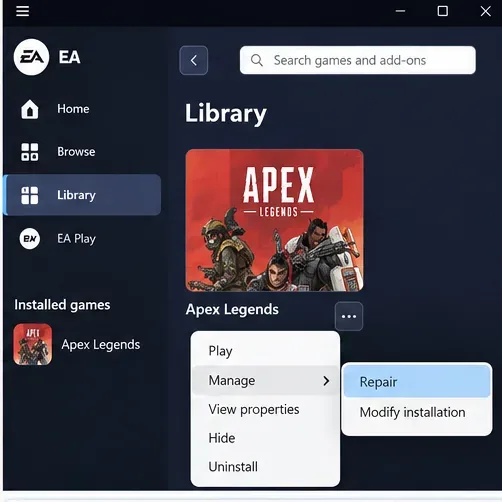
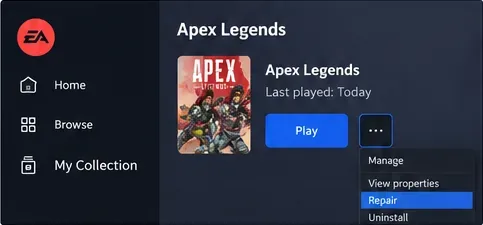
Find Apex Legends and open its Manage menu (or three-dot game menu, depending on the view).
Select Repair.
Allow the repair to finish before starting the game.
EA app users can select Repair from the Apex Legends game management menu.
EA explicitly recommends repairing files for certain Apex Legends crash reports, including apex_crash.txt; see EA Apex Legends error-code guidance. If Steam or the EA app reports a download or installation problem, resolve that first rather than repeatedly starting the game.
Step 2: Update Windows and your graphics driver
The graphics processing unit (GPU) renders the game. Its driver is the software connecting Windows, the game, and the graphics card. A damaged or outdated driver is one plausible cause of crashes, though installing a newer version is not guaranteed to solve every error.
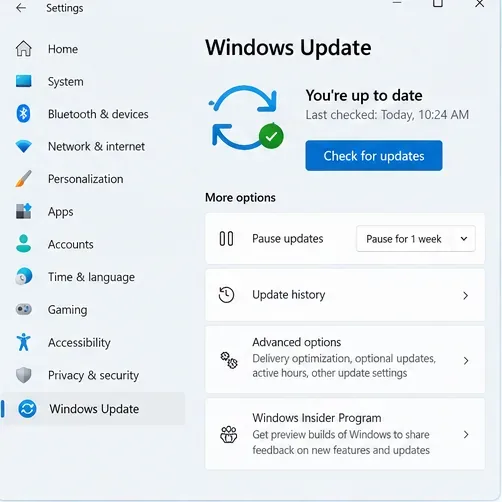
Open Settings > Windows Update and check for supported updates.
Identify whether your graphics hardware is NVIDIA, AMD, or Intel in Device Manager > Display adapters.
Get a driver from the manufacturer’s official website or its supported update application. Laptop owners should also check their laptop maker’s guidance.
Install the recommended driver, restart Windows, and retest the game.
Use Windows Update to install pending operating-system fixes before advanced troubleshooting.
Avoid downloading “driver fixer” executables from advertisements or unrelated websites. If the game started crashing immediately after a driver update, document the driver version and investigate a supported rollback rather than installing random older packages.
Step 3: Close overlays and nonessential background apps
An overlay draws additional information on top of a game, such as messages, recording controls, or performance readouts. Some overlays and monitoring utilities can conflict with a game. Close unnecessary screen recorders, hardware monitors, and other game overlays for one controlled test.
Save work in your other applications.
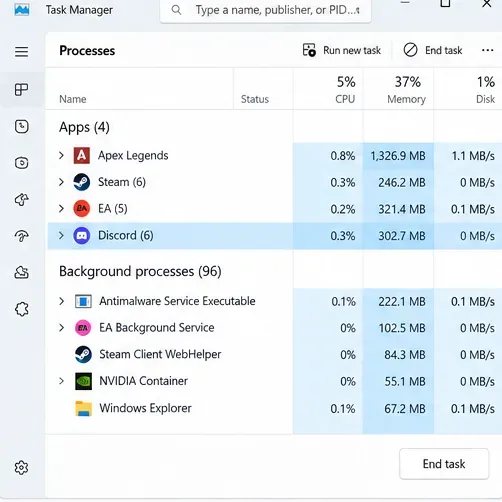
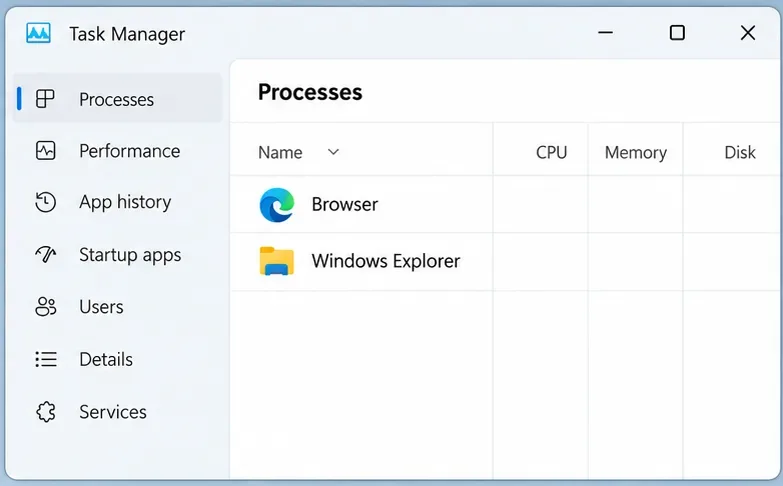
Press Ctrl + Shift + Esc to open Task Manager.
Close only apps you recognize and do not need. Do not end unknown Windows services.
If you use the EA app overlay, open its Settings > Application menu and temporarily disable In-game overlay where available.
Launch Apex Legends. If crashes stop, reenable apps one at a time to identify a conflict.
Task Manager helps identify other running applications; close only nonessential apps you recognize.
EA identifies its in-game overlay as a possible game-crash contributor and recommends restoring it after testing; follow EA app troubleshooting instructions. A clean boot is a more advanced method of starting Windows with nonessential startup software disabled. Use a trusted Microsoft procedure if simple app closure does not isolate the conflict.
Step 4: Reduce graphics workload and test a frame-rate cap
Frames per second (FPS) is the number of images the game renders each second. A frame-rate cap limits that rate; V-Sync attempts to coordinate output with the display’s refresh rate. Neither is an engine-error cure, but EA includes frame-rate limiting and V-Sync among general crash troubleshooting options.
If Apex Legends reaches its settings menu, note your current graphics settings.
Choose a conservative, stable FPS limit suited to your monitor and computer rather than an unlimited target.
Temporarily lower a few demanding graphics options, then test.
Try V-Sync only as a separate comparison, because it can change input feel and latency.
If the game crashes before you can access its video menu, skip this step. Do not paste unknown launch commands or modify undocumented configuration files simply to force settings.
Step 5: Check whether the crash is tied to system load
Repeated crashes after several minutes of play can sometimes coincide with heat, power limits, unstable hardware tuning, or resource shortages. This is a diagnostic clue, not proof of a defective graphics card.
Return any personal CPU, GPU, or memory overclock to manufacturer-supported defaults for a test. An overclock increases operating speed beyond the intended setting.
Check that laptop vents or desktop fans are not blocked and that airflow is adequate.
Watch ordinary Task Manager performance readings and whether the crash happens under high load.
Compare with another demanding application. If several programs crash, broaden the investigation to Windows, hardware, or drivers.
Do not change BIOS voltages or dismantle hardware as a routine first response to an Apex Legends error. If you are unfamiliar with firmware settings, seek qualified support.
Step 6: Use Windows crash history to capture evidence
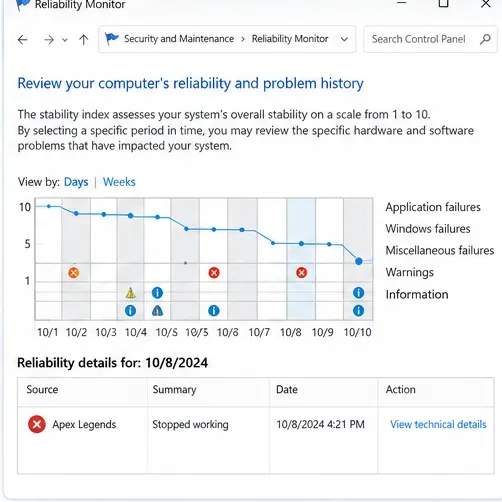
Windows Reliability Monitor records application failures and can help distinguish a game crash from a broader system issue. It may show the executable, time, or technical details; it will not always reveal the root cause.
Open Start and search for View reliability history.
Choose the day and time of the Apex Legends crash.
Look for an application failure entry associated with Apex Legends.
Open technical details and save the information for a support request. Do not publish account identifiers or other personal information.
Match an Apex Legends failure entry to the time of your crash and inspect its technical details.
Step 7: Resolve EA app cache or launch problems if they are present
The launcher cache contains temporary data. Clearing it can help when the EA app is stuck offline, cannot update, or has stalled downloads. It is not a universal treatment for an engine error after the game is running. Use this branch only if the launcher itself shows symptoms.
Open the EA app menu.
Go to Help > App recovery > Clear cache.
Restart the launcher and check whether the pending game download or repair can complete.
If the launcher itself fails to load game content, finish EA app recovery and repair before relaunching Apex Legends.
Step 8: Use Windows repair tools only if other apps also malfunction
Windows component corruption can sometimes affect applications broadly. If Apex Legends is your only failing program and every other application works, these tools are a lower-priority investigation than game repair and driver checks.
Open Command Prompt with Run as administrator.
Run DISM.exe /Online /Cleanup-image /Restorehealth and allow it to finish.
Then run sfc /scannow and wait until the scan completes.
Restart if instructed and compare whether system problems persist.
Return to the launcher’s official management and verification tools before considering a full reinstall.
Microsoft documents the order of these Windows component checks in its Microsoft system file repair instructions. They require administrator access and do not repair the Apex Legends installation directly.
When should you reinstall Apex Legends?
Reinstall only after repair has failed, the install keeps failing integrity checks, or EA support requests a clean installation. A reinstall downloads a large amount of data and may not resolve a system-level graphics problem. Check that your account progress is properly linked and preserve any local settings you care about. Reinstall the launcher itself only when the launcher is malfunctioning.
How to tell whether a fix worked
After each meaningful change, reproduce the same scenario that crashed before. For instance, if the error occurred when loading into a match, repeat that transition rather than stopping your test at the lobby. Note the game version, Windows version, driver version, launcher, error text, and approximate time. A single successful launch is encouraging, but it does not establish that an intermittent crash is permanently gone.
What you observe
Most useful next action
Crash after incomplete update
Repair or verify game files.
Crash starts after driver change
Record driver version and check supported driver guidance.
Crash disappears with overlays closed
Reenable apps one by one to identify the conflict.
EA app cannot download or update
Use EA app recovery and clear cache.
Multiple unrelated games crash
Investigate Windows, drivers, temperatures, and hardware stability.
Crash persists only in Apex Legends
Submit the error text and reproducible steps to EA support.
Common mistakes to avoid
Deleting random DLL or shader files: it can make the installation less stable or harder to diagnose.
Editing the registry from an unverified forum post: a generic “DirectX fix” may alter unrelated Windows behavior.
Disabling security tools permanently: investigate confirmed conflicts using official product support instead.
Changing many variables together: you lose track of which action helped.
Assuming any named error has one cause: the same message can appear under different system conditions.
When to contact EA support
If file repair, normal updates, overlays testing, and conservative graphics settings do not help, gather the exact Engine Error text, crash time, reproduction steps, launcher, and relevant Windows error details. Include what you already tried and whether the issue began after a particular update. Start with the official EA Apex Legends error-code page and general crash guide rather than a third-party download promising an instant repair.