Home
» 🎮 Esports
»
How to Customize Your Hero Grid Layout in Dota 2
How to Customize Your Hero Grid Layout in Dota 2
A useful Dota 2 hero grid should help you find the hero you want without slowing down draft. For most players, that means one clear grid preset, categories that match how they think about heroes, and buckets large enough for portraits to remain easy to scan. Valve’s August 8, 2019 Summer Scrub update introduced multiple customizable hero-grid presets, drag-and-drop hero placement, and the ability to rename or resize categories. I found no newer official announcement changing those basic controls, though exact labels and placement in the current client may differ.
Use this fictional example as a guide, not a report of a real player or a proven speed improvement: Jordan plays a small group of familiar mid and support heroes, but often loses time scanning a long roster. Jordan wants a custom grid that makes those picks obvious while keeping the normal grid available as a fallback. The goal is a layout that is faster to read and easier to maintain, not a promise of faster draft decisions.
Customize the grid in four passes
1. Open the hero grid controls
Go to Dota 2’s hero-selection view and display the hero grid. Look for the grid preset selector and its editing or customization controls. The exact button wording can vary across client versions and translations; focus on the controls attached to the hero grid, rather than changing unrelated game or Steam settings. Before editing, note which preset is active so you can return to it if the first layout becomes confusing.
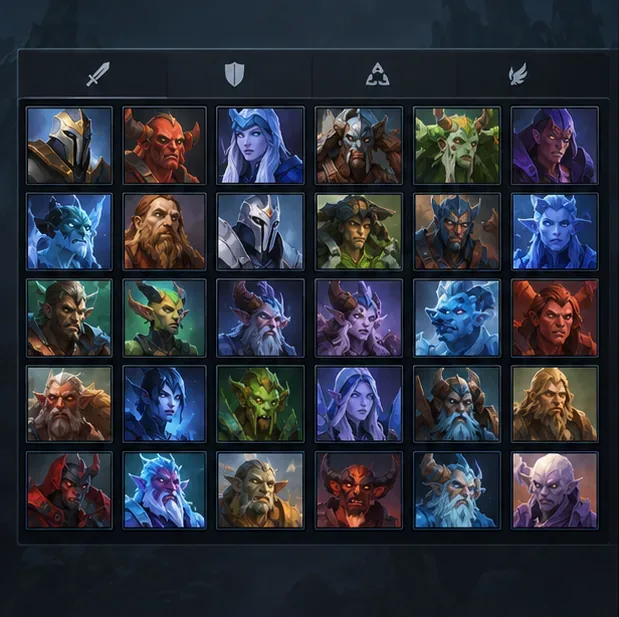
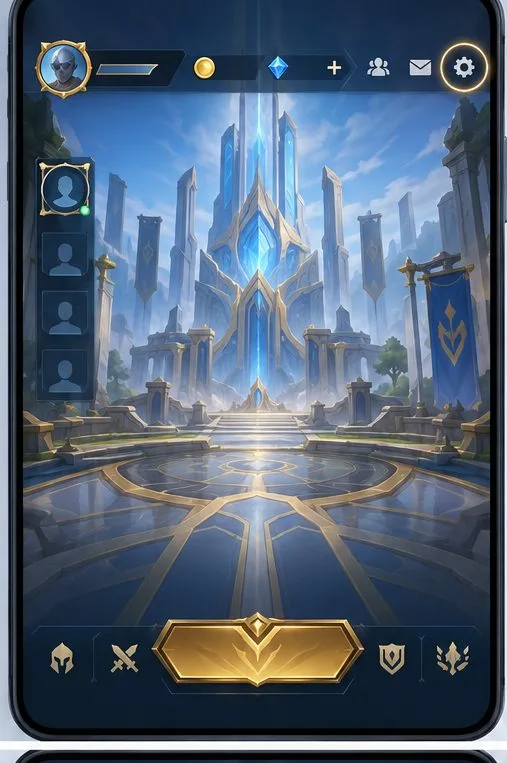
A sample roster grid is the starting point: begin from the hero selection view before changing presets or categories. This is an illustrative interface, not a live Dota 2 screenshot.
2. Make a separate preset for the new layout
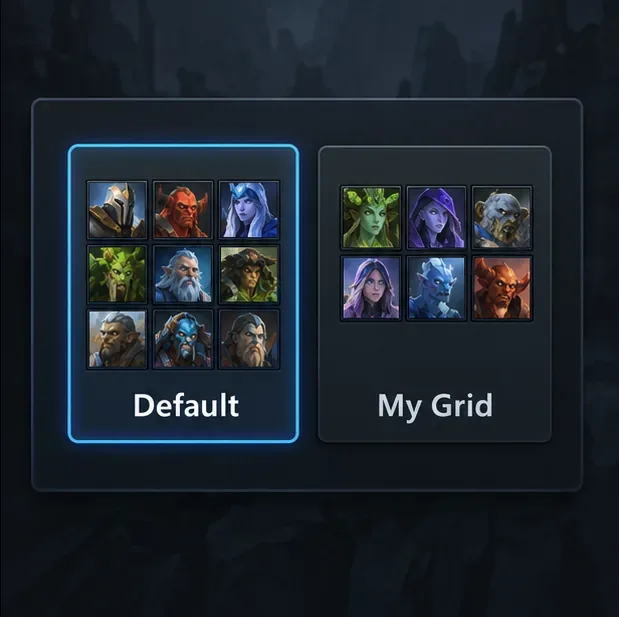
Keep the standard grid and create or select another preset for your custom arrangement. Valve’s update describes multiple grid presets with unique layouts and categories, so you can maintain more than one way to organize the roster. Give the custom preset a short name that explains its purpose, such as “Comfort Picks” or “Support Practice.” Avoid a name that only makes sense today if you plan to keep the preset for future patches.
Jordan can keep the usual grid untouched and build a second preset focused on familiar mid and support choices. That makes it easy to compare the custom layout with the original. If a proposed layout turns out to be harder to scan, switching back is more useful than trying to remember every previous arrangement.
Separate presets let you keep the standard arrangement while testing a custom grid. Preset names and the chooser design are illustrative.
3. Drag heroes into useful categories
Think about what you want to notice at a glance, then create categories that support that task. A simple setup might separate “Core” and “Support,” or use a lane or comfort-pick grouping that makes sense for your own hero pool. Use a small number of clear categories first. Adding many narrow buckets can recreate the same scanning problem as one crowded grid.
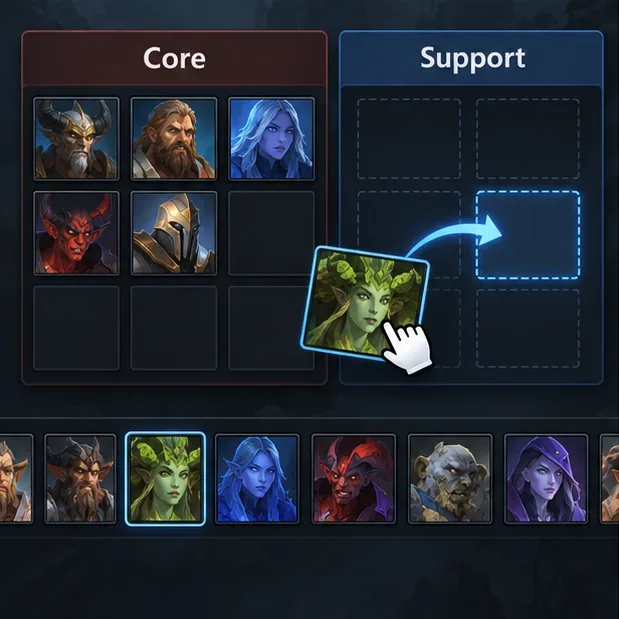
Use the grid editor’s drag-and-drop behavior to place portraits in the categories where you expect to look for them. For Jordan’s example, that means moving familiar mid picks into the preferred mid category and support picks into the support category. Put likely choices near the easiest-to-scan part of each bucket. Do not try to sort every hero in one sitting; start with the heroes you actually use.
Drag a portrait into the category where you expect to search for it. Start with familiar heroes and keep the groups easy to scan.
4. Rename or resize buckets, then test the layout
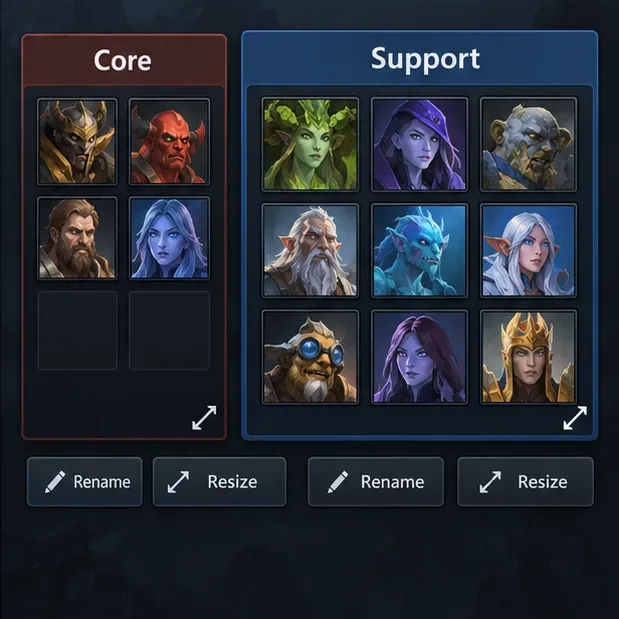
Valve’s announcement says categories, or “buckets,” can be renamed and resized. Use short labels and enlarge a bucket if it needs more portrait slots; shrink a section that contains only a few heroes. Categories are just a personal organization tool. They do not change a hero’s official role, draft rules, stats, or abilities. A hero can fit more than one role in real matches, so choose the category that helps you find that hero rather than treating the grid as a definitive role guide.
Leave the editor and check that the intended preset and categories appear in the normal selection view. Then test the grid during a low-pressure draft or another safe opportunity to browse. The aim is to find a hero quickly without reading every portrait label. If the client offers a visible save or confirmation control, follow it; if it does not, reopen or revisit the preset to confirm that your changes persisted before relying on it in a ranked match.
Rename or resize category buckets to fit your hero pool, then check the preset in the normal selection view. These labels and controls are illustrative, not exact client artwork.
How to judge whether the layout is working
Jordan should judge the custom hero grid by observable results, not by how tidy it looks in edit mode. During a few drafts, ask whether the intended hero is easy to locate, whether category names are readable at the current screen size, and whether the hero portraits fit without excessive scrolling or crowding. The layout is helping if Jordan can find likely picks without repeatedly switching categories or searching through the full roster.
Keep the grid if the categories match your decision process and familiar picks are easy to find.
Resize a bucket if portraits are cramped, empty space is excessive, or a category often needs more room.
Rename a category if you hesitate over what belongs in it or its purpose has changed.
Reduce the number of categories if switching between many small groups is slower than scanning one broader group.
Return to the default preset if the custom layout hides unfamiliar heroes you may want to consider or makes the standard draft feel less predictable.
Limits and maintenance
A custom hero grid only changes how heroes are arranged for selection. It does not recommend picks, evaluate the current draft, update hero strength, or guarantee a better win rate. A category such as “Strong Picks” can become misleading when patches change balance or when your own preferences change. Treat labels as personal shortcuts and review them when you notice that heroes no longer belong where you expect.
The official Valve update that documents this feature dates to August 8, 2019. It confirms the design capabilities—multiple presets, drag-and-drop heroes, and renameable or resizable buckets—but it is not a current screenshot-by-screenshot guide. If a button label in your client differs, use the grid editor’s visible controls and verify the finished preset from the regular hero-selection view. Valve’s Dota 2 Summer Scrub Part II announcement is the primary reference for the customization features described here.