Home
» 🎮 Esports
»
How to Disable Auto Buy Equipment in Mobile Legends Options
How to Disable Auto Buy Equipment in Mobile Legends Options
You tap away from the lane for a moment, return to the fight, and notice that your gold bought an item component you did not want yet. In Mobile Legends: Bang Bang (MLBB), that can happen when automatic equipment purchasing is enabled: the game follows the current battle build when you reach its purchase conditions. Turning off Auto Buy gives you control over when to spend, while the shop and its manual purchase options remain available.
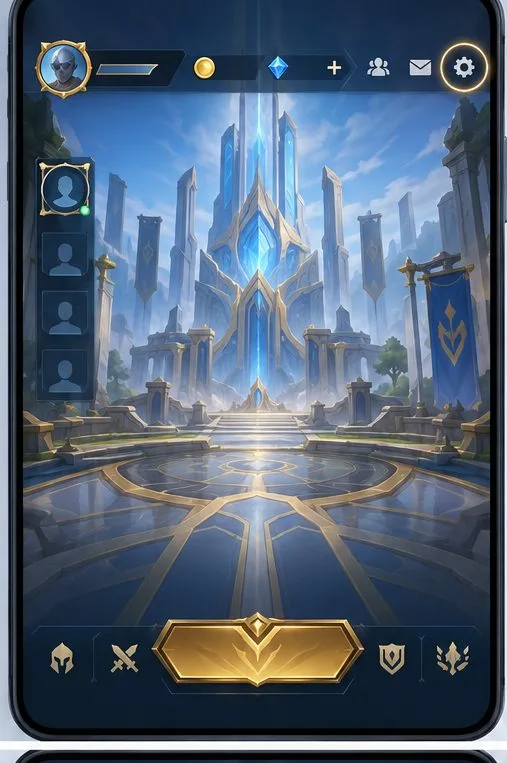
From the lobby, open the gear-shaped Settings control before entering a match.
Equipment menus have changed over time, so the exact wording or location may differ slightly between regions, platforms, or client versions. The steps below follow the common current Settings flow; if your screen looks different, look for the purchase automation option under Controls or the equipment/build settings.
Turn off Auto Buy from Settings
Return to the main lobby. Finish or leave the current match first if you are already in battle. From the lobby, tap the gear icon to open Settings.
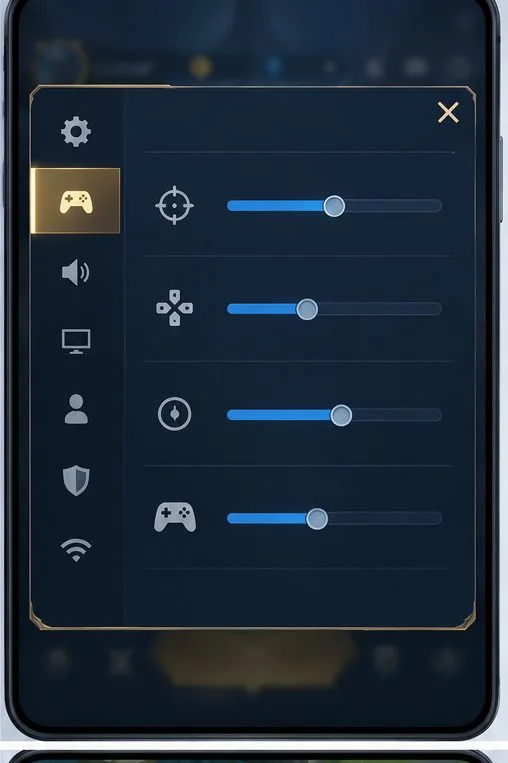
Open Controls. Look across the Settings categories for Controls. Some versions may use a related label for battle controls or purchase settings. If the tab is not immediately visible, swipe the category row or scroll the settings panel.
Find the equipment purchase option. Scan the page for “Auto Buy,” “Auto Purchase,” or a similarly named toggle in the build or equipment section. Do not confuse it with Auto Upgrade, which controls skill leveling. They are separate options.
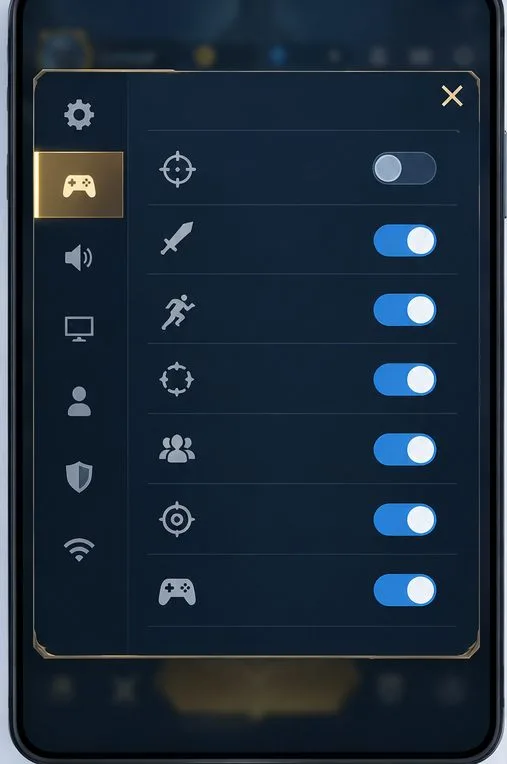
Switch Auto Buy off. Tap the toggle so its state changes to Off. If the game shows a separate Apply or Confirm control, use it before closing Settings. If the toggle is already off, leave it off and continue to the check below.
Close Settings and verify the state. Reopen the same Controls section once to confirm the toggle stayed off. If it reverted, repeat the change and use any visible save or confirm button.
Choose the controls or battle-settings category, where purchase behavior is typically grouped.
What should change after Auto Buy is off?
With Auto Buy disabled, the game should stop automatically spending gold on the next item in your saved equipment path. You can still open the shop and make a purchase yourself. MLBB’s official store description highlights its tap-to-equip shop flow, and Moonton has described updates to the equipment system intended to streamline item purchasing. The setting changes automation; it does not remove equipment, the shop, or your saved build.
Your recommended build may still appear in the shop after you turn Auto Buy off. A recommendation is a suggestion on screen, while an automatic purchase is the game completing the purchase without your deliberate shop input. You may also still see quick-purchase buttons or item suggestions during a match. Treat those as manual controls unless your client clearly indicates otherwise; tap them only when you intend to spend.
Turn off the purchase toggle alone; the illustration uses unlabeled controls to show the Off state.
If the toggle is missing or the purchase continues
Check the right settings category
Auto Buy is easy to overlook among targeting, interface, and skill controls. Check the full Controls page, including sections below the fold, and look for a purchase or equipment subsection. A menu layout can shift after an update, so a guide recorded on an older build may show a different position. Use the wording on your own screen rather than relying on an exact icon location.
Separate Auto Buy from saved equipment and quick-buy taps
Disabling automatic purchase does not erase a hero’s build or prevent you from buying quickly. A saved build can keep recommending the next item, and tapping a shop item or purchase shortcut can still spend gold. If you see a purchase after switching the toggle off, note whether you tapped a shop control or whether it happened without input. Recheck the toggle before changing your saved build.
Confirm that the setting was saved
If the toggle returns to On after closing Settings, look for a confirmation button or a second save step. Close and reopen Settings to test persistence. If the problem started directly after a client update, restart the game and check the setting again before testing in a match. Avoid assuming an update reset the control until you have checked its current state.
Check the current client version
If the option is absent, verify that MLBB has completed its latest available update through your device’s app store, then inspect Settings again. Moonton’s Project NEXT equipment updates changed parts of the purchasing experience, and later client versions may reorganize menus. The official update announcement is useful background, but it does not document every current toggle location. For a menu that still does not match, use the in-game Customer Service option and include your device, region, and game version.
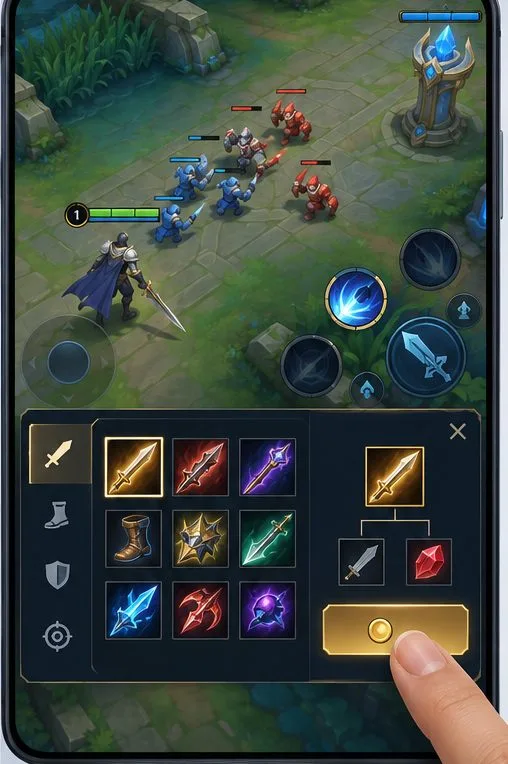
After disabling automation, open the shop and choose an item only when you want to buy it.
Test it safely in a match
Before relying on the change in Ranked, check it in Practice or a low-pressure Classic match. Start with the same hero and battle build you normally use. Earn enough gold for the next recommended component, then watch what happens without tapping the shop. The expected result is that the item remains available as a recommendation but is not purchased automatically. Open the shop and buy an item manually to confirm that normal purchases still work.
If an item is still purchased automatically, return to Settings and confirm the toggle is Off. Then repeat the check without tapping a quick-buy button, shop tile, or recommended purchase prompt. If it happens only for one hero or one setup, check whether that hero has a separate build or control preset. Record the exact menu labels and your game version before contacting support.
Quick checklist
Open Settings from the lobby and select Controls or the related battle-settings section.
Locate Auto Buy or the equipment purchase automation toggle and switch it Off.
Use Apply or Confirm if the current client displays one, then reopen Settings to verify.
Remember that saved builds and manual shop taps can remain active.
Test in Practice or Classic: wait for the next suggested item without touching the shop, then make one deliberate manual purchase.
For official context, see Moonton’s Project NEXT equipment-system announcement and the game’s official Google Play listing. The public announcement covers equipment-system changes rather than a complete settings map, so use the labels shown in your installed client if they differ from this guide.