How to Fix Street Fighter 6 Slow Motion Gameplay on PC
Fix Street Fighter 6 slow motion on PC by checking frame rate, lowering graphics, selecting the right GPU, and verifying game files in a safe order.
You tap Honor of Kings, hear a sound or see the launch screen, and then the display stays black. Sometimes the app closes; sometimes it remains open with no visible progress. The symptom can come from a temporary app hang, an interrupted update or download, a network or service problem, low device resources, or an operating-system compatibility issue. A black screen alone does not identify which one is responsible, so work through these checks in order and reopen the game after each meaningful change.
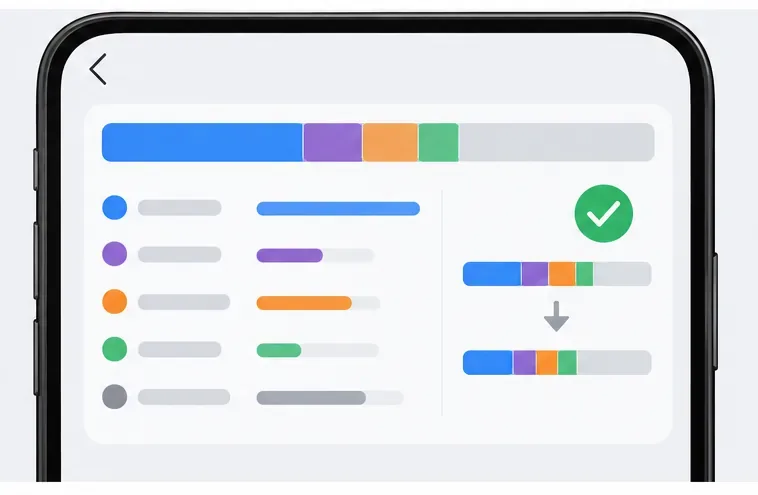
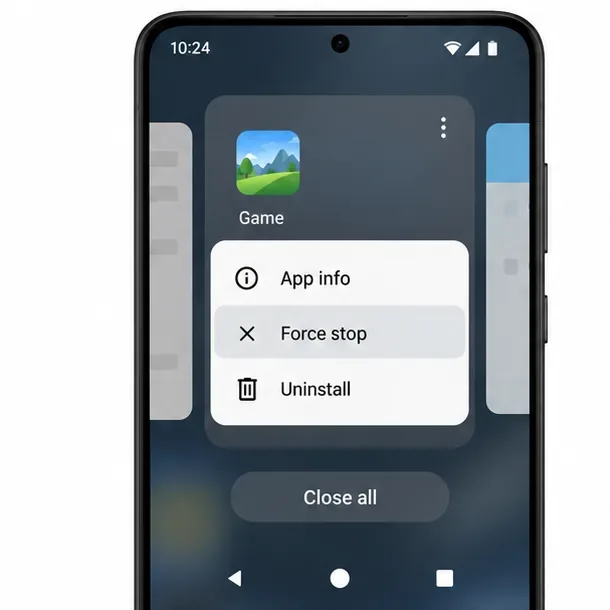
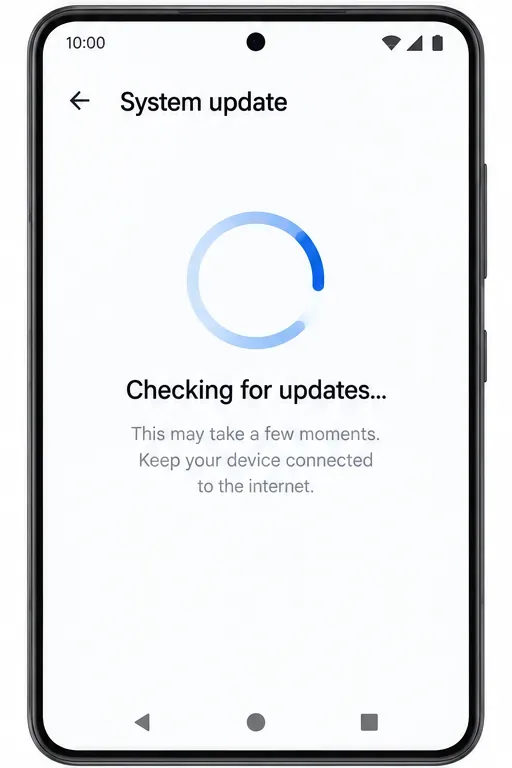
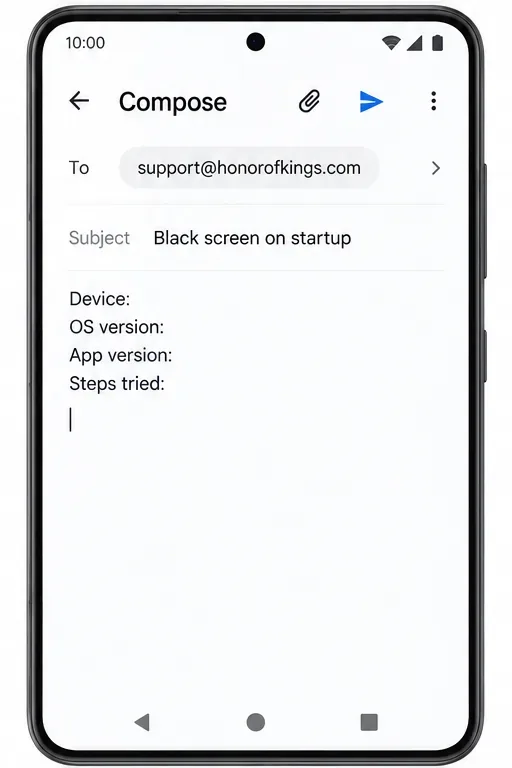
The steps below apply to the international mobile version. Android menu names differ by manufacturer, and iPhone settings use different paths. The interface images are generic examples of device and store screens, not screenshots of Honor of Kings or official instructions from a specific phone maker.
First, fully close Honor of Kings from the recent-apps screen. On Android, you can also open Settings, go to Apps, select Honor of Kings, and tap Force stop. On iPhone, open the App Switcher and swipe the game away. Start it again once. If the display is still black, restart the phone and try one more time.
This quick reset clears a temporary stuck process without changing the game’s saved files. Google and Apple both recommend closing or restarting an app or device as an early troubleshooting step. If other apps also freeze or show display problems, restart the device before changing Honor of Kings data.
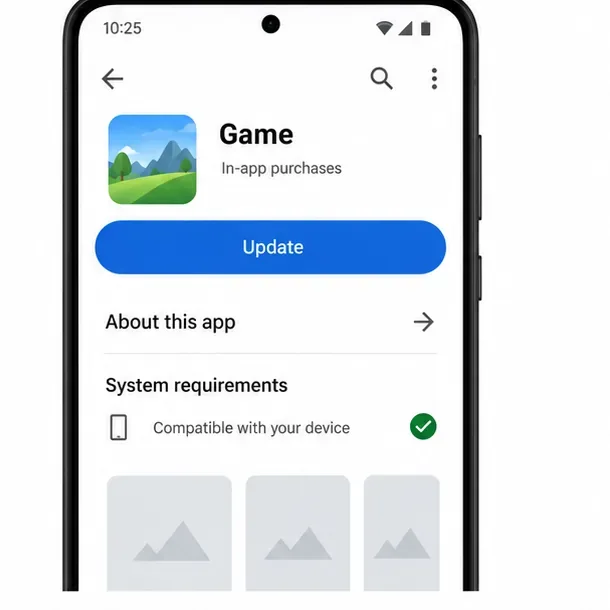
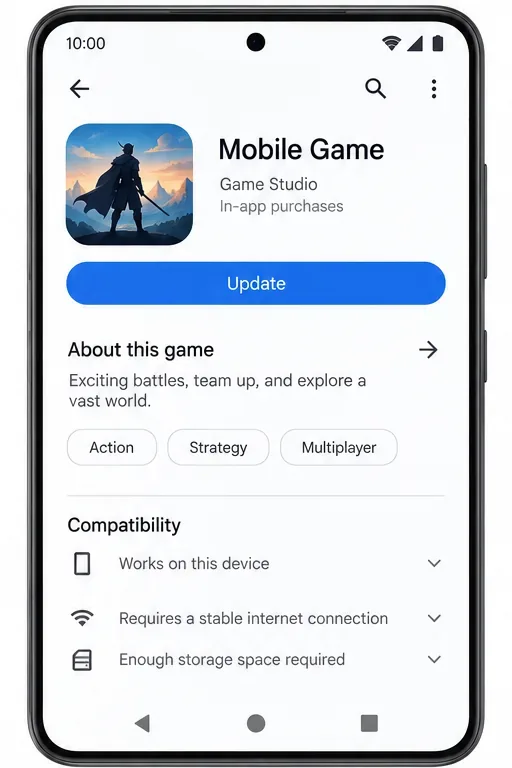
Open the official Google Play Store or Apple App Store page for Honor of Kings and see whether an update is available. Install it, then reopen the game. If the store says the app is already current, check whether your device meets the listing’s current compatibility requirements. Store availability and requirements can vary by country, device, and operating-system version, so use the listing shown for your account rather than an old screenshot or a third-party download site.
There is a recent iPhone-specific point to check: Honor of Kings published a notice on September 17, 2026 titled “Minimum iOS System Version Requirement Adjustment.” The announcement confirms that the minimum iOS requirement changed, but its full text was not available in the page view checked for this article. Do not infer the exact minimum version from the headline. Open the official September 17 notice and compare it with your iPhone’s version in Settings > General > About. If your device cannot install a required iOS release, repeated reinstalls will not solve that compatibility limit.
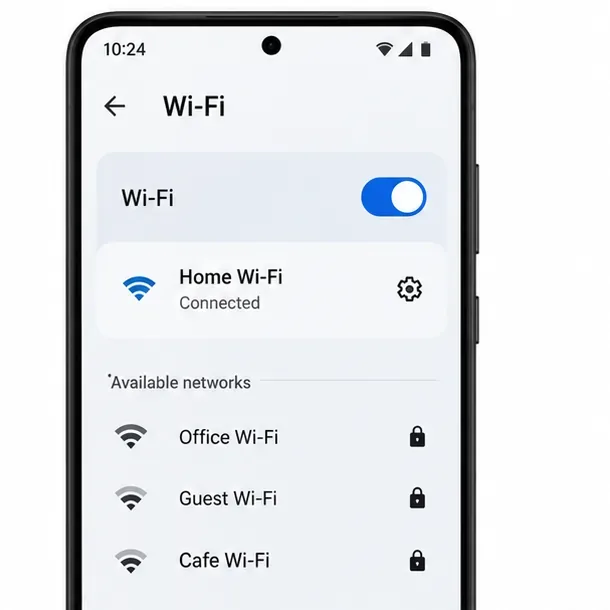
Honor of Kings needs to reach its game services during startup. A connection problem can therefore look like a loading failure, although a black screen is not proof that your internet is at fault. Switch once between Wi-Fi and mobile data, then launch the game again. If you use a VPN, private DNS, or a network filter, temporarily turn it off for this test and restore it afterward if the result does not change. Avoid changing several network settings at once.
If the game opens on one connection but not another, restart your router or ask the network provider about filtering or interruptions. If the same black screen appears on both connections, check the game’s official notices and support page for maintenance or known loading issues before continuing. The official support area includes self-help topics for update failures and loading errors. If the app is stuck during a server update, local cache changes may not help; wait for the posted maintenance window or developer guidance.
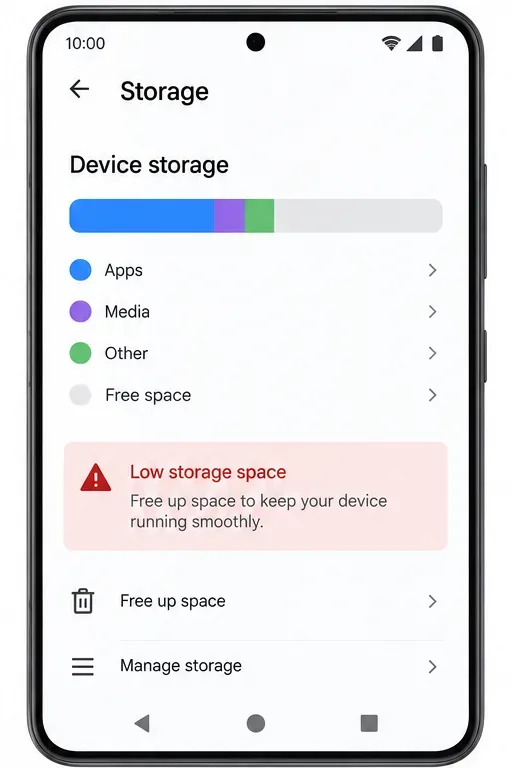
Look at the phone’s storage settings. If available space is nearly exhausted, remove an unused download or move personal media to a safe backup before trying another launch. A large game may also need room for updates or additional resources. The exact free-space amount can change by build and device, so do not rely on a universal number. After freeing space, restart the phone and try once more.
Close apps that are recording the screen, streaming video, or using overlays, then allow the phone to cool if it feels unusually warm. These are diagnostic checks, not confirmed Honor of Kings-specific fixes: they help determine whether device load is contributing. If other demanding apps run normally and the game still fails at the same point, move on rather than repeatedly clearing unrelated system data.
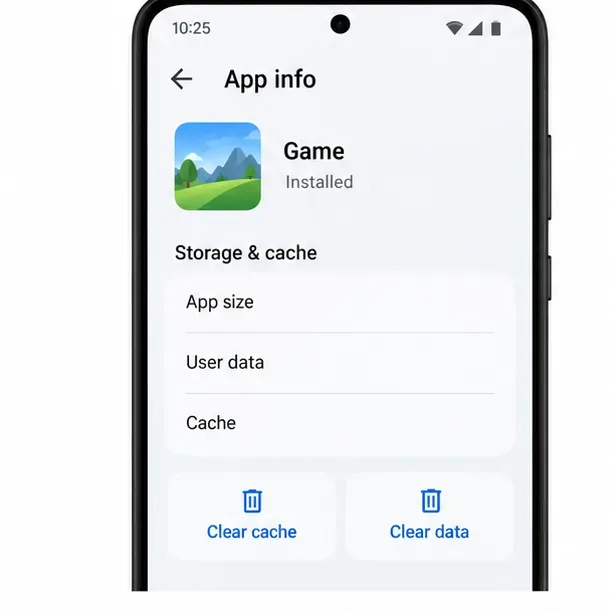
On Android, open Settings > Apps > Honor of Kings > Storage or Storage & cache, then choose Clear cache. The wording and location vary across Android devices. Reopen the game and let it download any required resources over a stable connection.
Do not confuse Clear cache with Clear data or Clear storage. Clearing data can remove local files, reset app state, and require you to sign in or download content again. Before using it, make sure you know how the game account is linked and can access that sign-in method. Do not clear app data for a guest account unless you have confirmed that the account can be recovered. iPhone does not provide the same per-app cache button; use the close, update, restart, and reinstall steps instead.
Check for an operating-system update in the phone’s Settings app. On many Android phones this is under System or Software update; on iPhone it is under Settings > General > Software Update. Install an update only if it is offered for your device, and keep the phone charged and connected as the manufacturer directs.
For iPhone owners, treat the September 17, 2026 Honor of Kings iOS notice as a compatibility check, not as proof that every black-screen report has the same cause. The notice may explain why an older iOS device can no longer meet the game’s minimum requirement, but it does not establish that for every device. Compare the current game requirement with your installed iOS version before deciding whether the operating system is the blocker.
If the game still opens to black after the earlier checks, reinstalling can replace damaged app files. Before uninstalling, confirm that the account is linked to a sign-in method you can use again, and keep any purchase or account details available. A guest account may not be recoverable after app data is removed. Delete the app through the official device interface, restart the phone, then download Honor of Kings again from the official store where it is available.
Do not install modified packages or files from unofficial sites to work around a compatibility or store issue. They may create security and account risks and can make troubleshooting less reliable. After reinstalling, let the initial download finish on a steady connection before switching apps or putting the phone to sleep.
If the black screen remains, report it through the in-game Customer Service area when you can reach it, or use the official Honor of Kings support page. The support site says players can use self-help tools and submit a form if those steps do not resolve the issue. The Google Play listing also identifies support@honorofkings.com as the support email for the international Android listing.
Include your phone model, Android or iOS version, game version if visible, country or region, the point where the screen turns black, whether sound or vibration continues, and the troubleshooting steps you tried. Add a short screen recording only if it does not expose private information. Mention whether the issue began after an app or system update. This helps support distinguish a device-specific launch failure from a broader update or service issue.
After each change, launch Honor of Kings and wait for the normal sign-in or home screen to appear. If it passes the black screen, finishes loading its resources, and remains responsive long enough to reach the lobby, the startup issue is likely cleared. Play a low-stakes mode only after confirming the game remains stable; do not enter a ranked match while the screen is still intermittently failing.
If the black screen returns, note exactly which step changed the behavior and whether the game closes, plays audio, or responds to taps. If the problem began immediately after a published update and persists after a restart, update check, and connection test, stop deleting data and send those details to support. These steps can isolate common app, network, storage, and compatibility causes, but they cannot repair a server-side defect or a device that no longer meets the game’s requirements.
Fix Street Fighter 6 slow motion on PC by checking frame rate, lowering graphics, selecting the right GPU, and verifying game files in a safe order.
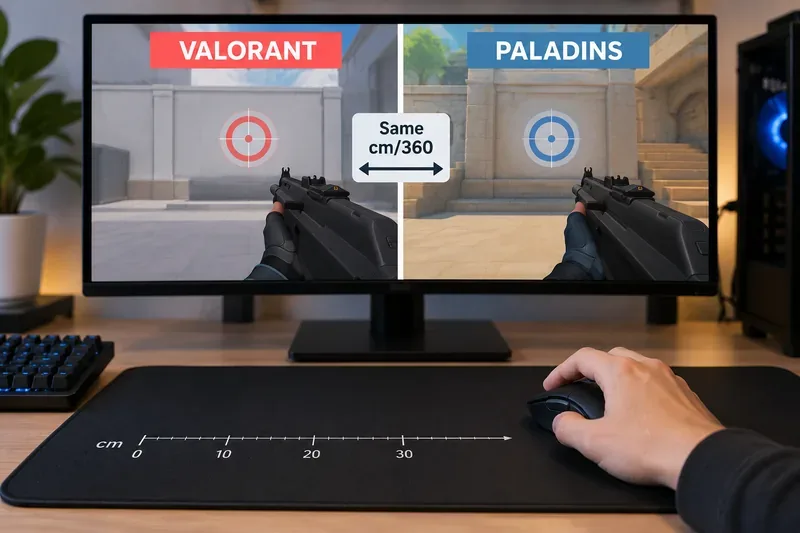
Convert VALORANT sensitivity to Paladins with a practical 7.65× starting ratio at the same DPI, then verify the result with cm/360 for a reliable match.
Use Advanced drone deployment in Rainbow Six Siege, choose a prep-phase transition, and pair fresh intel with a controlled entry routine.
Free up Mobile Legends storage safely. Learn the difference between cache and game resources, clear Android cache, check iPhone options, and avoid deleting account data.
Learn which Heroes of the Storm Variables.txt frame-cap edits are worth testing, when lowering graphics matters more, and how to verify results safely.
Turn off Street Fighter 6 match commentary before your next fight, or compare it with changing the commentator lineup and adjusting audio.
Fix CS2 stuttering on a high-end PC by separating frame-time spikes from network jitter, checking shaders, files, drivers, background apps, and settings.
Check the Siege config’s raw-input setting, disable Windows pointer acceleration if needed, and test aim consistency without changing sensitivity by mistake.
Learn when to use Competitive gameplay, Authentic gameplay, or the older Competitive Master Switch in EA SPORTS FC, with practical settings advice.
Choose StarCraft II camera hotkeys that fit your keyboard, organize base locations, avoid binding conflicts, and test your setup with a practical checklist.