How to Fix PUBG Stuck on “Initializing” on Steam

Fix PUBG stuck on Initializing on Steam with a focused checklist for PC service notices, launch options, game files, downloads, and connection issues.
To fix Dota 2’s “search for network” problem, first distinguish a service interruption from a problem with your Steam session, network connection, or installed game files. If players on different connections are affected at the same time, waiting may be more useful than reinstalling. If only your computer is affected, restart Dota 2 and Steam, then compare connections before repairing the installation.
Players use “search for network error” to describe several connection messages, including a client trying to reach the Dota 2 network or Game Coordinator. The Game Coordinator is the backend service involved in coordinating online game functions such as matchmaking. This guide concerns being stuck connecting in the menu; it is not a guide to improving an otherwise working matchmaking queue.
Instructions were checked against Valve’s Steam Support and Microsoft documentation on October 8, 2026. Menu illustrations show the relevant controls in simplified layouts; they are not diagnostic results. There is no claim that Dota 2 is experiencing an outage when you read this article.
Choose the next action by what it can actually test. A successful file scan cannot demonstrate that a remote service is healthy, and an ordinary website loading cannot prove that Dota 2’s connection is working.
| Situation | Best first choice | Trade-off and limit |
|---|---|---|
| Other players on independent networks have the same problem | Check service information and wait | Avoids unnecessary changes; there may be no reliable recovery estimate. |
| Dota 2 became stuck after a launch or update, while Steam remains usable | Restart the game and Steam; finish pending updates | Low effort, but recovery does not identify the underlying cause. |
| Only your connection fails, or Steam also disconnects | Compare wired and alternate connections | Helps narrow the failure; a hotspot may use paid data and behave differently. |
| The problem followed an interrupted installation, with crashes or missing content | Verify the game files | Checks local installation data; takes time and may download replacement files. |
Valve’s Dota 2 network and connectivity support article recommends investigating Steam connectivity and interfering programs when disconnections happen regularly. A persistent network message alone does not prove that the game files are corrupt.
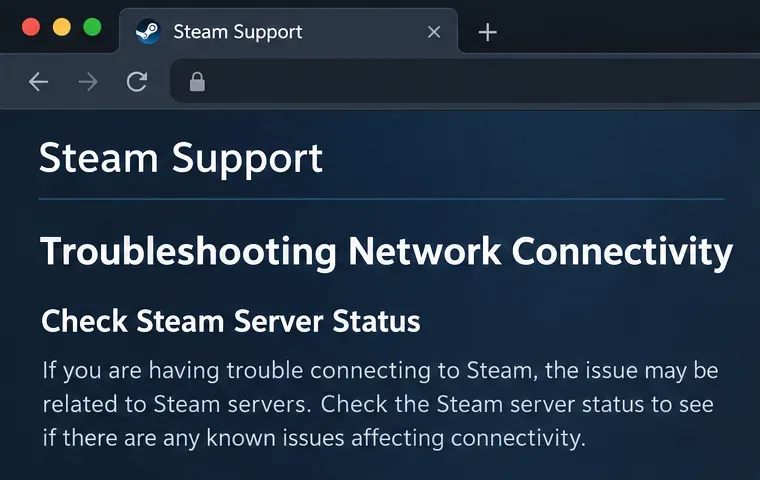
Start here when the error appears suddenly, especially if friends are affected too. Consult Steam’s network connectivity troubleshooting page, which puts checking for service downtime ahead of local network troubleshooting.
Ask a friend using a different internet provider whether their Dota 2 client connects. A friend on your own Wi-Fi is a weaker comparison because you share the same router and internet route. Also note whether Steam itself signs in normally and whether the failure is limited to Dota 2.
These observations are clues, not an official outage confirmation. Several independent failures make a shared service or routing problem more plausible. One successful friend connection makes a local or regional problem more plausible, but does not completely rule out a service fault affecting only some users.
When to wait: you have credible evidence of a broader interruption and no signs of a broken installation. Leave local configuration alone and retry after checking for updated service information. There is no dependable universal rule that this error always clears in a particular number of minutes.
When to move on: other players can connect, your failure persists, or Steam shows additional connection trouble. Record the exact message before you change anything; “offline,” “coordinator,” and a download error are different observations worth preserving.
Choose this for an isolated stuck session before attempting more disruptive repairs. Close Dota 2 normally, exit Steam completely through the Steam menu, and reopen Steam. Closing only the Steam window may leave the client running in the background. If the client cannot exit cleanly, restarting the computer is a reasonable alternative.
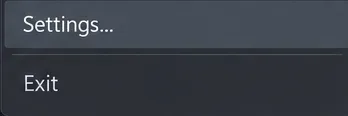
After reopening Steam, check whether Dota 2 has an unfinished update. Let any required download and installation finish before launching again. Valve includes restarting Steam and the computer among its general remedies in Steam’s update and installation troubleshooting documentation.
The advantage is cost: this preserves your installed game and avoids a large download. The limitation is attribution. If the game connects afterward, a refreshed session, a completed update, or a service recovery could explain the improvement. Do not present that result as proof that restarting fixes every coordinator error.
Judge success by the client returning to normal online behavior, rather than by the application merely opening. If the same connection message remains, proceed to a network comparison. Repeating the same restart many times gives you little additional evidence.
Choose this when the failure appears specific to your computer or home connection. Steam’s connectivity guidance recommends a direct wired connection when possible because wireless and powerline links can experience intermittent problems. An Ethernet test keeps the same router and provider while changing the local connection to them.
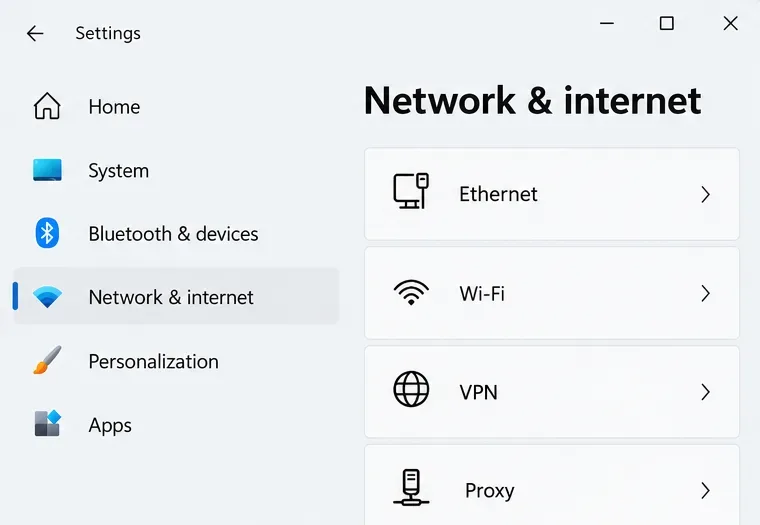
On Windows 11, open Settings > Network & internet and inspect the Ethernet connection when a cable is connected. Microsoft explains this route in its Ethernet connection troubleshooting instructions. A connected status is useful, but it still does not certify access to Dota 2’s services.
For a stronger comparison, an alternate internet connection, such as your own mobile hotspot, changes more of the route. Use it briefly to test whether the menu connects, rather than downloading the game or entering a match on an unproven connection. Check your data allowance first.
| Comparison result | What it suggests | What it does not establish |
|---|---|---|
| Ethernet works; Wi-Fi does not | The wireless link or its configuration deserves attention. | It does not prove that the whole router is defective. |
| A hotspot works; the home connection does not | The home network or its internet route deserves investigation. | It does not identify a specific blocked port or DNS failure. |
| Both connections fail on the same computer | The client, local filtering, or a shared remote problem remains possible. | It does not prove that reinstalling will help. |
A VPN, firewall, or security product becomes a more relevant suspect if the error began after that software changed. Valve notes that firewalls can prevent Steam connecting in its firewall configuration guidance. Prefer reviewing permissions for the actual Steam and Dota 2 installations over leaving protection disabled. For a managed work or school network, ask the administrator rather than trying to bypass its restrictions.
A router restart interrupts everyone sharing it, so it is a less convenient choice than restarting your own client. It is more defensible when several devices have connection problems. A full Windows network reset is more disruptive still: Microsoft notes that it removes adapters and their settings and can require networking software to be set up again. Reserve it for broader connectivity troubleshooting, not a lone Dota 2 message.
Choose verification before a reinstall when the game also crashes, has missing content, or an update was interrupted. In Steam’s Library, right-click Dota 2, choose Properties, select Installed Files, and click Verify integrity of game files. Let the process finish before relaunching.
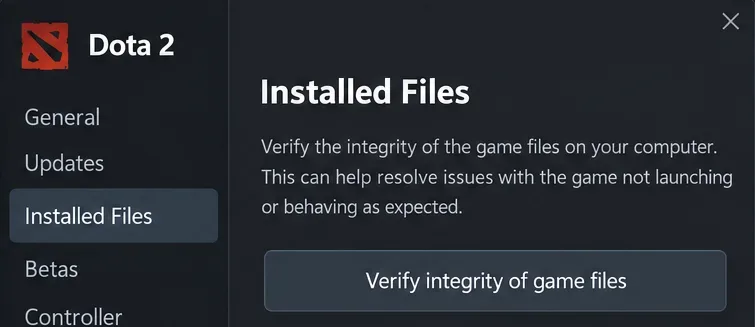
Valve documents the route in its game-file verification instructions. Verification can take several minutes. Valve also notes that some local configuration files may fail verification normally; that message alone is not evidence of a damaged installation.
The trade-off is favorable when local data is suspect: you check the existing installation before spending bandwidth on a full download. However, verification cannot restore an unavailable remote coordinator or repair an internet provider’s route. If it completes and the same network error persists, return to your diagnostic observations rather than repeatedly scanning.
Changing Steam’s download region is relevant to downloads; it should not be treated as a confirmed switch for repairing a Dota 2 coordinator connection. Similarly, a different matchmaking region concerns where you seek matches after online access works. Neither is a universal remedy for a client that cannot reach its online services.
DNS changes, launch options, and console-command recipes need an explanation tied to your actual failure. This guide does not endorse an unverified command as a guaranteed coordinator repair. Changing several settings simultaneously also makes a successful result difficult to interpret or reproduce.
A reinstall is the most bandwidth-intensive choice here and leaves a service outage untouched. Consider it only after simpler checks and credible installation evidence. Starting with a large download can consume time without testing the most likely failure point.
Prepare a concise report rather than another list of random changes. Include the exact error text or a screenshot, the time and time zone, operating system, whether Steam signs in, whether an update was pending, and what happened on Ethernet or an alternate connection. Note any VPN or security-software change and the verification result if you ran it.
Use Steam Support for persistent client or game connectivity problems; use your provider or network administrator when your comparisons point to a particular network. If connection returns, confirm normal lobby behavior before committing to a live match. The practical goal is a stable connection with a useful explanation of what changed, not merely making the warning disappear once.
Fix PUBG stuck on Initializing on Steam with a focused checklist for PC service notices, launch options, game files, downloads, and connection issues.
Fix Brawl Stars stuck at 92% loading with an ordered checklist for service notices, network tests, safe updates, Android cache, and account-safe reinstalling.
Best Dead by Daylight visual filter settings start with a small Gamma lift, neutral color and contrast, and a quick check for dark corners, fog, and bright lights.
Find the Steam and EA app fields for Apex Legends launch options, use EA’s documented FPS command, and see why +exec autoexec.cfg remains unverified.
Reduce input lag on a Nintendo Switch dock for Smash Ultimate with TV Game Mode, a direct HDMI test, controller checks, and online-latency troubleshooting.
Find the best EA SPORTS FC audio settings for a clearer referee whistle: tune Stadium Ambience and Commentary, then troubleshoot output or timing issues.
Compare the best Attack Move Click keybinds in League of Legends—A, Shift + right-click, mouse side buttons, and left-click—with setup and kiting tips.
Find the best tablet aspect ratio setup for Clash Royale, compare Android display-fit choices, and check iPad full-screen framing without cropping the arena.
Fix Warzone Dev Error 6068 on startup with safe PC checks for updates, overlays, graphics drivers, game-file repair, and clean boot troubleshooting.
Check your Overwatch 2 overall match win rate with Career Stats, matching game totals, and the right filters—without mistaking hero percentages for match results.