How to Download Fortnite on Mac (2026 Guide: What Works)
You can’t install the current version of Fortnite directly on macOS. Epic’s support page says Fortnite is not available as a native Mac download, but Mac users can play it through cloud gaming. That means the game runs on a remote server and streams into your browser; your Mac does not download the Fortnite game files. For most people, Xbox Cloud Gaming is the simplest place to start because Fortnite can be streamed without a paid Game Pass subscription in supported regions.
Can you download Fortnite on Mac?
Not as a current, locally installed Mac game. The old instructions about downloading the Epic Games Launcher, dragging a DMG into Applications, and installing a roughly 13 GB Fortnite download no longer describe a supported Mac setup. Installing the Launcher by itself does not add the current Fortnite client to macOS. Avoid unofficial “Fortnite for Mac” installers; Epic directs Mac players to supported cloud services instead.
Cloud play is different from a normal download. You need an internet connection while you play, and picture quality and responsiveness depend on your connection and the service’s regional availability. The upside is that your Mac’s graphics chip does not have to render Fortnite locally.
What you need before you start
- A supported browser and macOS version. Xbox’s current browser-support page lists macOS 14.1.2 or later for Mac, with Safari 16 or later, Chrome 85 or later, or Microsoft Edge. Check the live support page before troubleshooting, since requirements can change.
- A free Microsoft account for Xbox Cloud Gaming. Fortnite does not require a paid Xbox Game Pass subscription on this service, although Xbox Cloud Gaming must be available in your country.
- Your Epic Games account, if you already have Fortnite progress. Use the account tied to your existing skins and progress. Epic says cross-device progress sync requires the platform account to be linked to the correct Epic account. Don’t create a second account or unlink an account just to get past a sign-in prompt.
- Stable internet. A wired connection or strong 5 GHz Wi-Fi generally helps reduce drops and delay. A compatible controller is useful, but Xbox Cloud Gaming also supports keyboard and mouse on Mac when using Chrome or Edge.
How to play Fortnite on Mac through Xbox Cloud Gaming
-
1. Check that the service works in your region
Open the official Xbox Cloud Gaming page and confirm that Fortnite appears in the catalog for your account and location. If the service is unavailable where you live, check the GeForce NOW or Amazon Luna options below. Epic lists all three as ways to play Fortnite on Mac through cloud streaming.
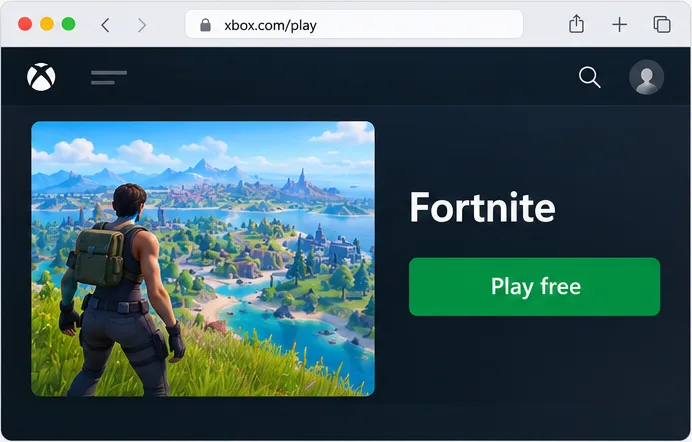
Select Fortnite from the cloud catalog. The game streams from the service rather than installing on your Mac. -
2. Sign in with your Microsoft account
Go to xbox.com/play in a supported browser and sign in with a Microsoft account. If you have played Fortnite on Xbox or another platform, keep using the Epic Games account that owns your existing progress. If the service asks you to connect accounts, make sure you choose the correct Epic account before continuing.
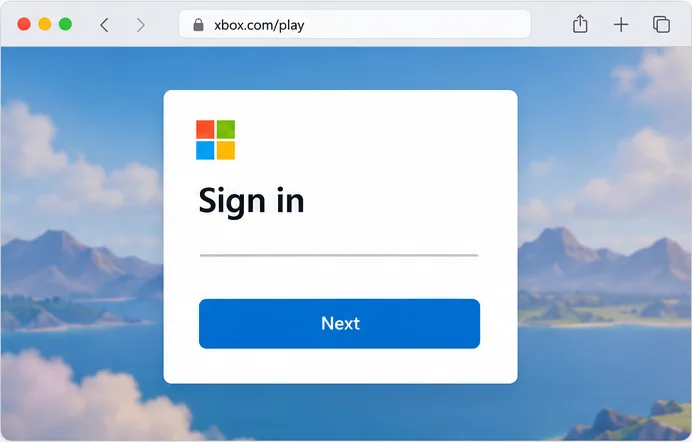
Sign in to Xbox Cloud Gaming with your Microsoft account; account prompts can vary. -
3. Choose Fortnite and start the stream
Find Fortnite on the Xbox Cloud Gaming page, open its listing, and choose the play option. The service launches the game remotely and displays the stream in your browser. There is no Epic Games Launcher installation, Fortnite DMG, or local 13 GB download for this route. The first launch may take longer while the service starts your session.
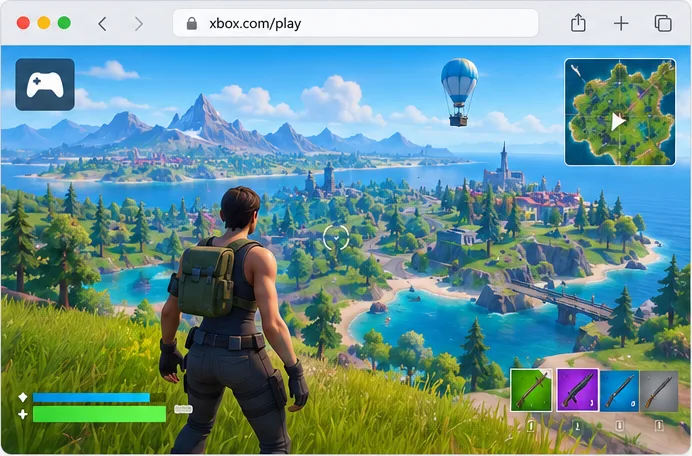
Cloud gaming sends a live Fortnite stream to the browser while the game runs on remote hardware. -
4. Connect your controls and adjust the stream
Connect a supported gamepad before launching if you prefer playing with a controller. For mouse-and-keyboard play on Mac through Xbox Cloud Gaming, use Chrome or Edge; Xbox lists those browsers for keyboard and mouse input. If you notice stutter, move closer to the router, switch to 5 GHz Wi-Fi or Ethernet, pause large downloads, and close other video streams. A browser refresh may restart the session, so use it only if you are ready to reconnect.
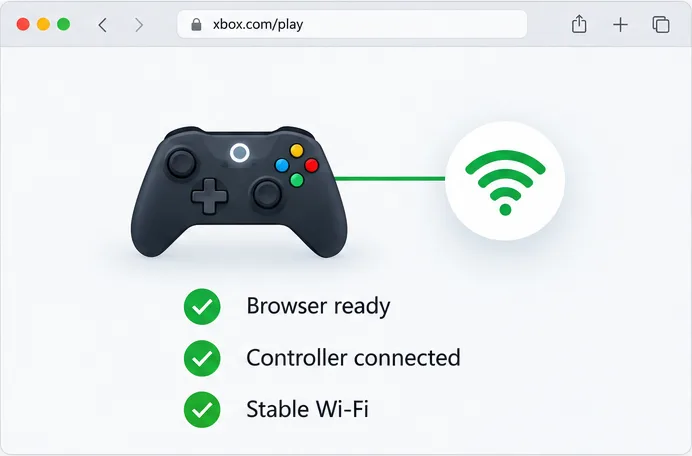
A supported browser, controller if desired, and stable network help prepare a Mac for cloud play.
The browser and game screens shown here are simplified illustrations; service interfaces and button labels can change.
Other ways to play Fortnite on a Mac
Epic’s official support guide lists Xbox Cloud Gaming, NVIDIA GeForce NOW, and Amazon Luna as cloud-streaming options for Fortnite. All avoid a native Mac game download, but supported countries, account requirements, and membership terms differ.
| Service | Mac option | Cost note |
|---|---|---|
| Xbox Cloud Gaming | Play in a supported browser at xbox.com/play. | Epic says Fortnite needs no paid Game Pass subscription; a free Microsoft account is required. |
| NVIDIA GeForce NOW | Use the Mac app or a supported browser, subject to NVIDIA’s current requirements. | Epic says a free GeForce NOW membership is available; paid plans and stream features vary. |
| Amazon Luna | Stream through Luna on supported Mac browsers and in eligible regions. | Epic says Prime members can stream Fortnite through Luna at no additional cost where available. |
For GeForce NOW, NVIDIA currently lists macOS 10.15 or later and a Mac introduced in 2009 or later as its Mac app requirements. The service also recommends a stable, low-latency connection. Use NVIDIA’s requirements page for the current network and browser details. Amazon Luna and Xbox Cloud Gaming publish their own supported-country and device information; a service being available in one country does not mean it is available everywhere.
Common problems and fixes
Fortnite is missing from the Epic Games Launcher
That is expected on Mac: the current Fortnite client is not offered as a native macOS install. Use one of the cloud services Epic lists. Downloading the launcher again will not make the Mac game appear.
The stream will not start or keeps buffering
Check the provider’s service status and confirm that cloud gaming is supported in your location. Update macOS and your browser, then test the connection without a VPN or large background downloads. If you use GeForce NOW, compare your connection with NVIDIA’s published speed guidance; each provider has its own stream requirements.
My skins or progress are missing
Sign in with the Epic account that contains your Fortnite progress. Epic explains that progress sync depends on linking the platform account to that Epic account. Check the linked-account page before unlinking anything, because unlinking the wrong platform account can interrupt access to saved progress.
FAQ
Is Fortnite free on Mac?
Fortnite itself is free to play. You do not download the native Mac game; Xbox Cloud Gaming offers Fortnite without a paid Game Pass subscription, while the other streaming services have their own account, membership, and regional terms. Optional in-game purchases are separate.
Do I need 16 GB of RAM or a gaming Mac?
Not for cloud streaming specifically. Your Mac receives video and sends your controls, so the streaming provider’s browser, macOS, and internet requirements matter more than the native Fortnite graphics requirements. Older Macs may still be limited by unsupported macOS versions or weak network performance.
Can I use my Fortnite account from console or PC?
Yes, use the same Epic Games account and make sure the relevant platform account is linked if you want progress to sync. Epic cautions that each platform account can be linked to only one Epic account at a time.
The practical answer
You cannot download and install the current Fortnite game directly on a Mac in 2026. You can play from a Mac by streaming Fortnite through Xbox Cloud Gaming, GeForce NOW, or Amazon Luna where the service is supported. Start at xbox.com/play, sign in with a free Microsoft account, choose Fortnite, and launch the stream. Your game files stay in the cloud, so a fast and stable connection matters more than your Mac’s gaming specs.









