Home
» 🎮 Esports
»
Esports Broadcast Drops: How to Verify Account Linking and Eligible Watch Time Safely
Esports Broadcast Drops: How to Verify Account Linking and Eligible Watch Time Safely
Esports Drops are simple in concept—watch an eligible broadcast, meet the campaign requirement, claim the reward, and receive it in the connected game account—but the failure points are easy to miss. A stream can be live without being eligible, a reward can be earned but not yet claimed, and the right streaming account can be connected to the wrong game account.
As of September 2026, Twitch’s current Help Center still describes Drops as a three-part flow: earn on Twitch, claim on Twitch, then have the game developer deliver the reward. Twitch also says viewers should link the game account first, watch a live Drops-enabled stream, and use Drops Inventory or the Drops & More panel to track progress. That makes the safest approach less about “watching harder” and more about verifying each handoff before the event starts. See Twitch’s current How Drops Work guide.
Start with the campaign, not with a random stream
The most reliable first step is to open the campaign page in the streaming platform’s own Drops area or follow a link from the game publisher or tournament organizer. Do not assume that every channel showing the same game is eligible. On Twitch, an active campaign can be limited to selected channels, while other campaigns may be open to a broader set of channels. The platform’s own campaign panel is the place to check the start and end time, reward tiers, required watch time, and whether the channel you plan to watch is participating.
Twitch’s current guidance says participating streams should be live rather than VODs or replays, and it recommends checking for the “Drops Enabled” indicator. It also states that progress can be earned toward only one Drops reward or campaign at a time. If you open several eligible channels, do not assume the watch time will stack.
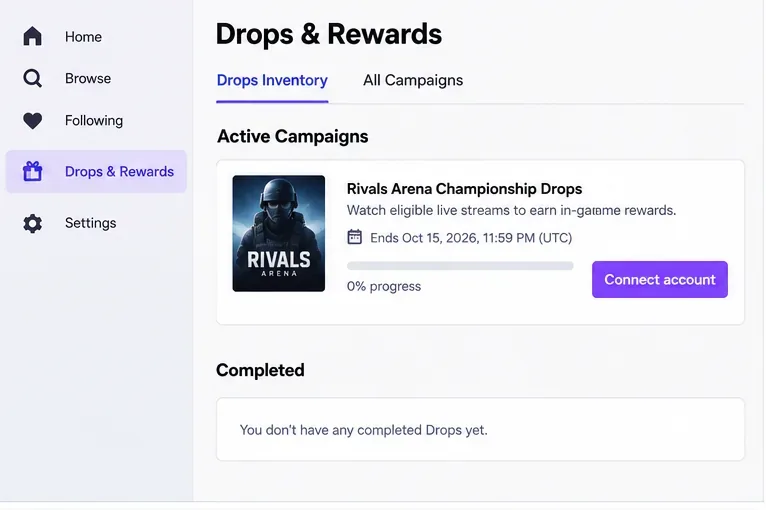
Before the broadcast, verify the campaign in the platform’s Drops inventory and confirm that a connection action is available or already complete.
How to verify account linking safely
1. Begin from an official page
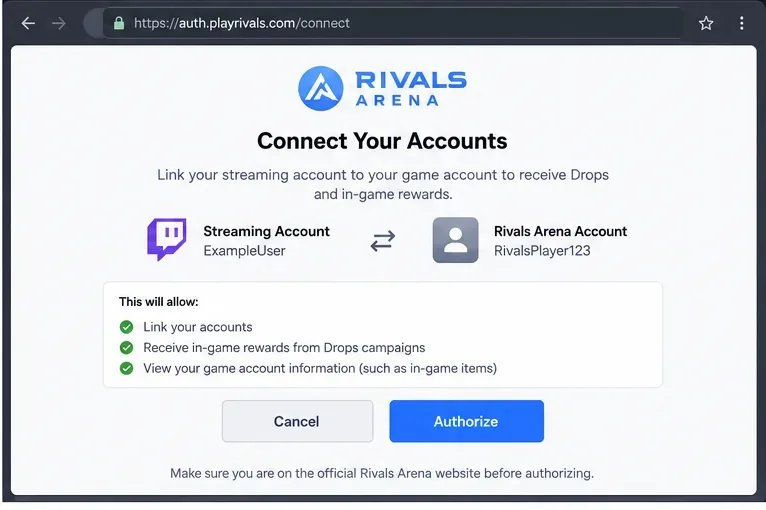
Use the game publisher’s official account page, the streaming platform’s official Drops inventory, or a verified event page. Avoid links from unsolicited direct messages, chat messages, or websites that ask you to “re-link” your account in exchange for a reward. The legitimate flow may redirect you between the streaming platform and the publisher, but you should still verify the destination domain before entering credentials.
2. Confirm which accounts are being linked
The important question is not simply “is something connected?” but “is the correct streaming account connected to the correct game account?” This matters if you have multiple regional accounts, old accounts, family accounts, or a second Twitch profile. Note the visible account name on both sides before authorizing.
Twitch’s help documentation recommends verifying the connection on both Twitch and the game developer’s website. It also notes that a Twitch account can be connected to accounts from multiple different game developers, while the exact one-account-per-developer behavior can depend on the integration. Treat the publisher’s own account page as the source of truth for the game-side connection.
At the authorization step, check the signed-in usernames and the website domain before approving the connection.
3. Recheck after password, region, or account changes
If you recently changed a password, switched regions, migrated an account, or started using a different streaming profile, re-open the connection page before the tournament. Do not wait until the final match to discover that progress has been credited to an account you no longer use.
4. Add account protection before linking
Account linking creates another trusted relationship around your game and streaming identities, so it is a good time to strengthen login security. Twitch documents two-factor authentication for unauthorized-login protection and also supports passkeys in account security settings. If you use Twitch, review the official two-factor authentication instructions and the platform’s security settings rather than following setup links from third parties.
How to confirm that watch time is actually eligible
Eligible watch time is determined by the campaign rules, not by how long a browser tab has been open. Use the following checklist during the broadcast:
You are signed in. Progress generally cannot be associated with your account if the platform does not know which viewer is watching.
The stream is live. Twitch’s current Drops guide says watch-time Drops require a live stream rather than a VOD or replay.
The channel is participating. Look for the Drops indicator and confirm the campaign in Drops Inventory.
The campaign is still active. Check the official end time, especially for events spanning several time zones.
You are not trying to earn on multiple channels at once. Twitch states that progress is earned on one channel or campaign at a time.
Your progress meter is moving. Do not rely only on elapsed wall-clock time; verify the recorded progress in the platform’s own interface.
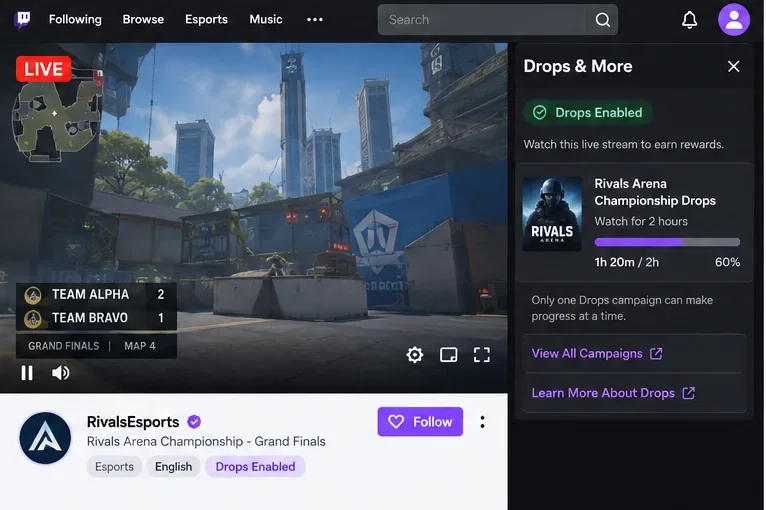
During the live broadcast, use the platform’s own progress display to confirm that eligible watch time is being recorded.
Muted tabs, background playback, and other common questions
Twitch’s viewer-count documentation says a muted live stream can still count as a view, and a live stream playing in an unfocused browser tab can also count as a viewer. That does not mean every promotional campaign on every platform has identical eligibility logic. For Drops, the campaign progress bar is the practical verification tool. If the meter stops moving, troubleshoot the campaign rather than assuming that “the tab was open, so the minutes must count.”
Twitch’s current troubleshooting guidance specifically tells viewers to check that the channel is Drops-enabled, confirm the campaign is active, watch only one qualifying stream, refresh the page, and consider disabling ad-blocking extensions if progress is not counting. Those recommendations are documented in the same official Drops help page.
Claiming is a separate step from earning
Reaching the required watch time does not always finish the process. Twitch separates earning, claiming, and in-game delivery. Once the progress requirement is complete, check the Drops Inventory and claim the reward if the campaign requires a claim action. Twitch says unclaimed rewards can generally remain claimable for up to seven days, or 168 hours, after a campaign ends, although campaign-specific restrictions can apply.
After claiming, delivery becomes the publisher’s responsibility. Twitch says most rewards are delivered within 24 to 48 hours, while some can take longer, including up to seven days. If the reward appears as claimed in Twitch but does not arrive in the game, recheck the linked game account and then use the game publisher’s support channel.
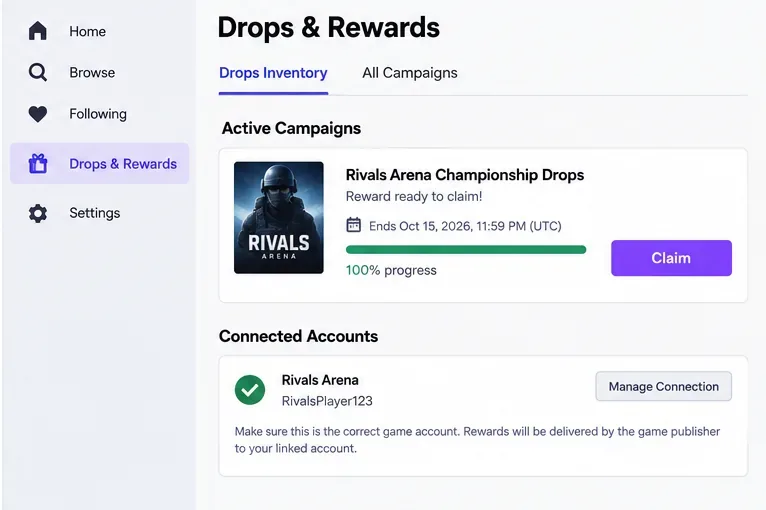
After the requirement reaches 100 percent, confirm the connected game account and complete any required claim action.
A quick diagnostic table when progress or rewards are missing
What you see
Most useful check
Where to verify
No progress at all
Confirm the channel is eligible and the campaign is active
Streaming platform Drops inventory and live channel
Progress stops
Watch only one eligible stream, refresh, and check extensions
Official troubleshooting guidance
100% progress but no reward
Look for a separate Claim action
Drops Inventory
Claimed but missing in game
Verify the correct game account is connected
Publisher account page and publisher support
Unexpected login request
Stop and verify the domain before entering credentials
Publisher or platform website opened independently
Game-specific systems can work differently
There is no universal esports Drops rulebook across every publisher. Some rewards are tied to a streaming-platform campaign, while others are handled inside a publisher’s own esports site or app. Riot, for example, documents an Esports area in Riot Mobile that can verify whether a user is set up to receive esports Drops, while its browser-based account management handles connected services. See the official Riot Mobile Features support page.
That is why advice such as “watch any co-stream,” “VODs count,” “you can stack multiple tabs,” or “link after the event and it will always work” should not be treated as a general rule. The campaign page and the publisher’s current support documentation override assumptions based on a previous tournament.
Safe verification checklist before the match starts
Open the event or campaign from the publisher, organizer, or streaming platform itself.
Confirm the exact campaign dates and time zone.
Verify the correct streaming account is signed in.
Verify the correct game account is linked on both sides when the publisher exposes that status.
Turn on two-factor authentication or another supported strong sign-in method.
Open one eligible live channel and confirm the Drops indicator.
Watch until the progress meter advances before leaving the setup unattended.
At 100%, complete any Claim action shown in the official inventory.
If delivery is delayed, keep a record of the claimed reward and contact the correct party: Twitch for earning or claiming problems, and the game publisher for in-game delivery problems.
What you should not rely on
Do not rely on a chat bot saying you are eligible, a browser extension promising to “farm” Drops, a screenshot from another viewer, or an unofficial countdown. Those may be stale, incorrect, or unsafe. A campaign progress meter inside the official platform, paired with the correct linked-account status on the publisher side, gives you a much stronger check.
The key idea is to verify each stage independently: campaign eligibility, account connection, recorded watch time, claim status, and final delivery. If one stage is confirmed and the next is not, you know where to troubleshoot instead of repeatedly reconnecting accounts or leaving multiple streams open. That approach is both safer for your credentials and more reliable for time-limited esports rewards.