Home
» 🎮 Esports
»
Best Overwatch 2 Audio Mix Settings to Hear Flanker Footsteps
Best Overwatch 2 Audio Mix Settings to Hear Flanker Footsteps
Short answer: start with a headphone mix or Night Mode, keep sound effects clearly audible, turn music down, and use one spatial-audio system at a time. Then test the mix in a quiet practice environment before changing more controls. This gives enemy footsteps room in the soundscape without pretending there is a setting that guarantees you will hear every flanker.
There is no separate enemy-footstep volume slider in the standard sound controls described in Blizzard’s available documentation. Blizzard’s official patch notes do record an adjustment to footstep audio mixing in January 2023, but I found no newer official note announcing a special flanker-audio setting as of October 8, 2026. The practical goal is therefore to improve clarity and direction cues with the controls your platform provides, not to boost enemy footsteps independently. Blizzard’s January 2023 patch notes mention the footstep mix adjustment.
Recommended starting profile
Control
Starting point
Why
Audio Mix
Try Night Mode first; compare it with Headphones or Studio Reference if available
Night Mode can make quiet details easier to notice by reducing the contrast between very loud and quieter sounds. It may also make the whole mix feel louder or less natural.
Music Volume
Low, or temporarily off while testing
Music is less useful for locating an approaching enemy and can mask softer cues. Keep enough music to hear important game-state stingers if you rely on them.
Sound Effects Volume
High enough to hear footsteps, weapons, and ability cues without discomfort
Footsteps share the effects channel with loud combat sounds; raising this cannot isolate footsteps.
Spatial audio
Use one supported spatial mode, or plain stereo
Correct left-right and front-back cues matter more than stacking multiple virtual-surround effects.
Headset processing
Disable extra virtual 7.1 or surround while testing in-game spatial audio
Two spatializers can blur direction or change the tone. Re-enable one only if it sounds clearer in a controlled comparison.
These are starting points, not official competitive settings or measured performance claims. The best mix depends on your headset, hearing, platform, room noise, and personal comfort.
Choose the audio mix that keeps quiet cues distinct
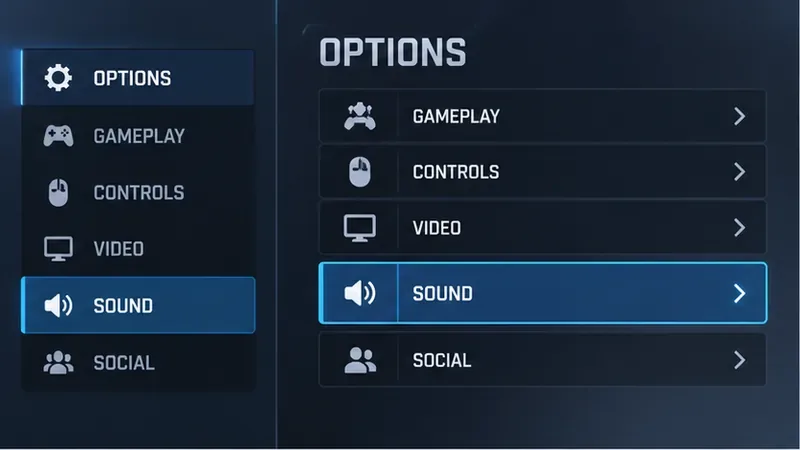
Open Options and look for the Sound or Audio section. On some platforms, sound-device or audio-mix choices may be grouped differently. Blizzard introduced audio-mix choices for common listening setups, including headphones and home theater, during the Overwatch 2 beta. The names and available choices can change by platform or game build, so use the labels actually shown in your menu. The official beta notes describe the audio-mix options.
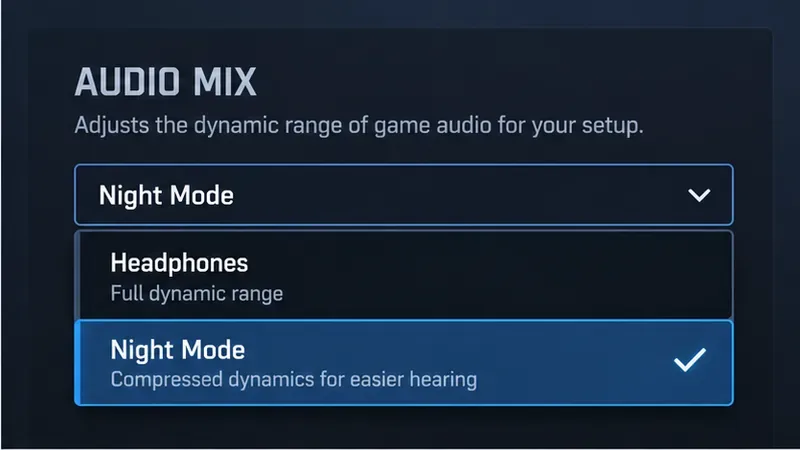
If you play on headphones, compare Night Mode with a Headphones or neutral/reference option if your menu offers them. Night Mode is a sensible first test when explosions and weapons drown out steps; a less compressed or more neutral mix may give you a better sense of distance and impact. Neither is automatically superior. Compression narrows the difference between quieter and louder sounds, which can bring low-level details forward but can also make a busy fight feel crowded. Set your device volume to a comfortable level before comparing; do not turn the whole system up simply to force distant footsteps to stand out.
Illustrative menu view: open the Sound or Audio options first; exact labels and placement can vary by platform and version.Illustrative audio-mix choices. Try Night Mode against a headphone or neutral mix in the same quiet test situation.
Lower masking sounds without losing useful cues
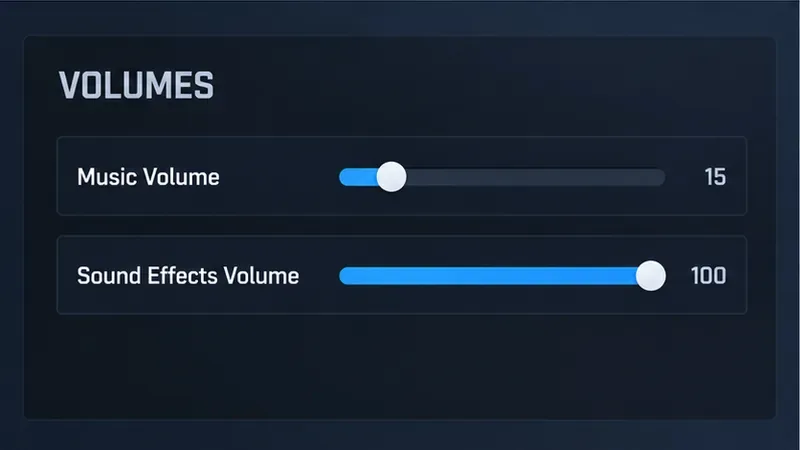
Turn Music Volume down first. Music can add atmosphere, but it rarely tells you where a flanker is moving. Lowering it is a simple way to reduce masking without changing the sound of every weapon and ability. You can leave it at a low level rather than muting it completely if you use audio stingers to notice an objective or round-state change.
Keep Sound Effects Volume high enough to hear movement, weapon fire, and abilities. Do not expect a larger effects slider to make footsteps louder than all other effects: the game does not expose a dedicated enemy-footstep slider in the menu options covered here. If combat becomes harsh or tiring, reduce your overall listening level and try another Audio Mix instead of boosting treble or pushing the master volume to its limit.
Voice lines and team voice chat can also compete for attention. Keep voice chat at a level where you can understand teammates without having to raise the master volume. If you use external chat or headset software, check its mixer for automatic volume reduction, noise suppression, equalizer presets, or a surround mode that changes the game signal. Change one item at a time so you can tell what helped.
Illustrative volume controls: lower music first and preserve enough effects volume to hear footsteps and ability cues.
Set up directional audio without stacking effects
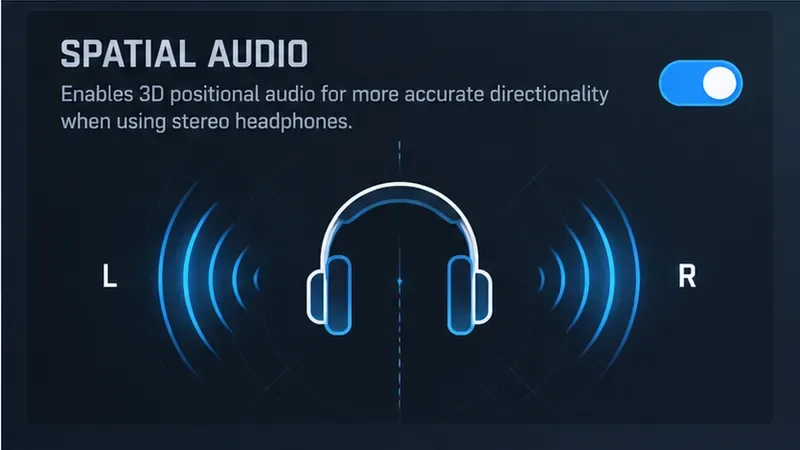
For positional cues, use stereo headphones that fit comfortably and play with left and right channels connected correctly. If Overwatch 2 offers a spatial-audio or headphone-positioning option on your platform, test it by itself. Blizzard has documented support for spatial audio on Windows and Dolby Atmos for headphones in historical patch notes, but platform support and operating-system controls differ. Blizzard’s spatial-audio notes explain that Windows spatial settings can take priority over the game setting.
Avoid enabling several layers at once—for example, a headset’s virtual 7.1 mode, Windows Sonic or Dolby Atmos, and an in-game spatial mode—unless you have tested that combination. Depending on the devices involved, audio may be processed more than once. That can make sounds wider but less precise. Begin with one processing route and compare it with plain stereo. Keep the route that makes left, right, front, and rear cues easiest for you to identify, not the one with the biggest or most cinematic sound.
Illustrative stereo setup: test a single supported spatial-audio option, then compare it with plain stereo.
Test the settings before relying on them in a match
Choose one audio mix and keep your operating-system and headset processing unchanged.
Use the Practice Range or a low-pressure custom game to listen for movement from different directions. If you cannot reproduce an enemy footstep cue reliably there, do not infer too much from a single sound in a crowded team fight.
Listen at a comfortable, consistent volume. Compare Night Mode with a headphone or neutral/reference mix without changing several sliders between attempts.
Rotate your character and notice whether the cue moves consistently from left to right and from front to rear. A clear direction change is more useful than simply hearing a louder sound.
Repeat in an actual match. Keep the mix only if it improves awareness without making weapons, abilities, and voice lines tiring or confusing.
Audio cues are situational. Enemy movement can be masked by combat, map geometry, distance, voice chat, and other sound effects. Some heroes move or attack in ways that create little warning, and a sound cue should be treated as information to investigate rather than proof that a specific flanker is behind you. Use the cue to check a likely doorway, high ground, or rotation path, then confirm with your view, team communication, and the match situation.
Common mistakes to avoid
Copying a streamer’s exact mix: a different headset, equalizer, platform, or hearing profile can make the same preset sound very different.
Turning every volume slider up: louder playback can become fatiguing and does not separate footsteps from explosions.
Using multiple surround effects together: test one spatializer at a time so directional cues remain interpretable.
Expecting footsteps to reveal exact distance or hero identity: audio gives clues, not a perfect radar. Confirm the sound visually or through team information.
Making several changes at once: adjust one control, test it, and keep a note of the result so you can return to a comfortable setup.
Quick checklist
Start with Night Mode or a headphone mix, then compare rather than assuming.
Lower music before changing effects or master volume.
Keep effects audible at a safe, comfortable listening level.
Use stereo headphones and only one spatial-processing path while testing.
Verify left-right and front-rear cues in a quiet practice setting, then confirm the result in matches.
If a flanker still seems silent, the mix may not be the cause: combat masking, platform audio routing, headset software, or the game’s current sound behavior can all affect what reaches you. Treat this profile as a clarity-focused starting point, not a promise that every footstep will be audible.