Home
» 🎮 Esports
»
Best Monitor Settings to Reduce Input Delay in Street Fighter 6
Best Monitor Settings to Reduce Input Delay in Street Fighter 6
Best Monitor Settings to Reduce Input Delay in Street Fighter 6
For the lowest practical display delay in Street Fighter 6, enable your monitor’s Game or Low Latency mode, set it to the highest stable refresh rate available at your chosen resolution, use a clean overdrive level, and turn on the game’s Input Delay Reduction option. On PC, try V-Sync off if minimizing latency matters more than eliminating tearing. On PS5, enable 120 Hz Output and ALLM when your display supports them, but remember that a console output setting does not make every game render at 120 frames per second.
These settings affect different parts of the display chain. A monitor preset can bypass extra image processing; refresh rate affects when the screen can show incoming frames; overdrive changes pixel transitions; and VRR coordinates refresh timing. None can fix controller delay, unstable game performance, or online connection problems. Use this guide as a starting configuration, then compare changes in actual matches.
Recommended starting settings
Setting
Starting point
What to watch for
Monitor picture preset
Game, Low Latency, or equivalent: On
Image processing may be reduced; labels differ by model.
Refresh rate
Highest stable rate at your preferred resolution
Verify the active signal in Windows or the monitor’s information menu.
Response time / overdrive
Normal or Fast; move up only if motion stays clean
Too much overdrive can create bright or dark inverse trails.
Street Fighter 6 Input Delay Reduction
On
This is a game setting, separate from the monitor’s OSD.
PC V-Sync
Off for minimum latency, if tearing is acceptable
Off can show a horizontal tear; VRR may be a better compromise.
VRR / Adaptive Sync
Test On and Off
Keep it if the image is stable and the result feels good on your display.
PS5 120 Hz Output and ALLM
On or Automatic, when supported
These settings depend on the console, game, monitor, cable, and HDMI port.
1. Enable the monitor’s Game or Low Latency mode
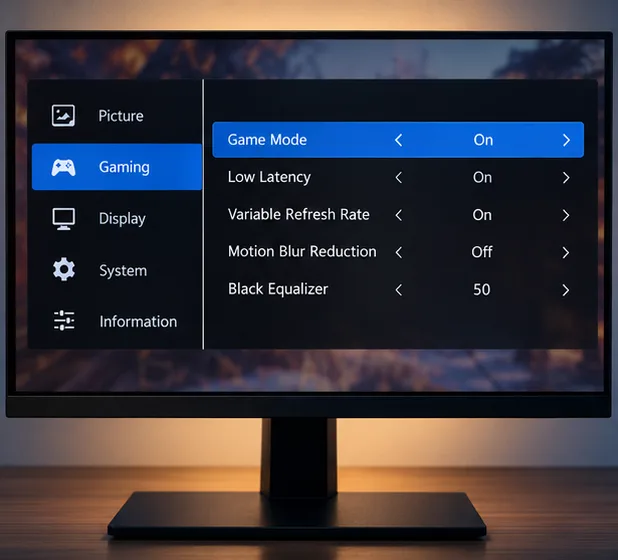
Start in the monitor’s on-screen display (OSD). Look for Game Mode, Low Input Lag, Instant Mode, or a similarly named preset. The label and effect vary by manufacturer, so check your display’s manual. The goal is to avoid extra processing such as motion interpolation or image enhancement that can add a buffer before the picture appears.
Illustrative monitor menu. Preset names and available options vary by model; check your own monitor’s manual.
Use the low-latency preset as your baseline. If it makes the picture less pleasing, adjust brightness or color after confirming that the preset is active. Those image-quality controls do not have a universal input-delay setting.
2. Set and verify the active refresh rate
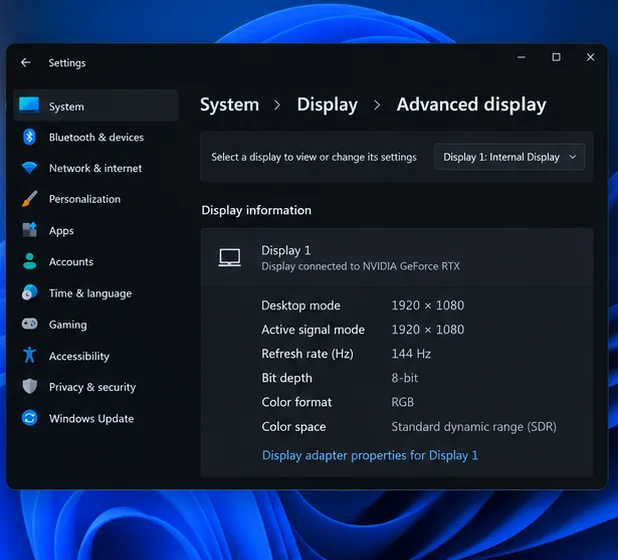
On Windows 11, open Settings > System > Display > Advanced display, select the monitor you use for the game, and choose its highest stable refresh rate at your preferred resolution. Then confirm the active signal in the same screen or the monitor’s OSD. Microsoft notes that a higher refresh rate can improve responsiveness and reduce input lag in games, but the available rates depend on the display and current resolution. See Microsoft’s instructions for changing a monitor’s refresh rate.
Illustrative Windows display page; verify the actual active signal on your PC.
A 144 Hz monitor left at 60 Hz is still operating at 60 Hz. If the intended rate is missing, check the monitor input, cable, GPU port, display mode, and the monitor’s own high-refresh setting. The monitor can only show frames supplied by the game and system; selecting 144 Hz does not by itself unlock 144 FPS gameplay in Street Fighter 6.
3. Tune overdrive for clean motion, not the biggest number
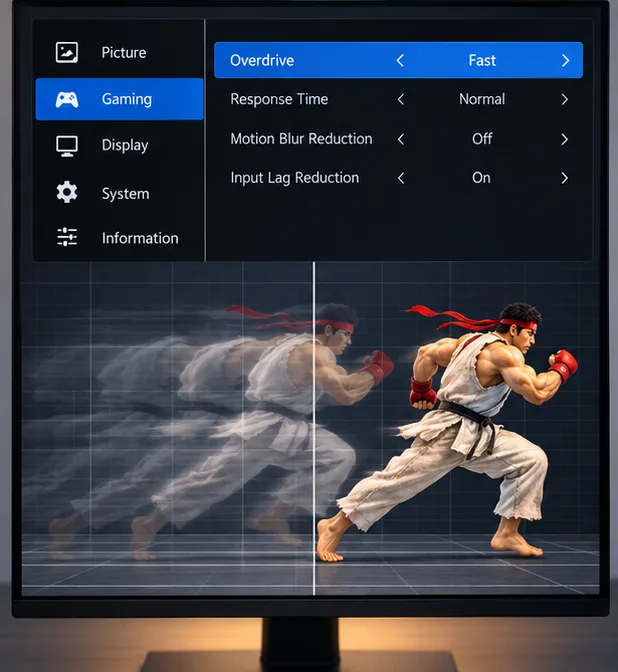
Monitor response-time controls may be called Overdrive, Response Time, Trace Free, or AMA. They change how quickly pixels transition between shades. That can make moving fighters look clearer, but it is different from reducing the delay between a controller input and the game’s response. ASUS explains that setting overdrive too high can cause overshoot, visible as inverse ghosting or colored trails. Read its monitor setup guide to overdrive and response time.
Illustrative response-time menu. Try a middle setting first, then check moving edges for inverse trails.
Begin at Normal or Fast, then compare one step higher during movement in Training Mode. If you see bright halos, dark outlines, or a trail that seems to lead the character, lower the setting. “Fastest” is not automatically best, and the right level may change if you use a different refresh mode.
4. Test VRR or Adaptive Sync on your own display
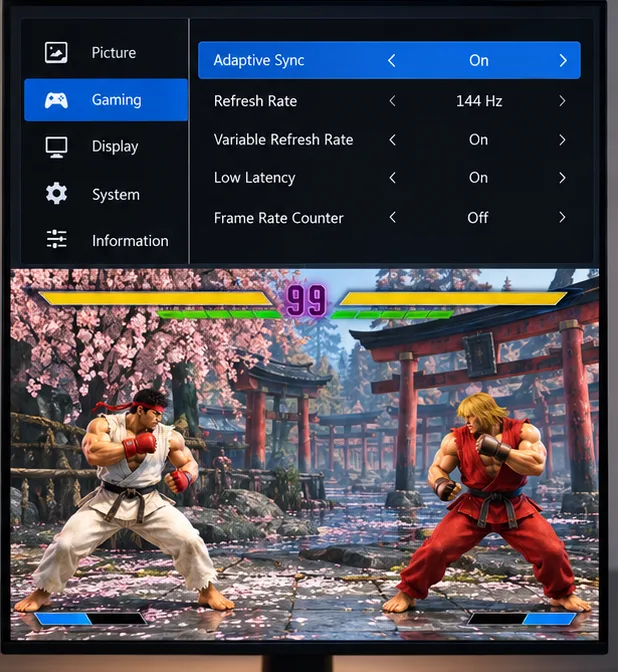
VRR may appear as FreeSync, G-SYNC Compatible, or HDMI Variable Refresh Rate. It synchronizes a compatible display’s refresh timing with the source output, which can reduce tearing when supported. It is not a universal input-lag switch. PlayStation says PS5 VRR requires a compatible display and that results vary by display; its video-output guide also warns that applying VRR to unsupported games can cause unexpected behavior on some setups. See PlayStation’s PS5 video-output and VRR guidance.
Adaptive Sync can help with tearing on compatible setups; the monitor menu shown is illustrative.
Try VRR both ways and keep it enabled if the image remains stable and responsive. Turn it off if you notice flicker, blanking, or other compatibility problems. For PS5, leave Apply to Unsupported Games off unless you are deliberately testing it and the result is stable.
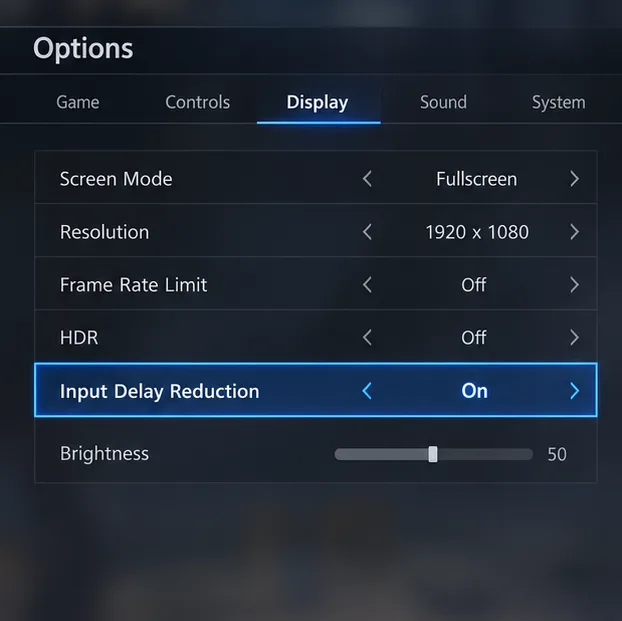
5. Turn on Street Fighter 6’s Input Delay Reduction
In Street Fighter 6, open Options and look under the game’s graphics or display settings for Input Delay Reduction. Set it to On. The exact menu path can differ with platform, game update, or interface language, but the setting is part of the game—not a monitor OSD feature.
Illustrative game menu showing Input Delay Reduction enabled; use the current menu on your platform.
EVO Japan’s 2026 Street Fighter 6 rules list Input Delay Reduction as On for tournament play. That makes it a sensible competitive baseline, while not guaranteeing identical results on every home setup. See the official EVO Japan 2026 Street Fighter 6 rules.
6. Decide whether PC V-Sync is worth the trade-off
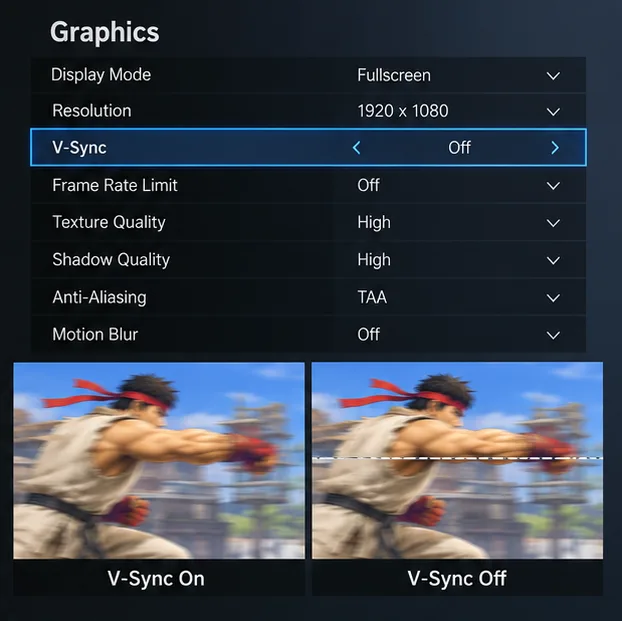
V-Sync waits for a display refresh to reduce tearing. That wait can add latency, so NVIDIA recommends turning V-Sync off when minimum latency is the priority and you can tolerate tearing. The practical choice is personal: start with the in-game V-Sync option off, then test a short set in Training Mode. NVIDIA’s system-latency guide explains the latency-versus-tearing trade-off and discusses VRR configurations.
Illustrative comparison: V-Sync can reduce tearing, while disabling it may expose a tear line.
If tearing distracts you, test VRR first when the monitor and graphics system support it. You can also compare V-Sync on and off; the lowest-latency choice is less useful if visible tearing makes it harder for you to read the match. Change one setting at a time so the result is clear.
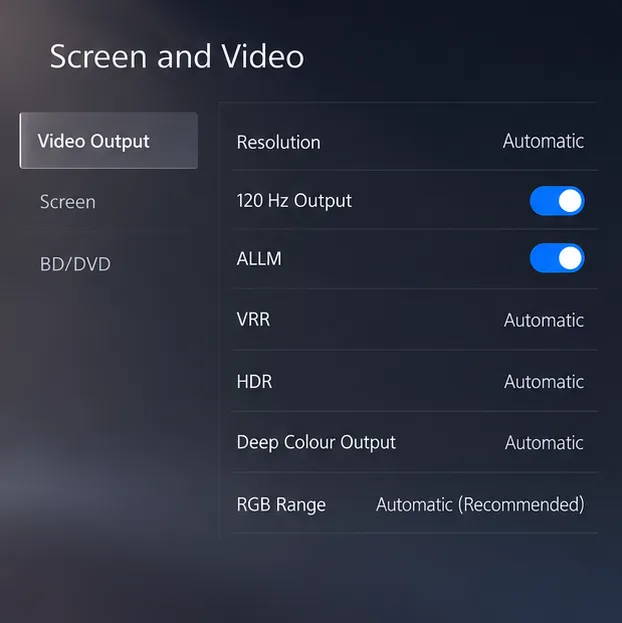
7. On PS5, enable supported 120 Hz output and ALLM
On PS5, go to Settings > Screen and Video > Video Output. Enable 120 Hz Output if your display supports it, and set ALLM to Automatic or On when available. ALLM asks a compatible TV or monitor to switch into its low-latency mode while gaming. Sony notes that 120 Hz output is for displays and games that support it; the setting does not make every game render at 120 FPS. Check the display’s supported HDMI port and use a cable rated for the signal you want.
Illustrative console output menu. Check your own PS5 and display for supported options.
On the same Video Output page, PS5 also provides VRR controls. Keep changes only if the picture is stable. If enabling 120 Hz causes a blank screen or the display falls back to a lower resolution, turn it off and confirm the monitor, HDMI port, and cable support that combination. Sony’s official guide provides the current steps and compatibility notes.
8. Confirm what signal reaches the monitor
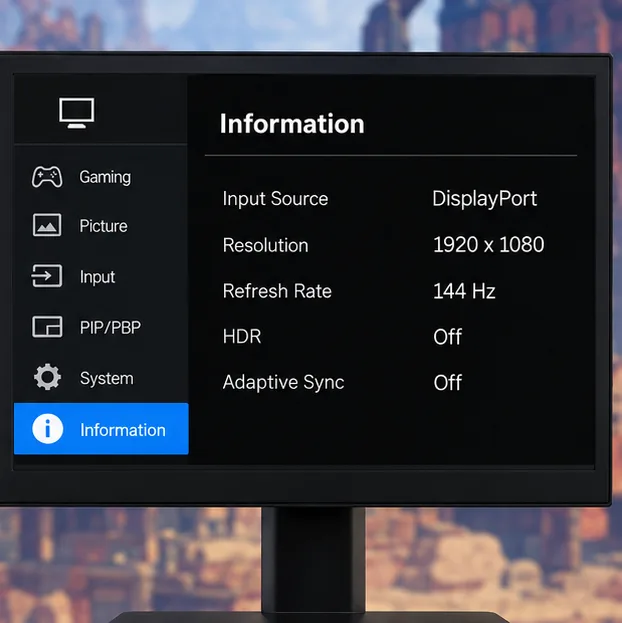
Finish by opening the monitor’s Information or Status page. Check the selected input, resolution, and refresh rate. Compare those values with Windows Advanced display or PS5’s Current Video Output Signal. This catches common setup mistakes such as using an HDMI port with different capabilities, selecting the wrong display in Windows, or leaving a monitor in a compatibility mode.
The monitor’s information page confirms the signal it is receiving; this example is illustrative.
Quick checklist
Monitor Game or Low Latency mode: On, if available.
Refresh rate: highest stable rate at your chosen resolution; verify the active signal.
Overdrive: Normal or Fast; lower it if inverse ghosting appears.
Street Fighter 6 Input Delay Reduction: On.
PC V-Sync: Off for minimum latency if tearing is acceptable.
VRR / Adaptive Sync: test both ways; keep it if stable and useful.
PS5 120 Hz Output and ALLM: enable when supported.
The settings with the clearest practical value are a low-processing monitor mode, the correct active refresh rate, and Input Delay Reduction turned on. Overdrive improves motion clarity rather than controller-to-game timing, while VRR and V-Sync involve visual trade-offs. Confirm the actual signal, change one option at a time, and keep the combination that feels responsive without distracting artifacts.