Home
» 🎮 Esports
»
Best Heroes of the Storm Minimap Setup: Size, Position, and Clicks
Best Heroes of the Storm Minimap Setup: Size, Position, and Clicks
For a new Heroes of the Storm player, the best starting setup is the standard lower-right minimap, clear display output, and camera-click behavior you can use without mistakes. Do not begin by copying a supposed “125% minimap scale” or left-side placement preset from another game. The Blizzard documentation reviewed for this article does not establish a supported minimap-only size slider or corner selector.
That distinction matters: choosing how you read and interact with the map is practical; prescribing a scaling percentage without a verified control is not. This article walks through four checks that help you build a useful setup without inventing settings. Images are simplified interface illustrations, not screenshots of a tested client.
Documentation check: October 8, 2026. Blizzard’s published map-awareness explanation describes the minimap in the lower-right corner. Its September 28, 2026 live patch notes, including the October 5 hotfix, do not announce an independent minimap resizing or relocation feature. This is a documentation finding, not a claim that every current menu has been inspected in a running game.
1. Understand what the minimap can tell you
A minimap is the small overview of the battleground displayed within your HUD, or heads-up display: the interface you see while playing. Map awareness means understanding what is happening beyond the immediate fight, using the information your team can currently see.
Blizzard explains that the minimap shows allied positions, enemies visible to your team, objective and Mercenary Camp availability, and fortification status. An objective is a battleground-specific opportunity that can help your team gain an advantage. Mercenary Camps contain neutral units your team can capture.
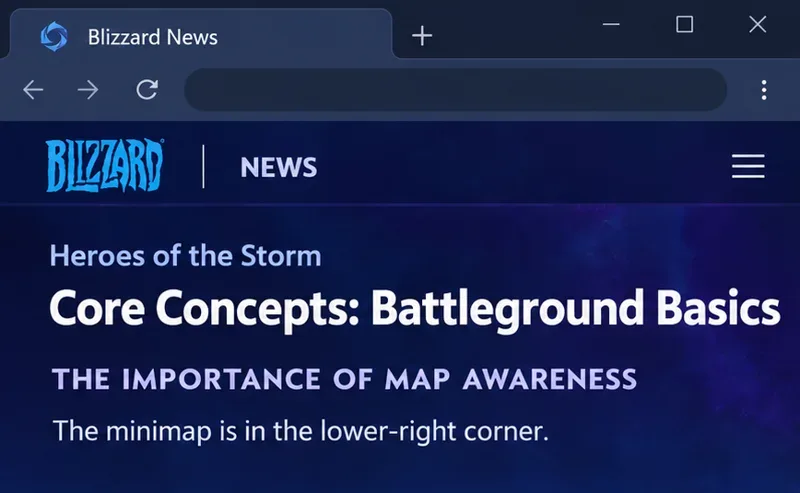
Blizzard’s Battleground Basics article heading and its map-awareness section. The article identifies the minimap’s standard lower-right location.
When a visible opponent disappears from the map, do not conclude that they are far away. You no longer have the same position information. That uncertainty should influence how safely you advance, especially when you cannot account for several opponents.
Your first goal is simple: during a safe moment, identify your teammates, visible opponents, and the next relevant objective area. You do not need to learn every icon immediately. Recognizing the information that changes your next decision is more useful than staring at the map continuously.
What scaling and position options are actually verified?
The standard position is documented; independent resizing and repositioning are not verified here. No supported minimap-only scale percentage or drag-to-move procedure was found in the official documentation reviewed. Blizzard’s September 2026 live patch notes and subsequent hotfix do not introduce those controls.
Absence from a patch note does not prove that a control can never exist. If a later client offers one, use its own label and tooltip as the authority. For now, a useful recommendation should focus on verified interactions and the display you actually have.
What you want
Practical starting choice
Limit or trade-off
A larger minimap independently of the HUD
Check the installed client before following any scale recipe.
No supported minimap-only percentage is verified in this article.
A minimap in another corner
Learn the documented lower-right location.
No native corner selector or drag procedure is verified here.
A sharper map and interface
Use clear display output, starting with the monitor’s native resolution.
This concerns the whole image, not independent map resizing.
Fewer accidental camera jumps
Review the minimap camera binding.
Removing it also removes that shortcut for intentional camera inspection.
Faster awareness
Practice short glances before decisions.
Changing interface settings alone does not create the habit.
2. Prepare a readable display before changing controls
Start from your normal seated position and ask two different questions: are icons too small to distinguish, or are they blurred? Small, sharp icons and large, fuzzy icons are different problems. A lower output resolution may change the overall image, but it is not a reliable minimap-only enlargement method.
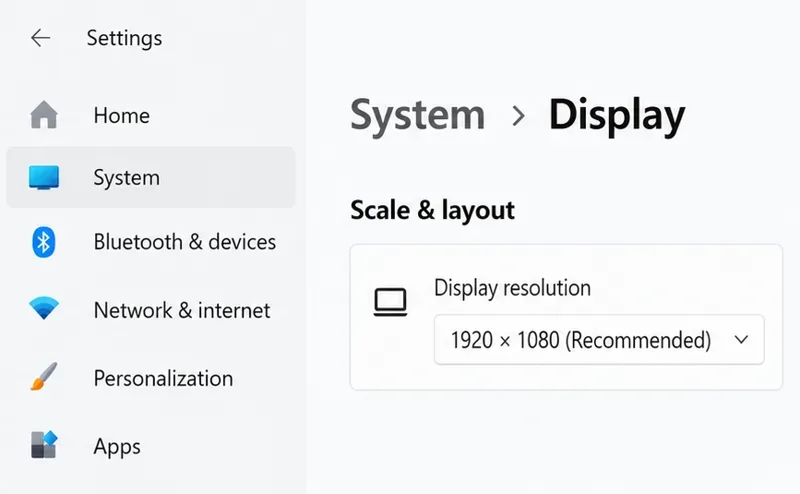
For a Windows PC, inspect the display you use for the game under Settings > System > Display. Microsoft generally recommends the resolution marked Recommended and explains that non-native resolutions can make text less sharp or produce stretching and borders. Refer to Microsoft’s display resolution and layout instructions.
Windows Display settings showing the Display resolution control. The illustrated 1920 × 1080 value is an example; use the recommended value for your own monitor.
Then evaluate the game itself. A correct Windows desktop setting does not guarantee that every game display mode uses identical output. Compare the actual clarity of the interface and battleground rather than assuming that a desktop scaling percentage has resized the minimap.
If you need lower rendering settings for smooth play, that is a separate priority worth considering. Choose a compromise based on both movement clarity and icon readability. This article does not claim that a particular resolution increases the minimap by a measured amount, or that one setting is optimal for every monitor.
Before making further adjustments, note your current display and control settings. Keeping a record makes it easier to restore your baseline if a change improves one problem but creates another.
3. Decide whether minimap camera clicks help you
The camera is your view of the battleground. Moving the camera and ordering your hero to move are different actions. A minimap camera binding can let you inspect another area without treating that inspection as a command to travel there.
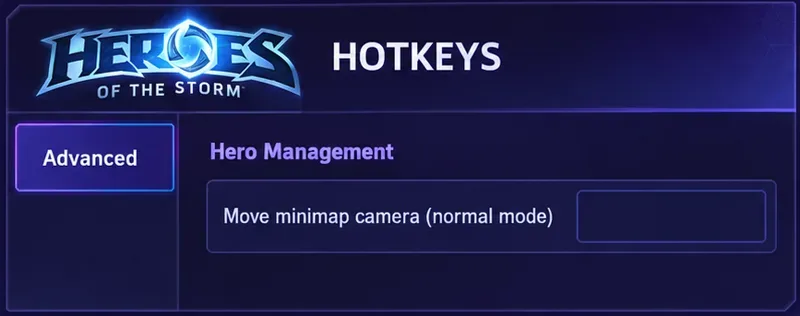
A technical-support reply on Blizzard’s forum gives this route: Escape > Hotkeys > Advanced > Hero Management > Move minimap camera (normal mode). It suggests unbinding left-click when unwanted minimap camera movement is the problem. The original reply dates to April 20, 2019; check the corresponding action in your installed client because presentation can change.
A simplified Hotkeys panel showing Move minimap camera (normal mode) assigned to Left Mouse Button. Review the camera action separately from movement commands.
Keep the binding if you deliberately use it to inspect remote areas and rarely trigger it unintentionally. It gives you a direct way to look elsewhere, but it also requires accurate clicking around the lower-right interface.
Consider removing it if accidental clicks repeatedly pull your view away at important moments. You give up that particular inspection shortcut, so make sure you remain comfortable navigating the camera through your other configured controls. For a new player who has no recurring problem, leaving familiar controls intact is a sensible baseline.
4. Test one change in a low-pressure session
Use a practice environment before relying on a changed binding in a competitive match. If you chose to remove the minimap camera assignment, clear that action’s binding using the controls your client presents, apply the change, and inspect the assignment again. Do not clear neighboring actions merely because they also mention the minimap.
The same minimap camera action with an empty binding field. This represents removing that camera shortcut, not turning off the minimap.
Now compare behavior deliberately. Can you still read the map? Can you inspect another area using your remaining camera controls? Does clicking near the corner still produce an unwanted result? These are suggested checks for your setup, not results from a test performed for this article.
Removing a camera binding should not be treated as proof that all commands pass through the minimap. Smart commands, forced movement, ability targeting, and camera movement are distinct behaviors. Evaluate the exact action that caused your problem instead of assuming one adjustment disables every interaction.
Change one variable at a time. If you alter resolution and several bindings together, you may not know which change improved readability or caused a missed command. Restore the previous assignment if the lost convenience matters more than the reduction in accidental clicks.
Build a glance habit that fits normal play
A useful beginner routine connects a glance with a decision. Check the minimap before leaving the safety of your lane, before traveling toward an objective, and during a safe pause after a fight. Keep each glance brief enough that you can return attention to your hero and immediate surroundings.
Hypothetical example: you are about to travel toward an objective and see most teammates elsewhere. That observation is a reason to reassess the route and timing, not an instruction to race ahead alone. If opponents are missing, treat the route as uncertain rather than assuming an empty map means an empty area.
Avoid imposing a rigid timer that makes you look away during an important dodge. The goal is timely information. In a practice session, ask afterward whether you noticed the situation before committing, rather than judging success by how often your eyes visited the corner.
Common mistakes to avoid
Borrowing settings from another game: a minimap slider or left-side placement option elsewhere does not establish the same feature in Heroes of the Storm.
Confusing resolution with map scale: changing the whole output can affect clarity without providing independent minimap control.
Confusing camera movement with hero movement: inspect the relevant action before changing bindings.
Assuming missing enemies are harmless: missing information leaves uncertainty.
Resetting every hotkey to solve one mistake: preserve working controls and adjust only the action you have identified.
Keep the documented lower-right layout as your baseline, make the whole display readable, and retain or remove the minimap camera shortcut according to your actual mistakes. Those are practical choices a new player can evaluate; an unsupported scaling percentage cannot offer the same confidence.