Home
» 🎮 Esports
»
Best TFT Graphics Settings for Smoother Combat Animations
Best TFT Graphics Settings for Smoother Combat Animations
Best TFT Graphics Settings for Smoother Combat Animations
For smoother TFT combat animations, start with the lowest graphics preset your current build offers, keep the board and interface easy to read, and raise visual quality one option at a time only after busy fights stay steady. On PC, lower shadows and visual effects first if those controls appear. Keep your display at its native resolution while testing simpler changes, choose a frame-rate limit your device can sustain, and compare VSync both ways. On mobile, try Performance Mode if the installed app exposes it.
There is no universal best preset or verified FPS gain for every device. TFT’s available controls can vary by platform and build, and a lower setting is useful only if it makes real matches feel steadier without making units, health bars, or item icons harder to follow. This guide concerns rendering smoothness and frame hitches; it does not change combat rules or unit attack timing.
Reviewed October 16, 2026, against Riot’s current support guidance and patch 18.4 notes. Set 18 moved TFT from Hextech to Unreal, and Riot says preferred settings reset during the engine migration. Old League of Legends screenshots and configuration advice may not match the current TFT client.
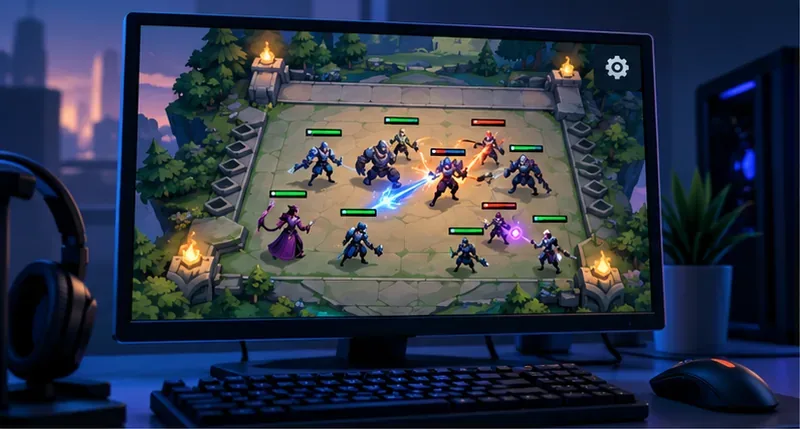
Illustration of a combat board: preserve the unit and health-bar details you rely on while lowering visual quality.
Quick reference: graphics settings to try
Use this as a performance-first starting point, not an official Riot preset. Riot’s general PC graphics guidance says setting names vary between games and recommends lowering demanding options, testing, then restoring the visual details you prefer. Apply a row only when your current TFT version actually offers that control.
Setting, if available
Starting point
What to check
Overall quality or preset
Lowest available preset
Raise it only after several busy fights remain smooth.
Shadows
Off or lowest
Restore them if the visual difference matters more than the improvement.
Effects, particles, or post-processing
Low
Keep important casts and damage readable.
Environment, detail, or material quality
Low
Increase gradually after combat performance is acceptable.
Anti-aliasing
Off or lowest for comparison
Turn it back up if jagged edges are distracting.
Resolution
Native display resolution
Lower it only if other changes are not enough and text remains legible.
Frame-rate limit
A sustainable option; 60 FPS is a practical first PC target when offered
A cap is a ceiling, not a promise that every fight will reach it.
VSync
Compare on and off
Choose the better balance of tearing, smoothness, and responsiveness.
Mobile Performance Mode
Try it if the current app shows it
Check that the board stays clear and performance holds through a full session.
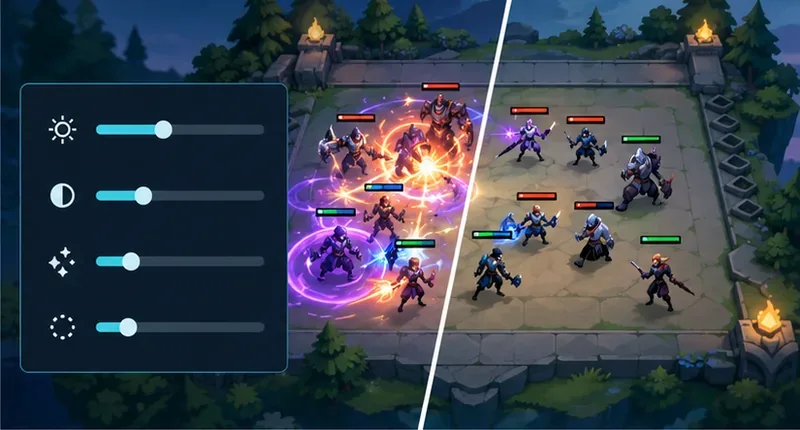
The control panel is conceptual artwork; current TFT menus may use different names or expose fewer options.
A four-step setup for smoother TFT fights
Check the current build and save your baseline
Open the settings inside the version of TFT you are actually playing. Riot’s Unreal migration FAQ says preferred settings reset during the engine change, so older saved values may no longer describe the current setup. Note or photograph the options you can see before changing them. Use the in-game menu rather than editing an old League configuration file: Riot’s current graphics guide does not document a TFT-specific file map or promise that League menu names apply to TFT.
Lower visual costs before reducing resolution
Choose a low overall preset if one exists. If separate controls are available, try reducing shadows and effects first, then environment or material detail. Change only a few settings at a time so you can tell which one helped. Keep resolution at the display’s native setting during this first comparison; lowering it can soften text, health bars, and item icons. If combat still hitches after the other changes, try one lower resolution step and check board readability before keeping it.
Pick a frame-rate target and test VSync
Choose a frame-rate cap your computer can maintain during a crowded fight, not just in the lobby. A 60 FPS cap is a sensible first PC comparison when the option is available; a higher cap is useful only if the system can hold it consistently. At a perfectly steady 60 FPS, each frame takes about 16.7 milliseconds; at 120 FPS, about 8.3 milliseconds. Those are mathematical conversions, not TFT benchmark results. A few long frames can still make an animation look uneven even when an average FPS counter appears high.
VSync synchronizes frame presentation with the monitor and can reduce visible tearing. Riot says turning it off may improve performance or input delay in some cases, but it can also introduce tearing. Compare both settings in similar fights if the toggle exists; keep the one that looks and feels better on your display.
Judge several busy combat rounds
Do not decide from the lobby or one quiet round. Watch multiple fights, especially later rounds with many units and overlapping effects, and check the transition back to planning. Keep resolution and background apps the same while comparing. Record the option changed and whether the hitching, scouting motion, or interface response improved. If the board becomes harder to read, restore some quality even if the frame-rate number rises.
Mobile settings: use the options your app shows
Riot’s patch 18.1 notes explicitly refer to a mobile Performance Mode graphics setting, report improvements intended to help lower-spec devices maintain frame rate, and describe fixes for devices that were running above their hardware recommendations. That makes it reasonable to test Performance Mode when it appears in your installed app. The notes do not establish that every phone or tablet has the same controls or frame-rate choices, so do not infer a supported cap from the phone’s screen refresh rate.
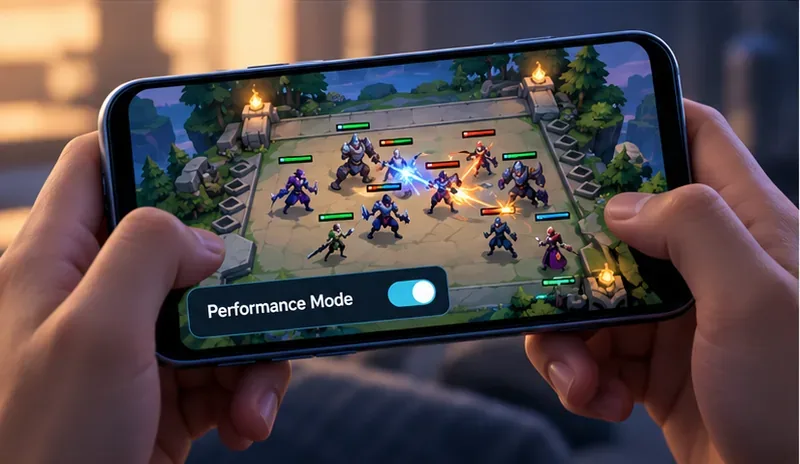
Illustrative mobile screen, not a captured TFT menu; Riot’s patch 18.1 notes document a mobile Performance Mode setting.
If a phone starts smoothly but becomes choppy after several rounds, check whether the slowdown repeats across matches and whether the device gets hot. A setting that works for the opening minutes may not be suitable for a full session. Test one change at a time and keep the graphics level that stays stable without hiding important board information.
When graphics settings do not fix the hitching
Riot’s patch notes show that not every performance problem comes from a player’s graphics choices. Patch 18.1 included fixes for memory leaks and device-specific performance issues; patch 18.4’s October 7 mid-patch update temporarily disabled Choncc’s Splash Party, Night Versus Dawn, and Bridge of Progress arenas to support performance. Those are specific fixes, not a promise that every device or fight will be smooth.
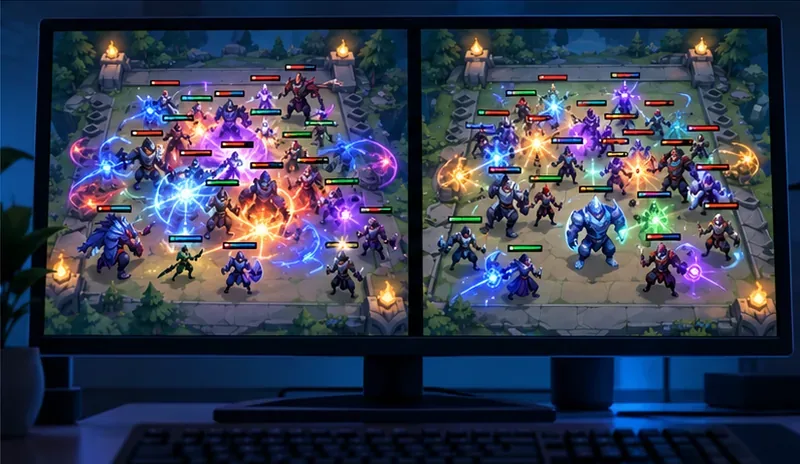
Use several real, busy fights as your comparison; this artwork illustrates the kind of crowded scene to watch.
If the lowest available preset barely changes the problem, check for a game update and consult Riot’s current support guidance for PC performance. Close unnecessary recording or other demanding background apps for a comparison. If the whole scene slows, investigate rendering, heat, drivers, and background workload. If the animations stay fluid but game state or actions arrive late, record that separately from low FPS; graphics changes may not address a connection issue.
For a persistent visual fault tied to one ability or arena, note the device, platform, patch, and what was on screen, then report it through Riot Support. The patch 18.4 notes and patch 18.1 notes help distinguish a documented game-side fix from a setting you can change locally.
The best TFT graphics settings are the lowest-cost combination that stays smooth through demanding fights while keeping your board readable. Start with a simple baseline, test the actual combat scenes that cause trouble, and keep only the changes that improve sustained play on your device.