How to Fix Street Fighter 6 Slow Motion Gameplay on PC
Fix Street Fighter 6 slow motion on PC by checking frame rate, lowering graphics, selecting the right GPU, and verifying game files in a safe order.
If you play Apex Legends at 1920×1080, a strong starting point is 104 FOV. It gives you substantially more peripheral awareness than the default view without shrinking distant enemies as aggressively as the 110 maximum. If long-range targets look too small on your monitor, try 100. If you prioritize close-range awareness and already track small targets comfortably, move up to 110.
That recommendation is a practical 1080p balance, not an official single “best” number. Electronic Arts currently recommends a broader 90–110 range and says 110 is common among competitive players. EA’s current PC options also list the FOV slider range as 70–110. As of October 2026, the official guidance still uses that range, and the latest Marked midseason notes do not announce a general change to the FOV slider. See EA’s current Apex Legends PC settings guide and Marked Midseason Patch Notes.
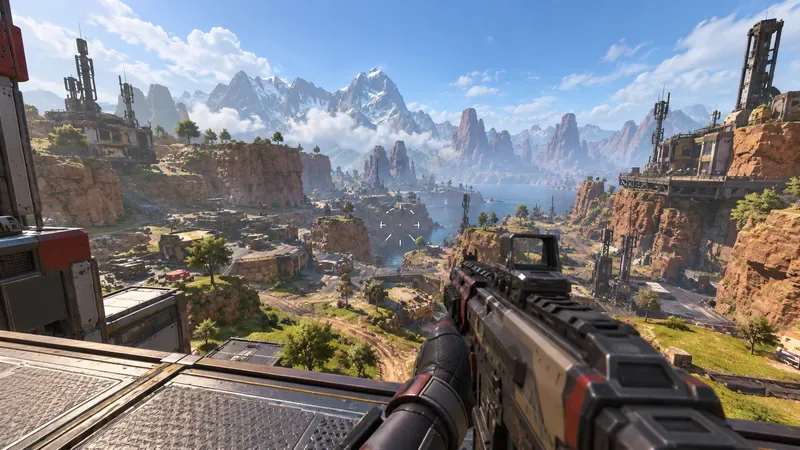
For a typical 16:9 1080p monitor, use this as a simple tuning guide:
| FOV | Best for | Main tradeoff |
|---|---|---|
| 90–96 | Players who value larger-looking distant targets or sit farther from the screen | Less peripheral information in close fights |
| 100 | Balanced visibility with relatively comfortable target size | Not as wide as high-FOV competitive setups |
| 104 | Best general starting point for 1080p | Distant enemies look smaller than at 90–100 |
| 106–110 | Close-range fighting, fast movement, strong peripheral awareness | Small targets and distant details are harder to resolve |
If you want one number and do not yet know your preference, choose 104. Play several matches without changing it, then adjust in small steps. The right setting should let you notice movement near the sides of your screen without making opponents at medium and long range feel uncomfortably tiny.
Resolution and FOV are separate settings. Setting 1080p does not mathematically require a particular FOV, and increasing FOV does not add pixels to your monitor. What changes is how much of the game world is projected into the same 1920×1080 image.
At a higher FOV, more of the scene fits on screen. That is useful in Apex because fights often involve fast strafing, vertical movement, flanks, doors, ziplines, and third parties. The cost is that objects toward the center and at distance appear smaller. At 1080p, where you have fewer total pixels than at 1440p or 4K, that reduction in apparent target size can become noticeable sooner.
This is why 110 can feel excellent for awareness but not automatically superior for every 1080p player. If you use a smaller monitor, sit farther away, or often fight with marksman weapons and non-magnified optics, slightly lowering FOV can make enemy silhouettes easier to read.
EA’s current Apex Legends PC settings guide recommends 90–110 FOV. The same guide explains the core tradeoff: higher FOV lets you see more around you, while far-away objects and enemies appear smaller. It also notes that 110 is a common competitive setting, while emphasizing that the best value depends on personal preference and platform.
EA separately lists the PC FOV slider as 70–110 on the official Apex Legends PC options page. Those official limits are more useful than copying a configuration from an old video or forum post that may refer to a different version of the game.
110 is best only if you can still acquire and track targets comfortably. Its main advantage is maximum peripheral coverage within the normal in-game slider. That can help you see a player entering from the edge of the screen during close fights and can make fast movement feel easier to visually follow.
The drawback is target scale. A player occupying a modest part of the screen at 100 FOV will appear smaller at 110. On a 24- or 27-inch 1080p display, that may be perfectly comfortable when you sit close to the monitor. On a larger television viewed from farther away, it may not be.
Use 110 when your aim feels controlled and you rarely lose enemies because they look too small. Drop to 104 or 100 if you find yourself spotting movement but failing to identify or center distant opponents quickly.
There is nothing magical about 104. It is useful because it sits close to the high end of EA’s recommended range while leaving a little more apparent size for distant targets than 110. In practice, it can preserve much of the wide-screen awareness people want from high FOV without pushing the view all the way to the maximum.
For a player moving from the default 70 FOV, jumping immediately to 110 can also make the image feel dramatically different. Moving first to roughly 100–104 gives your eyes and aim a less extreme adjustment. After that, you can decide whether the extra peripheral space at 106–110 is actually helping.
You do not need a benchmark spreadsheet. Use the Firing Range and a few real matches, and judge the setting by repeatable visual cues.
Change one variable at a time. If you alter FOV, mouse sensitivity, resolution, and reticle settings together, it becomes difficult to tell which change improved or hurt your aim.
A wider view can require the game to draw more visible scene content, so there can be a performance cost in some situations. However, the real effect depends on your CPU, GPU, graphics settings, map area, and frame-rate target. Do not assume that moving from 100 to 110 will cause a specific FPS loss; measure it on your own system.
EA’s current PC settings advice says players seeking maximum performance should lower graphics settings and specifically recommends using the monitor’s native resolution as a starting point. If your 1080p system is already struggling to hold your target frame rate, address expensive graphics options before choosing FOV solely around performance.
Try 106–110. A wider view is helpful when fights involve rapid strafes, door pushes, movement abilities, and enemies crossing the edge of the screen. Keep it only if target size remains comfortable.
Try 102–106, with 104 as the first test. This range offers broad situational awareness while avoiding the most extreme target shrinkage of 110.
Try 96–102. This is especially reasonable if you frequently take fights at distance, use a 1080p display from farther away, or simply acquire targets faster when they appear larger.
Do not feel required to copy 110 because it is common in competitive play. Start around 100–104, learn the game’s movement and visual language, and then widen the view if you can clearly explain what you are gaining.
Use professional settings as a reference, not a rule. FOV interacts with monitor size, viewing distance, vision, preferred weapons, input method, sensitivity, and years of muscle memory. Two players at the same 1080p resolution can reasonably prefer different FOV values.
The better question is whether your setting produces the result you want: clear peripheral awareness, reliable target acquisition, comfortable tracking, and stable performance. If it does, there is no competitive requirement to maximize the slider.
For Apex Legends at 1080p, 104 FOV is the best general starting point. Use 100 if distant targets look too small, and use 110 if you value maximum peripheral awareness and can still track enemies reliably. EA’s official guidance remains 90–110, so all three choices sit comfortably within the developer’s recommended range.
Most importantly, treat FOV as a visibility tradeoff rather than a free upgrade. The best setting is the highest value that gives you useful peripheral information without making target identification and aim noticeably worse on your specific 1080p display.
Fix Street Fighter 6 slow motion on PC by checking frame rate, lowering graphics, selecting the right GPU, and verifying game files in a safe order.
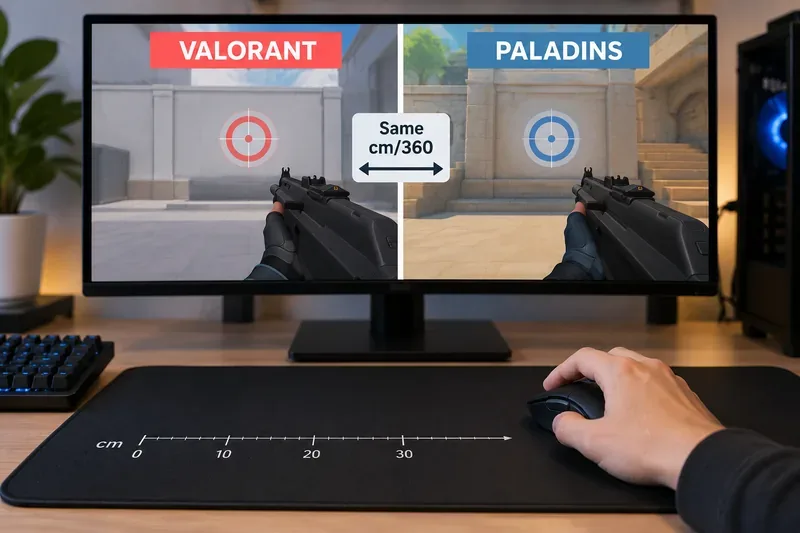
Convert VALORANT sensitivity to Paladins with a practical 7.65× starting ratio at the same DPI, then verify the result with cm/360 for a reliable match.
Use Advanced drone deployment in Rainbow Six Siege, choose a prep-phase transition, and pair fresh intel with a controlled entry routine.
Free up Mobile Legends storage safely. Learn the difference between cache and game resources, clear Android cache, check iPhone options, and avoid deleting account data.
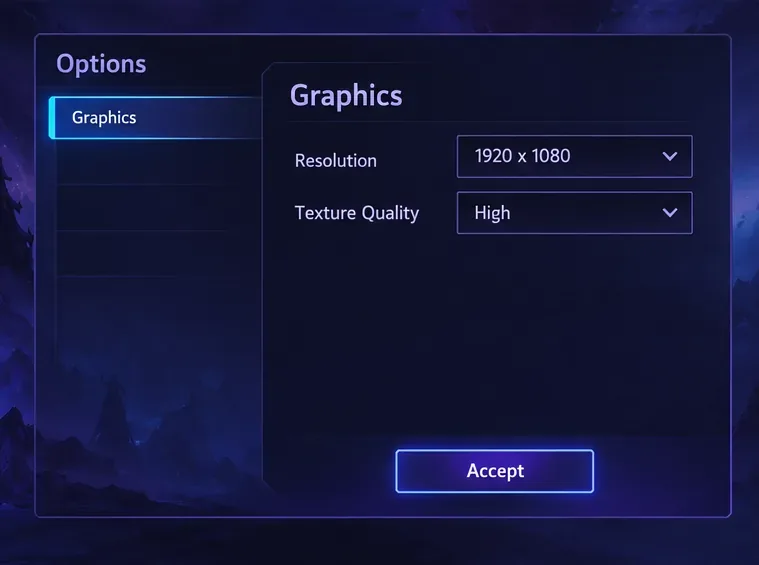
Learn which Heroes of the Storm Variables.txt frame-cap edits are worth testing, when lowering graphics matters more, and how to verify results safely.
Turn off Street Fighter 6 match commentary before your next fight, or compare it with changing the commentator lineup and adjusting audio.
Fix CS2 stuttering on a high-end PC by separating frame-time spikes from network jitter, checking shaders, files, drivers, background apps, and settings.
Check the Siege config’s raw-input setting, disable Windows pointer acceleration if needed, and test aim consistency without changing sensitivity by mistake.
Learn when to use Competitive gameplay, Authentic gameplay, or the older Competitive Master Switch in EA SPORTS FC, with practical settings advice.
Choose StarCraft II camera hotkeys that fit your keyboard, organize base locations, avoid binding conflicts, and test your setup with a practical checklist.