Home
» 🎮 Esports
»
Free Fire Mic Not Working in Squad Matches? Fix Voice Chat Fast
Free Fire Mic Not Working in Squad Matches? Fix Voice Chat Fast
Free Fire Mic Not Working in Squad Matches? Fix Voice Chat Fast
If your Free Fire mic is not working in squad matches, first unmute the mic in the match, then check the game’s Audio settings and the phone’s microphone permission. If those are already correct, test without a headset, close other apps that may be using the mic, and try a steadier network. These checks follow Garena’s current Free Fire microphone and voice-chat guidance.
Work through the checks in order and test again with a teammate after each change. The illustrations below are explanatory interface mockups; Free Fire controls and phone menus can look different across game updates, Android brands, and iOS versions.
Quick diagnosis: where does squad voice chat fail?
What you notice
Check first
The mic icon looks muted in the match
Unmute the in-match microphone control.
The mic is on, but teammates cannot hear you
Check Voice Chat, the voice channel, and device microphone permission.
Your voice works after removing a headset
Check the headset’s microphone or Bluetooth audio route.
Voice chat fails only on one connection
Compare Wi-Fi with mobile data in a private test.
1. Unmute the microphone in the match
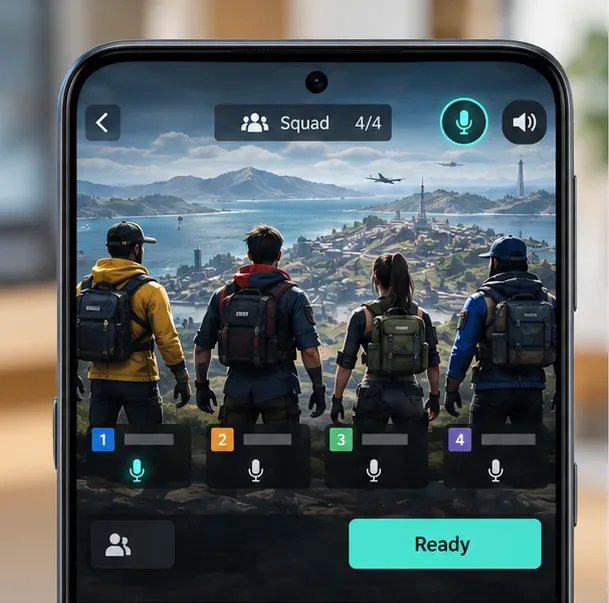
Enter a Duo or Squad match and look at the in-match mic control. If it is crossed out, muted, or otherwise shown as off, tap it once to enable voice transmission. Check that you have not muted the teammate you are trying to hear. The game’s lobby and match controls can be positioned differently after updates, so identify the microphone symbol rather than relying on a fixed screen location.
An illustrative squad lobby with the mic control enabled; check the controls shown in your current match.
2. Confirm Free Fire’s Audio settings and voice channel
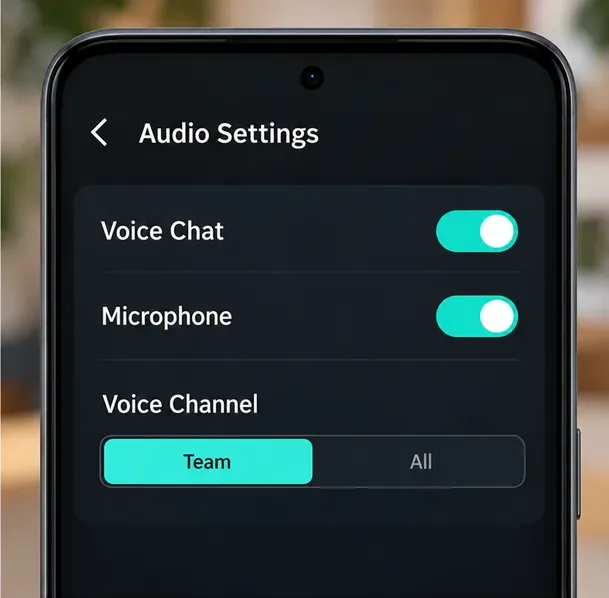
Open Settings > Audio. Turn on Voice Chat and Microphone, then choose the channel that matches how you want to talk. Garena lists Team and All as voice-channel choices; Team is the focused option for squad communication. Return to the match and confirm the mic icon is still on. A squad test is more useful than checking in Solo, where active voice chat may not be needed.
Illustrative audio controls: make sure voice chat and the microphone are enabled, then select the channel you intend to use.
3. Allow microphone access on Android
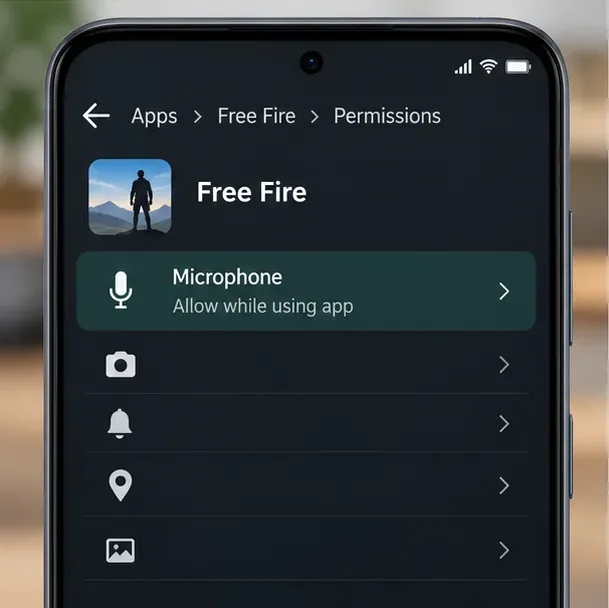
Android can block the game from recording audio even when its in-game mic switch is on. Open Settings > Apps > Free Fire > Permissions > Microphone, then allow access while the app is in use. Some phones use slightly different labels or place the permission under Permission manager. Google’s Android app-permissions guide explains how to change an app’s microphone permission. After changing it, fully close and reopen Free Fire.
Android permission mockup showing microphone access allowed while Free Fire is open.
4. Check Android’s device-wide microphone control
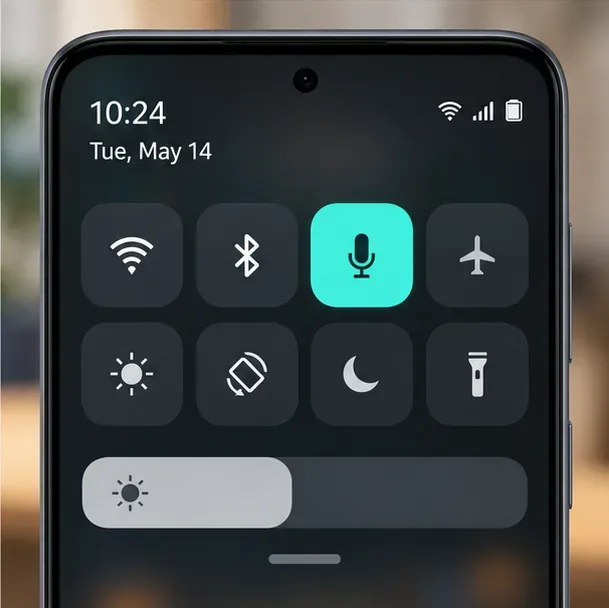
On Android 12 and later, a device-wide privacy control can disable microphone access for every app. If the app permission looks correct but no app can record, open Quick Settings or your phone’s Privacy controls and make sure Microphone access is on. The tile name and location vary by device. Google’s documentation covers both app permissions and system-wide microphone controls.
Illustrative Android privacy tile; make sure system-wide microphone access has not been switched off.
5. Allow microphone access on iPhone
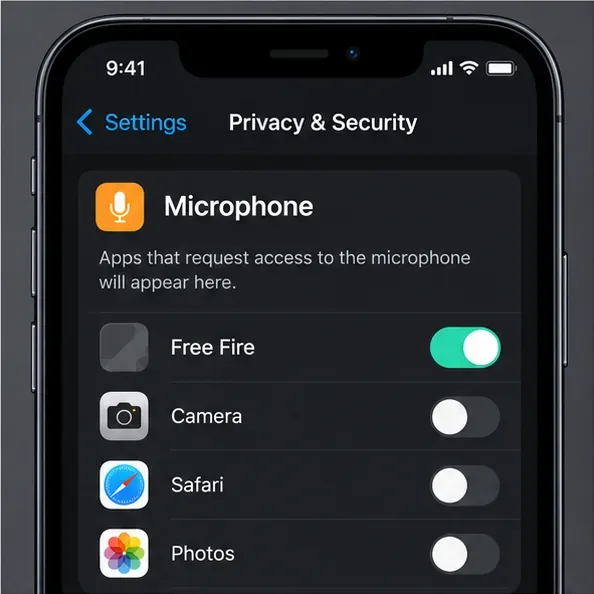
On Apple devices, open Settings > Privacy & Security > Microphone and turn on access for Free Fire if it appears in the list. If the game is missing, open it and try enabling voice chat so iOS can request permission, then return to the Microphone list. Apple explains this permission path in its guide to controlling access to iPhone hardware features. Reopen the game after changing access.
Illustrative iPhone microphone-permission list with Free Fire enabled; iOS may show a different app list.
6. Test without Bluetooth or wired accessories
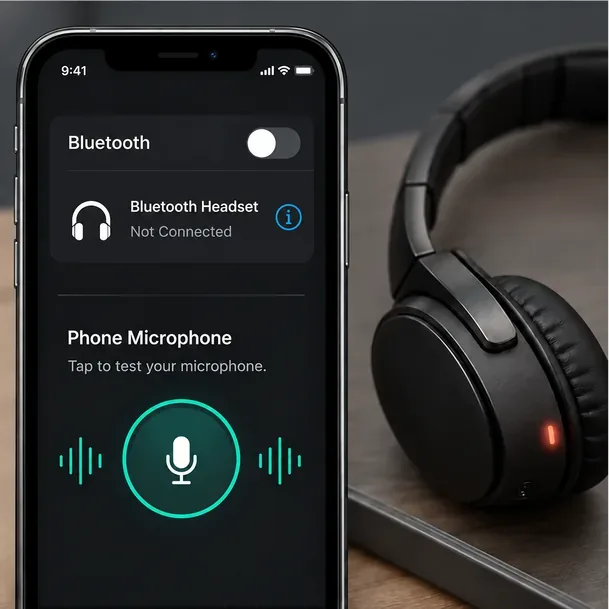
Disconnect Bluetooth earbuds, gaming headsets, and wired audio adapters for one quick test. Speak using the phone’s built-in microphone in a squad. If teammates can hear you now, reconnect one accessory at a time and check its mic, mute switch, cable, and connection. Garena specifically recommends removing external devices and testing the phone’s built-in mic when voice chat fails.
Test the built-in phone mic with external audio devices disconnected to isolate an accessory problem.
7. Close other apps that may be using the microphone
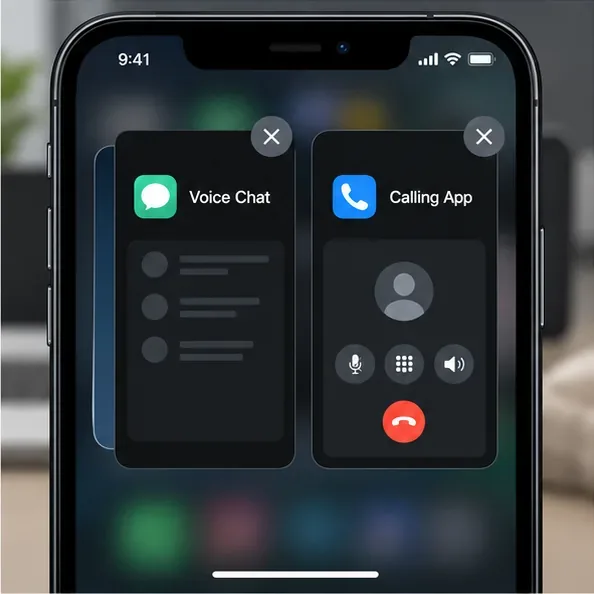
End active calls and close voice-chat, messaging, recording, or streaming apps before launching Free Fire again. Then rejoin your squad and test. A second app can compete for microphone access or change the active audio route, so temporarily closing it helps isolate the cause. Garena also lists background apps as a possible source of microphone trouble.
Close other voice or calling apps before testing Free Fire’s in-game microphone.
8. Compare Wi-Fi and mobile data
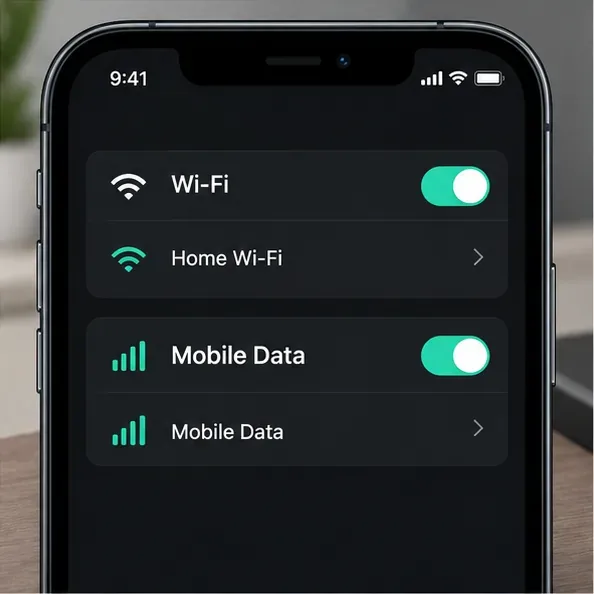
Voice chat needs a stable connection. If your mic works intermittently or squad audio drops, try one match on Wi-Fi and another on mobile data, using whichever connection is more stable. Close background downloads or streams during the test. Avoid changing several network settings at once; a simple connection swap tells you whether the problem follows the network.
Compare Wi-Fi and mobile data one at a time to see whether unstable connectivity is affecting voice chat.
If Free Fire voice chat still does not work
After checking the controls and permissions, restart the game and the phone. Install available Free Fire and operating-system updates from the official app store or device settings. On Android, Garena lists clearing the game’s cache as a next step; use Clear cache, not Clear data, unless support specifically tells you otherwise. Reinstall only after confirming that you can sign back into the account you use for Free Fire.
If the Free Fire mic not working in squad matches issue continues, report it through the official Garena support request page. Include your device model, Android or iOS version, game version, match mode, connection type, and whether the built-in mic works in other apps. Never include your password or account verification codes.