Home
» 🎮 Esports
»
Ultimate Guide: How to Move PS5 Games Between Internal and External Storage
Ultimate Guide: How to Move PS5 Games Between Internal and External Storage
Ultimate Guide: How to Move PS5 Games Between Internal and External Storage
To move PS5 games between internal and external storage, open your Game Library, highlight the installed game, press the Options button, choose Move Games and Apps, select the game data, and choose Move. To bring a PS5 game back from a USB drive, find it in the Installed tab and choose Copy. There is one key limitation: PS5 games stored on USB extended storage cannot launch from that drive. PS4 games can.
This guide explains the current PS5 storage steps, the difference between USB extended storage and an internal M.2 SSD, and what to check before formatting or unplugging a drive. Moving an installation frees console space; it does not make a game run faster.
Know which PS5 storage location you are using
Storage location
What it can hold
Can you play from it?
Console storage
Installed PS5 and PS4 game data
Yes, for both generations
USB extended storage
PS5 and PS4 game data
PS4 games: yes. PS5 games: no; copy them back first.
Compatible M.2 SSD
PS5 and PS4 game data
Yes, after the SSD is installed and formatted in the console.
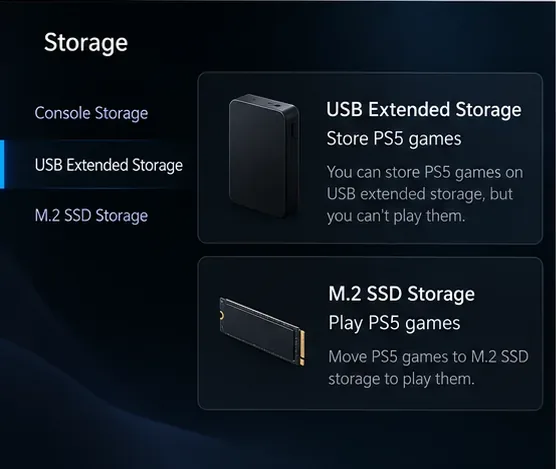
A USB drive formatted as ordinary exFAT or FAT for media files is not the same thing as USB extended storage. To store and move game installations, the drive must be formatted by the PS5 for extended storage. A compatible M.2 SSD is an internal expansion and can run PS5 games directly.
Check the USB drive before moving games
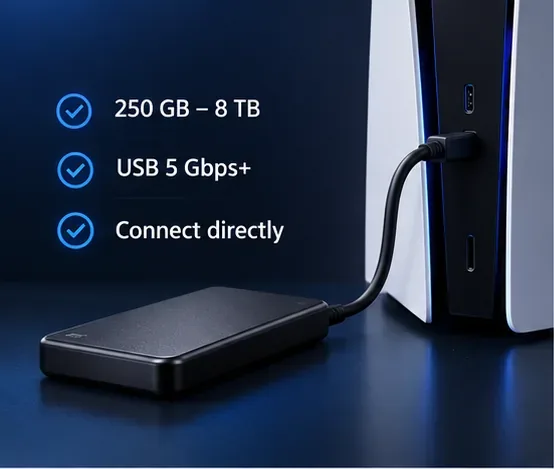
Sony lists these requirements for a PS5 USB extended storage drive:
SuperSpeed USB rated at 5 Gbps or faster.
Capacity from 250 GB through 8 TB.
Connect the drive directly to the console; USB hubs are not supported for extended storage.
Only one USB extended storage drive can be used at a time. Sony notes that not every drive is guaranteed to work.
Drive capacity, USB speed, and a direct connection are the basic compatibility checks.
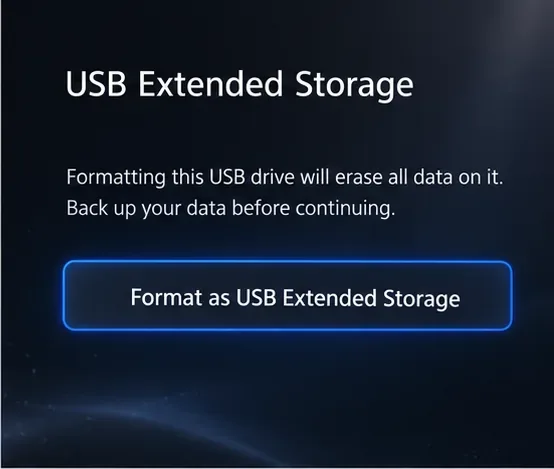
Back up anything you need from the drive before formatting it. Formatting as USB extended storage erases all data currently on that drive. If it was already formatted as extended storage for another PS5 or a PS4, Sony says you can connect it to the PS5 without formatting it again.
Set up a USB drive as PS5 extended storage
Connect the compatible drive directly to a supported USB port on the PS5.
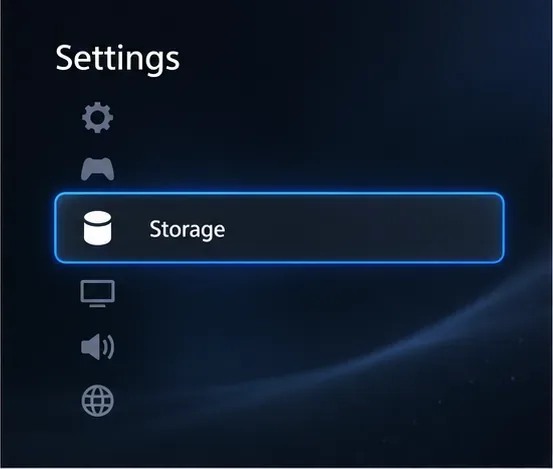
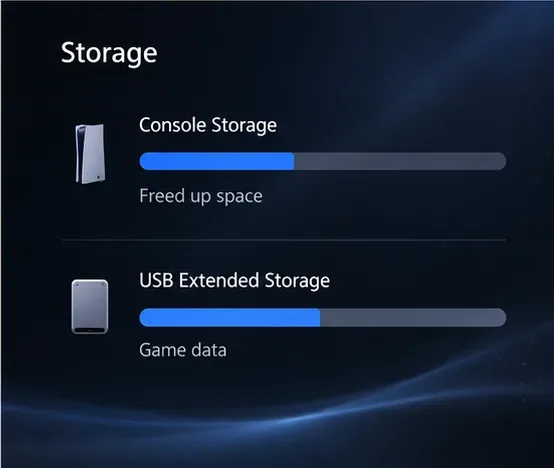
On the home screen, open Settings, then Storage.
Choose USB Extended Storage and select Format as USB Extended Storage.
Read the erase warning, confirm only if you have backed up the drive, and leave the console and cable connected until formatting finishes.
Open Settings and select Storage to manage USB extended storage.Formatting deletes the drive’s existing contents, so back them up before confirming.
Move games from PS5 console storage to a USB drive
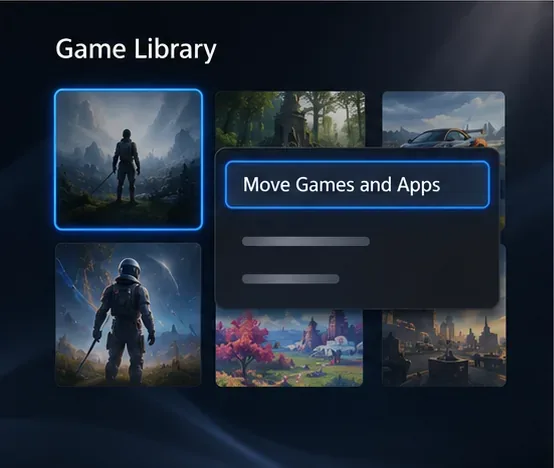
Open Game Library from the Games home screen.
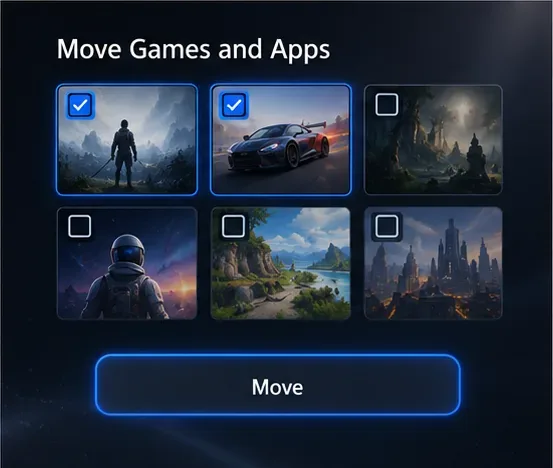
Highlight the installed game or app you want to move, press the controller’s Options button, and choose Move Games and Apps.
If both an M.2 SSD and USB extended storage are connected, open the Movable to USB Extended Storage tab.
Select one or more items, choose Move, and wait for the transfer to finish before disconnecting the drive.
Use the Options menu in Game Library to open Move Games and Apps.Select the game data to transfer and confirm with Move.After the transfer completes, check Storage to confirm the game data is listed on the USB drive.
The time required depends on the game’s size, the drive, and the USB connection, so there is no reliable fixed time per 100 GB. The move frees space in console storage, but it does not improve performance or reduce loading times for other games.
Move a PS5 game from USB storage back to the console
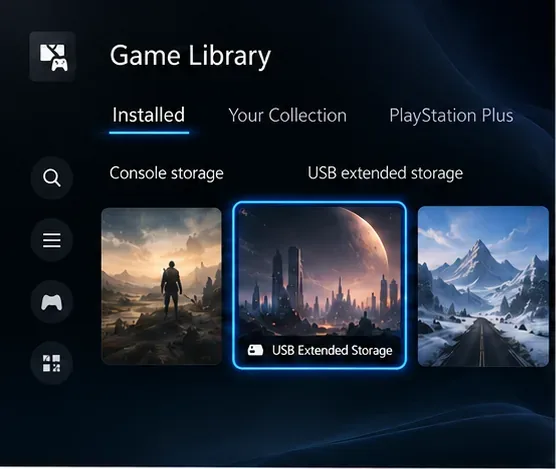
Open Game Library and select the Installed tab.
Find the game saved on USB extended storage. Its storage location is shown with the game entry.
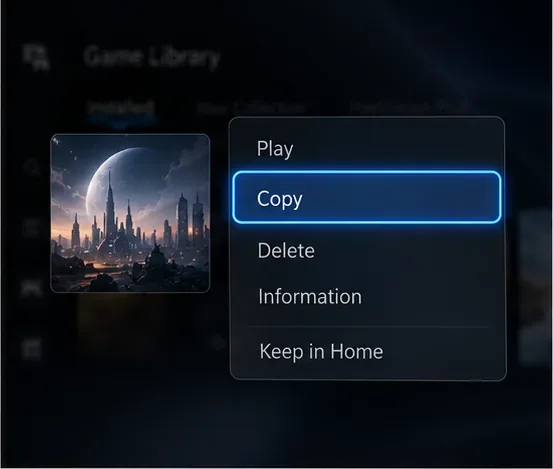
Highlight the game, press Options, and select Copy to place the game data back in console storage.
Wait for copying to finish. Launch the game from the console after it is available there.
The Installed tab identifies games that are currently on USB extended storage.Choose Copy to return the PS5 game data to console storage so the game can launch.
For a PS5 title stored on USB, use the Installed tab and Copy option above. If you are moving a game between console storage and an installed M.2 SSD, use Move Games and Apps and select the destination shown on your console.
Can you play PS4 games from an external drive?
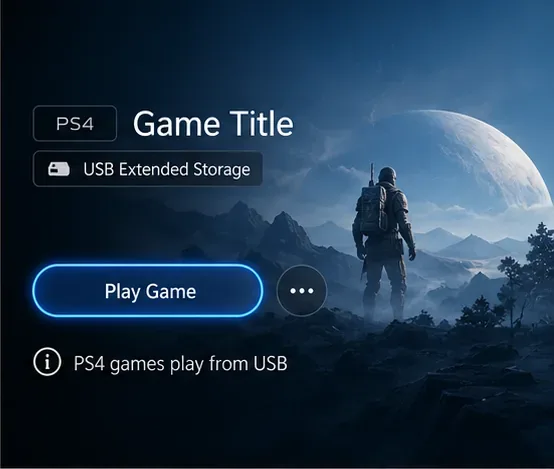
Yes. A PS4 game installed on USB extended storage can be played directly from that drive. You can also set USB extended storage as the installation location for PS4 games: open Settings and choose Installation Location. PS5 games must be copied back to console storage or compatible M.2 SSD storage before you can play them from that installation.
PS4 titles can launch directly from USB extended storage.USB is useful for archiving PS5 games; a compatible M.2 SSD can run them directly.
Keep saves separate from installed game data
Moving a game installation is not the same as transferring its saved data. PS5 save data is managed separately from USB extended storage; PlayStation Plus members can use cloud storage for saves. Check Settings → Saved Data and Game/App Settings if you need to manage saves. Do not format or delete saved data while trying to free space by moving game installations. Sony’s PS5 storage management guide explains the different storage categories.
Fix common USB extended storage problems
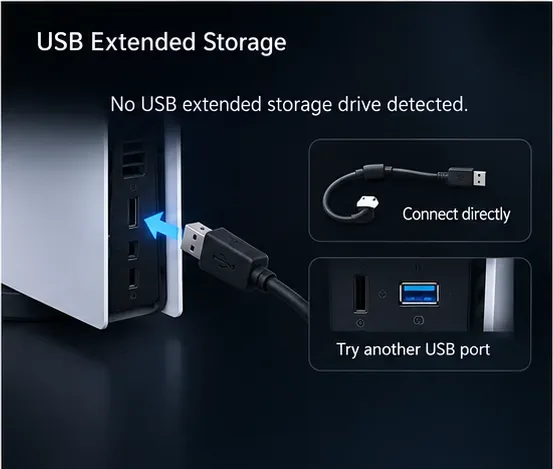
The drive is not detected: update PS5 system software, reconnect the cable, connect the drive directly instead of through a hub, and try another supported USB port.
The drive is new or used for other files: format it as USB extended storage. This erases its existing data, so back it up first.
A large batch will not move: try transferring one game at a time, then check whether the game can be stored on USB extended storage.
The drive still fails: test another compatible drive. Sony notes that compatibility is not guaranteed for every USB device.
You are ready to unplug it: do not pull the cable while the console is transferring or formatting data.
For detection errors, reconnect directly and try a different supported USB port.
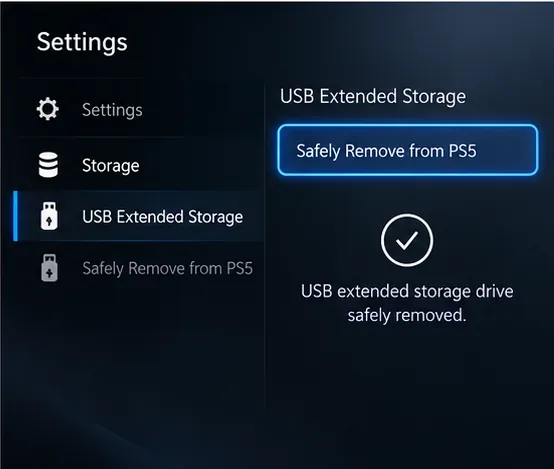
If the PS5 is on, go to Settings → Storage → USB Extended Storage → Safely Remove from PS5. Wait until the console confirms the drive is safe to remove, then unplug it. If you are turning the PS5 off first, wait until its power indicator is completely off before disconnecting the drive.
Use Safely Remove from PS5 before disconnecting an active USB extended storage drive.
The practical rule is simple: use USB extended storage to archive PS5 games and play PS4 games directly; copy a PS5 game back to console storage or a compatible M.2 SSD when you want to play it.