Home
» 🎮 Esports
»
PUBG Mobile Mic Not Working in Squad Matches? 8 Fixes to Try
PUBG Mobile Mic Not Working in Squad Matches? 8 Fixes to Try
PUBG Mobile Mic Not Working in Squad Matches? 8 Fixes to Try
If your squad cannot hear you, check the phone's microphone access first, then verify PUBG MOBILE's voice controls, selected microphone, and voice volume. PUBG MOBILE's Help Center specifically recommends checking mic permission, turning the volume up, and selecting the microphone in audio settings. Work through the eight checks below in order; stop when teammates can hear you clearly.
The menu names can differ across Android brands, iOS versions, game builds, and regions. These steps focus on the settings that matter, rather than assuming every player sees an identical screen.
1. Test the phone microphone outside PUBG MOBILE
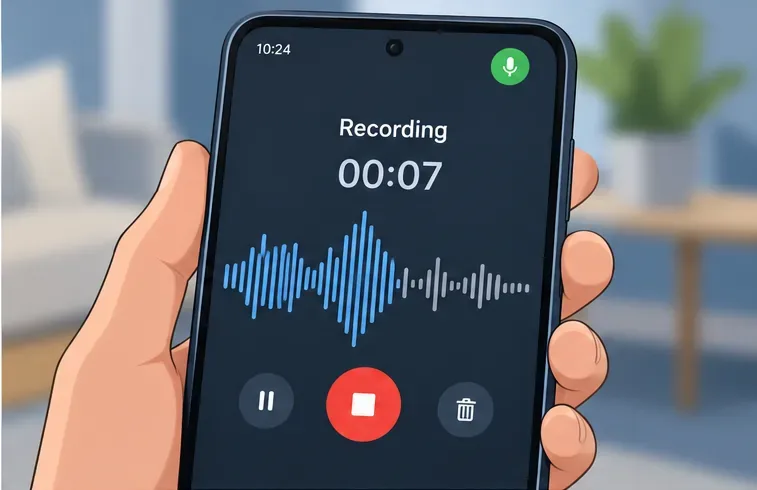
Open your phone's built-in recorder or another trusted app that can record audio. Make a short recording while speaking at a normal distance, then play it back. If the recording is silent or badly distorted, the issue is probably at the device, permission, or headset level—not just PUBG squad chat. Remove a case that may cover a microphone opening and try again.
Use a short recording to check whether the phone microphone works outside PUBG MOBILE; recorder screens differ by device.
If the recording sounds clear, continue to the game-specific checks. If it does not, test without an attached headset and consult your phone maker's microphone guidance.
2. Allow microphone access for PUBG MOBILE on Android
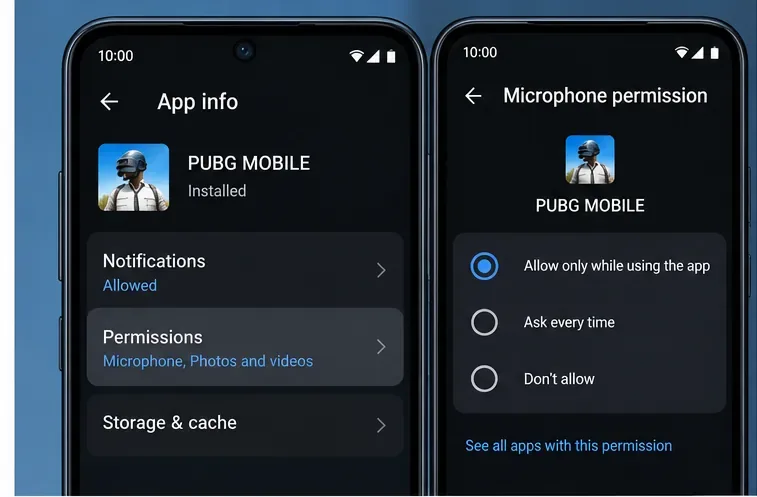
On most Android phones, open Settings > Apps > PUBG MOBILE > Permissions > Microphone. Allow microphone access while the app is in use, or choose the equivalent option on your device. Android does not need an “all the time” microphone permission for this; Google's permission guide reserves that option for location. Close and reopen the game after changing access.
Android permission labels vary by manufacturer and version; choose an option that permits microphone use while PUBG MOBILE is open.
If PUBG MOBILE is missing from the permission list, launch the game and try to start voice chat so Android can request access. If you previously denied the request, return to App permissions and change it there.
3. Turn on PUBG MOBILE microphone access on iPhone
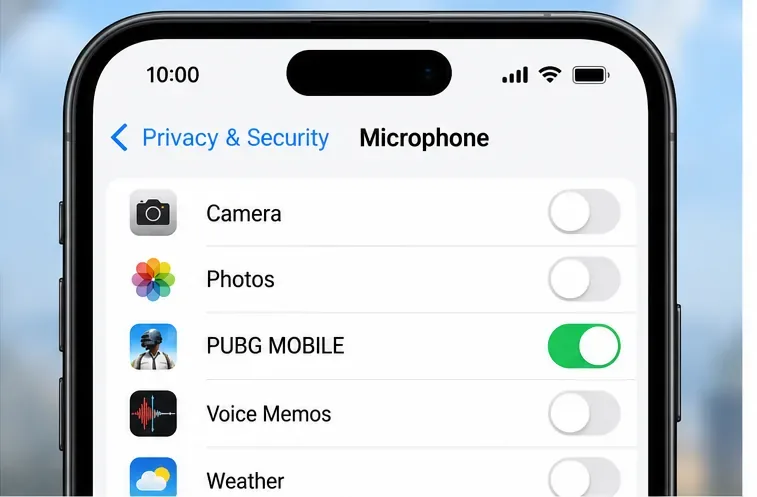
On iPhone, go to Settings > Privacy & Security > Microphone and turn on PUBG MOBILE. Apple says this list shows apps that requested microphone access. If PUBG MOBILE is not listed, open the game and try to use voice chat to trigger its permission prompt, then check the list again. Restart the app after changing the setting.
This is a generic settings illustration. On iPhone, review the app under Settings > Privacy & Security > Microphone.
Apple's Settings layout may present app controls in different places across iOS versions; use Settings search for “Microphone” if needed.
4. Check Android's device-wide microphone control
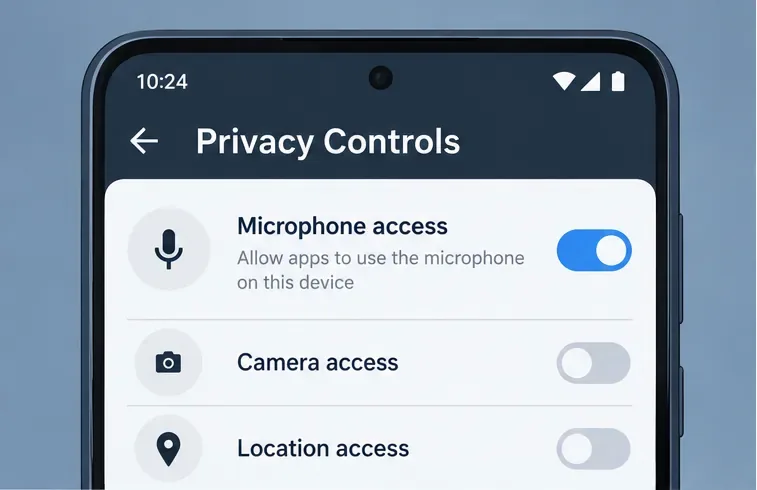
Android can have a separate privacy control that blocks microphone access for every app. Open Settings > Security and privacy > Privacy controls and check Microphone access. On some devices, the same switch appears in Quick Settings after you swipe down from the top of the screen. Turn it on, then relaunch PUBG MOBILE. This system-wide switch is separate from the app permission in Step 2.
Some Android devices also have a separate device-wide microphone access control in Privacy Controls or Quick Settings.
When another app is actively using the mic—for example, a call or recording—close it temporarily and test PUBG again. On supported devices, the privacy indicator or dashboard can help show whether the microphone is in use.
5. Check the squad voice controls in PUBG MOBILE
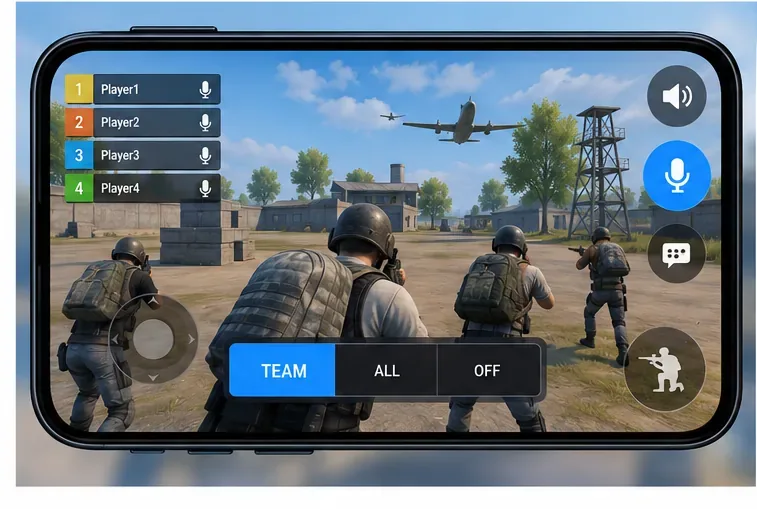
Return to the lobby or match and inspect the voice-chat controls shown on your screen. Make sure your microphone is not muted and that the voice channel is set to your team or squad when that choice is available. Also check that the teammate icons or voice controls have not been muted individually. In-game control positions can vary, so look for the microphone and team-chat indicators rather than following a fixed screen location.
Conceptual voice-control illustration; PUBG MOBILE button locations and labels can differ between versions and devices.
If teammates can hear you but you cannot hear them, check the speaker or incoming voice control too; that is a different problem from a microphone that does not transmit.
6. Select the microphone and raise voice volume in audio settings
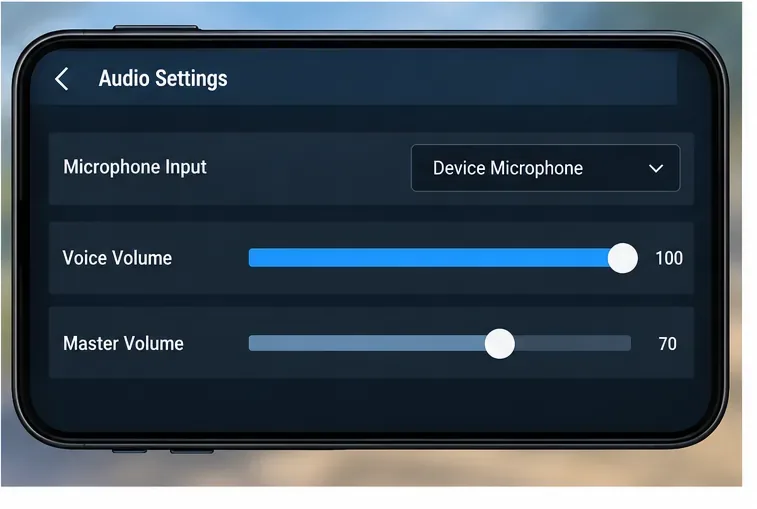
PUBG MOBILE's Help Center advises players to select the microphone in audio settings and turn up the volume. Open the game's audio settings and look for the microphone or input selector. Choose the phone mic or the headset mic you intend to use. Then raise the voice-chat volume enough to test it; you do not need to set every audio slider to maximum. Save or leave the menu as required by your build, then check voice chat with a teammate.
Look for the available microphone or input selector and voice volume control; the exact menu layout can vary.
Keep the distinction clear: a low incoming voice volume can make teammates sound silent even when your own mic is working. Ask a squadmate to confirm whether they can hear your test callout.
7. Isolate a headset, adapter, or Bluetooth route
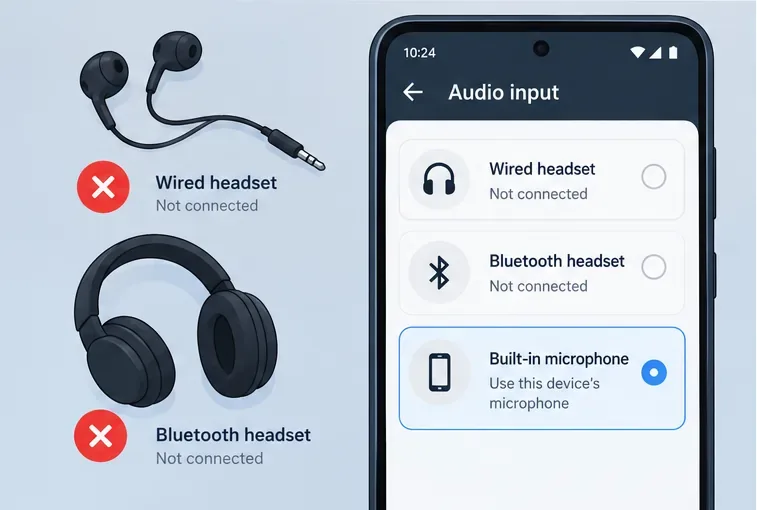
Check for a physical mute switch on the headset or inline cable. Then disconnect the headset and test with the phone's built-in microphone. If that works, reconnect the accessory and test again. A failed headset test points toward its mute control, cable, adapter, Bluetooth connection, or microphone—not necessarily the game. If the built-in mic and a known-good headset both fail in the recorder app, return to device permissions and hardware checks.
Disconnecting accessories is a simple way to isolate the phone mic; many phones switch audio routes automatically.
Use the microphone that your device and headset actually support. If your phone switches audio automatically, reconnect the headset only after closing and reopening PUBG MOBILE.
8. Refresh the app, update it, and contact support if needed
Fully close PUBG MOBILE and reopen it. If voice chat remains unavailable, restart the phone and install any available game update from the official app store. Test on a stable connection if the mic appears active but voice arrives intermittently; changing networks cannot restore microphone permission, so do the permission checks first. Avoid clearing app data or reinstalling until you have confirmed you can sign back into the correct account.
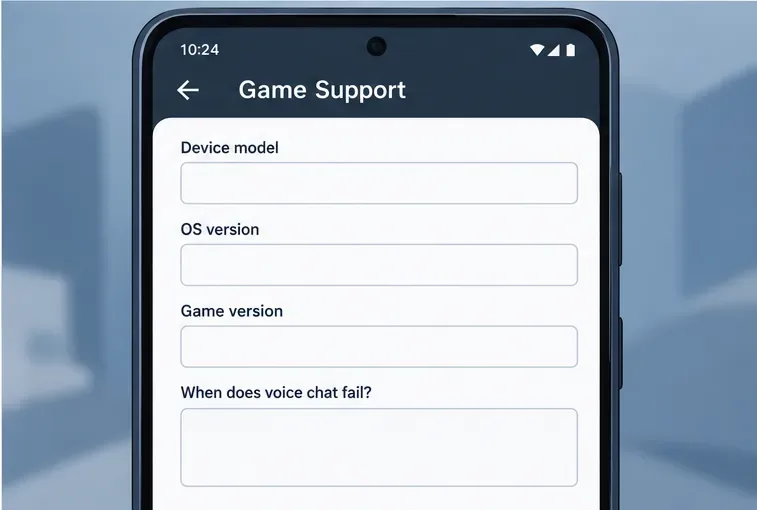
If the steps do not resolve the issue, contact PUBG MOBILE through its official Help Center. Include your device model, Android or iOS version, game version, whether a recorder app captures your voice, which permission checks you completed, and whether the failure affects your outgoing mic, incoming squad audio, or both. This helps support distinguish an app setting from an accessory or device fault.
Generic illustration of useful troubleshooting details, not a screenshot of PUBG MOBILE support.
Quick diagnosis: what the result usually points to
What you notice
Check next
A recorder app also captures silence
Device-wide mic access, app permissions, headset mute, microphone openings, or hardware.
Recorder works, but squadmates cannot hear you
PUBG MOBILE permission, in-game mute/channel, selected mic, and voice volume.
You can speak, but cannot hear teammates
Incoming voice/speaker volume and the squad channel; ask a teammate to confirm they are transmitting.
Voice works only after disconnecting a headset
Headset mute, cable or adapter, Bluetooth connection, or audio routing.
Voice is enabled but cuts out or arrives late
Retest on a stable connection after confirming the mic is active; then send the details to official support.
For most PUBG Mobile mic not working in squad matches cases, the fastest path is to confirm the microphone works outside the game, restore the correct permission, then check the game's selected mic and voice volume. If the phone recorder also fails, troubleshoot the device or headset before reinstalling the game.