Home
» 🎮 Esports
»
🚀 Fix the Nulling NBT Minecraft Error: Safe Tag Troubleshooting
🚀 Fix the Nulling NBT Minecraft Error: Safe Tag Troubleshooting
🚀 Fix the Nulling NBT Minecraft Error: Safe Tag Troubleshooting
If Minecraft crashes while loading a world and the log mentions a missing or null NBT value, protect the save first, then test a copy with recent mods and version changes isolated. “Nulling NBT Minecraft error” is not one universal error code with a single safe command; it is a broad label for different problems involving saved data, mod code, or an incompatible version. Avoid mass-deleting tags or entities. Work from a duplicate and use the crash report to choose the next step.
What an NBT tag error can mean
NBT is a structured data format Minecraft uses for information such as entities, block entities, and world details. A Java exception that mentions a null value may mean a mod or game component expected a field that was absent, unreadable, or in a different format. That message alone does not prove the entire world is corrupted, and it does not identify which item or chunk is responsible.
The exact edition and version matter. Java Edition has its own data commands and world-file tools; Bedrock Edition stores saves differently and should be handled with Bedrock-specific backup and recovery steps. Mojang’s Java Edition 1.21.5 notes document changes to NBT/SNBT handling and multiple entity and block-entity formats, so an older command, datapack, or mod can be incompatible after an update. Read the official Java Edition 1.21.5 release notes if that version change is relevant to your save.
Match the symptom to the likely cause
What you see
What to check first
The game crashes before one world opens
Read that session’s crash report; compare the game, loader, and mod versions.
Only one world crashes or freezes in one area
Preserve the save and test a copy; a chunk, entity, or block-entity record may be involved.
Items or blocks disappear after removing a mod
Restore the mod version that created them before attempting world repair.
Textures look wrong but the world loads
Disable shaders or resource packs as a graphics test; that symptom by itself does not show that NBT is damaged.
Four safe steps to troubleshoot the error
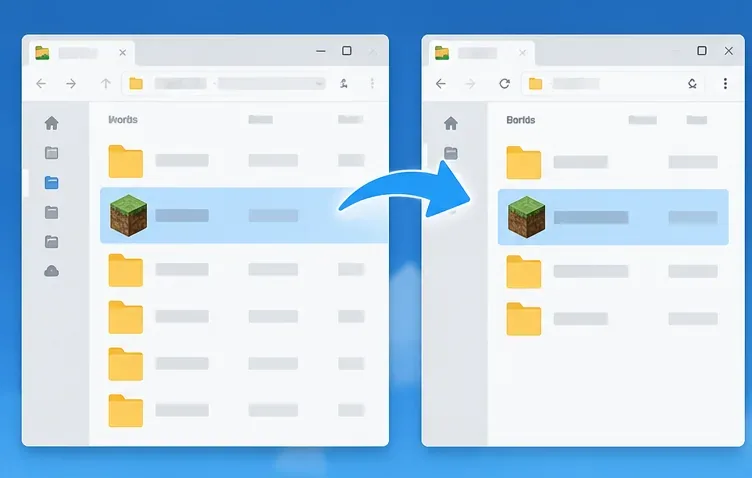
Close Minecraft and back up the complete world
Quit the game first. If this is a server world, stop the server so it is not writing to the save while you copy it. Copy the entire world folder to a separate location and leave the original untouched. For Java single-player worlds, open the game directory used by your launcher and find the saves folder; custom launchers often use a separate game directory. Before changing a Java game version, follow Minecraft Help’s version-change backup guidance. Realm owners can use the official Java Realm backup instructions.
Keep the original save unchanged while troubleshooting its duplicate.
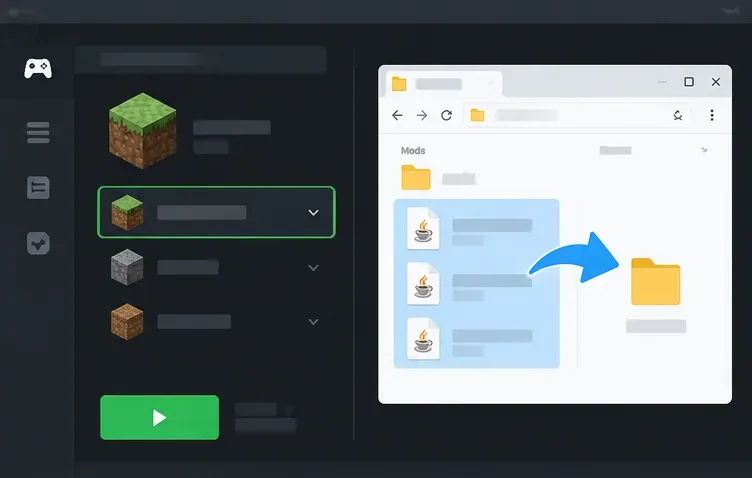
Test the duplicate with a clean, matching game profile
Use a separate launcher profile with the same Minecraft version and open only the copied world. For a modded Java save, first check whether it opens with the original loader and required mods. If the crash began after an update, test the previous known-working mod or loader versions on the copy. You can also test without optional mods, shaders, or resource packs, but do not delete files from the original installation. If removing a mod makes blocks or items vanish, put the required mod back; those saved objects may depend on it.
This clean-profile test helps separate a world problem from a mod or configuration conflict. Keep the game version, loader, and mod list with your notes so you can reproduce the working setup.
Use a separate profile to test whether a recent mod or loader change is involved.
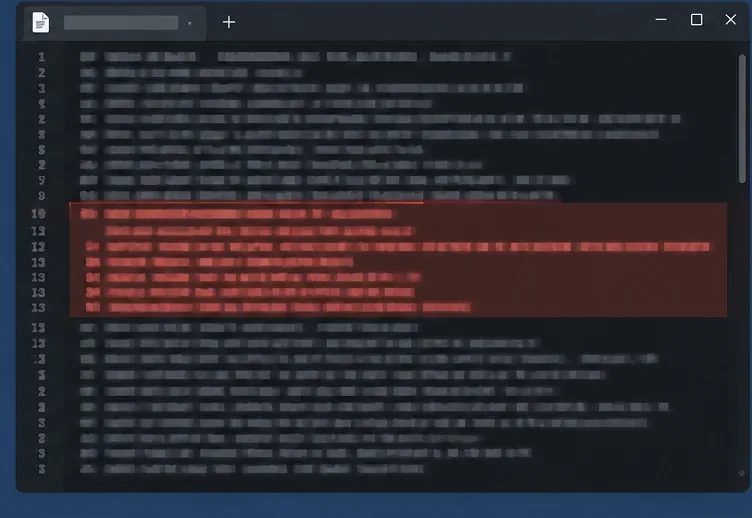
Read the crash report and latest log
In Java Edition, check the game directory’s crash-reports folder and logs/latest.log. A third-party launcher may keep these inside its own instance folder. Start near the first exception and the earliest “Caused by” entry, then note the named mod, class, missing identifier, and game version. The Fabric log guide explains where Java logs are kept for the standard launcher and recommends sharing the log when asking for help.
If the trace names a mod or loader, check that project’s compatibility notes before changing the world. If the crash points to a particular entity or chunk, record the coordinates and use a backup or a specialist who can inspect that copy. A short “NBT” line without the surrounding stack trace is rarely enough to diagnose the cause.
Use the first exception and nearby mod names to narrow down the cause.
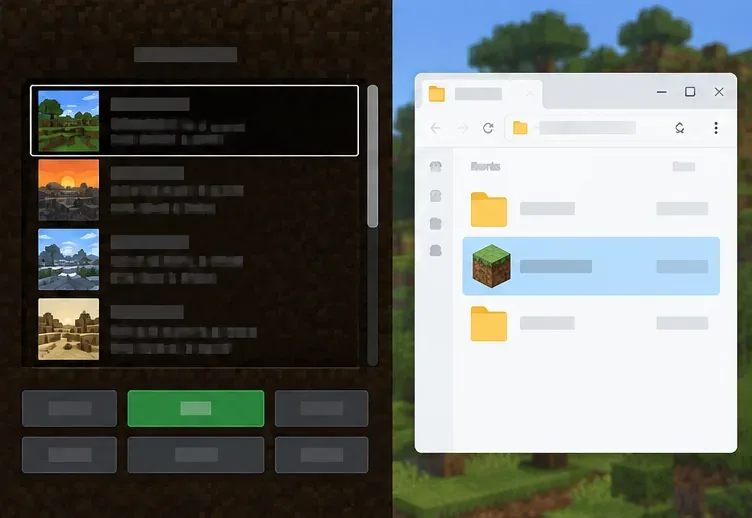
Restore a known-good copy or use a specialist editor cautiously
If the copied world still fails and a backup from before the problem exists, restore that backup to a separate folder and test it before replacing anything. Java Realm players can follow the official Realm restore guidance. For a local Bedrock world, use the backup or export options for that platform; do not apply Java commands or Java-only file instructions to it.
Advanced users may inspect a duplicate with a third-party editor such as NBTExplorer or Amulet. Their project documentation describes supported formats and known limitations; neither tool can automatically identify every broken tag or guarantee a repair. Amulet’s own guidance asks users to make copies and notes limited testing with modded worlds. Deleting a chunk can remove builds and saved entities, so do not delete tags, entities, or region data at random. If an editor cannot read the copy cleanly, stop and return to the backup.
Open the recovered copy separately and verify it before restoring it over the original.
Commands and edition differences
There is no blanket “clear null NBT” command that safely scans and repairs every Minecraft world. A command aimed at dropped items or a block at your current coordinates can destroy valid data while missing the actual cause. Java’s /data command is for specific in-game data operations, not a general save-file repair utility; use it only when you know the target and path. Bedrock players should use Bedrock-specific instructions rather than copying Java command examples.
Prevent another NBT-related crash
Keep a dated copy before updating Minecraft, a loader, a datapack, or a modpack.
Check that every required mod supports the exact game version and loader used by the world.
Try experimental commands and datapacks in a disposable test world first.
Keep at least one backup outside the active saves folder so a launcher or sync issue cannot overwrite every copy.
When reporting a crash, include the edition, version, loader, recent changes, and complete crash report or log—not just the phrase “null NBT.”
Frequently asked questions
Is “Nulling NBT” a specific Minecraft error code?
It is not enough by itself to identify a single official error code or cause. Treat it as a search phrase and use the exact exception and stack trace from your own log.
Can a resource pack cause an NBT error?
A resource pack can cause visual or loading issues, so disabling it is a reasonable test when the symptom is graphical. A resource pack alone is not proof that saved NBT is corrupted; check the crash log and test the backed-up copy.
Should I delete a suspicious region file?
No. A region file can contain many chunks and valuable builds. Deleting it can remove large areas of a world. Restore a known-good backup or get help inspecting a copy before making destructive edits.