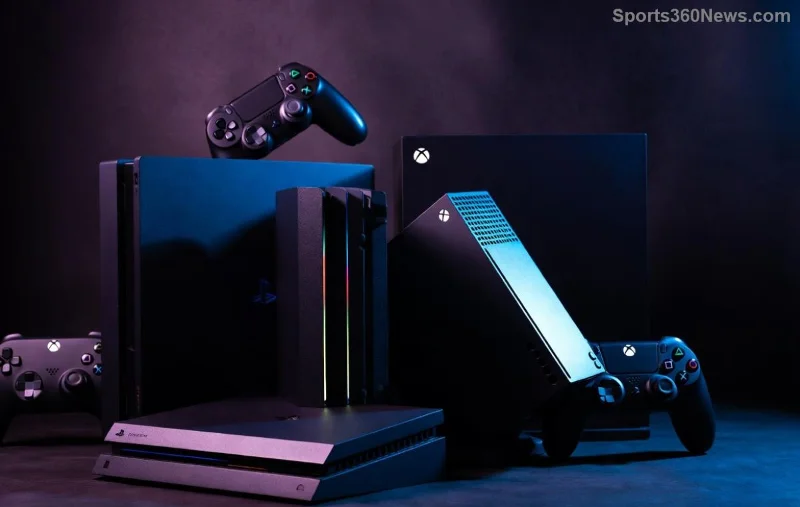
🚀 Ready to level up your gaming setup? The newest Xbox models – Xbox Series X and Xbox Series S – dominate the console wars, delivering jaw-dropping performance tailored for every type of gamer. Whether you're chasing 4K glory or budget-friendly thrills, this comparing Xbox models guide breaks it all down. Stick around to uncover which beast fits your playstyle and why you'll never regret your pick!

The Lineup: Meet the Newest Xbox Models
The Xbox Series X is Microsoft's flagship powerhouse, built for hardcore gamers craving maximum fidelity. It's the full package with a disc drive, massive storage, and unrivaled power. On the flip side, the Xbox Series S is the sleek, affordable entry point – digital-only, compact, and optimized for next-gen gaming without breaking the bank.
Both support Xbox Game Pass Ultimate, Quick Resume, and ray-tracing magic, but their differences shine in real-world play. Let's dive deeper...
Head-to-Head Specs Battle: Xbox Series X vs Series S
Numbers don't lie! Here's a crystal-clear comparing Xbox models table packed with the latest specs. This at-a-glance view helps you spot the winners instantly.
| Feature |
Xbox Series X |
Xbox Series S (1TB) |
| GPU (TFLOPS) |
12 |
4 |
| CPU |
8-core AMD Zen 2 @ 3.8GHz |
8-core AMD Zen 2 @ 3.6GHz |
| RAM |
16GB GDDR6 |
10GB GDDR6 |
| Storage |
1TB NVMe SSD (expandable) |
1TB NVMe SSD (expandable) |
| Target Resolution/FPS |
Native 4K @ 120FPS |
1440p @ 120FPS (upscaled to 4K) |
| Disc Drive |
Yes (4K UHD Blu-ray) |
No (Digital-only) |
| Dimensions/Weight |
15.1 x 15.1 x 30.1 cm / 4.45kg |
6.5 x 15.1 x 27.5 cm / 1.93kg |
| MSRP (approx.) |
$499 |
$349 |
Pro Tip: Data sourced from official specs at Xbox.com. Prices may vary by retailer – check for bundles!
![Close-up of Xbox Series X performance in action, showcasing 4K graphics]()
Performance Deep Dive: Raw Power Unleashed
⭐ Xbox Series X crushes with 4K/120FPS in titles like Forza Horizon 5 and Starfield, delivering buttery-smooth visuals that make your jaw drop. Ray-tracing? Photorealistic shadows and reflections that immerse you like never before.
Meanwhile, the Xbox Series S punches above its weight at 1440p/120FPS – perfect for vibrant 1080p TVs or monitors. It handles demanding games effortlessly, often matching Series X frame rates with smart optimizations. Imagine seamless Quick Resume switching between 5 games in seconds on either!
But here's the hook: Both excel in backward compatibility, running thousands of Xbox classics enhanced for modern hardware. No compromises on your nostalgia hits.
Price, Value, and Real Gamer Scenarios
💰 Value king? Xbox Series S at under $350 offers insane bang-for-buck, especially with Game Pass ($16.99/month for 100+ titles). Ideal for:
- 👉 Budget gamers or first-timers
- 👉 Living room setups with 1080p/1440p displays
- 👉 Digital hoarders (hello, cloud saves!)
Xbox Series X justifies $499 for:
- ⭐ 4K TV owners chasing cinematic perfection
- 🎮 Physical media fans
- 🏆 Competitive players needing max FPS
Expansion cards cost ~$219 for 1TB on both, future-proofing your library. Bundles with Game Pass often slash effective costs – scout deals now!
Which Newest Xbox Model Should You Get?
🔥 Get Series X if: You demand top-tier 4K immersion, own a disc collection, or game on big screens. It's the undisputed champ for living-room legends.
😎 Grab Series S if: Budget matters, space is tight, or you're all-digital. It's a stealth powerhouse that hooks you from the first boot-up.
Neither disappoints – both future-proof with ongoing updates. Pair with Xbox Elite Controller for god-tier comfort. Still torn? Start with Series S and upgrade later; Microsoft's ecosystem makes it painless.
Final Verdict: Your Gaming Throne Awaits
Comparing the newest Xbox models boils down to your setup and wallet. Xbox Series X reigns for premium powerhouses, while Xbox Series S steals hearts as the smart entry. Whichever you choose, dive into Game Pass and conquer worlds today!
👏 What's your pick? Drop a comment below – let's geek out over your setup. Game on! 🎮