Home
» 🎮 Esports
»
TFT Mobile Black Screen After Loading? 8 Fixes for Android and iPhone
TFT Mobile Black Screen After Loading? 8 Fixes for Android and iPhone
Updated October 8, 2026. If Teamfight Tactics (TFT) Mobile finishes its loading animation but leaves you staring at a black screen, start by checking Riot’s service notices and whether your device still meets the game's requirements. Next, restart the game, install updates, test your connection, and clear temporary data on Android. Reinstalling should be a last resort, not the first move.
What changed in 2026, and does it explain the black screen?
Riot’s official mobile hardware guidance describes a planned transition to Unreal Engine starting with TFT patch 18.1 on August 11, 2026, together with increased minimum mobile requirements. That makes hardware compatibility particularly relevant when a game that previously launched starts failing after a major update. This is a reason to check compatibility, not proof that the engine transition caused your specific black screen.
Separately, Riot’s service status page displayed an October 7, 2026 notice saying ranked queues were temporarily disabled while an issue affecting games was being investigated, with Android and iOS among the listed platforms. The notice did not identify a black-screen-after-loading defect. Service notices are region-dependent and can change; check your region before assuming the same issue remains active.
The steps below follow the operating-system vendors’ standard recovery advice and Riot’s service channels. There is no verified, universal TFT Mobile black-screen switch or guaranteed fix.
Step 1: Identify where the loading process fails
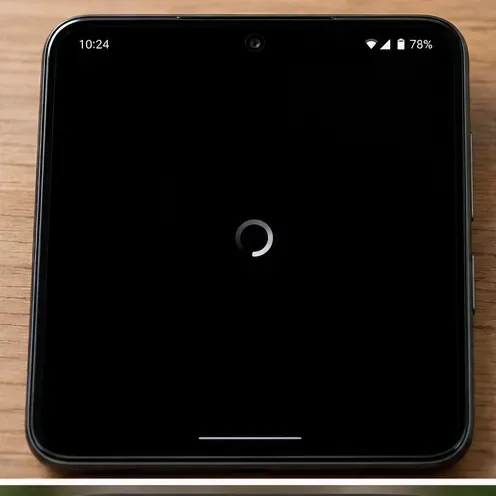
Phone showing a black loading display and progress spinner. Menu placement and wording may vary by device and app version.
Launch the app once and distinguish three situations: the startup splash never disappears; the loading bar finishes and the display goes dark; or the screen becomes black only after you join a match. Note whether music keeps playing, touch input responds, or the app exits on its own. Those details help separate a frozen application from an empty rendered display or a connection problem.
Do not repeatedly enter a match while testing if you might disconnect from a live game. If you are already in one, allow the app a brief opportunity to reconnect before making destructive changes. A black screen alone does not establish the root cause.
Step 2: Check Riot’s live service messages
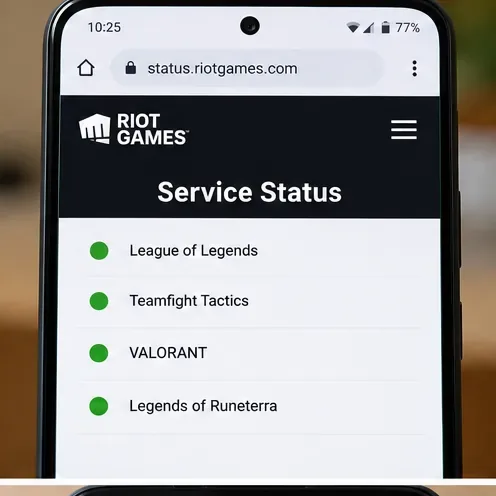
Phone browser showing Riot Games Service Status categories. Menu placement and wording may vary by device and app version.
Open Riot Games Service Status, select the appropriate region, and inspect Teamfight Tactics notices. Look for maintenance, queue restrictions, and incidents affecting mobile platforms. If an active issue matches your timing, avoid repeatedly clearing files or reinstalling: the local app cannot resolve a confirmed server-side outage.
If there is no relevant notice, continue. An empty status page does not prove every individual connection and game session is healthy, but it makes local checks more useful.
Step 3: Close TFT completely and restart your phone
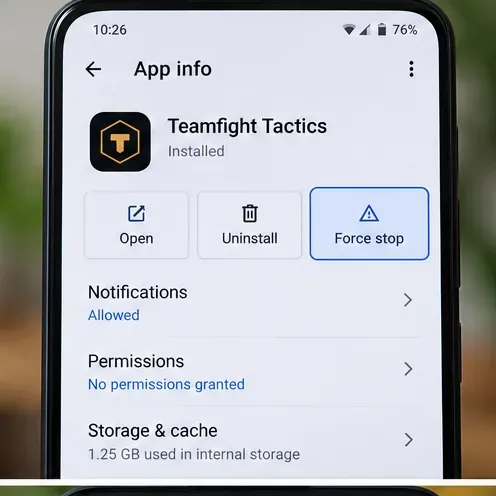
Android App info screen with Force stop control. Menu placement and wording may vary by device and app version.
On Android, open Settings, Apps, Teamfight Tactics, and select Force stop if available. On iPhone or iPad, open the app switcher and swipe the game away. Reopen the game once. If it still fails, restart the entire device before moving on.
Closing and restarting can release a stalled app process without changing account or game files. Both Google’s app troubleshooting guide and Apple’s app troubleshooting instructions recommend app restart and device restart as early troubleshooting steps. Exact navigation varies with Android manufacturers and iOS versions.
Step 4: Update TFT and the operating system
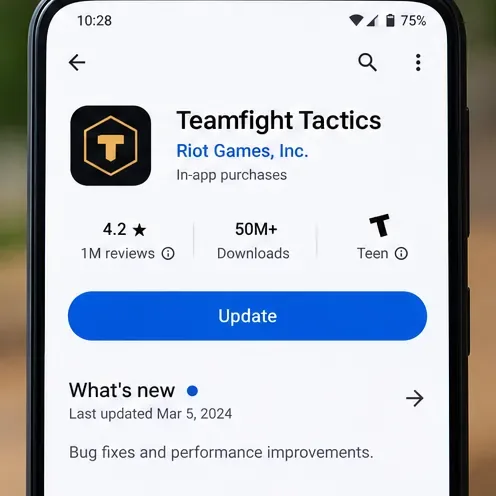
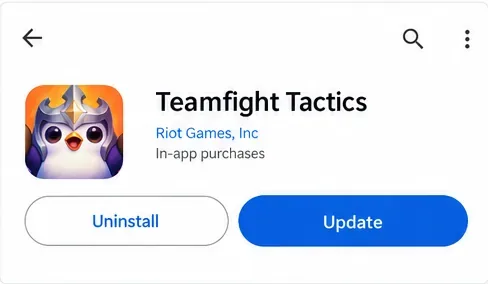
Google Play Teamfight Tactics listing with Update button. Menu placement and wording may vary by device and app version.
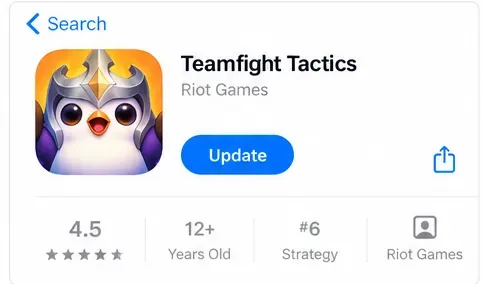
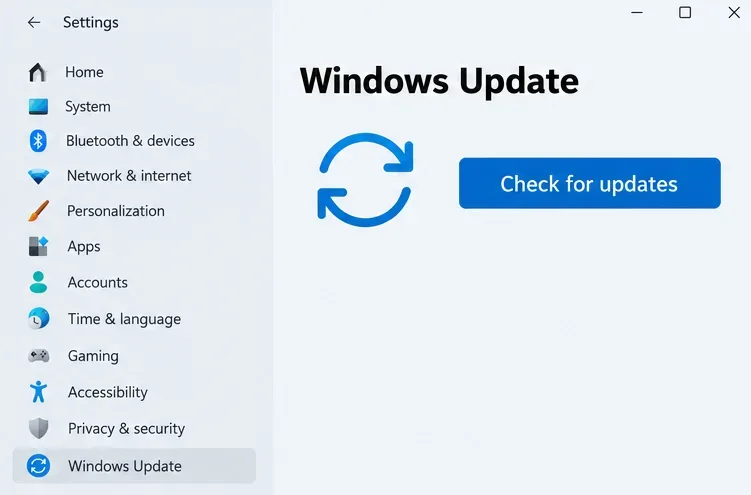
On Android, open Google Play, find Teamfight Tactics, and tap Update if the button appears. On iPhone or iPad, open the App Store, tap your account picture, and check available app updates. Install a supported system update if the app is already current and your device offers an update.
Google Play update panel for Teamfight Tactics. Menu placement and wording may vary by device and app version.Apple App Store update panel for Teamfight Tactics. Menu placement and wording may vary by device and app version.
An Open button instead of Update generally means the store is not offering a newer version to that device at that moment. It does not establish that the installation is healthy. Avoid downloading unknown APKs or game files from unofficial mirrors to bypass compatibility restrictions; those packages can introduce security and account risks.
Step 5: Test your connection before resetting anything
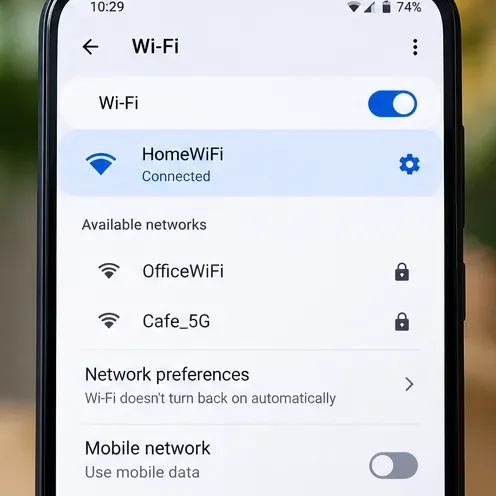
Android Wi-Fi settings showing a connected network. Menu placement and wording may vary by device and app version.
Switch between a trusted Wi-Fi connection and cellular data, if available, and retry launching the game. Check whether ordinary websites load reliably. If you use a VPN, private DNS service, connection-filtering app, or restrictive school or workplace network, temporarily test a standard connection where permitted. This is a diagnostic comparison, not a claim that those tools always interfere with TFT.
Try one network at a time; changing several settings simultaneously makes it difficult to identify what helped. If TFT launches on cellular data but not your home Wi-Fi, investigate your network rather than deleting the game. If both connections fail in exactly the same way, app state, device compatibility, and service-side conditions remain possibilities.
Step 6: Clear Android cache, but treat Clear storage differently
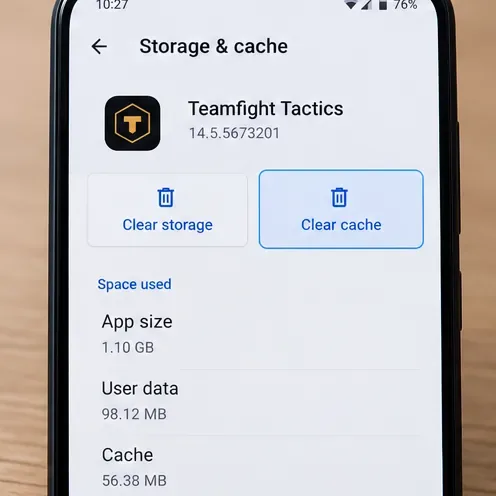
Android Storage and cache screen with Clear cache button. Menu placement and wording may vary by device and app version.
On Android, open Settings > Apps > Teamfight Tactics > Storage & cache > Clear cache, or the closest equivalent on your phone. Restart the app. Clearing cache removes temporary locally stored files that can be recreated; cache contents will gradually return during normal use.
Clear storage / Clear data is more disruptive. It can reset local app preferences and require another login or asset download. Confirm you know your Riot account credentials and that anything important is synced before selecting it. Do not clear system-wide Google Play services data as a routine TFT fix; Google warns that doing so can affect other stored information.
iOS typically does not expose an equivalent per-app Clear cache button for TFT. Do not follow Android-only menus on an iPhone.
Step 7: Check device capacity and compatibility
Look at available storage in your phone’s Settings. If space is critically low, remove unneeded downloads or apps and leave room for updates and temporary game assets. Close particularly memory-intensive apps before restarting TFT; this is a low-risk check, not a verified cure for a particular graphics defect.
Since Riot’s 2026 engine transition was accompanied by higher minimum requirements, check your exact phone model, RAM, supported graphics capability, and operating-system version against the current official hardware requirements in Teamfight Tactics Player Support. The old published iPhone baseline should not be treated as sufficient for every newer version. If the device no longer meets current requirements, clearing cache or reinstalling is unlikely to make unsupported hardware consistently compatible.
Step 8: Reinstall only after safer checks fail
Verify that your account can sign back in. Then remove Teamfight Tactics from the device and reinstall it from Google Play or the Apple App Store. Allow the game to complete any new asset download on a reliable connection. Apple explicitly cautions that deleting an app can also remove data stored in it; Google provides a similar warning.
Reinstalling can replace a damaged local installation, but it cannot repair Riot servers or change a device's hardware capabilities. If the app is listed as incompatible in the official store, avoid sideloading to force installation.
What the outcome tells you
What you observe
What to check next
Others in your region report issues and Riot posts a notice
Revisit official service updates; avoid unnecessary resets.
TFT works on one network but not another
Review Wi-Fi, router, VPN, DNS, or network filtering.
Black screen appeared after a game or OS update
Check current supported device specifications and available patches.
Android cache clearing resolves the problem
Keep the app current; no need to erase other data.
Reinstalling fails on multiple connections
Gather diagnostics and ask Riot Support to investigate.
When to contact Riot Player Support
If the screen is still black, visit Teamfight Tactics Player Support and submit a request. Include the phone model, Android or iOS version, approximate time and region, whether this started after an update, which loading stage fails, the network types tested, and the troubleshooting steps already attempted. If practical, attach a screenshot or a short recording that does not reveal credentials. Describe the actual symptom rather than declaring it an Unreal Engine bug or a server outage without confirmation.
For a final self-check, launch the game over your usual connection, reach the lobby, and verify the app remains responsive. If you can do so without risking an active ranked game, confirm that an appropriate mode loads normally. Successful startup after one change is useful evidence, but it does not prove the same remedy works on every device.