How to Import Custom Crosshair Codes in VALORANT: Steps, Options, and Fixes

Learn how to import VALORANT crosshair codes, compare presets with manual settings and spectator copy, and fix common import issues.
To import a custom crosshair code in VALORANT, open Settings, select Crosshair, find Crosshair Profile, choose the down-arrow import control, paste a complete profile code, and click Import. Check the preview and give the new profile a recognizable name. This native feature was introduced in Patch 4.05; no separate crosshair utility is required.
Crosshair codes are convenient for reproducing someone else's configuration, but an imported profile is a starting point rather than a guarantee of better accuracy. The most useful choice depends on how well you can see the reticle, whether you prefer a fixed reference or feedback from firing and movement errors, and whether you want to maintain several profiles.
Currency note (October 8, 2026): Riot redesigned the PC Settings screens in Patch 12.07 on April 14, 2026. The core import workflow below comes from Riot's documented feature instructions; the exact position and styling of controls may differ on your installed client. The walkthrough visuals focus on the documented controls rather than claiming to reproduce the latest live screen pixel-for-pixel.
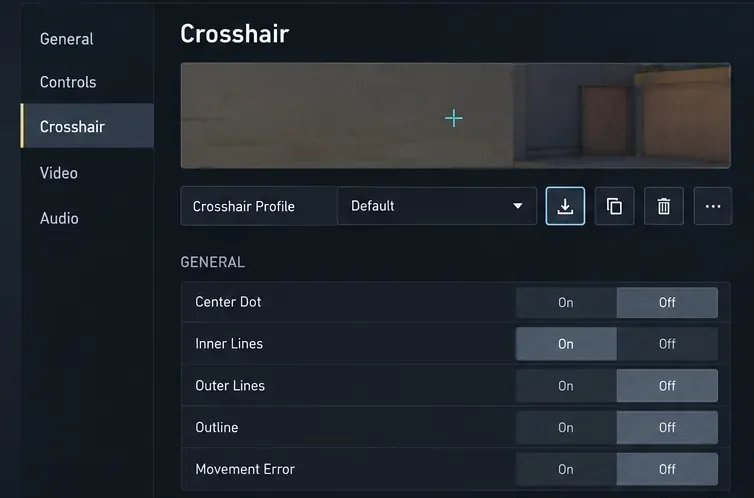
Ask a teammate to export their own crosshair in-game, or obtain a code shared by the player whose setup interests you. The official export action produces a text string representing crosshair settings. Copy the entire string without extra quotation marks, spaces from a surrounding sentence, or line breaks added by a chat app. You do not need to download a file or run executable software.
Start VALORANT on PC and open Settings. Navigate to Crosshair and look for the Crosshair Profile selector near the preview. Riot's Patch 4.05 instructions identify the import icon as a downward-pointing arrow beside that selector. If the client layout looks different after the 2026 redesign, follow the label and icon rather than relying on an old screenshot's exact coordinates.
Choose the down-arrow icon, not the up-arrow. The up-arrow is the export action, which copies your current profile code to the clipboard. If you are preserving a carefully tuned setup, exporting it before experimenting gives you a quick way to restore that exact configuration later.
Paste the text into the input field and select Import. Riot specifies that the preview near the top of the Crosshair settings should reflect the imported values. A code that resembles a short series of semicolon-separated parameters should still be pasted as one complete string; do not attempt to adjust its individual characters to create a different reticle.
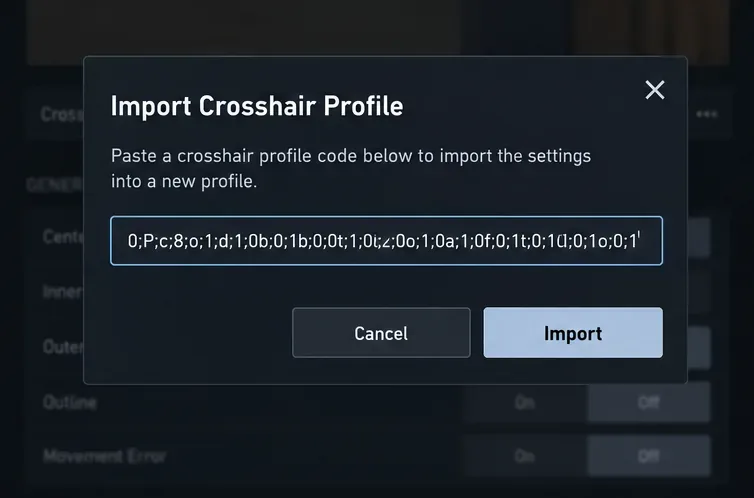
Assign a descriptive name such as “Cyan Static,” “Dot Test,” or “ADS Alternative.” A name identifying the intended use is more helpful than “New Crosshair 3” when you switch configurations. Compare the preview to the configuration you intended to copy. If it differs, ask the source for a fresh export rather than assuming the code was transferred accurately.
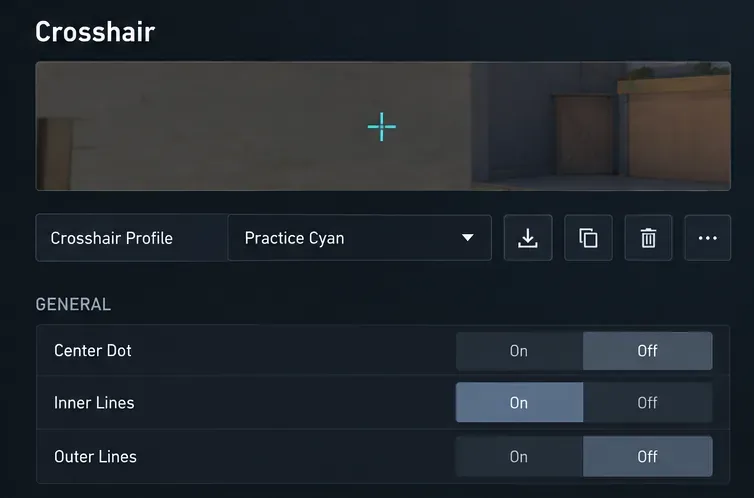
Use the Practice Range or a low-pressure mode to assess visibility against bright walls, shadowed corners, distant targets, and ability effects. Check both stationary shooting and movement. A reticle that looks clean in the settings preview can still be difficult to track during gameplay. Keep the previous profile available while you compare them; avoid changing sensitivity, resolution, and crosshair at the same time if you want to isolate what helped.
| Method | Best for | Trade-off |
|---|---|---|
| Import a profile code | Reproducing a particular published or teammate setup quickly | You inherit its choices, including settings that may not suit your display or preference |
| Configure settings manually | Understanding and adjusting line lengths, color, dot, outlines, and errors | Slower to reproduce many parameters; easier to forget what changed |
| Use /crosshair copy or /cc while spectating | Saving a teammate's currently visible reticle without asking for a code | Requires spectating that player and an available profile slot |
Riot added spectator crosshair copying in Patch 5.04. While spectating another player, type /crosshair copy or /cc to save that player's crosshair to a new profile. The command is not a universal method for extracting arbitrary players' settings when you are not spectating them.
A compact static reticle uses a relatively stable visual center, making it easier to judge placement without the lines moving as you walk or fire. Its disadvantage is that the reticle itself does not provide the same movement- or firing-error feedback as a dynamic design. A dynamic profile can help newer players notice when they are moving or firing inaccurately, but its changing appearance may be distracting. Choose static when you already understand movement discipline and value an uncluttered center; try visible error indicators while practicing if you need more feedback.
A dot minimizes screen coverage and emphasizes one central point, but a very small dot can disappear against textured scenery. Short inner lines create a center reference that may be easier to find quickly, at the expense of occupying more pixels near the target. There is no universally optimal thickness, offset, or gap: test whether you can place the center precisely on small distant targets while keeping the reticle visible during movement.
Some players find cyan or green highly visible, while others prefer white or a vivid magenta-like hue. Actual contrast depends on the map surface, monitor settings, color perception, and ability effects. Riot's Patch 5.04 introduced custom crosshair color input using a six-digit RGB hexadecimal value under the relevant Crosshair sections. A color hex value is not the same thing as a complete crosshair profile import code: the former specifies a color, while the latter carries a set of crosshair settings. If you like a shared code's shape but not its color, import first and then adjust the color in the game's native controls.
Do not assume a good hip-fire profile automatically determines your ideal aim-down-sights or sniper-scope indicator. Riot has documented advanced options for adjusting ADS crosshair and sniper-scope center-dot settings separately. Evaluate the behavior for the weapons you actually use, particularly if you alternate between rifles and scoped weapons. Avoid copying a specialized setup blindly into every context.
First count your saved crosshair profiles. Riot increased the cap to 15 in Patch 5.04 and reaffirmed that maximum in Patch 6.05. If you are at the limit, remove an unwanted profile after exporting any configuration you might want later, then retry. Patch 6.05 also fixed an older bug that could gray out Import at 10 or more profiles, so do not confuse historical reports of that bug with the documented 15-profile cap.
Re-copy the entire string from its source and remove any surrounding commentary. Check that the copied text is a crosshair profile code, not a six-character hex color, a website URL, or a screenshot of settings. Ask the sender to regenerate the code with the game's export button. Riot's documented import process does not require third-party installers, browser extensions, or access to your account credentials.
Check that the newly imported profile is selected, and review the relevant Primary, ADS, and Sniper Scope options. The person who shared the preset may also have changed their settings after publishing a code. If the values cannot be matched, rebuilding the desired shape using the built-in controls is more reliable than repeatedly pasting an uncertain code.
Riot acknowledged and fixed a crosshair-profile loss issue in Patch 8.09, dated May 14, 2024, and advised players to contact Player Support if the problem persisted. That announcement does not establish whether a present-day disappearing-profile symptom has the same cause. Export important profiles as text backups and use official support if loss recurs.
Select the profile you want to preserve and use the upward-pointing export icon beside Crosshair Profile. Riot says the game copies an automatically generated code to the clipboard. Paste it into a private note or a message for your teammate, label it with the profile name and date, and keep the string unmodified. To restore it, follow the same import flow described above.
Backing up exported strings has two practical advantages: you can recover a preferred setup after removing a profile to free a slot, and you can compare different crosshairs without depending on an outside preset website to keep its catalog unchanged. It also avoids the risk of unofficial tools asking you to sign in to imitate a feature that VALORANT already includes.
No imported crosshair changes weapon recoil, eliminates spread, or substitutes for timing and positioning. The right result is a reticle you can locate immediately and use consistently, not the most elaborate code.
Verification scope: This guide is based on Riot's published patch documentation through October 8, 2026, not an independent hands-on test of the current build. Exact current icon placement and how every imported historical code renders were not independently verified. If your client differs, prioritize the in-game Crosshair Profile controls and the latest official patch notes.
Learn how to import VALORANT crosshair codes, compare presets with manual settings and spectator copy, and fix common import issues.
Choose Dota 2 minimap size, hero icons, team colors, and background settings by readability, fewer misclicks, and clear results on your own display.
Fix Fortnite texture pop-in on PC with official steps for GPU drivers, file verification, DirectX 12, high-resolution textures, VRAM, SSDs, and stutter.
Learn what Heroes of the Storm minimap size and position options are verified, improve readability, and choose camera-click controls that suit you.
Set Super Smash Bros. Ultimate Quickplay to prefer hazards-off stages. Follow the Preferred Rules menu steps and learn why matchmaking may not always honor them.
Enable Server Latency and Packet Loss in Warzone to monitor connection quality, read the overlay, and use recurring spikes to guide troubleshooting.
Learn how to carry from mid lane in League of Legends by setting up waves, choosing safe roam windows, reading side lanes, and converting pressure into objectives.
Fix Minecraft Evoker spell problems with a safe vanilla test, version checks, log review, and a step-by-step way to isolate mod or datapack conflicts.
Fix PUBG stuck on Initializing on Steam with a focused checklist for PC service notices, launch options, game files, downloads, and connection issues.
Fix Brawl Stars stuck at 92% loading with an ordered checklist for service notices, network tests, safe updates, Android cache, and account-safe reinstalling.








