Home
» 🎮 Esports
»
How to Fix Marvel Rivals DirectX 12 Shader Compilation Stutter
How to Fix Marvel Rivals DirectX 12 Shader Compilation Stutter
Start by letting Marvel Rivals finish its shader preparation after an installation or update, and keep the GPU shader cache enabled. Then update the game and graphics driver, verify the installation, and check whether the hitching persists on a repeat run. Clear the shader cache only when there is a reason to suspect damaged cached files. Repeatedly deleting it can bring compilation work back instead of fixing the underlying problem.
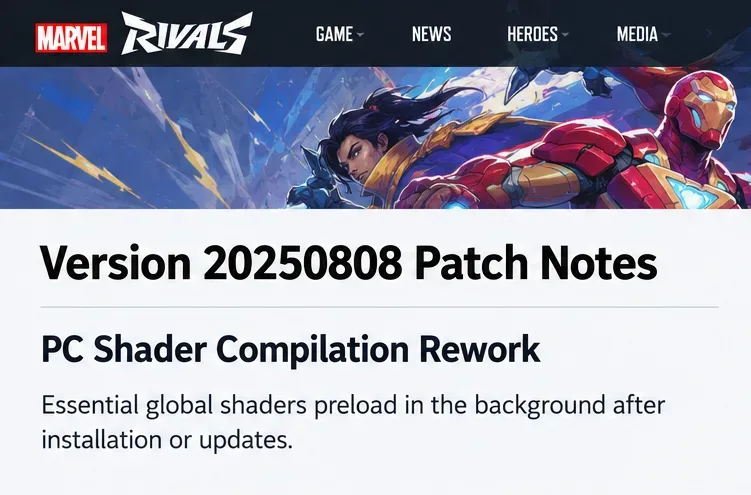
This order matters because Marvel Rivals changed its PC shader behavior in the August 8, 2025 update. Essential global shaders began preloading in the background rather than requiring the old mandatory first-launch wait. The developer explicitly warned that entering a match before preloading finishes can cause stuttering and other performance problems.
Information checked October 8, 2026. This guide covers the Windows PC version. The official shader rework remains the relevant documented change, but the sources reviewed do not establish a universal completion time or identical progress indicators for every current client. The interface illustrations show navigation examples, not benchmark results or proof that a fix worked.
Why does a DirectX 12 game stutter during shader compilation?
A shader is a small program used to render surfaces, lighting, and effects. Compilation prepares that work for the graphics hardware. A shader cache stores compiled results so the system can reuse them. NVIDIA's shader cache reference explains that compilation can cause gameplay stutters and that installing a new driver can invalidate cached results.
That does not make every freeze a shader problem. Low frame rate, memory pressure, slow asset loading, an incorrect GPU selection, and network interruptions can look similar. Use the timing of the symptom to choose your next check.
Observed pattern
What to investigate
Useful comparison
Hitches mainly just after a game or driver update
Shader preparation and cache rebuilding
Repeat a similar session without another update or cache reset.
Low frame rate throughout the match
Rendering workload and hardware limits
Compare a lower graphics load after preparation finishes.
Freezes become worse with other apps open
RAM, CPU, and storage contention
Repeat with unnecessary apps and downloads closed.
Players jump around while camera movement stays smooth
Network conditions
Check connection behavior rather than assuming compilation.
The game crashes during preparation
Driver, client, or system stability
Record the error and use the official diagnostic guidance.
These patterns suggest a direction; none proves the cause alone. A high average FPS can also conceal a few long pauses, so judge whether movement and effects remain consistent during play.
1. Let shader preloading finish before entering a match
After updating or installing the game, launch it and allow any visible preparation activity to complete before queueing. If your build displays a shader status, use that status rather than a timer copied from another player's PC. Do not repeatedly restart while preparation is progressing.
The official Version 20250808 patch notes explain the background preload change and say its speed depends on the GPU. If your client does not expose a clear completion indicator, no fixed number of minutes can guarantee readiness; give preparation an uninterrupted opportunity and compare subsequent runs.
The patch-note example highlights the background shader preloading change documented for Version 20250808.
For example, a hypothetical player who launches immediately after a patch and hitches during the first encounter should allow preparation to finish and repeat a comparable test. A smoother repeat session supports the preparation explanation, but does not establish that every future map or effect is fully cached.
2. Update the client, Windows, and the correct graphics driver
Finish pending game updates in your store or launcher. Then install a current driver appropriate for your GPU from its manufacturer or your PC manufacturer's supported driver channel. Marvel Rivals' technical FAQ recommends a clean graphics-driver installation for persistent stuttering.
Start with the manufacturer's normal installer. Use its clean-install option if available and appropriate; do not assume a third-party driver removal utility is required. Record the driver version before changing it so you can report a regression accurately.
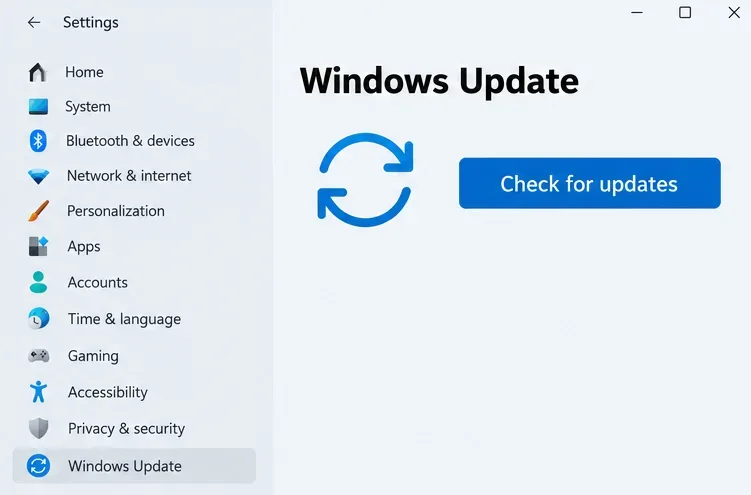
Windows Update provides the operating system update check used alongside the game and graphics-driver checks.
On Windows 11, open Settings > Windows Update and check for updates. Follow Microsoft's update instructions, including any requested restart. The first session after a driver change may involve renewed compilation, so evaluate another comparable session before deciding the update made stuttering worse.
3. Verify game files before reinstalling everything
File verification checks whether the installed client has missing or damaged files. It is a targeted repair step, not a command to precompile every shader.
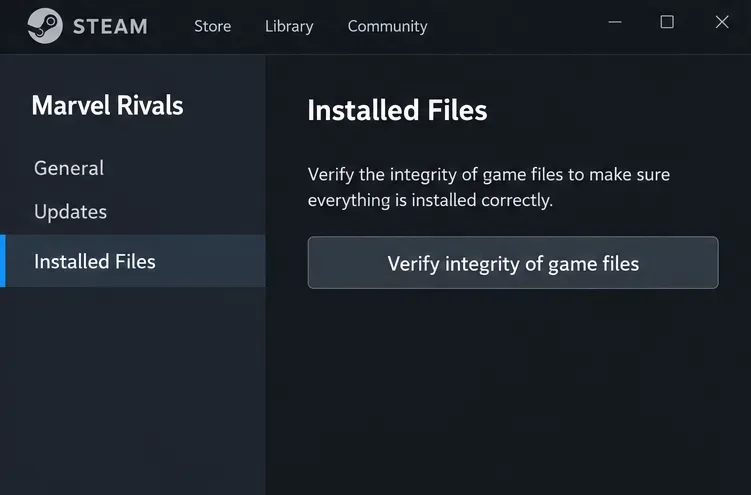
Steam: Open the game's Properties, select Installed Files, and choose Verify integrity of game files.
Epic Games: Open the game's library management options and select Verify.
Loading Bay: Use its file-integrity option where available.
The Steam properties example shows the verification control for checking the installed client before reinstalling.
The game's Integrity Check and Repair Guide documents these launcher paths. Let verification and any replacement downloads finish, then launch normally. If files verify successfully and repeat sessions still hitch, investigate cache behavior and resource limits before committing to a full reinstall.
4. Preserve the shader cache instead of clearing it every session
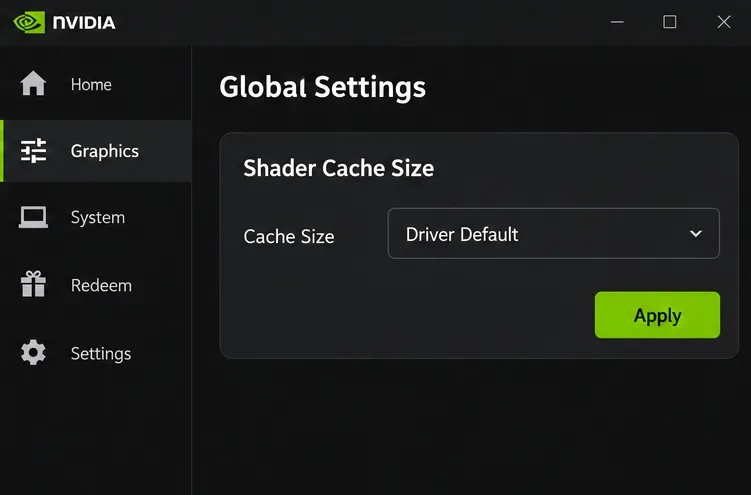
On NVIDIA systems, check that shader caching has not been turned off by an earlier tweak. In the NVIDIA App, open Graphics > Global Settings, find Shader Cache Size, and use Driver Default as a sensible baseline. Apply the change if you altered it.
The NVIDIA App example shows Driver Default as the cache baseline; keep caching available between test sessions.
NVIDIA explains that a cache limit that is too small can evict shaders the game still uses. Allow enough local disk space for the cache and the games you run. There is no verified Marvel Rivals-specific cache size that guarantees smooth play, and selecting Unlimited is not a universal requirement.
Avoid maintenance tools that wipe shader caches before every launch. AMD and Intel users should follow their own driver's documentation rather than searching for NVIDIA folder paths or controls. If changing a cache setting helps, check that the benefit survives another launch without deleting anything.
5. Make sure Windows selects the intended GPU
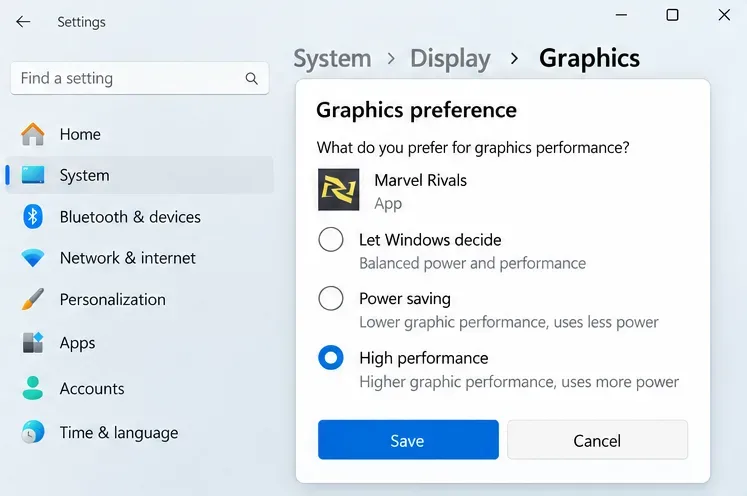
This check is especially useful on laptops with both integrated and dedicated graphics. Open Settings > System > Display > Graphics, find or add the actual game application from its installation directory, and select High performance in its graphics preference. Save and restart the game.
The graphics preference example shows the GPU selection to check on a PC with integrated and dedicated graphics.
Microsoft's graphics preference instructions document the GPU selection controls. This chooses the preferred graphics processor on systems with multiple GPUs; it does not eliminate compilation or automatically overclock the system.
Do not confuse that preference with the separate Optimizations for windowed games switch. Microsoft describes that feature for DirectX 10 and DirectX 11 games. It should not be presented as a documented shader-compilation fix for Marvel Rivals' DirectX 12 renderer.
6. Check memory pressure and storage before blaming shaders
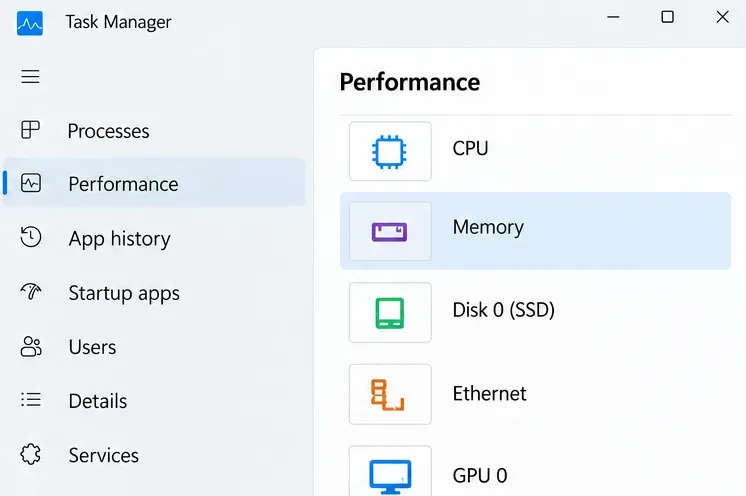
Press Ctrl + Shift + Esc to open Task Manager. Check Processes and Performance while comparing a problematic session with one where unnecessary apps are closed. Look for RAM approaching capacity or sustained disk activity that coincides with freezes. Those observations help identify resource pressure; they do not identify a shader fault by themselves.
The Task Manager navigation example points to memory and disk checks without displaying measured performance results.
Close unused browser tabs, recording tools, and heavy background tasks, then repeat your test. Pause competing downloads. Microsoft's PC performance guidance recommends checking resource usage and reducing unnecessary background activity.
The verified Marvel Rivals Steam listing specifies 16 GB RAM as the minimum and recommends an SSD. Meeting that minimum is not a guarantee of spare memory when other applications are running. An SSD can improve asset loading; it cannot independently remove every compilation hitch. Avoid disabling the Windows page file as a supposed shader fix.
7. Test frame generation and treat older shader-mode advice carefully
If your current graphics settings expose frame generation, temporarily turn it off and compare the same workload. Frame generation inserts additional displayed frames; it does not guarantee that the underlying rendering workload stays consistent. Restore it if the comparison shows no benefit and you prefer its normal behavior.
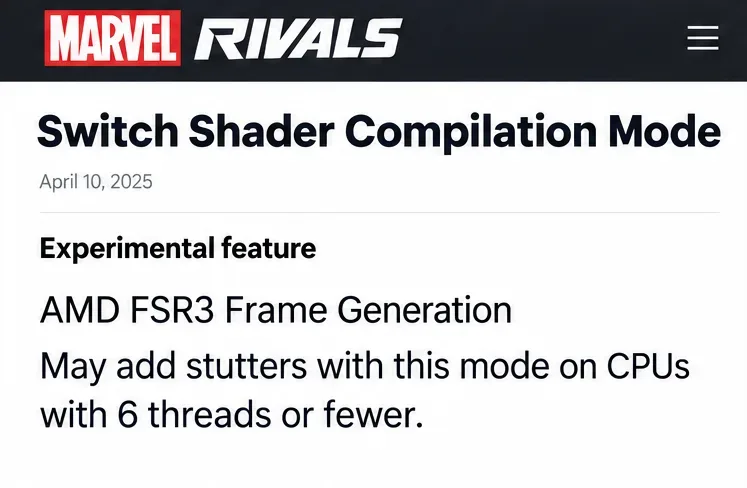
The official April 10, 2025 shader-mode announcement described an experimental Switch Shader Compilation Mode aimed particularly at memory-constrained PCs. It also documented first-use material hitches and warned that combining it with AMD FSR3 Frame Generation could add stutters on CPUs with six or fewer threads. Threads are not the same as physical CPU cores.
The April 10, 2025 document example illustrates the older configuration-specific warning discussed in step 7.
That is historical, configuration-specific guidance. If your launcher still offers the option, compare its behavior with and without it rather than assuming it must be enabled. If the option is absent, continue with the current client's behavior; do not restore an old launcher or add undocumented flags to imitate it.
A newer March 19, 2026 performance optimization announcement describes a PC test accessed through Settings > Other when activated, followed by a download and restart. It targets CPU rendering performance and involves a privacy agreement. Availability is conditional, and it is not documented as a guaranteed shader-stutter cure.
8. Rebuild a suspected damaged NVIDIA cache only as a later repair
Close the game. Set Shader Cache Size to Off in NVIDIA App > Graphics > Global Settings, apply, and restart.
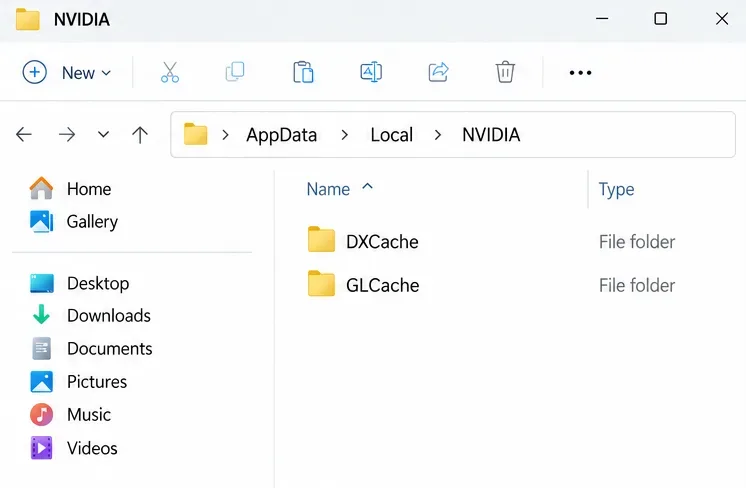
Under %USERPROFILE%\AppData\Local, delete contents only from the documented NVIDIA\DXCache, NVIDIA\GLCache, and NVIDIA Corporation\NV_Cache folders that exist.
Restore Driver Default, apply, and restart again.
Launch the game and allow preparation before testing again.
The File Explorer example shows two documented NVIDIA cache folders; a cache rebuild is a later repair, not routine maintenance.
Never delete whole AppData or NVIDIA directories. Skip absent folders rather than guessing paths. Expect rebuilding afterward; compare subsequent sessions without another reset.
What if the game still stutters or crashes?
Stop changing multiple settings together. Record your CPU, GPU, RAM, driver version, game version, installation drive, and whether the problem occurs only after updates or persists across repeat sessions. Describe a reproducible map, hero, or effect and attach a real recording if possible.
For crashes, the developer's Client Diagnostic Tool Guide explains running client_diagnose.exe with the game closed and collecting a report for support. Its GPU Debug Mode guide notes that debug mode can affect performance, so use it for diagnosis rather than normal performance comparisons.
A DirectX 12 unsupported error is a separate launch issue: check compatible hardware, Windows, and drivers. No supported DirectX 11 fallback was verified for this guide. Random launch flags, downloaded cache bundles, and configuration edits should not replace those checks.
Judge success by consistent movement and effects across comparable sessions after preparation, not a single higher FPS number. If the same pause repeatedly occurs despite a warmed cache and a repaired client, report that pattern; it may require a game or driver fix rather than another local reset.