How to Check Real-Time Server Latency in the PUBG HUD

Enable PUBG’s network statistics HUD to monitor ping and packet loss in a match. See where to find it, what the numbers mean, and what they cannot diagnose.
If you want to check real-time server latency in PUBG: BATTLEGROUNDS, enable the in-game network information display and watch the Ping value while you are in a match. PUBG’s official PC Update #21 notes say this display can show ping, connection speed, packets, and packet loss in the upper-left corner. The notes list the setting path as Settings > Gameplay > UI > Network debug statistics. Because that menu reference comes from a 2018 update and PUBG’s current support pages do not confirm the same path for every current platform or build, treat the label and location as version-dependent.
One distinction matters: the HUD’s ping is a useful live indicator of the connection between your game and the match server, but it is not a full diagnosis of server health or every cause of lag. Use it alongside packet-loss information and what you experience in the match.
From the lobby or a match, open Settings. If you are already in a match, use the game’s menu control to reach Settings; the exact button depends on your platform and key bindings. Look for Gameplay, then a UI or interface section. PUBG’s archived official patch notes give the path as Settings > Gameplay > UI > Network debug statistics. Find that option and turn it on.
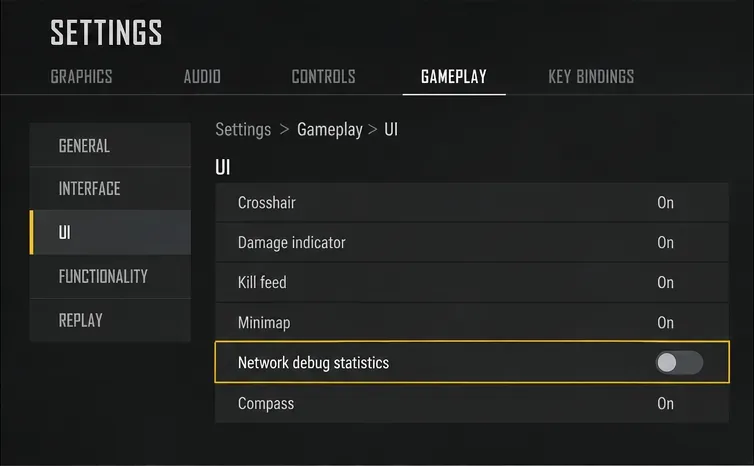
Switch Network debug statistics to On, then close the menu and return to gameplay. In the documented PC implementation, network information appears at the top left of the screen. If you cannot find the setting under UI, inspect the other Gameplay subsections for a similarly named network or statistics toggle. Menu labels can change after updates, and a setting shown in older notes is not proof that every current console or mobile version includes it.
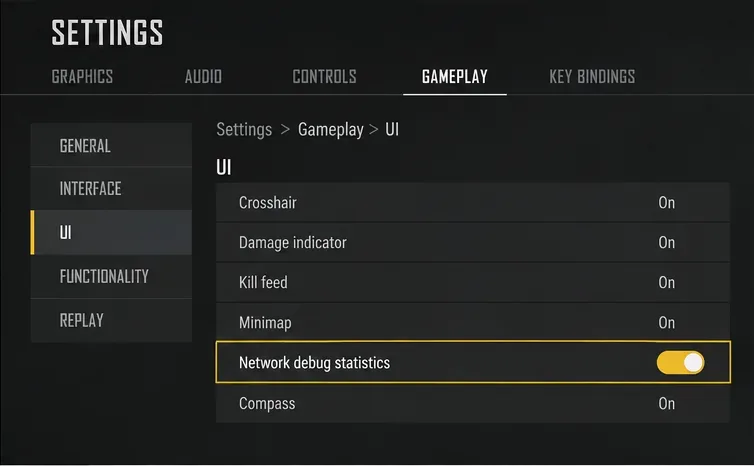
Join a live match or a mode where gameplay is active and look in the upper-left corner. The display documented by PUBG includes Ping, connection speed, packets, and packet loss. A lobby or pre-match screen may not provide the same useful reading as the active match, so check once you are connected to the game server. If the display does not appear, reopen Settings and confirm the option stayed enabled, then check whether your platform/build exposes that feature.
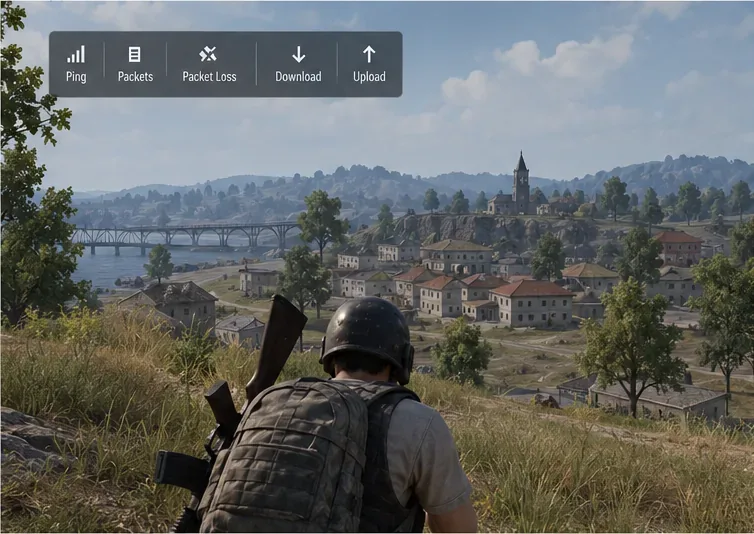
Ping is normally expressed in milliseconds (ms), a measure of round-trip response time. In practical terms, a lower and steadier ping generally means less network delay between your inputs and the server’s response. The value can change during a match as your route, wireless conditions, congestion, or server load changes. Watch the trend for several moments rather than treating one brief spike as the whole story.
Packet loss means some network packets did not arrive as expected. It can create rubber-banding, delayed actions, or missing updates even when the displayed ping looks reasonable. PUBG’s patch notes confirm packet-loss information is part of the network display, but do not document every field’s exact update interval or calculation. Use the HUD to compare what changes when you notice a problem rather than assuming a particular number guarantees smooth play.
Action: if your ping rises at the same time packet loss appears, record when it happens and note whether you are on Wi-Fi or Ethernet. If ping rises while packet loss stays at zero, that still does not identify the cause; compare another match and, if possible, test a wired connection. PUBG Support recommends trying a wired connection because wireless links are more prone to interference and can be harder to troubleshoot. Open PUBG Support’s official help center for current connectivity guidance.
No. The documented network information includes connection measurements such as ping and packet loss; it is not a server operations dashboard. A poor match can result from several network or system conditions. Action: use the ping and packet-loss readings to describe symptoms, not to claim you have identified the server’s internal condition.
Not necessarily. A single ping sample can look good while packet loss, jitter, or brief spikes still affect play. PUBG’s cited notes confirm packet-loss and connection-speed fields are available, but do not describe a complete jitter graph. Action: observe the overlay over time and note whether it changes when movement or hit registration feels delayed.
The official path cited here is from a PUBG: BATTLEGROUNDS PC update, and historical console notes also described a network-latency HUD, but current parity across all platforms is not verified by the available official documentation. PUBG Mobile is a separate product with its own interface and support pages. Action: follow the settings labels visible in your installed version; if there is no network-statistics toggle, do not assume a PC tutorial applies.
That process gives you a practical real-time view of your connection to the match server without confusing a ping readout with a complete network diagnosis. The option path and displayed fields are based on PUBG’s published update notes; because PUBG’s current documentation does not verify the exact menu placement across every version, use the labels currently shown in your game.
Enable PUBG’s network statistics HUD to monitor ping and packet loss in a match. See where to find it, what the numbers mean, and what they cannot diagnose.
Learn how to import VALORANT crosshair codes, compare presets with manual settings and spectator copy, and fix common import issues.
Choose Dota 2 minimap size, hero icons, team colors, and background settings by readability, fewer misclicks, and clear results on your own display.
Fix Fortnite texture pop-in on PC with official steps for GPU drivers, file verification, DirectX 12, high-resolution textures, VRAM, SSDs, and stutter.
Learn what Heroes of the Storm minimap size and position options are verified, improve readability, and choose camera-click controls that suit you.
Set Super Smash Bros. Ultimate Quickplay to prefer hazards-off stages. Follow the Preferred Rules menu steps and learn why matchmaking may not always honor them.
Enable Server Latency and Packet Loss in Warzone to monitor connection quality, read the overlay, and use recurring spikes to guide troubleshooting.
Learn how to carry from mid lane in League of Legends by setting up waves, choosing safe roam windows, reading side lanes, and converting pressure into objectives.
Fix Minecraft Evoker spell problems with a safe vanilla test, version checks, log review, and a step-by-step way to isolate mod or datapack conflicts.
Fix PUBG stuck on Initializing on Steam with a focused checklist for PC service notices, launch options, game files, downloads, and connection issues.








