Why Is the Xbox Web Browser So Slow? 7 Causes and Fixes
If the Xbox web browser is slow, first find out whether the delay comes from one website, your network, or Microsoft Edge itself. On Xbox Series X|S, the built-in browser is Microsoft Edge, and Microsoft describes it as Chromium-powered. That makes “the Xbox browser uses an obsolete engine” an unreliable blanket explanation. Heavy pages, unstable Wi-Fi, downloads, browser data, a stuck session, or a site-side problem are more useful places to check.
Use the checks below in order. They do not promise a particular speed increase; each one helps isolate a cause and apply a low-risk fix. The screenshots are simplified illustrations, so the exact menu appearance may vary by console update and language.
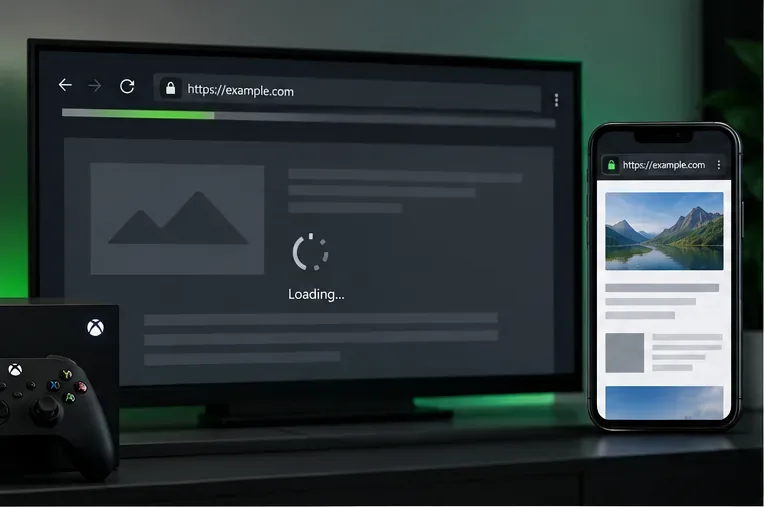
Why is the Xbox web browser so slow? 7 likely causes
- The page is demanding. A page packed with autoplay video, large images, ads, trackers, and scripts can take longer to appear or respond than a lightweight page. That points to the page’s workload, not automatically to a broken console.
- Wi-Fi is weak or inconsistent. A low signal, interference, or brief drops can make pages stall even when other devices sometimes seem fine. Web browsing depends on a steady connection as well as headline download speed.
- Another download is using your connection. A large game or app download, update, or other household traffic can compete for available bandwidth. This can delay pages and media; it does not mean the browser needs a DNS change.
- Edge has stale site data. Cached files normally help repeat visits, but a problematic cache or cookie can make a particular page behave oddly. Clearing everything is not a routine speed boost: it can sign you out, and the first reload may take longer while files are downloaded again.
- The current app session is stuck or busy. A browser tab or console app can stop responding normally after a long session. Restarting Edge is a quick way to test this without changing network settings.
- The console needs an update or restart. A pending system update or temporary software issue may affect app behavior. Microsoft’s Xbox Edge overview identifies the Series X|S browser as Chromium-powered, so an “outdated engine” claim should not replace checking the actual console state.
- The site or its service is the bottleneck. If one site is slow on several devices, or only one video fails in Edge, the cause may be that site’s server, media delivery, or compatibility. A console reset will not repair a remote service outage.
Microsoft’s guide to using Edge on Xbox covers the Series S and X browser. Xbox One menus and browser behavior can differ, so use the closest matching settings on an older console.
7 fixes to try, from quickest to most useful
1. Compare the same site on Xbox and another device
Open the exact same URL on a phone or computer connected to the same home network. Then open a second, lightweight site in Edge on Xbox. If only one site is slow on the console, continue to the compatibility check below. If the same site is slow on every device, check the site itself or your internet connection before changing Xbox settings.
2. Run the Xbox network test
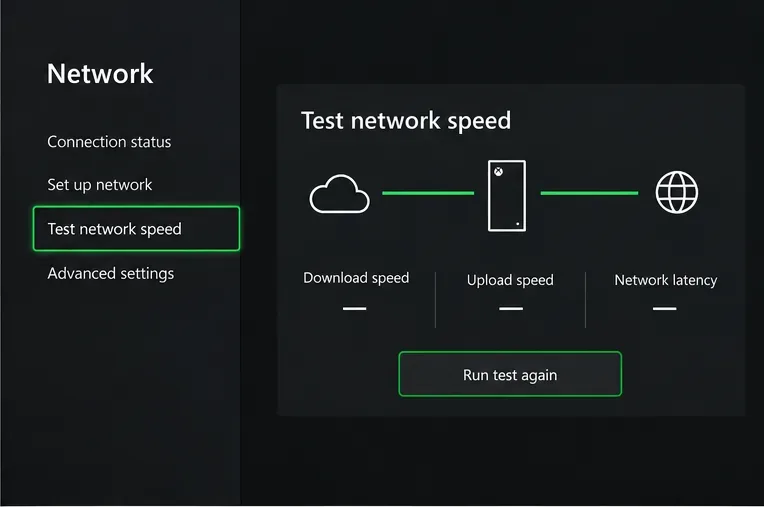
Press the Xbox button, then go to Profile & system > Settings > General > Network settings > Test network speed & statistics. Note the results and run the test again if they look inconsistent. Microsoft says this test reports network speed and detailed statistics. Compare results across tests rather than relying on one unexplained number. See Xbox network settings for the console’s test options.
3. Test Ethernet or improve the Wi-Fi path
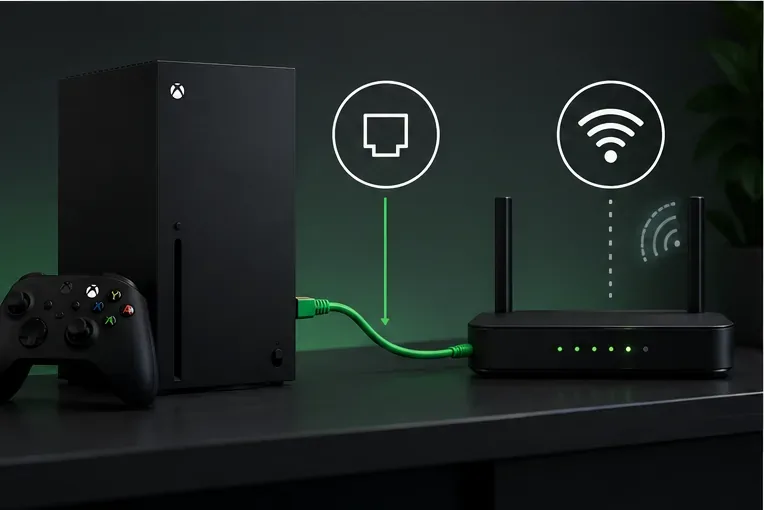
If you can, connect the console to the router with Ethernet and reload the same page. If it improves, the wireless link is a strong suspect. Move the console or router into a more open position, reduce obstructions, or test a different Wi-Fi band if your router offers one. Restart the router only when convenient, since other devices in the home will temporarily lose connection. Xbox’s wired connection troubleshooting guide covers basic cable and connection checks.
4. Pause downloads and close the game you are playing
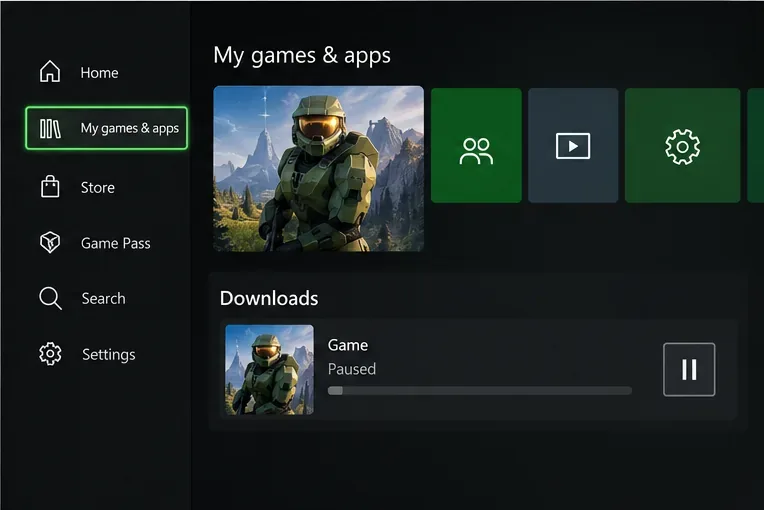
For a clean test, pause any large game or app download, then quit the active game and unused apps. Open Edge again and repeat the same page load. This is a diagnostic step: if browsing improves, competing network activity or the current console session was contributing. Resume downloads afterward. You do not need to delete games, saves, or persistent storage.
5. Clear Edge’s cached files selectively
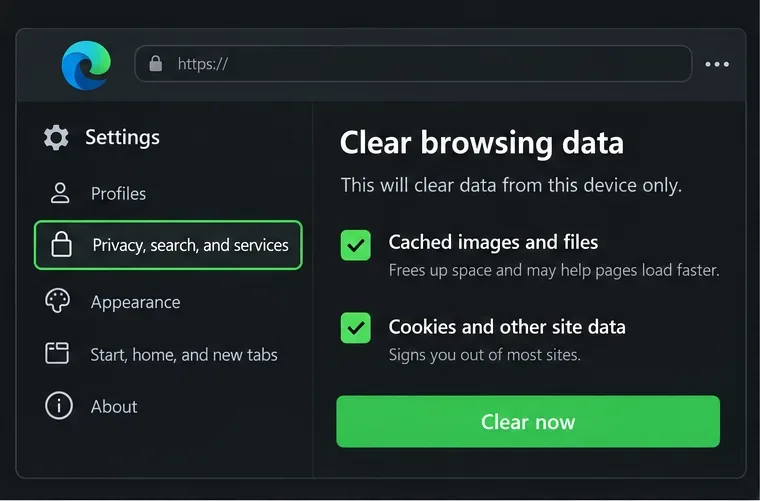
In Microsoft Edge, open Settings > Privacy, search, and services > Clear browsing data, choose what to clear, and start with Cached images and files. Menu wording may vary on Xbox. Retest the page after clearing. If a single site still fails, you can also clear its cookies or other site data, but expect to sign in again. Do not remove saved passwords unless you intend to. If Edge sync is on, Microsoft says synced items can also be removed from other synced devices. Microsoft explains the data types and steps in its Edge browsing-data guide.
Clearing cache is most useful when saved site data seems broken; it is not guaranteed to make every page faster. Cached images and files can help pages load faster on later visits, so a fresh reload may initially take longer.
6. Quit Edge, then restart the console if needed
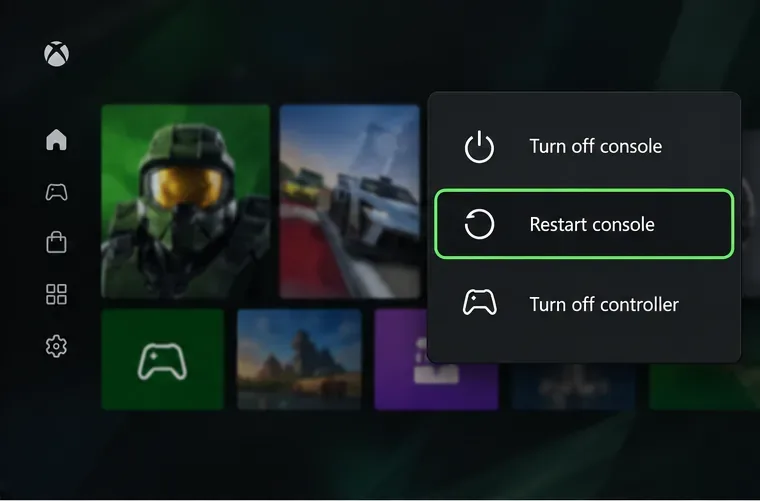
Close Edge from the Xbox Home screen, reopen it from My games & apps > Apps, and test again. Microsoft lists that path for launching Edge on Series X|S. If the browser still behaves oddly—or other apps are also sluggish—restart the console from its power menu and retest. A normal restart is safer than a factory reset and does not remove games or saves.
7. Check for a console update and test again
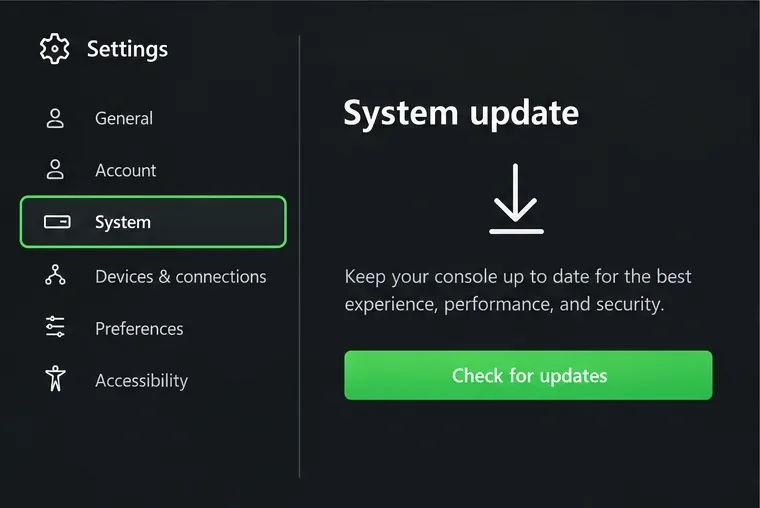
Open Profile & system > Settings > System > Updates and install an update if the console offers one. If it says the console is up to date, move on; repeatedly checking will not force a browser upgrade. The system update page can vary between Xbox generations. Microsoft's Xbox system-update instructions describe the update process, while current Series X|S menu wording may differ.
If only one website or video is slow
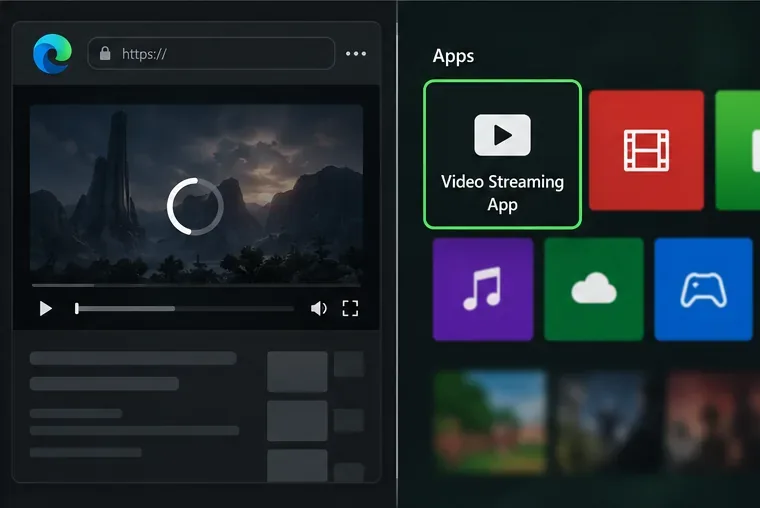
When other pages work and the same site is also slow on another device, wait and check that service’s status or support page. When the site works elsewhere but one video will not play in Edge, try refreshing, signing out and back in, or opening the service’s official Xbox app if one is available. Browser playback can depend on the site’s player and supported features, so this symptom alone does not prove the Xbox is underpowered.
Quick diagnosis
| What you notice | Most useful first check |
|---|---|
| Every website loads slowly on Xbox | Run the Xbox network test, then try Ethernet or pause downloads. |
| Only one website is slow on Xbox | Compare the same URL on another device and clear that site’s data only if needed. |
| The same website is slow everywhere | Check the website or service; console settings are unlikely to fix a site-side issue. |
| Pages load but scrolling or controls freeze | Quit Edge, restart the console, and check for an available system update. |
| Only video playback buffers | Compare another video or try the service’s official Xbox app. |
Fixes that usually waste time
- Do not clear Blu-ray persistent storage as an Edge cache fix. Use Edge’s own browsing-data controls for browser data.
- Do not switch DNS servers as a guaranteed speed trick. DNS changes will not fix weak Wi-Fi, a busy connection, slow video delivery, or an overloaded website.
- Do not change NAT settings just to speed up web pages. NAT troubleshooting is mainly relevant to multiplayer connection problems, not ordinary page rendering.
- Do not buy a newer console before testing. First determine whether the slowdown follows the site, the network, or Edge on this console.
The quickest dependable path for a slow Xbox browser is to compare devices, run the built-in network test, pause downloads, and restart Edge. Clear cached files only when browser data appears to be part of the problem. If the issue is limited to one site, investigate that service or use its dedicated app instead of resetting the console.









