Where to Download VALORANT Safely: Riot’s Official PC Guide
For Windows PC, download VALORANT from Riot’s official download page at playvalorant.com. Start the download from that page and use the installer it provides. Riot may deliver the file through its own download infrastructure, so a Riot CDN address reached after clicking the official button can be expected. The key safety check is how you got there: do not start from a third-party mirror, torrent, “free skins” page, or an unsolicited link.
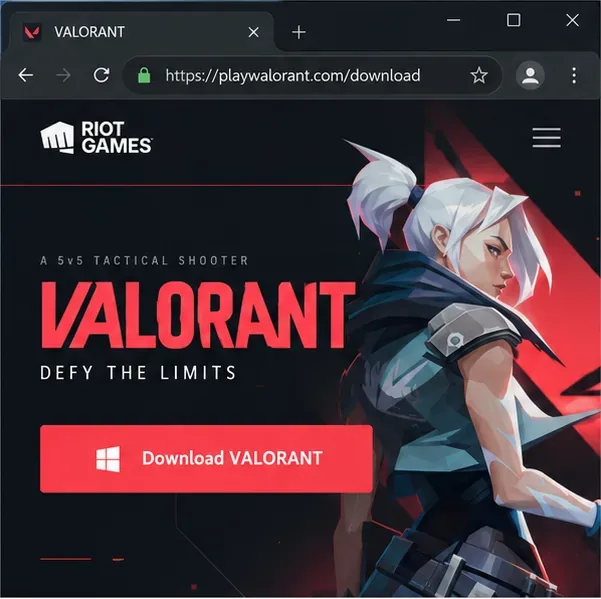
Where to download VALORANT safely
The official PC download is linked from Riot’s VALORANT download page. If you arrive at the game’s home page first, use its download or play button and follow the official PC route. Riot’s platform selector also lists console versions; this guide covers the Windows PC installer, not the Xbox or PlayStation store process.
A padlock in the browser means the connection is encrypted, but it does not prove that a website is Riot’s. Check the address itself before you click: the page should be on playvalorant.com. After you begin from Riot’s page, follow its download flow rather than deciding whether a file is genuine from a filename or a CDN hostname alone. Riot can change the delivery address or installer details over time.
Check your PC before installing
Riot’s current VALORANT PC requirements list Windows 10 (version 19041 or later) or Windows 11, both 64-bit. The minimum listing also calls for a processor that supports SSE 4.2 or AVX, 4 GB of RAM, and 1 GB of video memory. Riot says Windows 11 systems need TPM 2.0 and UEFI Secure Boot enabled. Requirements can change, so check Riot’s specifications page if your PC is older or you see a Vanguard compatibility message.
Make sure the drive you choose has enough free space for the game and updates. Installation size changes as the client is patched, so use the current installer and Riot Client prompts instead of relying on an old fixed download-size estimate. You will also need a Riot Account to sign in and play; the base game is free to download from Riot’s official page.
How to download and install VALORANT on Windows
-
Open Riot’s official download page
Type playvalorant.com into your browser’s address bar, then open the download page. If a platform choice appears, select PC. Avoid sponsored search results and links in video descriptions, chat messages, or file-sharing pages. A lookalike domain or an HTTPS padlock alone is not enough to establish that a download is official.
-
Start the installer download from Riot’s page
Use the download button on the official page and let your browser finish the file. The download may be served through Riot’s content delivery network; that is different from finding an installer independently on a mirror. If you did not initiate the download from Riot’s page, cancel it and start again there. Do not open bundled “download managers,” browser extensions, or additional files offered by another site.
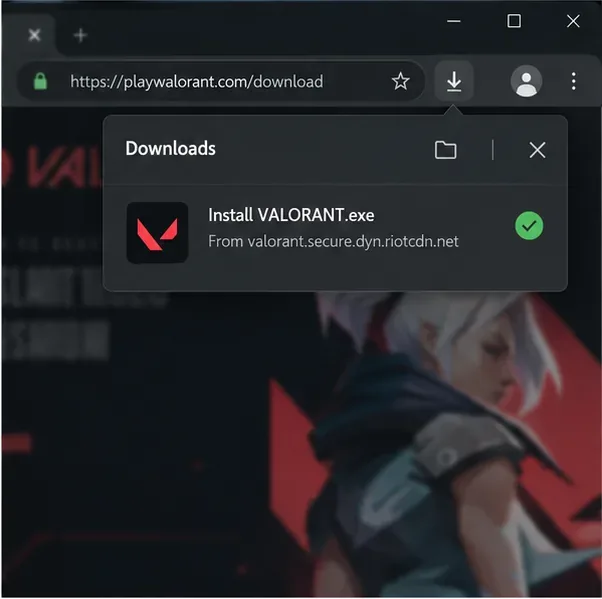
Interface illustration of an installer download. The filename, size, and Riot delivery host may change over time. -
Check the publisher, then install Riot Client and Vanguard
Open the installer you downloaded. If Windows displays a User Account Control prompt, check the publisher before approving it; it should identify Riot Games, Inc. If the publisher is unknown or different, choose No, delete that file, and download again from Riot’s page. Do not disable your antivirus or Windows security to force an unfamiliar installer to run.
The setup installs Riot Client and Riot Vanguard, Riot’s game security software for VALORANT. Vanguard is required to play. Riot explains that it can start with Windows; if you disable it and later want to play, you will need to restart your computer. Follow the installer’s prompts, and restart when requested.
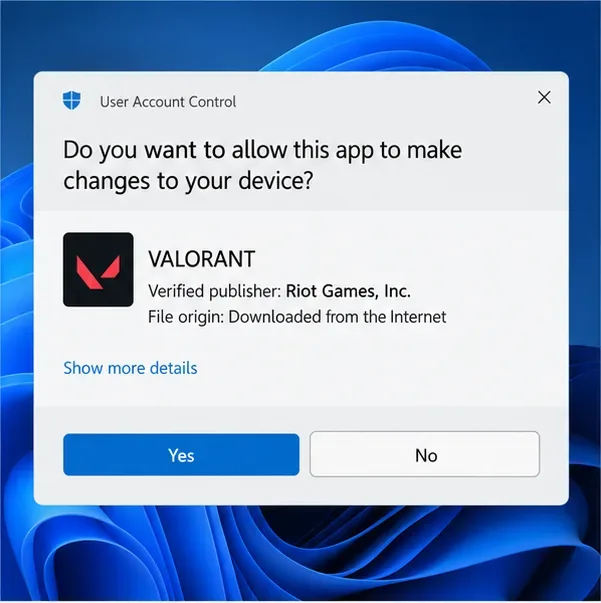
Interface illustration of a Windows publisher check. Confirm Riot Games, Inc. is identified before approving an expected prompt. -
Sign in and launch VALORANT from Riot Client
When installation finishes, open Riot Client and sign in with your Riot Account, or create one through the account option presented by Riot. Launch VALORANT from the client. If Vanguard or the client asks for a system restart, save your work, restart Windows, and open Riot Client again. Use Riot’s official support pages if the client reports an error; avoid downloading replacement drivers or DLL files from unrelated sites.
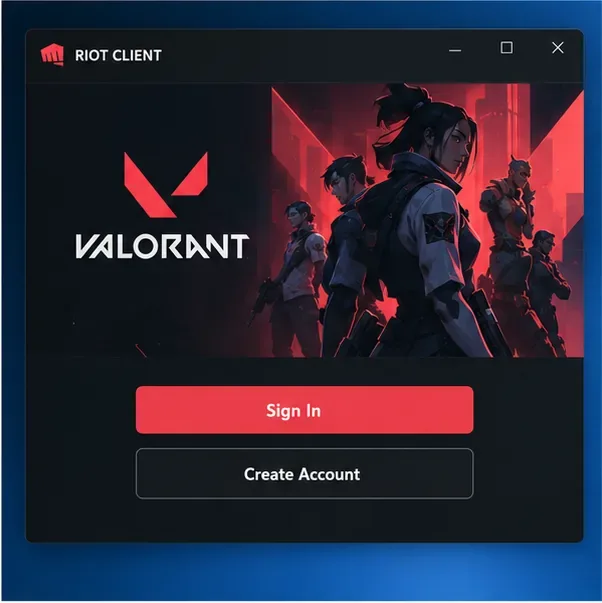
Interface illustration of a Riot Client sign-in path. Client wording and layout may change as Riot updates its software.
Download safety checklist
- Start at Riot’s official VALORANT download page.
- Check the website address; do not treat the browser padlock as proof that a site belongs to Riot.
- Only approve a Windows prompt for the installer you just started from Riot, and confirm the publisher is Riot Games, Inc.
- Never pay a third party for the base game installer or provide account credentials to a download page.
- Avoid torrents, cracked clients, cheats, “free VP” offers, and unofficial APK or compatibility downloads.
Common installation issues
Windows says your PC is not supported
Compare your Windows version and hardware with Riot’s current requirements. On Windows 11, check Riot’s TPM 2.0 and UEFI Secure Boot requirements. Firmware menus differ by PC maker, so use your computer or motherboard manufacturer’s instructions before changing UEFI settings.
The installer or game download stalls
Check your internet connection and available disk space, then restart Riot Client and try again. If the problem continues, check the Riot service status page and use VALORANT Player Support for current troubleshooting. Do not bypass a security warning by turning off system protections.
Frequently asked questions
Is VALORANT free to download?
Yes. Riot lists VALORANT as free to play. The official installer and base game do not require a payment; optional in-game purchases are separate.
Can I download the Windows version from the Xbox or PlayStation store?
No. This PC guide uses Riot Client. Riot’s platform selector links console players to the supported Xbox Series X|S and PlayStation 5 options. Choose your platform from Riot’s official platform page.
Why does the game install Vanguard?
Riot Vanguard is the game’s required security software. Read Riot’s Vanguard overview for how it works and what happens if you disable it.
Use Riot’s download route every time
For a fresh install or reinstall, return to Riot’s official VALORANT page and follow its current PC download flow. That gives you the current Riot Client and Vanguard components and avoids files repackaged by third parties. If the website, publisher prompt, or installer behaves differently from the expected Riot flow, stop and check Riot Player Support before continuing.









