Where Do I Download League of Legends? (2026 Guide)
Download League of Legends from Riot Games’ official download page: leagueoflegends.com/download. The page provides separate installers for Windows and Mac and may redirect to a localized version. Avoid third-party download sites, torrents, and unofficial installers; use Riot’s domain and confirm the address before opening a file.
The PC and Mac game is free to download and play, but you need a Riot account to sign in. Riot currently lists Windows and macOS as the supported desktop systems; Linux, SteamOS, and similar operating systems are not supported. If you want League on a phone, Riot’s separate Wild Rift is the mobile game, not the desktop installer.
Check your PC or Mac before downloading
Riot’s system requirements page was updated September 22, 2026. Its current minimums are below; check the live requirements page before installing because hardware and OS requirements can change. Meeting minimum specs does not guarantee smooth performance.
| Platform | Current minimums listed by Riot |
|---|---|
| Windows | 64-bit retail Windows 10 (Build 19041 or later) or Windows 11 with TPM 2.0 enabled; DirectX 11 feature-level 11_0 hardware; 2 GB RAM; 16 GB free storage. ARM processors are not supported. |
| Mac | Apple M1, macOS 12, a Metal-capable GPU, 8 GB unified memory, and 40 GB available storage. Riot says Intel Mac players may continue to play, while support is focused primarily on Apple Silicon. |
Storage figures are the free-space requirements in Riot’s current table, not the size of the initial installer. The Riot Client downloads and installs the game files after setup begins, and patches can change how much space is needed. Leave additional room if you can, especially before a major update.
How to download and install League of Legends
1. Open Riot’s official download page
Go directly to the official League of Legends download page. Choose Download for Windows or Download Mac Installer, depending on your computer. The generic address can redirect to a regional page; check that it remains on a Riot Games domain. If you already play, remember that your Riot account is linked to a League region, so a localized download page does not move your account to a different server.

2. Open the installer and follow the setup prompts
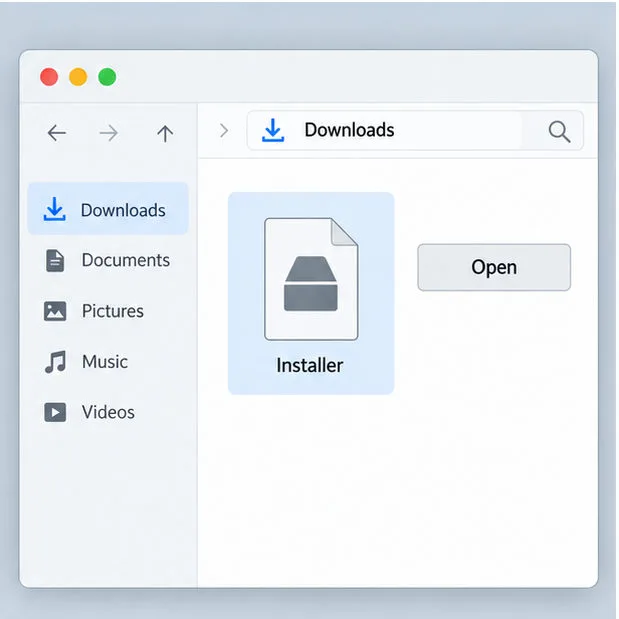
When the installer finishes downloading, open it and follow the instructions shown by the installer and your operating system. The Riot Client is installed as part of this process and manages the rest of the game download. If your computer asks you to approve the installation, first make sure you downloaded the file from Riot’s official site.
On a Mac, Riot’s support instructions say to open the downloaded .dmg file, drag League of Legends.app into the Applications folder, and then launch the app from Applications. Don’t run the app from the open disk-image window. See Riot’s Mac installation instructions if your screen differs.
3. Sign in with the right Riot account
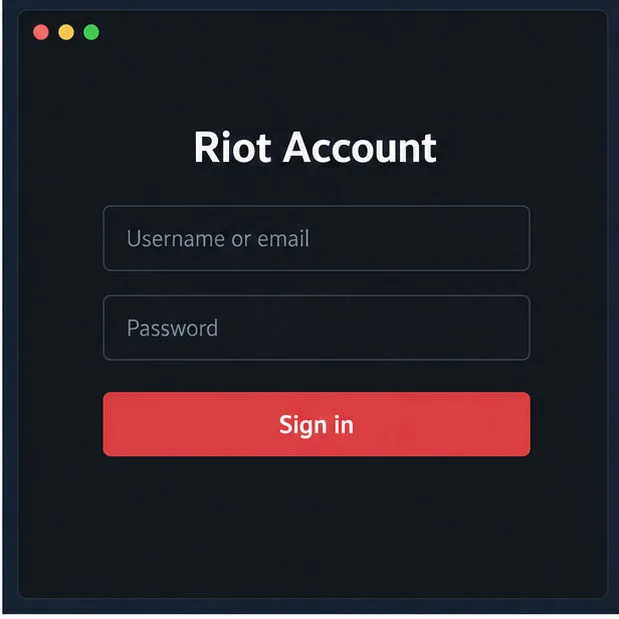
Sign in with your existing Riot account, or use Riot’s account-creation flow if you’re new. Keep your login details on Riot’s official sign-in screens. If you have played League before, use the account associated with the region where you want to play: Riot’s regional server guidance explains that League accounts are region-specific. Riot’s launcher can handle more than one region, but each region may need separate patch files.
4. Let the Riot Client finish downloading, then launch the game
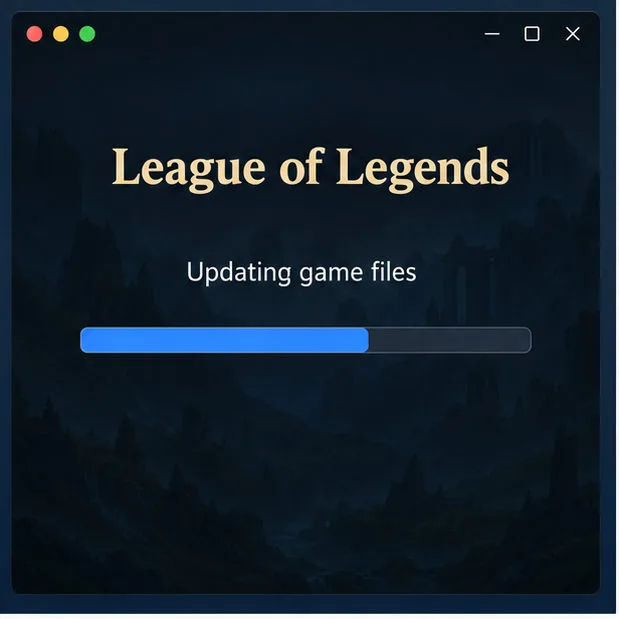
After sign-in, the Riot Client downloads or updates League’s game files. The initial installer is only the starting point, so the remaining download can take longer than the installer itself. Keep the client open and the computer connected while setup runs. When the client marks League as ready, launch the game from the Riot Client.
If the League download or installation gets stuck
- The download page looks different: check the address bar and use Riot’s official download page again. The site can display a region-specific version, but the Windows and Mac choices should be clear.
- The installer will not complete: compare your OS, hardware, and free storage with Riot’s current requirements. On Mac, launch the app from Applications after copying it there.
- The client stops patching or will not launch: restart the Riot Client and check your connection. For further steps, use Riot’s official patching support guide. Avoid unofficial “repair” downloads and don’t turn off antivirus or firewall protection as a first step.
Quick answers
Is League of Legends free to download?
Yes. Riot describes League as free to play, and there is no purchase required to download the desktop client. Optional in-game purchases are separate from installing the game.
Can I download the PC version as an APK?
No. The PC/Mac version uses Riot’s desktop installer. For a phone or tablet, visit Riot’s Wild Rift site and use the official mobile store listing available in your region; Wild Rift is a separate mobile release.
How long does the download take, and how large is it?
There is no single reliable time or download-size figure for every computer: the installer, platform, connection, and current patch all affect it. Use Riot’s live free-space requirements above rather than relying on old estimates, and allow the Riot Client to finish its game-file download before you try to play.
In short, get the correct League of Legends installer from Riot’s official download page, check the system requirements for your platform, sign into the right Riot account, and let the client complete its download and updates.









