VAN9001 Valorant Error: What It Means and How to Fix It (2026)
The VAN9001 Valorant error means Riot Vanguard cannot detect TPM 2.0 as enabled on your PC. Riot’s current error guide points to TPM 2.0, so start by checking that Windows can see a ready TPM and that its specification version is 2.0. If TPM is off, enable the firmware setting in your UEFI/BIOS, restart, and check again. Reinstalling the game or changing unrelated network settings will not enable TPM.
One distinction saves time: VAN9001 is the TPM 2.0 error; Riot identifies VAN9003 as the Secure Boot error. Secure Boot may be required by a separate Vanguard message, but it is not the first setting to change when the code is VAN9001.
What does VAN9001 mean in Valorant?
VAN9001 is a Vanguard security requirement message, not a general report that the game lost its internet connection or that your Riot account was banned. Riot says Vanguard needs TPM 2.0 for its system security checks and is not detecting that feature as enabled. TPM stands for Trusted Platform Module. Many PCs have a firmware-based TPM built into the processor or motherboard, but the option can be disabled in firmware settings.
The error code matters. If the message says VAN9003 or specifically asks for Secure Boot, follow Riot’s separate Secure Boot instructions. If it says VAN9001, check TPM first. If Vanguard displays a different requirement, follow that exact message because security requirements can differ by system.
| Error shown | What Riot says it indicates | First check |
|---|---|---|
| VAN9001 | TPM 2.0 is not detected as enabled | TPM status in tpm.msc |
| VAN9003 | Secure Boot is not enabled | Secure Boot status and Riot’s separate guide |
How to fix the VAN9001 Valorant error
1. Check whether TPM 2.0 is ready
Before entering BIOS, check the status Windows reports:
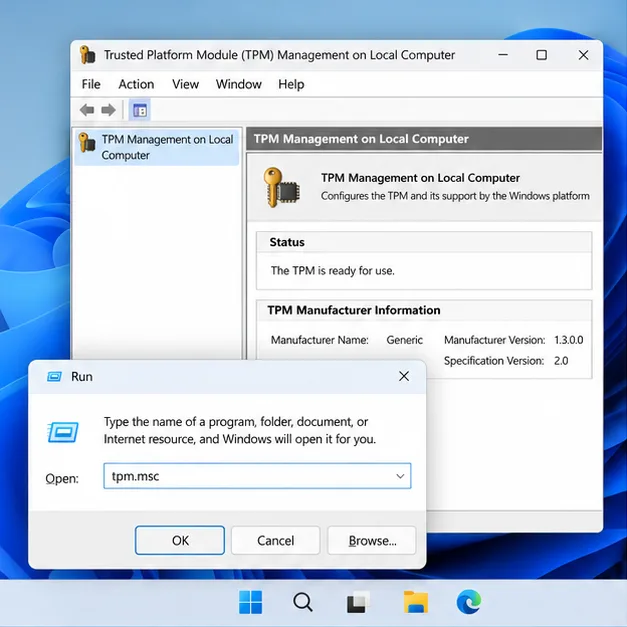
- Press Windows key + R to open Run.
- Type tpm.msc and press Enter.
- In TPM Management, read the status and the Specification Version.
If the window says “The TPM is ready for use” and “Specification Version: 2.0,” TPM is already enabled. Restart the Riot Client and launch VALORANT. If VAN9001 still appears, skip to Step 4. If Windows says it cannot find a compatible TPM, or the TPM is not ready, continue to the firmware check. A version below 2.0 does not meet Riot’s stated requirement.
If TPM Management will not open, Riot also recommends checking Windows Security > Device Security > Security processor details. Missing TPM information can mean the feature is disabled in firmware.
2. Enable the TPM option in UEFI/BIOS
The setting name and location depend on your PC or motherboard. On Windows 11, open Settings > System > Recovery > Advanced startup > Restart now, then choose Troubleshoot > Advanced options > UEFI Firmware Settings. On Windows 10, use Settings > Update & Security > Recovery > Advanced startup. You may also enter firmware setup by restarting and pressing the manufacturer’s key, commonly Del, F2, or F10.
Look under menus such as Security, Advanced, or Trusted Computing. The option may be named Intel PTT, Intel Platform Trust Technology, AMD fTPM, TPM State, Security Device Support, or Firmware TPM. Enable the TPM option, save the change, and exit. Follow the support instructions for your exact PC or motherboard model; menu names and steps are not universal.
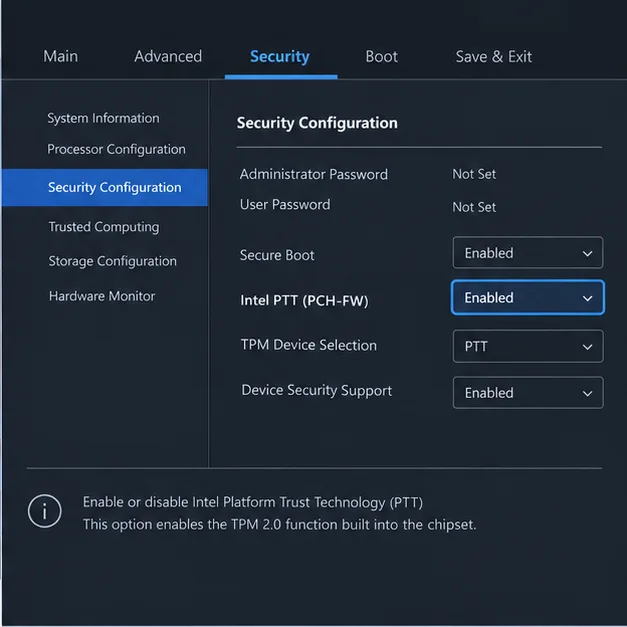
Be careful with firmware changes. Do not switch Legacy/UEFI boot modes or clear the TPM as a VAN9001 shortcut. If you are changing TPM versions or clearing TPM keys, first make sure you have your BitLocker recovery key and follow the device maker’s guidance; changing TPM modes can affect encrypted-device access. If you are not sure which setting is safe, stop and use the manufacturer’s support instructions.
3. Restart Windows and verify the TPM again
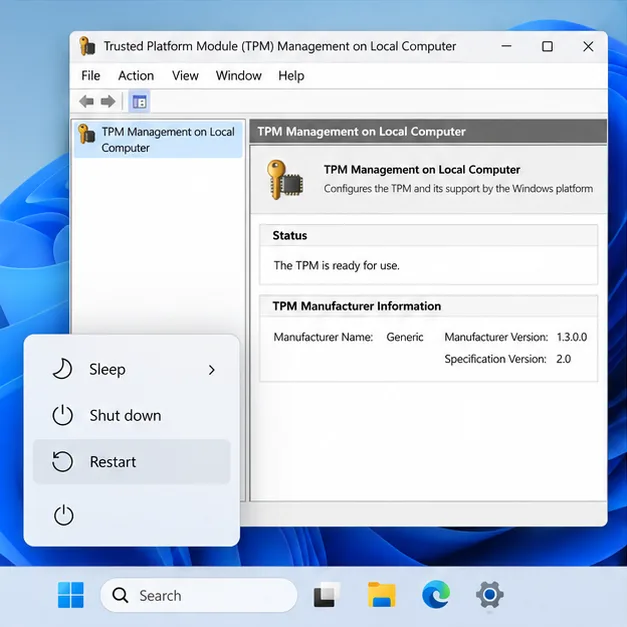
After saving the firmware setting, let Windows start normally. Open tpm.msc again and confirm both conditions: the TPM is ready for use, and its Specification Version is 2.0. Then open Riot Client and launch VALORANT. If the same VAN9001 message appears despite those checks, continue below rather than repeatedly changing firmware options.
4. If TPM 2.0 is ready but VAN9001 remains
Riot notes that outdated or faulty motherboard firmware can prevent TPM from initializing correctly even when the setting appears enabled. Check the support page for your exact PC or motherboard model and install a BIOS update only by following the manufacturer’s instructions. Do not use a BIOS file for a similar-looking model or a third-party driver site. If the TPM console is still unavailable after enabling PTT or fTPM, a firmware update or help from the device maker may be needed.
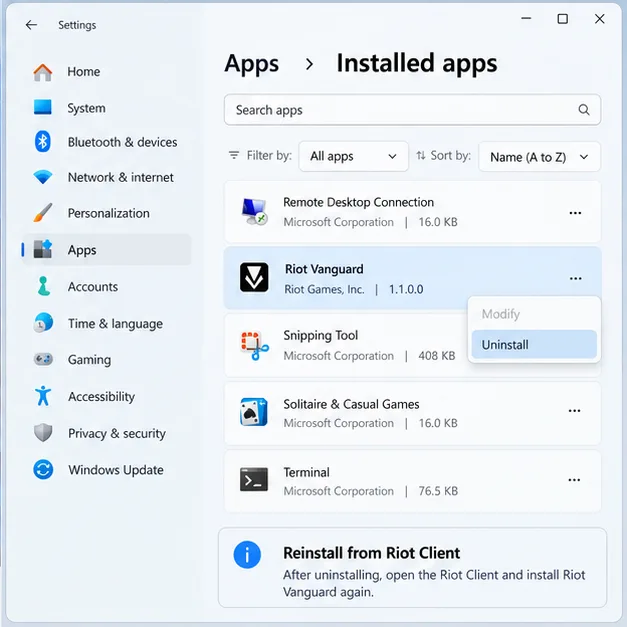
If TPM is confirmed ready at version 2.0 and the error continues, a damaged Vanguard installation is a reasonable next software check. Close Riot Client and VALORANT, open Settings > Apps > Installed apps, select Riot Vanguard, and choose Uninstall. Restart the PC, then open Riot Client or VALORANT so Vanguard can be installed again. This is a targeted repair; reinstalling the entire game is not the first fix for a TPM requirement.
If VAN9001 still appears after TPM is ready, firmware is current, and Vanguard has been reinstalled, contact Riot Player Support. Include the exact error text and the TPM status/version shown by Windows so support can distinguish a detection issue from a different Vanguard requirement.
Common questions
Does VAN9001 mean my Valorant account is banned?
No. VAN9001 reports that Vanguard does not detect TPM 2.0 as enabled. It is a system security configuration error, not a ban notice.
Do I need to enable Secure Boot to fix VAN9001?
Not based on the VAN9001 message alone. Riot’s current support pages associate VAN9001 with TPM 2.0 and VAN9003 with Secure Boot. Change Secure Boot only when the displayed error or Riot’s instructions call for it, and check your device maker’s guidance before editing firmware.
Will reinstalling Valorant fix VAN9001?
Usually, reinstalling the game is unnecessary. First make sure TPM 2.0 is enabled and ready. Reinstall Vanguard only if TPM checks out and the error continues; Riot says launching the Riot Client or a Vanguard-dependent game reinstalls Vanguard after it has been removed.









