Vanguard Not Initialized: A Quick Fix (2026)

The "Vanguard not initialized" error in Valorant means the anti-cheat driver (vgk.sys) never started up, so the game blocks you from joining a match. The good news is that in most cases the fix takes only a few minutes. Work through the five steps below in order — most players are back in queue by step two or three.

Vanguard not initialized error fix guide for Valorant
Vanguard must be running before Valorant will let you connect to a match.

What causes "Vanguard not initialized"?

Riot Vanguard is a kernel-level anti-cheat that starts automatically when Windows boots. The error appears when its background service — called vgc — fails to launch or crashes before Valorant starts. The most common triggers are:

  • The vgc service was manually stopped or set to Manual/Disabled.
  • Secure Boot or TPM 2.0 is turned off in your BIOS (Vanguard requires both on Windows 11 and recommends them on Windows 10).
  • A recent Vanguard update installed incorrectly.
  • Another anti-cheat driver is running alongside Vanguard and causing a conflict.
  • A pending Windows update contains a kernel patch Vanguard needs.

How to fix Vanguard not initialized

  1. Step 1: Restart the Vanguard service

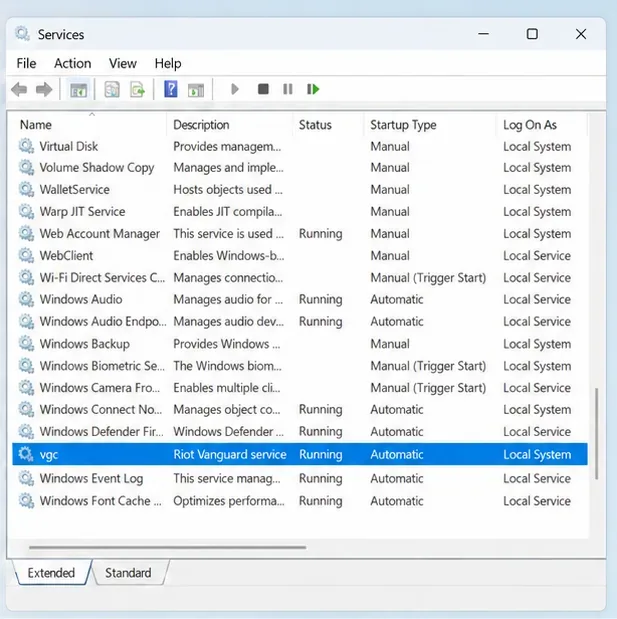
    Press Win + R, type services.msc, and press Enter. In the Services window, scroll to vgc. Right-click it and choose Restart. If the status column shows "Stopped", also double-click the service, set its Startup type to Automatic, click Start, then OK. Once the service is running, fully reboot your PC before launching Valorant — a cold reboot is required because Vanguard loads at the kernel level during startup, not on demand.

    Restarting the vgc Vanguard service in Windows Services to fix Vanguard not initialized
    Open services.msc, right-click vgc, and choose Restart — then reboot your PC.
  2. Step 2: Enable Secure Boot and TPM 2.0 in BIOS

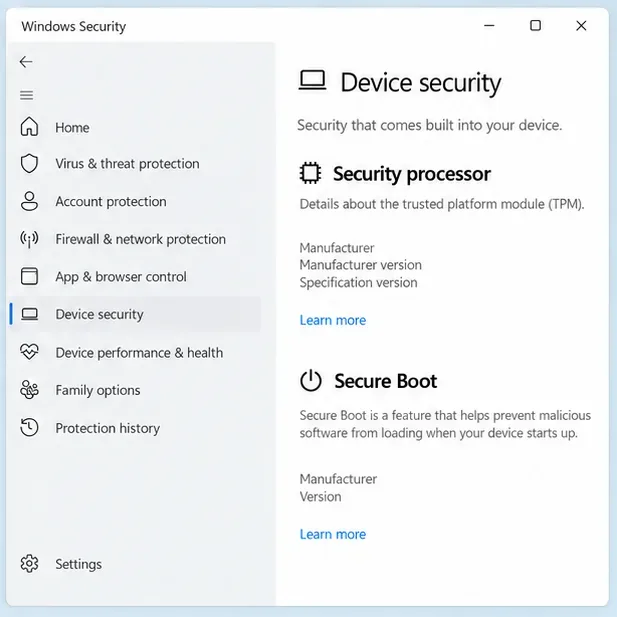
    Vanguard checks for Secure Boot and TPM 2.0 at startup. If either is disabled, Vanguard will refuse to initialize. Shut down your PC, power it back on, and immediately tap Del or F2 to enter your UEFI BIOS. Go to the Security (or Boot) tab and make sure both Secure Boot and TPM 2.0 (sometimes listed as Intel PTT or AMD fTPM) are set to Enabled. Press F10 to save and exit. Your PC will reboot — launch Valorant and check whether the error is gone.

    UEFI BIOS Security tab showing Secure Boot and TPM 2.0 enabled for Vanguard Valorant fix
    Both Secure Boot and TPM 2.0 must be set to Enabled in the UEFI BIOS Security tab.
  3. Step 3: Reinstall Vanguard

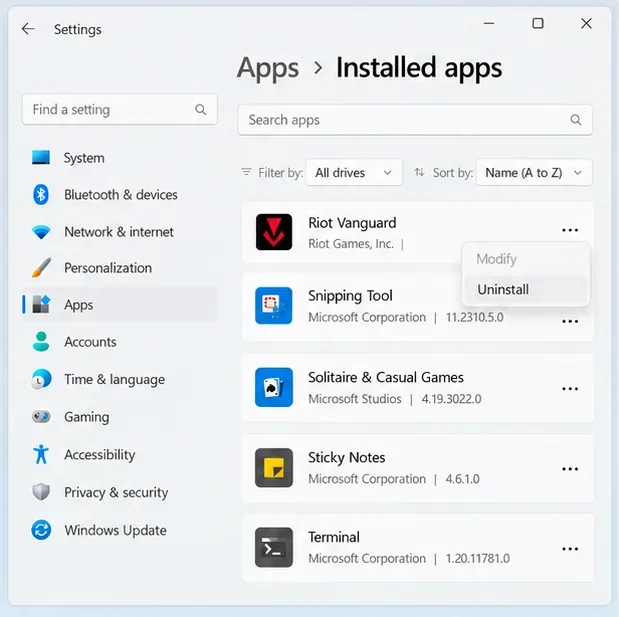
    If the service is set correctly but the error persists, Vanguard's installation may be corrupt. Press Win + I to open Settings, go to Apps, search for Riot Vanguard, and click Uninstall. After it is removed, reboot your PC, then launch Valorant normally. The Valorant client automatically downloads and reinstalls Vanguard on first run. When the installer prompts you to restart again, do so — then launch Valorant a second time.

    Uninstalling Riot Vanguard from Windows Apps and Features to reinstall it and fix the not initialized error
    Search for "Riot Vanguard" in Apps and Features, uninstall it, then relaunch Valorant to reinstall fresh.
  4. Step 4: Remove conflicting software

    Vanguard's kernel driver cannot run alongside certain other anti-cheat or VPN kernel drivers. If you have games installed that use EasyAntiCheat, BattlEye, or similar systems, their drivers may still be running in the background even if the game is closed. Press Win + R, type msconfig, go to the Services tab, check Hide all Microsoft services, and look for unfamiliar entries. Disable any anti-cheat services not related to Valorant and reboot. You can also open Device Manager (devmgmt.msc) and check for unsigned or unknown drivers under any category.

    List of software that conflicts with Vanguard anti-cheat including EasyAntiCheat and BattlEye drivers
    Other anti-cheat drivers — even from closed games — can prevent Vanguard from loading. Disable them via msconfig.
  5. Step 5: Make sure Windows is fully up to date

    Vanguard's kernel driver is signed and tested against specific Windows versions. An incomplete Windows Update can leave you with a partially patched kernel that Vanguard rejects. Press Win + I, go to Windows Update, and click Check for updates. Install everything available — including optional updates — and restart when prompted. Once Windows is fully current, relaunch Valorant.

    Windows Update settings page showing Check for updates button to fix Vanguard not initialized in Valorant
    Check Windows Update and install all pending updates before relaunching Valorant.

Extra tips

  • Always reboot after any change. Vanguard loads during the Windows boot sequence. Simply restarting the service is not enough if you have made BIOS or driver changes — a full shutdown and power-on cycle is required.
  • Run Valorant as administrator. Right-click the Valorant shortcut and choose "Run as administrator" to rule out permission issues on the first test run after reinstalling.
  • Check the Riot Client. If you launch Valorant through the Riot Games launcher, make sure the Riot Client itself is also fully updated — an outdated launcher can install a mismatched Vanguard version.
  • Temporarily disable third-party antivirus. Some real-time antivirus tools quarantine Vanguard's driver files. Add Valorant's install folder to your antivirus exclusion list if you suspect this is the cause.

Troubleshooting: still not fixed?

Vanguard still not initialized after reinstall

Delete the residual Vanguard folder at C:\Program Files\Riot Vanguard if it remains after uninstalling, then reboot and relaunch Valorant to trigger a completely fresh install.

BIOS shows no TPM option

Some older motherboards call TPM "Intel Platform Trust Technology (PTT)" or "AMD fTPM". Check under the Advanced CPU or Security menu. If your motherboard genuinely does not support TPM 2.0 and you are on Windows 11, Vanguard may not be able to run — contact Riot Support for guidance.

Error comes back after every reboot

Make sure the vgc service startup type is set to Automatic, not Manual. If it keeps reverting, another piece of software may be disabling it — check your startup programs and run another pass with msconfig.

Frequently asked questions

Why does Valorant say Vanguard is not initialized?

It means the Vanguard anti-cheat service (vgc) is not running. Valorant requires Vanguard to be active before you can join any match. The most common causes are the service being stopped, Secure Boot or TPM being disabled in BIOS, or a corrupt install.

Can I play Valorant without Vanguard?

No. Vanguard is mandatory for Valorant on PC. The game will not connect you to a server if the anti-cheat is not running. You must fix the initialization error to play.

Will uninstalling Vanguard fix the error?

Yes — uninstalling and reinstalling Vanguard is one of the most reliable fixes when the service has become corrupt. Valorant will automatically reinstall it the next time you launch the game.

Does Vanguard need Secure Boot?

Vanguard requires Secure Boot to be enabled on Windows 11. On Windows 10 it is strongly recommended. Disabling Secure Boot will cause the "not initialized" error on most systems.

How do I know if Vanguard is running?

Look in your Windows system tray (bottom-right corner of the taskbar). A small Vanguard shield icon appears there when the service is active. You can also open Services and check that vgc shows "Running".

Wrapping up

The "Vanguard not initialized" error almost always comes down to one of five things: the vgc service stopped, Secure Boot or TPM 2.0 is off, Vanguard itself is corrupt, a conflicting driver is blocking it, or Windows needs updating. Run through the steps above in order and you should be back in game quickly. For persistent issues, Riot's official Valorant support page has additional diagnostics and live chat.

Leave a Comment

How to Get GTA 5 for Free (2026) — 4 Legal Methods

How to Get GTA 5 for Free (2026) — 4 Legal Methods

How to get GTA 5 for free: claim it on Epic Games Store, use PlayStation Plus, Xbox Game Pass, or catch a deep-discount sale. All methods explained step by step.

Linuss Blackberry Basket: Where to Find It in Stardew Valley

Linuss Blackberry Basket: Where to Find It in Stardew Valley

Find Linus's blackberry basket in Stardew Valley. Learn where the basket spawns in the Backwoods, how to trigger the quest, and how to return it to Linus.

How Many People Play Rainbow Six Siege? (2026)

How Many People Play Rainbow Six Siege? (2026)

How many people play Rainbow Six Siege? See the registered player base, live concurrent counts, and exactly where to check the numbers across PC and console.

Everything You Need to Know About PUBG: Battlegrounds (2026)

Everything You Need to Know About PUBG: Battlegrounds (2026)

Everything you need to know about PUBG: Battlegrounds — how the 100-player battle royale works, the maps, loot, modes, and how to start playing for free.

Growing Lavender in Pots Guide

Growing Lavender in Pots Guide

Growing Lavender in Pots explained with plant choices, planting steps, care tips, mistakes to avoid, and FAQ answers for a healthier garden.

Vanguard Not Initialized: A Quick Fix (2026)

Vanguard Not Initialized: A Quick Fix (2026)

Vanguard not initialized in Valorant? Fix the anti-cheat startup error fast: restart the vgc service, enable Secure Boot and TPM 2.0, reinstall Vanguard, and more.

Fast-Growing Vines for Shady Areas Guide

Fast-Growing Vines for Shady Areas Guide

Fast-Growing Vines for Shady Areas explained with plant choices, planting steps, care tips, mistakes to avoid, and FAQ answers for a healthier garden.

How to Download Honor of Kings Globally (2026)

How to Download Honor of Kings Globally (2026)

Learn how to download Honor of Kings globally on iOS and Android. Step-by-step guide to install the official Level Infinite release safely in your region.

How to Buy R6 Credits (2026): Safe Step-by-Step Guide

How to Buy R6 Credits (2026): Safe Step-by-Step Guide

Learn how to buy R6 Credits safely for Rainbow Six Siege. Step-by-step guide to topping up Siege's premium currency on PC, Ubisoft, Steam, PlayStation and Xbox.

The Easiest Houseplants to Grow Guide

The Easiest Houseplants to Grow Guide

The Easiest Houseplants to Grow explained with plant choices, planting steps, care tips, mistakes to avoid, and FAQ answers for a healthier garden.