Using Overwolf With League of Legends: Setup and Overlay Guide (2026)
Overwolf works with League of Legends on supported Windows PCs. Install Overwolf, choose a League companion app from the official Appstore, enable the overlay for League in Overlay & Hotkeys, and open Overwolf’s in-game dock with its default Ctrl + Tab shortcut. The dock shortcut is not necessarily the shortcut for an individual app; check that app’s own hotkey settings.
What you need before you start
- A Windows 10 or Windows 11 PC running a 64-bit version of Windows. Overwolf’s current minimum requirements list 8 GB of RAM and 350 MB of free storage.
- League of Legends installed and updated, plus an internet connection for the download and app features that need online data.
- A locally running game. Overwolf says its overlay cannot attach to a game running only through a cloud-streaming service.
Overwolf currently supports Windows only; its support page does not list macOS as supported. Check the latest Overwolf system requirements and compatibility details if your PC is older or you use a virtual machine.
What Overwolf adds to League of Legends
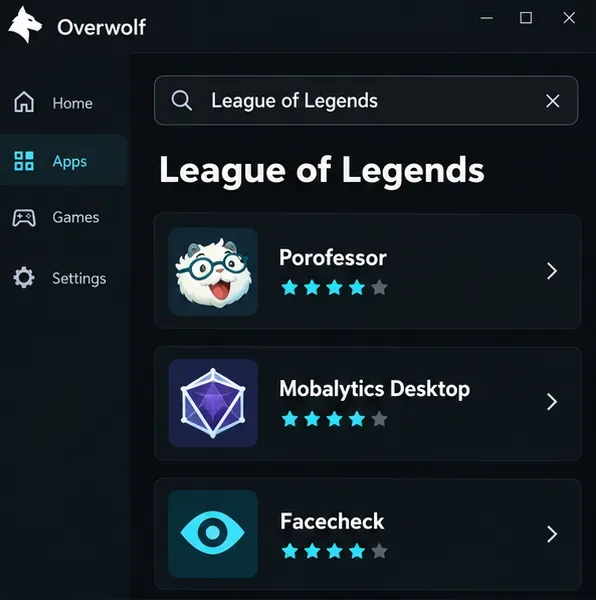
Overwolf is a desktop platform for game companion apps. The apps can provide different features, so the experience depends on what you install. The current League of Legends app directory lists options such as Porofessor, Mobalytics Desktop, and Facecheck. The directory describes features including player and match stats, build suggestions, jungle timers, champion-select tools, and post-game analysis. Not every app offers every feature, and some publishers may offer optional subscriptions or require a separate account.
Start with one app that answers a specific need. For example, choose a companion focused on match statistics or build information if you want reference data, then add another only if its features are useful to you. Read the app’s current listing before installing, since features and availability can change.
How to use Overwolf with League of Legends
-
1. Install the Overwolf desktop app
Download Overwolf from its official download page. Run the installer and follow its prompts. Launch Overwolf after installation; the client may remain available from the Windows system tray. Overwolf’s getting-started guide recommends downloading apps only from official sources.
-
2. Find a League of Legends companion app
Open the Overwolf Appstore from the client’s dock or system-tray menu and browse by game, or use the web-based Appstore. Search for League of Legends, open an app’s listing, and check its description, publisher, features, and any account or subscription requirements. Select Install for the app you want. The official League app directory is also useful for comparing currently listed options.
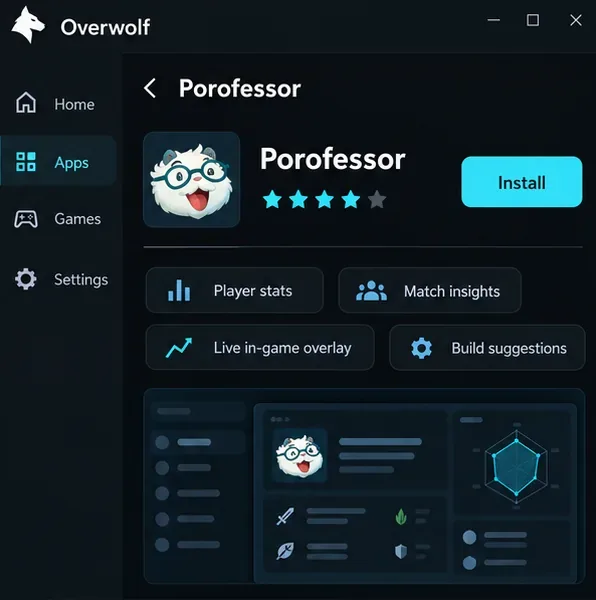
Install from the official app listing, and check its current feature description first. -
3. Enable the overlay for League
In Overwolf, open Settings and select Overlay & Hotkeys. Find League of Legends in the game list and make sure its overlay is enabled. If League is missing, Overwolf recommends launching the game once so it can detect it, or adding it from the list if that option is available. The current overlay troubleshooting guide shows these checks.
Some apps can launch automatically when the game starts. Their permissions and controls can be managed per game in Overwolf’s Game Settings; otherwise, you can open an installed app from the dock.
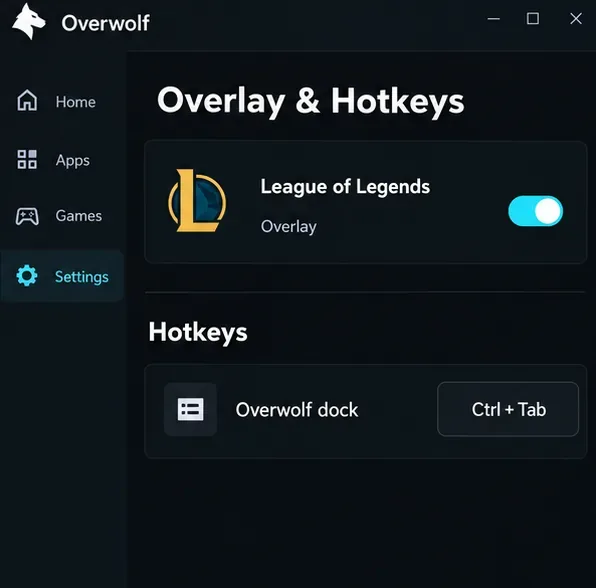
The documented default Ctrl + Tab shortcut opens the Overwolf dock; individual app hotkeys can be different. -
4. Launch League and open the dock in game
Start League through the Riot client and enter a match. Press Ctrl + Tab to open the Overwolf dock, then choose your installed app. This is Overwolf’s documented default dock shortcut, and you can change it in settings. An app may have its own shortcut or open automatically if you allow that in Game Settings. Check the app’s controls instead of assuming the dock shortcut will toggle every overlay.
Move or resize app panels where the app allows it, and keep them clear of the minimap, ability bar, and other information you need to see. If the panel distracts you, close it with the app’s control or disable the League overlay in Overwolf settings.
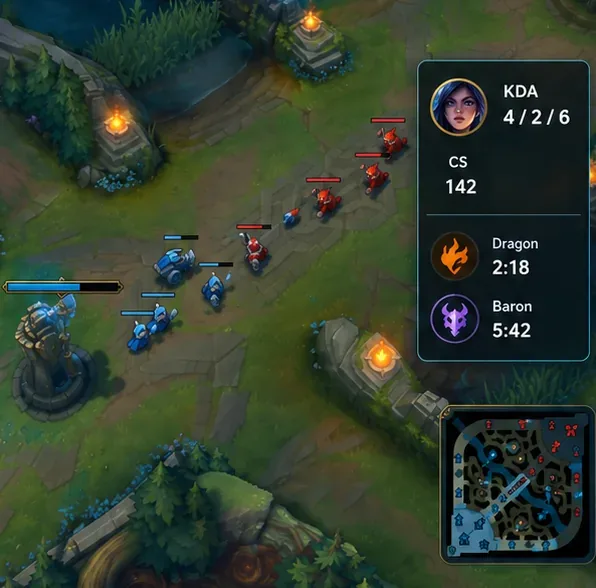
A companion panel may show stats or objective timers when the selected app supports them; details vary by app.
Choose useful settings without cluttering the game
- Set hotkeys per game. Overwolf manages app shortcuts by game. Its documented default for opening the dock is Ctrl + Tab; assign a different combination if that conflicts with a League or system shortcut. See Overwolf’s hotkey instructions.
- Use recommendations as reference. Build or rune information can help you compare options, but it does not replace your own judgment about the matchup and game state.
- Keep only the apps you need active. Multiple overlays and recording tools can use system resources. Overwolf notes that video capture uses CPU, RAM, and GPU; its performance guide covers FPS drops and resource issues.
Is Overwolf allowed and safe to use with League?
Riot does not publish a complete list of third-party apps it considers safe. Its current third-party application guidance says apps must not undermine fair play or violate policy. Riot gives examples of disallowed advantages such as exposing intentionally hidden information, taking actions for a player through scripts or bots, making gameplay decisions for the player, or changing what information the player can access. Installing an app from an app store is not a blanket guarantee that every feature is permitted. If an app offers something that appears to cross those lines, do not use that feature and check Riot’s current rules.
Fix common Overwolf overlay problems
| Problem | What to check |
|---|---|
| The overlay does not appear | In Settings, open Overlay & Hotkeys and confirm League is listed and enabled. Launch League once so Overwolf can detect it, then restart Overwolf and the game. Follow the official overlay troubleshooting steps if it still fails. |
| Ctrl + Tab does nothing | Confirm the current dock shortcut in Overlay & Hotkeys. A key combination may have been changed or may conflict with another app. The dock shortcut opens the dock; an individual app may use a separate hotkey. |
| The app is installed but does not open with League | Check that the app supports League and review its per-game auto-launch permission. You can also open it manually from the Overwolf dock. |
| League stutters after enabling overlays | Close apps you are not using, especially extra capture or recording tools, and compare performance with the overlay disabled. Riot’s overlay support guide explains how to disable Overwolf for League while troubleshooting. |
Frequently asked questions
Is Overwolf free?
The Overwolf client is free to download. Individual app listings set their own pricing and may include subscriptions or separate account requirements, so confirm the current terms on the listing before installing.
Can I use Overwolf with League of Legends on a Mac?
No. Overwolf’s current support information lists Windows 10/11 64-bit and says macOS is not supported.
Does Ctrl + Tab toggle every League overlay?
No. Ctrl + Tab is the default shortcut for opening the Overwolf dock. A companion app may use a separate hotkey or launch automatically, depending on its settings.









