How to Mute Opponent Little Legend Taunts in TFT

Mute TFT opponent emotes globally or for one player, learn what the setting affects, and check why some Little Legend animations may remain visible.
🚀 Imagine diving into Roblox's vast worlds with precise analog sticks and comfy grips—no more awkward keyboard mash-ups! If you're tired of fumbling with WASD keys during intense Roblox battles, switching to a controller is a game-changer. This guide breaks down everything you need to know about how to use a controller to play Roblox on PC, from setup to pro tips. Whether you're on an Xbox pad or PlayStation DualSense, get ready for seamless Roblox controller support on PC that feels natural and immersive. Let's level up your setup! 💥
Not all controllers are created equal, but Roblox controller support on PC shines with popular ones. Here's what works best:
Pro Tip: Stick to wired USB for zero latency during competitive play. Wireless? Ensure Bluetooth 4.0+ on your PC.
Connecting is a breeze—Roblox on PC detects most controllers automatically. Follow these quick steps:
Done? Your controller is PC-ready. Now, let's bring it into Roblox! 🎮
Roblox has built-in controller support that's improving with every update. No extra software required!
Many popular Roblox games like Adopt Me!, Brookhaven, or Jailbreak fully support controllers out-of-the-box. For others, check the game's settings for controller options.
Master the defaults to jump right in. Here's a handy mapping:
| Action | Xbox Layout | PlayStation Layout |
|---|---|---|
| Move | Left Stick | Left Stick |
| Look/Camera | Right Stick | Right Stick |
| Jump | A | X |
| Run/Sprint | Left Stick Click | L3 |
| Interact | X | Square |
| Backpack/Inventory | LB/RB | L1/R1 |
Layouts may vary per game—always check in-game menus for custom binds. This table covers core Roblox defaults for smooth controller play on PC.
Stuck? Don't rage-quit—fix it fast:
For official fixes, visit Roblox's Help Center.
Elevate your game beyond basics:
Practice in free-for-all lobbies to build muscle memory. You'll outplay keyboard users in no time! 👏
With this guide, how to use a controller to play Roblox on PC is unlocked. Grab your pad, connect, and dive into endless adventures. Share your epic wins in the comments—what's your go-to controller? Keep gaming strong, and check back for more tips on Roblox controller support PC updates. Game on! 🌟
Mute TFT opponent emotes globally or for one player, learn what the setting affects, and check why some Little Legend animations may remain visible.
Customize SCV, Probe, and Drone production hotkeys in StarCraft: Remastered, avoid selection mistakes, and verify your bindings in a practice game.
Compare Halo Infinite enemy outline colors by background, friendly-team contrast, and visual preference, with practical opacity and thickness checks.
Compare Fortnite colorblind modes for Storm visibility, try a moderate strength, and check terrain, silhouettes, and item colors before keeping a preset.
Find a practical Dead by Daylight HUD scale starting point, learn the difference between UI Scale and In-Game HUD Scale, and fine-tune visibility for your screen and role.
Compare cyan, magenta, lime, and orange RGB values for CS2, learn the tradeoffs, and test a crosshair color and outline across varied map backgrounds.
Troubleshoot StarCraft II’s graphics device error on Windows with a beginner-friendly sequence: restart, reset game options, check GPU selection, update drivers, and repair files.
Learn what Target Compensation does in Apex Legends, why On is the best starting point for most controller players, and how to test it safely in the Firing Range.
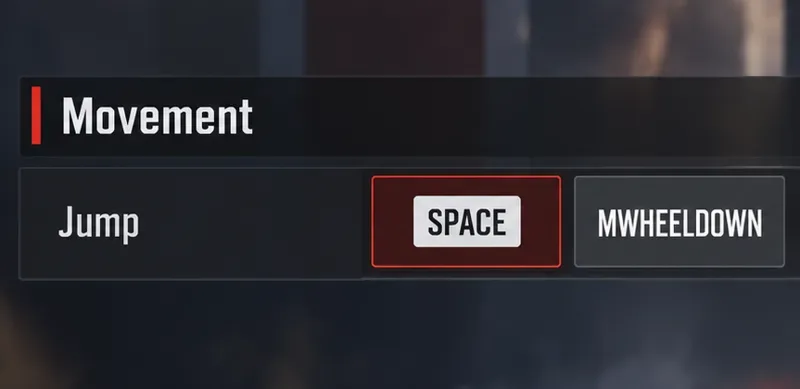
Set up Apex Legends tap-strafe keybinds with wheel up for forward and wheel down for jump, then check weapon conflicts, timing, and comfort on PC.
Hide the FC Trainer during a match or disable only selected prompts. Learn how to distinguish Trainer arrows from player markers, PlayStyle icons, and input overlays.