Best CS2 Crosshair Color Code for Visibility Across Maps

Compare cyan, magenta, lime, and orange RGB values for CS2, learn the tradeoffs, and test a crosshair color and outline across varied map backgrounds.
If StarCraft II stops before the main menu and reports “Error initializing graphics device,” the game has failed to start its graphics system. That system is the combination of your graphics card, its driver, Windows, and the display settings the game tries to use. The message does not identify one cause by itself. A recent driver or Windows change, a saved display option the game can no longer use, the wrong GPU on a laptop, or damaged game data are all reasonable things to check.
Work through the steps below in order. Start with reversible changes, test the game after each one, and stop once it launches. These steps focus on Windows PCs; Mac users should use the Mac-specific StarCraft II support route because the Windows graphics controls below do not apply.
Close StarCraft II and let Battle.net finish any pending update. If you recently changed monitors, resolution, refresh rate, graphics drivers, or GPU settings, make a note of that; it can help identify what changed. On a laptop, connect the power adapter before testing so a power-saving profile is less likely to select a low-power graphics mode.
A graphics driver is the software that lets Windows and a game communicate with the graphics hardware. DirectX is a set of Windows components games can use to access video and audio hardware. Neither term means you should download a random “driver updater” or a standalone DirectX package from a third-party site. Use Windows Update or the computer or graphics-card maker’s official support route. Blizzard’s driver and operating-system update guidance also recommends checking these components when a game has technical problems.
A full restart clears temporary driver and display state. Choose Start, Power, Restart; do not just close and reopen the game. After Windows returns, open Battle.net and launch StarCraft II once.
If you use more than one monitor, a dock, or an adapter, temporarily connect one monitor directly to the computer and try again. This is a diagnostic test, not a permanent requirement. It can show whether the failure is tied to a particular display path or configuration. If the error remains, reconnect your normal setup and continue.
A saved display mode or graphics option can prevent startup if it no longer matches the current monitor or driver. Resetting in-game options returns the game’s preferences to defaults; you may need to set your preferred resolution, graphics quality, or controls again afterward.
Battle.net’s layout and labels can change, so the menu may look different from older forum instructions. A StarCraft II support-forum discussion documents this reset as one troubleshooting attempt for a startup graphics crash, but it is not a guarantee or a diagnosis for every computer. If the reset option is absent in your current app, skip this step rather than deleting configuration files by hand.
Some laptops contain two GPUs: an integrated processor that uses less power and a more capable dedicated GPU. Windows can assign a graphics preference to an individual app. If StarCraft II is using an unsuitable adapter, choosing High performance is a reasonable test. Do this only if your PC has more than one GPU.
Windows’ current graphics page uses the per-app Options control to select a GPU preference on systems with multiple graphics processors. The exact list may differ by PC and Windows version. See Microsoft’s Windows 11 graphics settings instructions. If your desktop has one GPU, or the game already uses the intended adapter, move on.
If the problem began after a driver update, first check whether the graphics maker’s control app offers a return to the previous driver or a clean reinstall option. If there was no recent driver change, install the latest driver offered for your exact computer or graphics model. For a laptop, the computer manufacturer’s driver may be the safest starting point, especially when its graphics hardware is customized for that model.
To identify your adapter, right-click Start and open Device Manager, then expand Display adapters. Write down the displayed model before searching for a driver. Install only a driver that matches the exact GPU and Windows version, follow its installer prompts, and restart Windows when it finishes. Avoid third-party driver download sites and do not install a driver for a similar-sounding card.
To check Windows’ DirectX information, open Start, type dxdiag, and run DirectX Diagnostic Tool. Its Display tab reports the graphics device and driver details. This is useful information to record; the DirectX version shown is not, by itself, proof that DirectX caused the error. Microsoft explains how to check the DirectX version with DxDiag and recommends Windows Update for DirectX components available to your Windows version.
If the driver and game options look normal, check the installation. In Battle.net, select StarCraft II and open the options menu beside Play. Choose Scan and Repair if it is available, start the check, and wait for it to finish before launching. The check can download or replace files, so keep the launcher open and make sure the connection is stable.
Repairing files is different from reinstalling the game. It is a sensible next step when files may be damaged, but it will not fix a failing graphics card, incompatible driver, or an unsuitable display setting. Do not manually remove folders inside the installation directory while the repair is running.
If you changed a GPU control-panel profile, overclock, overlay, capture tool, or compatibility setting shortly before the error began, temporarily return that change to its default or turn the overlay off for one test. Change one item at a time so you can tell whether it matters. Avoid disabling Windows security features, downloading unofficial replacement files, or applying a list of unrelated “performance tweaks.”
If StarCraft II still will not start, collect information before making more changes. Run dxdiag and save its report. Also note your Windows version, graphics adapter model, driver version, whether other games launch, and what changed just before the error first appeared. Give that information to Blizzard’s StarCraft II support team or its technical-support forum. A system report can help support staff separate a game-specific startup issue from a wider driver or hardware problem.
A successful test means StarCraft II reaches its main menu without the graphics-device message, then remains open long enough to enter a menu or practice session. Restart the game once more after confirming the first launch; this checks that the result was not limited to a one-time recovery after a restart. If it opens but looks stretched or uses the wrong monitor, adjust the display options inside the game only after the launch problem is resolved.
If the error returns, undo the last change you made and record the result. The message alone cannot establish whether the root cause is the game, Windows, the driver, or hardware. Keeping a short record of each test will make the next support request more useful and reduce the chance of repeating steps that did not help.
Compare cyan, magenta, lime, and orange RGB values for CS2, learn the tradeoffs, and test a crosshair color and outline across varied map backgrounds.
Troubleshoot StarCraft II’s graphics device error on Windows with a beginner-friendly sequence: restart, reset game options, check GPU selection, update drivers, and repair files.
Learn what Target Compensation does in Apex Legends, why On is the best starting point for most controller players, and how to test it safely in the Firing Range.
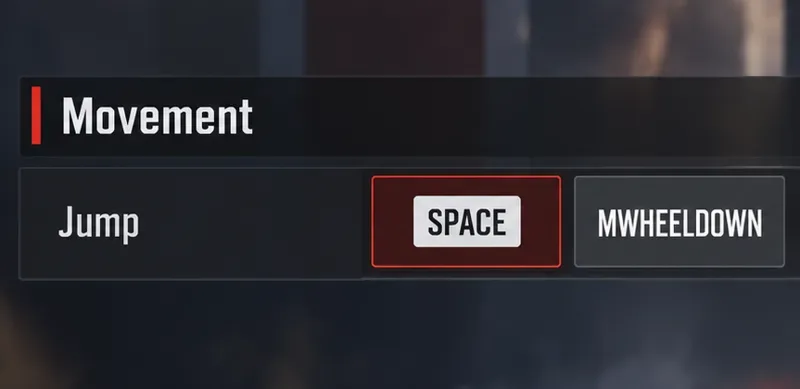
Set up Apex Legends tap-strafe keybinds with wheel up for forward and wheel down for jump, then check weapon conflicts, timing, and comfort on PC.
Hide the FC Trainer during a match or disable only selected prompts. Learn how to distinguish Trainer arrows from player markers, PlayStyle icons, and input overlays.
Set Heroes of the Storm abilities to Quick Cast On, learn the difference between On and On Release, and test the setup before using it in a combo.
Find practical PC keybinds for hip-fire leaning in Rainbow Six Siege, compare Q/E and mouse-button layouts, and learn how to test conflicts before a match.
Change Hearthstone’s language on PC through Battle.net Game Settings. Learn when language files download, how this differs from app language and region, and what to try if the update stalls.
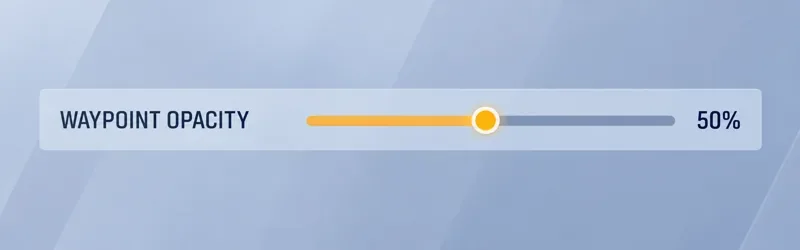
Start with 50% waypoint opacity in Overwatch 2, then adjust for objective visibility, map familiarity, and marker clutter without losing essential cues.
Compare VALORANT’s yellow, purple, and red enemy outlines. Learn which color to test first, where to change it, and how to check visibility across maps and effects.