Best CS2 Crosshair Color Code for Visibility Across Maps

Compare cyan, magenta, lime, and orange RGB values for CS2, learn the tradeoffs, and test a crosshair color and outline across varied map backgrounds.
During a match, pause the game, open Trainer in the pause menu, and change FC Trainer Toggle to Hide. This hides the Trainer’s on-field prompts as a group. If you only want to remove one kind of prompt, leave the Trainer visible and switch off the relevant individual cue instead, if that control appears in your version.
Illustrative example: Jordan starts a Kick Off match and sees a directional arrow and button prompts near the controlled player. Jordan wants a clean screen but still wants player indicators and passing visuals. The right first move is to hide the FC Trainer in the match pause menu, then check whether those other visuals remain. If one remains, it may be a separate indicator rather than part of the Trainer.
“FIFA Trainer” is the older name many players still use for the FC Trainer. In current EA SPORTS FC menus, Trainer guidance can include movement direction, button hints, or suggestions for an action. Several other overlays can look similar, so identify what you see before switching off a broader setting.
| What appears on screen | Likely setting area | Best choice |
|---|---|---|
| Directional arrow, button command, or action suggestion beside your player | Trainer in the in-match pause menu | Set FC Trainer Toggle to Hide for a clean view, or turn off only the relevant Trainer cue. |
| Player name, controlled-player marker, or next-player marker | Visual or player-indicator settings | Adjust that specific indicator; it may be useful for identifying players even with Trainer hidden. |
| PlayStyle icon above a player’s head | Visual settings | Turn off PlayStyles overhead indicators if you do not want those icons. |
| Line or visual aid showing shot or pass direction | Precision Pass and Shot Visuals or a related gameplay visual option | Disable the specific aid only if it is the line you want gone. |
| Controller buttons appearing in a corner of the screen | Input Overlay | Change the input overlay separately; this reports controller inputs and is not the FC Trainer. |
In FC 27, menu wording and navigation can vary slightly by platform and mode. If you do not see Trainer, make sure you have paused an active match rather than opening the main menu from outside a match. Then check for a game update and try a standard Kick Off match to see whether the option appears there.
Hiding everything is the fastest option, but it also removes prompts that might still be useful. For example, a player learning timed finishing might want to keep a timing cue while removing movement arrows. In the Trainer menu, look for individual controls such as movement indicators or button hints and turn off only the item that is cluttering the screen. Names can differ by release, so use the description shown beside each option rather than assuming every version uses identical labels.
For Jordan’s example, if the movement arrow is the only distraction, Jordan can keep the Trainer on and hide that movement cue. If the button prompts and recommendations are also unwanted, the all-at-once Hide setting is simpler. The trade-off is straightforward: a full hide gives the cleanest view; selective settings preserve chosen learning aids.
The Trainer is an on-screen guide. Hiding it removes visual prompts; it does not automatically change passing, shooting, switching, or defending assistance. Those gameplay assists are separate controls, and some online modes require particular gameplay settings. If you want to change how much the game helps direct a pass or shot, look in Game Settings for the relevant gameplay assist. Do not change a competitive preset just to remove an arrow or button prompt.
EA’s FC 27 accessibility guide lists separate visual options, including Player Indicator settings, PlayStyles overhead indicators, Next Player Switch Indicator, and Precision Pass and Shot Visuals. If Jordan hides the Trainer and still sees a marker or line, that guide helps identify the right category. Change only the specific option that matches the remaining graphic.
There is no need to reset your entire profile just to hide the FC Trainer. If a specific Trainer setting repeatedly changes back after you set it, record your platform, mode, and the exact cue that returns, then report it through EA Help or the FC feedback channels.
Jordan returns to the same match and checks the display after selecting Hide. If the arrow and button hints are gone but the player-selection ring remains, the Trainer setting worked; the ring is a separate player indicator. Jordan can then decide whether to keep that marker or change it in Visual settings. This one-cue-at-a-time check avoids hiding useful gameplay information by mistake.
EA SPORTS FC 27 launched in September 2026, so older FIFA tutorials may show a different menu structure or label. For current mode and accessibility details, see EA’s FC 27 Accessibility Resources and official FC 27 page. Visual options can vary by platform or be updated in patches; use the description in your in-game menu if it differs from this guide.
Compare cyan, magenta, lime, and orange RGB values for CS2, learn the tradeoffs, and test a crosshair color and outline across varied map backgrounds.
Troubleshoot StarCraft II’s graphics device error on Windows with a beginner-friendly sequence: restart, reset game options, check GPU selection, update drivers, and repair files.
Learn what Target Compensation does in Apex Legends, why On is the best starting point for most controller players, and how to test it safely in the Firing Range.
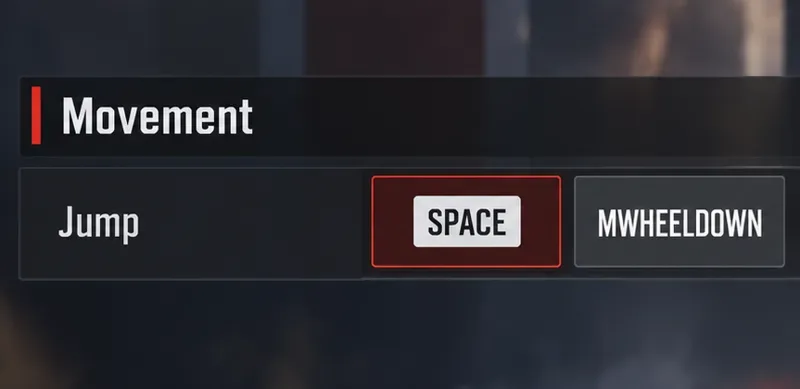
Set up Apex Legends tap-strafe keybinds with wheel up for forward and wheel down for jump, then check weapon conflicts, timing, and comfort on PC.
Hide the FC Trainer during a match or disable only selected prompts. Learn how to distinguish Trainer arrows from player markers, PlayStyle icons, and input overlays.
Set Heroes of the Storm abilities to Quick Cast On, learn the difference between On and On Release, and test the setup before using it in a combo.
Find practical PC keybinds for hip-fire leaning in Rainbow Six Siege, compare Q/E and mouse-button layouts, and learn how to test conflicts before a match.
Change Hearthstone’s language on PC through Battle.net Game Settings. Learn when language files download, how this differs from app language and region, and what to try if the update stalls.
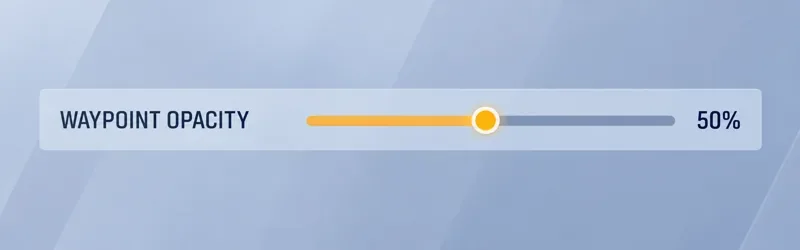
Start with 50% waypoint opacity in Overwatch 2, then adjust for objective visibility, map familiarity, and marker clutter without losing essential cues.
Compare VALORANT’s yellow, purple, and red enemy outlines. Learn which color to test first, where to change it, and how to check visibility across maps and effects.