How to Mute Opponent Little Legend Taunts in TFT

Mute TFT opponent emotes globally or for one player, learn what the setting affects, and check why some Little Legend animations may remain visible.
Quick answer: To stop opponent emote taunts in Teamfight Tactics, turn on the enemy-emote mute in the in-game settings, or mute emotes for one player from the scoreboard. The first option is useful when you want a quieter match overall; the scoreboard option is better when one opponent is the problem.
Illustrative example: Jordan is playing a TFT match and an opponent repeatedly makes their Little Legend dance near Jordan’s board. Jordan wants to stop seeing the taunts without muting the whole game. This is a hypothetical situation, not a report of a real player or a test result. The steps below show how Jordan can choose the narrowest available mute.
In TFT, Little Legends are part of the broader Tactician system. Riot describes Tacticians as movable character models in the Convergence that can perform actions and use emotes. That matters because players may call several different visuals a “taunt”: an emote reaction, a Little Legend dance or action, a Chibi finisher, or another cosmetic effect.
Riot’s current TFT Tacticians Guide describes actions and emotes as related but distinct forms of expression. Riot’s Emotes FAQ documents two ways to mute emotes: mute all enemy emotes in the in-game settings or mute one player’s emotes through the scoreboard. The FAQ is filed under League of Legends rather than TFT, so exact control names or behavior may vary in TFT and between PC and mobile clients. Treat the setting as an emote control, not a promise to hide every opponent animation or cosmetic.
Use the all-enemy setting if you would rather not see opponent emotes in any match. Riot’s FAQ places this control in the in-game settings menu. Open Settings during a match and look for the enemy-emote mute option. The setting may appear with wording such as “Mute Enemy Emotes”; the exact label and settings category can change with client updates or localization. Turn it on, close the menu, and watch for the next emote cue.
For Jordan, this is the fastest route if all opponent emotes are distracting. It can also prevent a future opponent’s emotes from appearing, but it is broader than needed if Jordan only wants to mute one person. Riot’s FAQ does not specify whether every TFT client saves this preference across matches, so Jordan should check the setting again in a later game rather than assuming it persisted.
If one player is repeatedly sending emotes, use the scoreboard mute instead. Open the in-match player list or scoreboard, locate that opponent’s row, and use the available emote-mute control for that player. Riot’s support guidance confirms that individual player emotes can be muted through the scoreboard. It does not give a universal icon description for every TFT platform, so read the control’s tooltip or label before clicking. If your version presents only a general player mute, check what it silences before using it.
This lets Jordan target the one opponent instead of disabling emotes from everyone. If the player list is compact, expand it or move the pointer over the row to reveal its controls, where supported. If no emote-specific control appears, use the global enemy-emote setting as a temporary option, or consult the current in-client help for that platform.
Muting emotes does not mean that the opposing player or their Tactician disappears from the arena. A Little Legend can remain visible as the opponent’s avatar, and other cosmetic effects may still appear. Riot’s Tacticians Guide notes that Chibis can have their own Booms and, in some cases, unique finishers; the emote mute is not documented as a universal switch for every animation or effect.
Use the type of visual as a clue. If a floating emote cue stops but the Tactician model remains, the mute may be working as intended. If the Little Legend itself continues to dance, test whether the animation is an emote or another Tactician action; the official documentation does not promise that the emote setting suppresses every action animation. If a distinctive finisher or Boom still appears, do not assume the mute failed—those are separate cosmetic effects from the emotes covered by Riot’s FAQ.
The documented all-enemy control is described as muting enemy emotes, and the individual option is described as muting a player’s emotes. Riot’s FAQ does not say that these options automatically silence chat, pings, music, arena ambience, or all Tactician sound effects. If you want to silence a different kind of communication, use the relevant control separately and check its description before applying it. Lowering the game’s sound volume is broader and may remove audio cues you still want to hear.
For Jordan, the scoreboard option is the best first attempt because the goal is to stop one opponent’s taunts, not remove all sound or communication. If Jordan still sees a cosmetic action after muting, the action may not be categorized as an emote. If Jordan still hears an effect, the emote mute may not control that audio source.
On PC, opening Settings and the scoreboard is usually straightforward with the client’s in-match controls. TFT also runs on mobile. Riot’s Tacticians Guide says mobile players use an action icon in the upper-left corner to make their own Tactician perform actions, while the PC guide describes Ctrl+1, Ctrl+2, or Ctrl+3. Those are controls for your own avatar, not the opponent-mute steps.
Riot’s public FAQ does not provide a step-by-step mobile path for muting an opponent’s emotes. On mobile, open the in-match Settings and player list, then look for an emote-specific control. Button placement can differ by device and client version. If the control is not visible, avoid assuming that the PC menu layout maps one-to-one; check the current mobile client’s help or settings descriptions.
After changing the setting, return to the match and observe a later emote from the same player. For an all-enemy mute, check whether emote cues from different opponents are suppressed. For a scoreboard mute, check that the selected opponent’s emotes are suppressed while other players’ cues remain. Do not use a single missing emote as proof: the opponent may simply not have sent another one yet.
If the setting appears ineffective, reopen the menu and verify it is still enabled. Confirm that you changed the emote control rather than a general audio level, and make sure the player-specific control was applied to the correct row. Restarting the game is not the first fix to try; first recheck the control and distinguish an emote from a Tactician animation or finisher.
For Jordan’s example, the scoreboard mute is the narrowest choice. If that control is unavailable in the current client, the global enemy-emote option is the documented fallback. Either way, judge the result by the specific emote cues you wanted to suppress, and remember that other Little Legend actions and cosmetic effects may be controlled separately.
Mute TFT opponent emotes globally or for one player, learn what the setting affects, and check why some Little Legend animations may remain visible.
Customize SCV, Probe, and Drone production hotkeys in StarCraft: Remastered, avoid selection mistakes, and verify your bindings in a practice game.
Compare Halo Infinite enemy outline colors by background, friendly-team contrast, and visual preference, with practical opacity and thickness checks.
Compare Fortnite colorblind modes for Storm visibility, try a moderate strength, and check terrain, silhouettes, and item colors before keeping a preset.
Find a practical Dead by Daylight HUD scale starting point, learn the difference between UI Scale and In-Game HUD Scale, and fine-tune visibility for your screen and role.
Compare cyan, magenta, lime, and orange RGB values for CS2, learn the tradeoffs, and test a crosshair color and outline across varied map backgrounds.
Troubleshoot StarCraft II’s graphics device error on Windows with a beginner-friendly sequence: restart, reset game options, check GPU selection, update drivers, and repair files.
Learn what Target Compensation does in Apex Legends, why On is the best starting point for most controller players, and how to test it safely in the Firing Range.
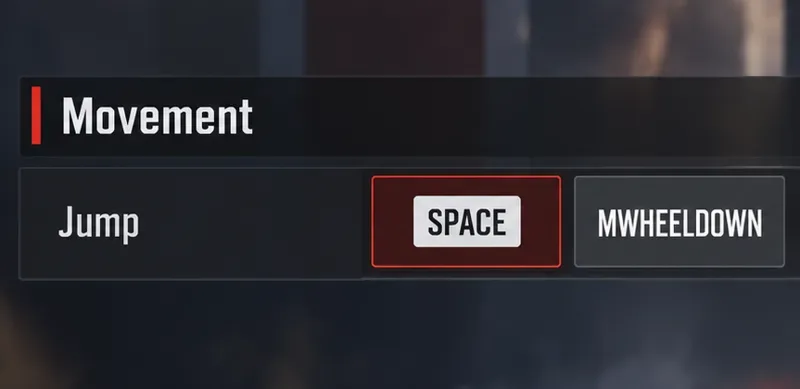
Set up Apex Legends tap-strafe keybinds with wheel up for forward and wheel down for jump, then check weapon conflicts, timing, and comfort on PC.
Hide the FC Trainer during a match or disable only selected prompts. Learn how to distinguish Trainer arrows from player markers, PlayStyle icons, and input overlays.