Halo Infinite’s current Halo Support guidance still treats enemy outline color as a player preference rather than prescribing one color for every map. The Competitive Insights Team lists Vermilion (red), Cerise (purple), Grass (green), and Pineapple (yellow) as available Enemy UI Color choices. For a bright first test, try Pineapple yellow if your friendly UI color is different and you mostly play on darker or cooler-looking backgrounds. Switch to Cerise or Vermilion when yellow blends into pale terrain, and test Grass only when green scenery is not a frequent backdrop.
No outline color stays equally distinct against every map, effect, and armor coating. Brightness alone is not enough: a color can be vivid but still merge with the scene, overlap the friendly color, or be hard for you to distinguish. The practical goal is quick enemy recognition, with a different friendly color and a clearly visible outline.
Quick color comparison
| Enemy outline | Try it when… | Trade-off to check |
|---|
| Pineapple (yellow) | You want a bright starting point for dark, blue, or gray environments. | It can lose contrast against pale sand, bright light, or yellow-green scenery. |
| Cerise (purple) | Yellow or red is hard to separate from your background, and you want a different hue. | It may be less distinct in purple lighting or against violet effects and surfaces. |
| Vermilion (red) | You prefer a familiar warm enemy color and often play against cool or blue backgrounds. | Red may blend into warm lighting, orange effects, or red-heavy scenery. |
| Grass (green) | Warm colors are hard for you to see and the maps you play are not dominated by green. | Foliage, green lighting, and some color-vision differences can reduce separation. |
This comparison is a starting guide based on hue and likely background conflicts, not a measured ranking from a controlled test. Your display settings, room lighting, visual acuity, and color perception all affect what looks clear. If a color that sounds promising is hard to track in motion, move on to another option.
Pick colors as a pair, not in isolation
Halo Infinite lets you choose enemy and friendly UI colors separately, and the friend-or-foe system uses these colors to distinguish players. Set your friendly color first, then choose an enemy hue that is far enough away from it that you can tell them apart in peripheral vision. In Big Team Battle, fireteam markers are also configurable, so check that color as well if your party’s marker is important to you.
For example, a player who keeps Friendly UI blue could test Pineapple yellow for enemies, then look for situations where the two colors appear together: a crowded fight, players crossing near a flag, or a teammate beside an enemy. If yellow blends into a sunlit background, try Cerise or Vermilion while leaving Friendly UI unchanged. That comparison isolates the enemy-color change and makes it easier to judge.
Check outline strength before blaming the color
Halo Support documents two additional controls: Outline Opacity changes how transparent player outlines appear, and Outline Thickness changes their width. Both are separate from Enemy UI Color. The accessibility guide lists 1.0 as the default for each and notes that they can be reduced toward 0.0, which removes the outline. If an enemy hue seems faint, confirm you have not lowered these outline controls. Start with the default outline visibility while comparing colors.
Do not confuse character outline settings with Reticle Outline Opacity and Reticle Outline Thickness. Those affect the crosshair, not the enemy silhouette. Halo’s competitive guidance recommends a stronger reticle outline to help it remain visible against lighter-colored outlines in some situations; that can make aiming clearer, but it does not change the enemy’s outline color or thickness.
How to change the enemy outline color
- Open Settings from the main menu or in-game pause menu.
- Go to the UI settings and find Outlines & Colors.
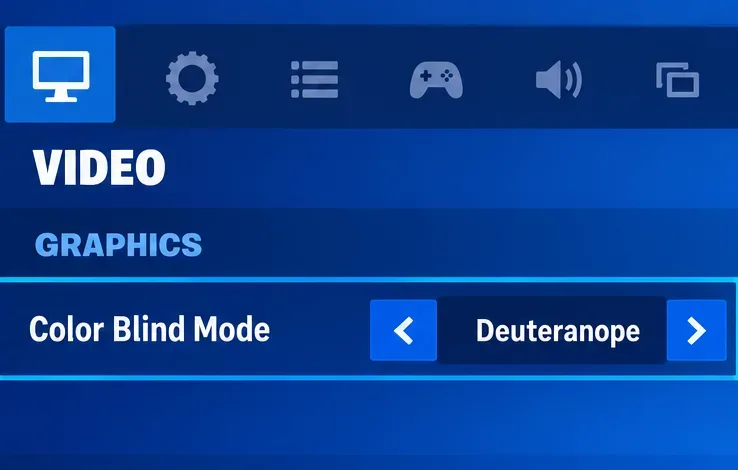
- Choose Enemy UI Color and select one of the available colors.
- Set Friendly UI Color to a clearly different hue. Adjust Fireteam Marker Color too if you rely on those markers in Multiplayer.
- Check Outline Opacity and Outline Thickness. Leave them at their defaults while comparing colors if you have not changed them previously.
- Apply the settings and check a few different backgrounds in Academy or a match. Look for enemies in shaded areas and bright open spaces before deciding.
Menu names can vary slightly by platform or localization, but Halo Support groups Enemy UI Color, Friendly UI Color, outline opacity, and outline thickness under Outlines & Colors. In Custom Games, the host’s Mode Editor can override individual outline settings for everyone in the lobby. If a change does not take effect there, check the game mode rules or test in a standard matchmaking or Academy session.
Choose for your needs
If you want one color to start with
Test Pineapple yellow first, with a contrasting Friendly UI color and the default outline visibility. It is a practical bright option against many dark and cool backdrops, but do not assume it will be strongest on every map. Move to Cerise or Vermilion if yellow loses its edge on pale or warm scenes.
If red is difficult to distinguish
Try Cerise or Pineapple rather than simply increasing screen brightness. The best choice depends on whether purple or yellow is more distinct from your friendly color and the scenery. If you use color-vision accommodations, make the decision from your own view of live gameplay; names such as “red” or “green” do not guarantee that two colors will look distinct to you.
If the outline disappears into the map
Change the enemy hue while keeping the friendly hue and outline controls fixed. Test the same color in both dark and bright areas. If all colors seem weak, restore Outline Opacity and Thickness to their defaults before changing display calibration. This helps separate a color mismatch from an outline that has been made too transparent or too thin.
Fast visibility checklist
- Can you identify an enemy without mistaking a teammate for one?
- Does the enemy hue remain visible against both bright and shadowed areas?
- Have you set Friendly UI and Fireteam Marker colors separately where needed?
- Are Outline Opacity and Outline Thickness still at their defaults while testing?
- Did you judge the setting in motion, not only in the settings menu?
- If you are in a Custom Game, could the lobby host be overriding your individual settings?
There is no universal best enemy outline color for Halo Infinite. Pineapple yellow is a useful first trial for bright contrast on darker or cooler scenes; Cerise and Vermilion are sensible alternatives when yellow blends into the environment, while Grass may work better against warm scenes if green backgrounds are uncommon. Keep enemy and friendly colors distinct, preserve visible outline strength, and choose the color that remains easiest to read across the maps you actually play. See Halo Support’s competitive settings recommendations for the listed color choices and its accessibility guide for outline opacity and thickness details.