Best CS2 Crosshair Color Code for Visibility Across Maps

Compare cyan, magenta, lime, and orange RGB values for CS2, learn the tradeoffs, and test a crosshair color and outline across varied map backgrounds.
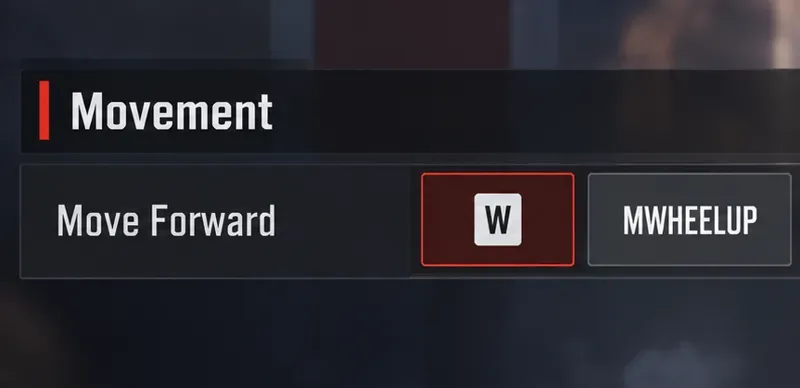
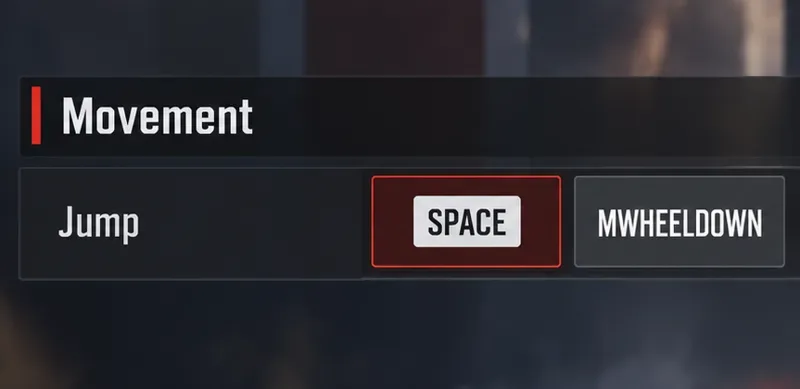
For a PC mouse-and-keyboard starting layout, keep W for forward movement and Space for jumping, add scroll wheel up to Move Forward, and add scroll wheel down to Jump. Use separate weapon keys so movement scrolling does not interfere with drawing a gun. This is a practical recommendation, not a universal best layout or an official Respawn preset.
Illustrative scenario: Jamie is a hypothetical PC player who wants to turn around a corner after a slide jump, land behind cover, and draw the intended weapon. Jamie’s decisions below illustrate how to evaluate a layout; they are not a real player testimonial or measured test results.
Research checked October 8, 2026. EA documents the keybind menu, while movement-specific recommendations come from Mokeysniper’s original authored movement reference. This article has not independently tested the current live build. Confirm the behavior in your installed version before relying on it in a match. Images are explanatory interface illustrations, not live-game captures or proof of successful movement.
| Action | Suggested inputs | Purpose |
|---|---|---|
| Move Forward | W + wheel up | Normal movement plus repeated forward inputs |
| Jump | Space + wheel down | Keyboard jump plus wheel access |
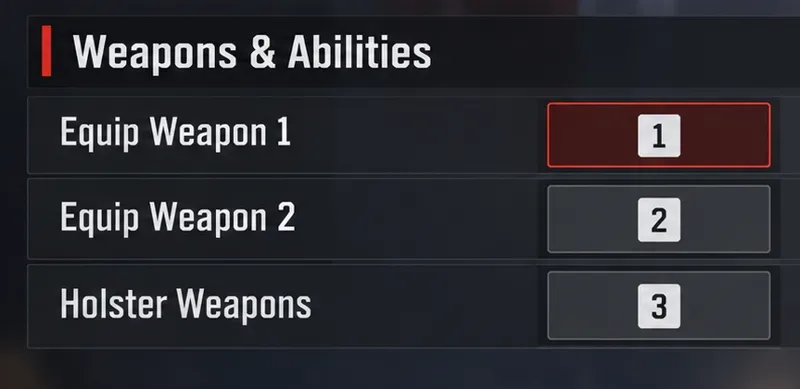
| Equip Weapon 1 / 2 | 1 / 2 | Direct weapon selection |
| Holster Weapons | 3 | Accessible holster control |
| Sprint | Left Shift | Retain familiar sprint control |
| Crouch (Hold) | Left Ctrl | Retain familiar slide control |
Mokeysniper’s mouse-and-keyboard movement-bind reference recommends the two wheel directions and separate weapon-selection buttons. EA’s Apex Legends PC control guide lists the familiar keyboard defaults. Treat the layout as a starting point: if reaching a key disrupts your grip or ordinary combat actions, adapt it.
For Jamie, the immediate goal is modest: make the changed controls predictable. A dramatic turn is not useful if the player then hesitates while choosing a weapon. Keep aiming sensitivity and unrelated binds unchanged during the initial comparison, so one adjustment does not hide the effect of another.
From the main menu, open Settings and select Mouse/Keyboard. EA’s control instructions explain selecting an input, entering a replacement, and choosing Apply when finished. Before editing, take a screenshot or write down your current movement and weapon assignments.
Jamie would record the original layout first. That makes reverting a deliberate choice rather than a memory exercise. If you already use an alternative movement cluster, preserve it; the important distinction is the action being bound, not copying another player’s keyboard exactly.
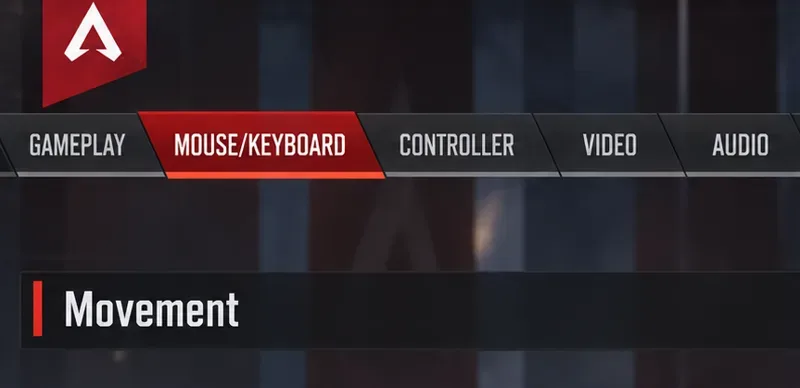
Find Move Forward and select its available secondary binding slot. Scroll upward to register the wheel input, while keeping the existing keyboard binding. Check the displayed assignment before leaving the row.
Use the table as the target configuration, not as a reason to clear every control. Jamie should still be able to walk normally using the keyboard. If a wheel assignment takes over another action, review that conflict rather than assuming the menu has made every necessary adjustment.
Find Jump, use its secondary slot, and scroll downward. Keep the keyboard jump assignment. The two wheel directions should now have distinct movement roles.
Jamie can use the keyboard option while concentrating on the turn, then decide whether using the wheel for the initial jump feels better. Change the starting jump input only after the existing sequence feels understandable. This avoids learning two unfamiliar hand motions at once.
Review weapon-selection controls and remove movement-wheel assignments from weapon cycling where they conflict. Use the separate equip controls shown in the table, then select Apply. Reopen the menu to confirm the changes remain.
Before attempting the corner turn, Jamie should check ordinary movement, jumping, weapon selection, and holstering in the Firing Range. A bind that appears in the menu still needs a behavioral check. If scrolling unexpectedly changes weapons, fix the assignment before diagnosing movement timing.
The movement reference’s Basic Lurch Tech instructions describes tap strafing as a sharp change of direction after jumping, using repeated forward inputs. Its beginner sequence is to sprint, slide, release forward, hold a sideways input, jump, then scroll forward while turning the view in that same sideways direction. For a left turn, use A and turn left; for a right turn, use D and turn right.
Do not keep W held while supplying the wheel’s forward inputs. Coordinate scrolling with the turn instead of treating the movement as a frantic flick. The reference recommends learning ordinary air strafing first and slowing down when the inputs become difficult to synchronize.
In the hypothetical drill, Jamie picks an open practice area and a visible corner as a destination. The first question is whether the landing path changes toward that destination. Repeat from approximately the same starting location and compare the landing with a normal slide jump. Looking left or right alone is not evidence that momentum redirected as intended.
Once the movement is understandable, add the weapon-selection task after landing. Jamie’s useful result would be reaching the chosen position and drawing the intended gun without an accidental action. The drill is an editorial practice suggestion, not a benchmark, and there is no promised success rate or required number of attempts.
Reverse the two directions if the alternative gives you a more comfortable, repeatable hand motion. The recommendation is about separating actions; neither wheel direction has a verified universal performance advantage. A mouse wheel’s resistance and your grip can affect which motion feels easier.
For Jamie, the reason to switch would be a specific problem, such as pulling the mouse off the intended aim line while scrolling upward. Try the alternative with the same drill and unchanged sensitivity. Keep whichever layout reduces unwanted actions while preserving normal aiming. Do not switch just because a montage uses a different setup.
Likewise, avoid changing mouse sensitivity solely to make a large turn look more impressive. EA’s PC accessibility reference explains that sensitivity affects how quickly the view turns. Evaluate any sensitivity change against tracking and ordinary target acquisition as well as movement.
| Symptom | Useful next check |
|---|---|
| The camera rotates, but the landing path barely changes | Check forward release and the coordination of scrolling with turning. |
| Scrolling switches weapons | Inspect weapon-cycle conflicts before practicing timing. |
| The keyboard no longer moves or jumps normally | Restore the primary assignment you recorded. |
| Scrolling disturbs your aim | Compare the opposite wheel layout without changing sensitivity. |
| The saved bind disappears | Recheck Apply and confirm the menu assignment after reopening. |
| An old tutorial differs from your installed version | Check current developer updates and test the native bindings again. |
Keep Jamie’s problem concrete. “I cannot tap strafe” combines several possible failures; “scrolling draws a weapon” identifies a control conflict. Solve the observable issue first, then return to the same practice task. Avoid changing the entire layout in response to one missed turn.
This guide concerns native PC mouse-and-keyboard controls. The movement reference describes tap strafing as unavailable natively on controller because its underlying lurch behavior differs. Do not assume that console controller layouts or controller-to-keyboard remapping reproduce this setup.
Respawn’s historical Evolution Collection Event developer discussion discusses tap strafing as a mouse-and-keyboard design issue. That 2021 discussion is background, not proof of the mechanic’s exact behavior in October 2026. No current official tap-strafe timing specification or universal wheel setting was verified for this article.
Use the game’s native keybind menu for this layout. It does not require downloading an autoexec, macro, or automatic input sequence. Respawn’s March 4, 2026 anti-cheat update states that third-party hardware used to automate or manipulate inputs for an unfair advantage is cheating. That policy should not be stretched into a claim that every remapping tool has identical treatment, or that this article certifies tournament eligibility; check the rules governing your event.
For Jamie, the final decision is practical: keep the setup only if ordinary controls remain reliable and the corner drill becomes easier to understand. If it makes weapon selection or aiming worse, revise the offending bind or return to the recorded layout. A useful movement setup supports positioning and combat decisions rather than adding avoidable control errors.
Compare cyan, magenta, lime, and orange RGB values for CS2, learn the tradeoffs, and test a crosshair color and outline across varied map backgrounds.
Troubleshoot StarCraft II’s graphics device error on Windows with a beginner-friendly sequence: restart, reset game options, check GPU selection, update drivers, and repair files.
Learn what Target Compensation does in Apex Legends, why On is the best starting point for most controller players, and how to test it safely in the Firing Range.
Set up Apex Legends tap-strafe keybinds with wheel up for forward and wheel down for jump, then check weapon conflicts, timing, and comfort on PC.
Hide the FC Trainer during a match or disable only selected prompts. Learn how to distinguish Trainer arrows from player markers, PlayStyle icons, and input overlays.
Set Heroes of the Storm abilities to Quick Cast On, learn the difference between On and On Release, and test the setup before using it in a combo.
Find practical PC keybinds for hip-fire leaning in Rainbow Six Siege, compare Q/E and mouse-button layouts, and learn how to test conflicts before a match.
Change Hearthstone’s language on PC through Battle.net Game Settings. Learn when language files download, how this differs from app language and region, and what to try if the update stalls.
Start with 50% waypoint opacity in Overwatch 2, then adjust for objective visibility, map familiarity, and marker clutter without losing essential cues.
Compare VALORANT’s yellow, purple, and red enemy outlines. Learn which color to test first, where to change it, and how to check visibility across maps and effects.