Home
» 🎮 Esports
»
Best Colorblind Mode for Seeing in the Fortnite Storm: A Beginner’s Guide
Best Colorblind Mode for Seeing in the Fortnite Storm: A Beginner’s Guide
There is no verified colorblind mode that gives every Fortnite player the clearest view in the Storm. For a beginner who wants a practical comparison, try Deuteranope at a moderate strength, such as 4 if your version uses a 0–10 scale, and compare it with Off. This is a suggested starting experiment, not an Epic recommendation or a measured visibility advantage. Keep the filter only if it makes important details easier for you to distinguish.
Epic's support instructions were checked on October 8, 2026. They confirm where to change colorblind settings, but do not rank the presets for Storm visibility. This guide does not report testing of the current live build. Menu appearance and available controls can change, so use the labels in your installed version. The menu illustrations below explain the controls; they are not live gameplay captures or evidence of a Storm visibility improvement.
What you need to know before choosing a mode
The Storm is the hazardous area outside the safe zone in Fortnite's battle royale modes. Its colored effects can make details harder to distinguish. A colorblind mode is a color correction preset intended to help players distinguish colors. Strength means the intensity of that correction. Contrast means how clearly an object stands out from its background; a different color does not automatically create better contrast.
Separate two questions: can you identify objects while your character is inside the Storm, and can you identify objects while looking across its boundary? Those views can have different lighting and visual effects. A preset that looks pleasant in one situation may be less useful in the other.
Color vision deficiency, often called color blindness, affects how people distinguish certain colors. The National Eye Institute explains the different types of color vision deficiency. Deuteranopia and protanopia involve red-green distinctions; tritanopia affects several combinations, including blue-green. Selecting a game preset does not identify whether you have a particular condition.
Option, if available
How to approach it
What to check
Off
Use as your baseline: the view against which you compare changes.
Can you already distinguish silhouettes, terrain edges, and interface colors?
Deuteranope
A candidate for your first comparison, especially if you want to explore a red-green correction preset.
Whether Storm details become easier to recognize without making ordinary scenes harder to read.
Protanope
An alternative red-green correction preset to consider if Deuteranope does not suit your perception.
Whether important colors remain distinguishable during regular play.
Tritanope
A different correction preset worth considering when its color changes suit your needs.
Whether blue and purple scenes, item colors, and interface elements remain understandable.
This table is a comparison framework, not a ranking. If you use a filter for accessibility, prioritize the mode that supports your color distinctions throughout the game rather than choosing solely for one Storm effect.
Prepare a useful baseline
Note your current mode and strength before changing them. Keep display brightness, HDR, and rendering settings unchanged during the comparison. HDR, or high dynamic range, is a display feature that can change the range of brightness shown. Changing several settings together makes it difficult to tell which change helped.
Use the display and viewing conditions you normally play with. A preset judged on a different monitor, or through a compressed video, may not look the same on your screen. Identify the problem you want to solve: losing a player's outline, confusing terrain with the Storm background, or struggling to read the map. A specific question is more useful than asking whether the entire image looks brighter.
1. Find the colorblind controls
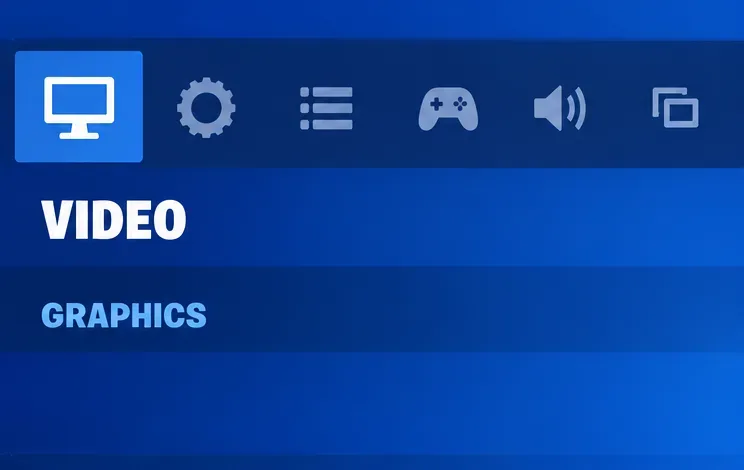
Launch Fortnite, open the menu through your profile icon, and select Settings. Choose Video and scroll to Graphics. This is the route documented in Epic's instructions for enabling colorblind mode in Fortnite. Older guides may show a different settings location; follow the current labels rather than searching for an old tab arrangement.
The Video tab and Graphics heading identify the settings area described in Epic’s support instructions.
2. Choose one candidate mode
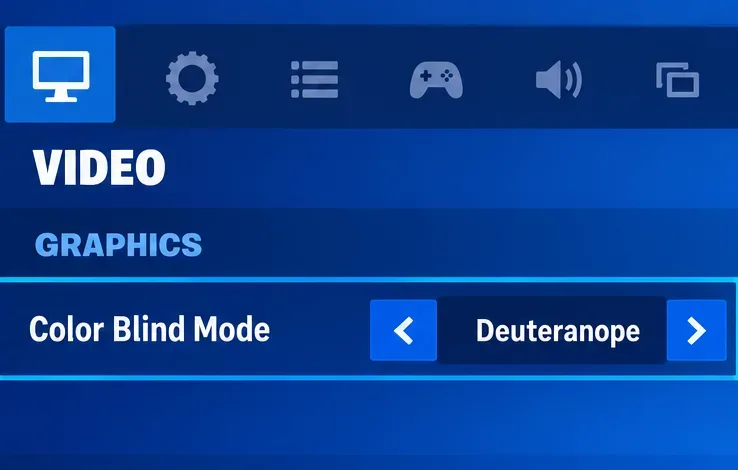
If Deuteranope is listed, select it as the first candidate for this comparison. Choosing it first keeps the process simple; it does not establish that it is better than Protanope, Tritanope, or Off. If you already have an accessibility preset that works well, compare that preset with your baseline instead of replacing it because of a popular recommendation.
Look beyond the Storm's hue. Your goal is to recognize useful information quickly: a moving silhouette, a doorway, a slope, or an item label. A dramatic change from purple to another shade can feel clearer while leaving the same details difficult to identify. If the candidate only changes the mood of the scene, that is not a reason to keep it.
Deuteranope is shown as a candidate preset to compare with your baseline.
3. Start with a moderate strength
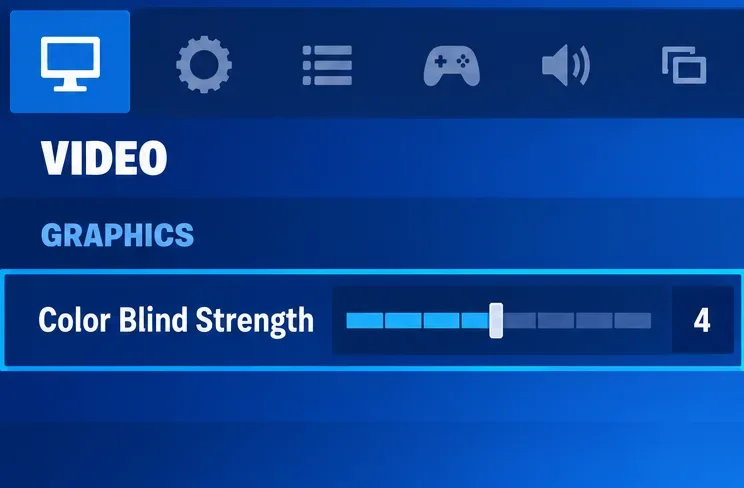
If your installed version offers a 0–10 strength scale, start around 4. A trial range of 3–5 gives you nearby values to compare without immediately choosing the strongest correction. These numbers are practical suggestions, not validated optimal settings. If the scale differs, begin near its middle and use the displayed values.
Stronger correction is not the same as stronger vision. Increasing intensity can change color distinctions that were already useful. Keep the mode fixed while comparing strength, and favor a value that supports both Storm scenes and ordinary terrain. If a lower value is just as readable, there is no need to increase it for its own sake.
A strength value of 4 illustrates a moderate starting point, not a universal optimum.
4. Apply the change and compare gameplay
Select Apply to save the change, as Epic's instructions specify. Evaluate it during low-pressure play rather than making a new visual adjustment in a competitive fight. Do not remain in the damaging Storm merely to complete a comparison; observe relevant views when ordinary gameplay provides a safe opportunity.
Apply saves the selected settings before you evaluate their effect in gameplay.
Use a short comparison checklist:
Can you recognize the same kinds of terrain edges and character outlines more easily?
Does the improvement hold when looking across the Storm boundary as well as from inside it?
Can you still read the map, health information, and item information comfortably?
Are ordinary outdoor and indoor scenes at least as understandable as before?
Compare similar scenes where possible. Different weather, backgrounds, camera angles, or distances can explain a visibility difference without any benefit from the filter. A single encounter is not enough to establish that a preset caused an improvement. Keep brief notes about what became easier or harder, then return to Off if there is no clear practical benefit.
Mistakes that make the choice harder
Assuming a filter removes the Storm
Color correction changes how colors are presented; it is not a Storm removal control. It does not make walls transparent or cancel Storm damage. Treat any claim that a preset guarantees a clear view through all Storm effects as unverified. Use positioning, the map, and your route to safety alongside whatever visual setting helps you.
Using maximum brightness and strength together
A brighter screen is not necessarily easier to interpret. Display settings can change the separation between bright and dark details, while color correction changes color relationships. If the image becomes difficult to read, return to your recorded baseline and adjust one setting at a time. Do not use maximum values as a default fix.
Copying a creator's settings without checking your own screen
A creator's preference describes their setup and perception, not a universal result. Their footage may also look different from direct gameplay on your display. Use a recommendation as a candidate to evaluate, then keep your own result. If a mode helps Storm visibility but makes item information confusing, lower the strength or use a different preset.
When to keep the setting—and when to revisit it
Keep the mode when it consistently improves the details you need without creating new reading problems elsewhere. Off remains a valid choice if correction offers no benefit. For accessibility needs, a preset that makes the whole game easier to interpret can be more valuable than a small apparent advantage in one scene.
Revisit the comparison after a major visual update, a display change, or a rendering-setting change. Epic has not supplied a universal Storm visibility ranking in the support material reviewed here, and future effects may differ. The best colorblind mode for seeing in the Storm is therefore the one that passes your own clear, repeatable comparison—not simply the preset with the highest strength or the most recommendations.