Best CS2 Crosshair Color Code for Visibility Across Maps

Compare cyan, magenta, lime, and orange RGB values for CS2, learn the tradeoffs, and test a crosshair color and outline across varied map backgrounds.
A recent controller-related change affects fair play, not your built-in aim settings: EA’s September 14, 2026 midseason notes say new systems were implemented to detect unauthorized controller hardware or software across PC, PlayStation, Xbox, and Switch 2. EA’s earlier policy explains that using devices to automate actions, alter recoil, or manipulate inputs for an unfair advantage is cheating. The in-game Target Compensation toggle is a normal Apex setting. For a new controller player, leave it on, learn with the standard controls first, and only test it off later in the Firing Range if you have a clear reason.
Target Compensation is Apex’s in-game name for controller aim assist. Aim assist is software support that helps controller players aim; it does not guarantee a hit or replace practice. EA says it is automatically on for console players and PC players using a controller, and that it is stronger on console than on PC. The current EA Help article, updated five months ago, shows that you can turn it off through Advanced Look Controls (ALC). This guide explains what that means and how to check the setting without changing several controls at once.
Keep Target Compensation on. That is the best default for most new controller players because it preserves Apex’s intended controller aiming assistance. EA itself does not recommend turning it off as a general setting. If you are new, switching it off can make it harder to control your aim and can make ordinary practice feel less familiar. The trade-off is that you may want to test the off setting temporarily to understand the difference or to practice raw stick control. Treat that as an experiment, not a universal upgrade.
There is no official public strength slider with a set of values such as “40,” “60,” or “100” for Target Compensation in the current EA instructions. The documented control is On or Off. Advice that gives a precise numeric value for this toggle may be describing another game, a different setting, or a particular version of an ALC setup. Check the setting name in your own menu before following a numeric recommendation.
| Setting | Beginner starting point | When to change it |
|---|---|---|
| Target Compensation | On | Try Off only for a deliberate practice test, then compare and decide whether it helps your own control. |
| Melee Target Compensation | Use your preference; it is separate from weapon aiming | Change it if you specifically want to test aim assistance for melee attacks. |
| Other controller settings | Leave them unchanged during the first comparison | Adjust them later, one at a time, if you can identify a specific issue. |
ALC means Advanced Look Controls. EA describes ALC as a group of settings that gives you more control over aiming and movement. Target Compensation is the option associated with aim assist. Melee Target Compensation is a separate option EA says controls whether aim assist is used for melee attacks. Changing one does not mean you have to change the other.
Aim assist is also not the same as sensitivity. Sensitivity affects how quickly your view responds when you move a stick. Target Compensation controls whether the game applies its controller aiming assistance. If your view feels too fast or too slow, changing Target Compensation is unlikely to solve that sensitivity problem. Keep the concepts separate and adjust the setting that matches what you are trying to improve.
These are the steps EA lists in its current Help instructions. Menu labels can shift slightly after updates or differ by platform, so follow the labels shown in your build. ALC contains many other look and movement options; do not change those just to switch Target Compensation. If you only want to confirm the default behavior, EA says aim assist is automatically turned on for console controllers and PC controllers.
Use the Firing Range, where EA confirms aim assist is active when it is enabled. Start with Target Compensation On and use the same weapon, optic, distance, and controller sensitivity for each comparison. Track a moving target and fire short bursts, then repeat against a stationary target. Pay attention to whether you can keep the reticle where you intend and whether your corrections feel predictable. These observations help you decide whether the setting feels comfortable; they are not proof that one state will improve every fight.
If you want to compare Off, change only Target Compensation. Repeat the same short drill, then restore On if the off setting makes your aim less controlled or less comfortable. Avoid changing sensitivity, response curve, deadzone, and Target Compensation together: if your aim feels different afterward, you will not know which change caused it. Once the basic comparison is complete, change another control only to address a specific problem.
For most beginners, the useful answer to “best target compensation settings” is not a long list of secret numbers: keep the built-in Target Compensation On, practice with it, and change it only for a deliberate test. EA’s guide to aim assist and Target Compensation explains the current toggle path and platform behavior. Its Apex terminology guide defines ALC, while the March 2026 anti-cheat update explains EA’s position on external input-manipulating devices.
Compare cyan, magenta, lime, and orange RGB values for CS2, learn the tradeoffs, and test a crosshair color and outline across varied map backgrounds.
Troubleshoot StarCraft II’s graphics device error on Windows with a beginner-friendly sequence: restart, reset game options, check GPU selection, update drivers, and repair files.
Learn what Target Compensation does in Apex Legends, why On is the best starting point for most controller players, and how to test it safely in the Firing Range.
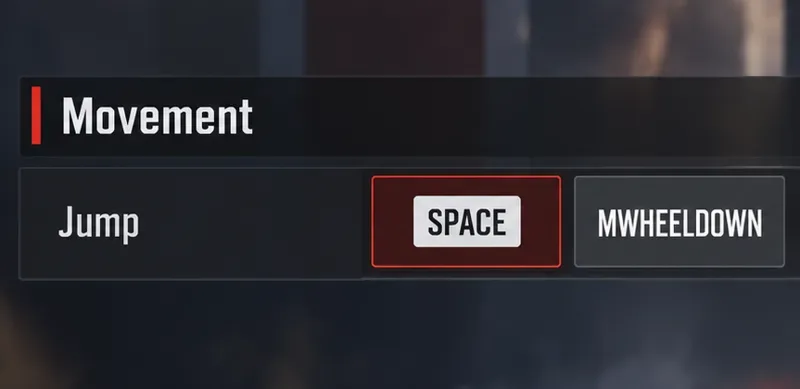
Set up Apex Legends tap-strafe keybinds with wheel up for forward and wheel down for jump, then check weapon conflicts, timing, and comfort on PC.
Hide the FC Trainer during a match or disable only selected prompts. Learn how to distinguish Trainer arrows from player markers, PlayStyle icons, and input overlays.
Set Heroes of the Storm abilities to Quick Cast On, learn the difference between On and On Release, and test the setup before using it in a combo.
Find practical PC keybinds for hip-fire leaning in Rainbow Six Siege, compare Q/E and mouse-button layouts, and learn how to test conflicts before a match.
Change Hearthstone’s language on PC through Battle.net Game Settings. Learn when language files download, how this differs from app language and region, and what to try if the update stalls.
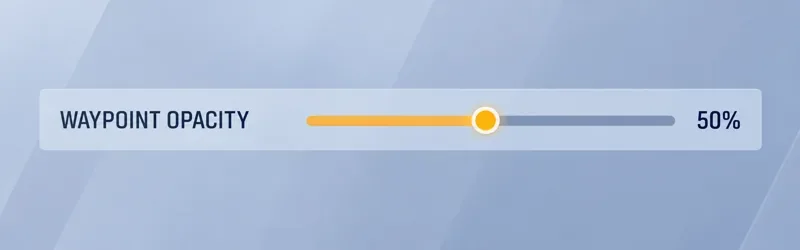
Start with 50% waypoint opacity in Overwatch 2, then adjust for objective visibility, map familiarity, and marker clutter without losing essential cues.
Compare VALORANT’s yellow, purple, and red enemy outlines. Learn which color to test first, where to change it, and how to check visibility across maps and effects.