Home
» 🎮 Esports
»
How to Set Custom Worker Production Key Bindings in StarCraft: Remastered
How to Set Custom Worker Production Key Bindings in StarCraft: Remastered
You select your base, reach for the worker key, and either nothing happens or you press the wrong letter. Switching between Terran, Protoss, and Zerg makes this easy to do: the classic worker shortcuts are different, and Zerg requires a separate Larva selection. StarCraft: Remastered lets you customize command hotkeys, but the binding must belong to the production command, not to the worker's own movement or construction commands.
The simplest fix is to change one worker-production command in the built-in Hotkeys editor, confirm it, and test it with the correct producer selected. You can later use the same comfortable letter for each race's worker command if the editor accepts it. There is no need to redesign your entire keyboard layout to solve this problem.
Official sources were reviewed on October 8, 2026. Blizzard's editor preview is historical launch-era documentation, not a screenshot of a live 2026 test. The illustrations below show relevant controls based on that published interface; exact placement can differ in your installed version. This guide makes no claim about measured speed improvements or current-build testing.
Know which command you need to change
A hotkey is a keyboard shortcut for a command. Worker production means training an SCV or Probe, or morphing a Larva into a Drone. Morphing is Zerg's process of transforming one unit into another. Selecting an existing worker does not give you the command to produce more workers.
For Zerg, keep two commands distinct: Select Larva belongs to the Hatchery, Lair, or Hive, while the Drone morph command belongs to Larva. Changing the Drone key does not eliminate the selection stage. Blizzard's Larva reference explains this production sequence.
Before editing: choose a small, reversible change
Write down the current worker key and any other bindings you intend to change. Choose a letter you can reach comfortably from your usual hand position. W can serve as a memorable example for “worker,” but it is only a suggested candidate. Your existing bindings and keyboard layout may make another letter preferable.
Keep the rest of your layout unchanged during the first test. If you move worker production, attack, movement, and building commands together, an error becomes harder to trace. Start with the race you actually play, and add the other races only after the first change works.
1. Open the built-in Hotkeys editor
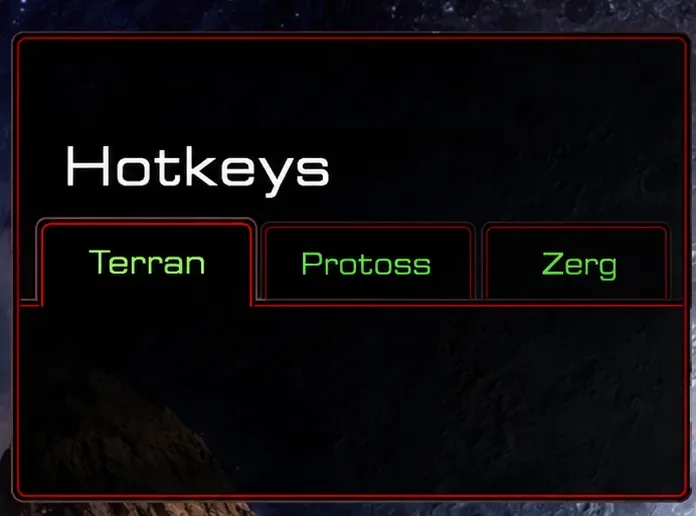
Return to the main menu and open Hotkeys. Locate its race tabs and command editor rather than following a StarCraft II profile guide. Blizzard's StarCraft: Remastered hotkey feature preview documents an editor organized around selectable units and buildings.
The race tabs organize the hotkey editor. Choose the race whose worker command you want to change.
If the menu arrangement differs, look for the Hotkeys label in your client. Do not substitute StarCraft II instructions about global unit management or its profile system; they describe a different game.
2. Select the producer, not the worker's own command page
For Terran, choose the Command Center under Buildings. For Protoss, choose the Nexus. For Zerg, choose Larva under Units. Find the command that creates the relevant worker and select that command for editing.
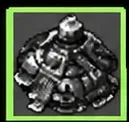
For SCV production, select the Command Center in the Buildings section rather than the existing SCV unit.
This distinction explains a common wrong turn. The SCV's command page includes actions the SCV performs, such as building structures. It is not the page for training another SCV. Similarly, changing a Probe's building command or a Drone's structure mutation will not change worker production. Read the selected command's description before entering a key.
3. Assign a comfortable letter and check its context
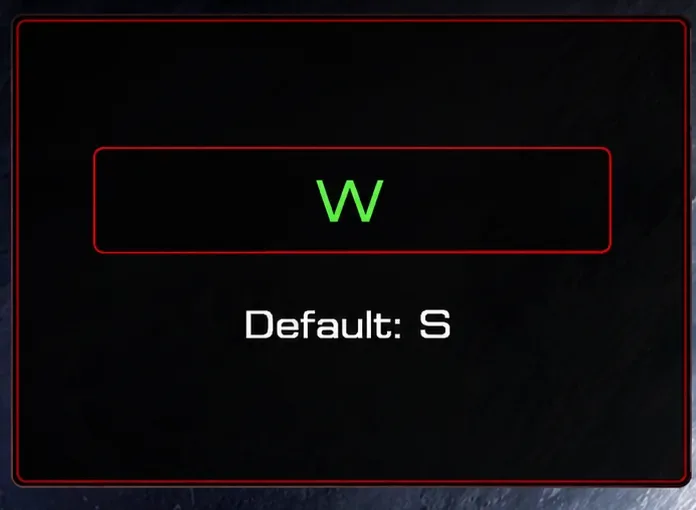
Select the command's key field and enter your chosen letter. For the example setup, replace the SCV production key S with W. If the editor reports a conflict or rejects the key, resolve that issue before continuing; do not assume an entry was accepted just because you pressed a key.
The example changes the SCV production binding from its classic default S to W.
Commands are tied to the current selection. The same letter appearing on an unrelated unit's command page does not by itself mean your worker binding is unusable. What matters is whether the chosen key is accepted and triggers the intended command in the relevant context.
If you play multiple races, you can try W for Probe production and Drone morphing as separate edits. This standardizes the final worker command, not the complete production sequence. Leave Select Larva at its existing key initially so you are learning only one change at a time.
4. Confirm the edit and test the complete sequence
Use Confirm to finish the editor changes. Return to the editor afterward and check that your chosen letter is still displayed for the intended production command. This catches an unsaved edit before you spend a match wondering why the old key still appears.
Confirm completes the editor changes; verify the saved binding before testing production.
Start a low-pressure standard game where you can select the producer and observe its command panel. With W assigned, a Terran test is Command Center selection followed by W; a Protoss test is Nexus selection followed by W. For Zerg, select the Hatchery, use your Select Larva key, and then press W with Larva selected.
Make sure production is available before judging the result. Standard SCVs, Probes, and Drones each cost 50 minerals and use one supply, according to Blizzard's SCV reference, Probe reference, and Drone reference. Supply is the population capacity available for units. A supply block means that capacity is insufficient for another unit.
For Terran and Protoss, look for worker production to begin or enter an available queue slot. For Zerg, look for the selected Larva to start morphing. Those visible changes are better evidence than the fact that a key field displayed W in the menu.
If the worker still does not start: troubleshoot from easiest to hardest
Symptom
First check
Useful next action
No worker command is visible
The wrong object is selected.
Select the Command Center, Nexus, or Larva directly with the mouse.
The game reports insufficient resources or supply
Production conditions are not met.
Provide the required resources and capacity, then repeat the same input.
The original key is still shown
The wrong command was edited, or the edit did not persist.
Reopen the correct producer's command and verify the saved letter.
Mouse-clicking works but the new key does not
Keyboard focus or the binding itself.
Close any text-entry field, check the keyboard layout, and retest the command.
The binding works in one game but not another
Differences in the game or lobby configuration.
Compare with a standard game and inspect any available custom-hotkey restrictions before changing more bindings.
For custom lobbies, inspect the settings actually shown in your client. This guide does not establish one current restriction label for every lobby or map. Avoid diagnosing a specific game as a universal hotkey bug from a single failed attempt.
If the problem persists in a standard test, return just the worker binding to its previous letter and compare. Do not immediately reset your whole layout or edit configuration files. A small rollback helps determine whether the issue follows the new assignment or exists with the original command too.
Combine the working binding with a control group
A control group stores a selection on a number key so you can recall it. Blizzard's control-group reference explains assigning a selected building with Ctrl plus a number from 0 through 9, then selecting it with that number. A Command Center assigned to 4 can therefore be recalled with 4 before pressing your worker key. For Zerg, Larva selection remains between recalling the Hatchery and issuing the Drone command.
This is a manual command sequence, not automatic worker production. The hotkey editor does not turn your chosen letter into a command that selects a base and produces workers without the required selections. Blizzard's original Remastered preview also distinguishes remappable commands from fixed control-group and function keys.
How to verify that the setup is finished
The editor still shows the intended worker-production binding after you reopen it.
The command works when you select the producer directly.
The command also works after you recall the producer through your control group.
You can distinguish a failed input from insufficient minerals, supply, or unavailable Larva.
You can repeat the sequence without accidentally issuing a different command.
Once these checks pass, practice the new sequence before using it under pressure. Keep the binding if it reduces mistakes and feels comfortable. If you repeatedly reach for the old letter, allow time to learn the change or return to the previous setup. A useful custom worker key is one you can execute reliably, not one copied from another player's keyboard.