How to Check Real-Time Server Latency in the PUBG HUD

Enable PUBG’s network statistics HUD to monitor ping and packet loss in a match. See where to find it, what the numbers mean, and what they cannot diagnose.
To connect an Xbox controller to a Smart TV, put the controller in Bluetooth pairing mode, open the TV’s gamepad or Bluetooth accessories menu, and select Xbox Wireless Controller. The menu path depends on the TV’s operating system, and pairing alone does not guarantee that every app accepts gamepad input. Check both controller support and the game service before you start.
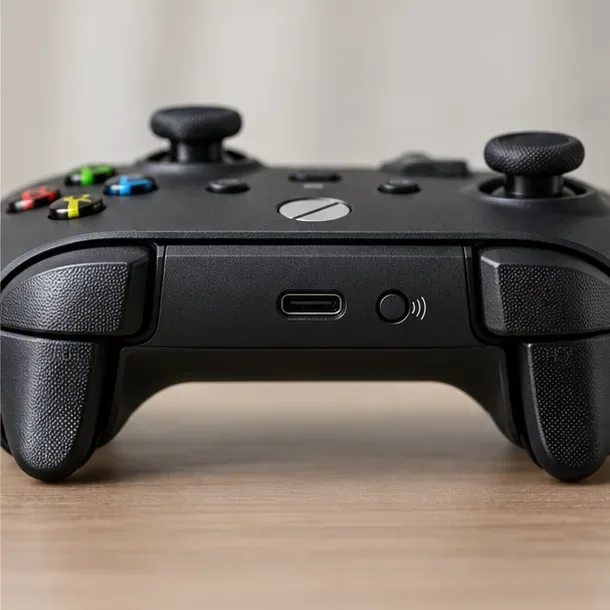
Bluetooth support is model-specific. Xbox Series X|S controllers and many Xbox One-era controllers support Bluetooth, but not every Xbox One controller does. Xbox 360 wireless controllers use a different wireless connection and cannot be paired as ordinary Bluetooth gamepads. For older pads, use a wired connection only if the TV maker confirms that the exact model accepts that controller over USB.
A TV that pairs Bluetooth headphones may still lack gamepad support. Look in the TV manual or its game hub for “game controller,” “gamepad,” or supported-device information. The game itself must also accept controller input.
| TV platform | Controller pairing path | Xbox app / cloud gaming note |
|---|---|---|
| Samsung Smart TV | Gaming Hub > controller icon on supported sets; Bluetooth Device List on some others | Xbox lists select 2020-and-newer Samsung TVs; check the exact model and region. |
| LG webOS | Settings > External Devices > Connect Bluetooth Controller (menu varies) | Xbox lists select TVs on webOS 24 or newer, including some older models updated to supported software. |
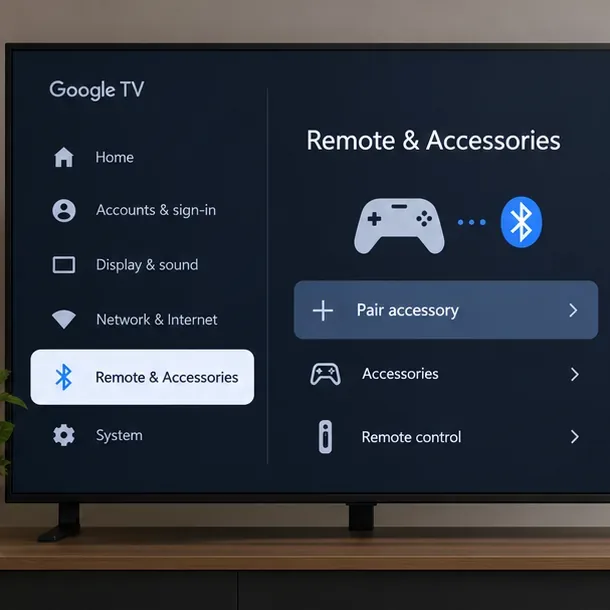
| Google TV / Android TV | Settings > Remote & Accessories or Add accessory | Pairing a gamepad does not mean the native Xbox app is available on that TV. |
| Amazon Fire TV | Settings > Controllers & Bluetooth Devices > Game Controllers | The Xbox app is available on select Fire TV devices, not every model. |
| Other smart TVs | Use the maker’s gamepad or Bluetooth input menu | Confirm app, game, controller, and country support separately. |
Xbox’s TV app currently supports select Samsung, LG, Fire TV, and VIDAA devices. Model eligibility and service availability can change by country. Most cloud games require an eligible Xbox Game Pass plan, while some exceptions may apply. The current device list and plan details are in Xbox’s official Xbox on TVs guide.
Microsoft’s controller pairing instructions describe the Pair button and Bluetooth setup. The exact method depends on the controller model; consult the Xbox Wireless Controller setup guide if the light does not flash.
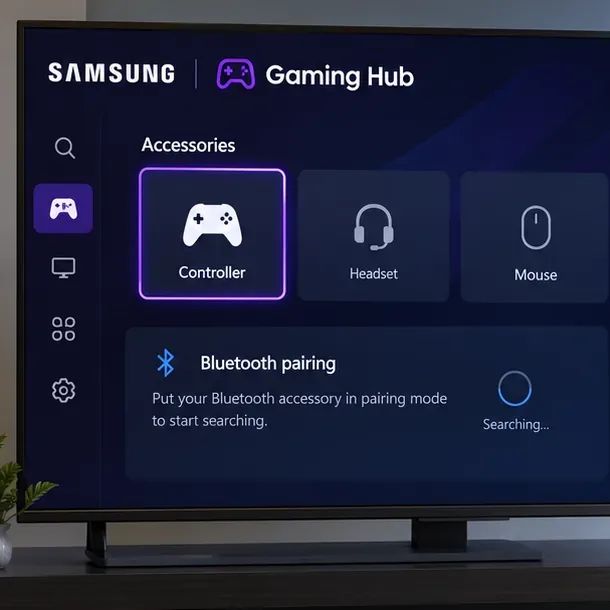
Samsung’s current Gaming Hub guidance lists several Xbox models, including Series X|S, Xbox One S, Elite Series 2, and Adaptive controllers. It notes that some controls or vibration may vary, Xbox pads may need a firmware update, and Tizen supports XInput mode for compatible controllers. The TV’s Gaming Hub is available only on selected products; see Samsung’s Gaming Hub compatibility and pairing steps. On some TVs without that hub menu, Samsung documents Settings > External Device Manager > Input Device Manager > Bluetooth Device List; exact menus depend on model and software. The Samsung controller pairing guide shows this alternate path. Menus and supported features vary by region and model.
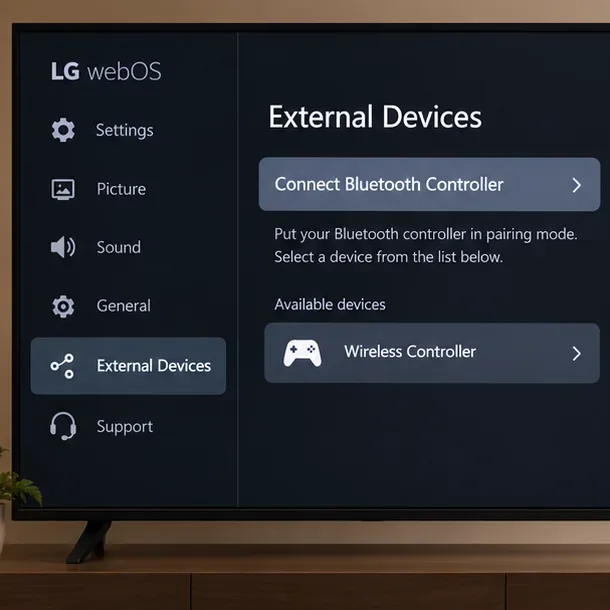
LG says supported input devices depend on the TV model. Also verify Xbox app eligibility separately: Xbox currently lists select LG TVs with webOS 24 or newer, including some 2022 and 2023 models updated to specified software. See LG’s Bluetooth input-device instructions and the Xbox TV compatibility list.
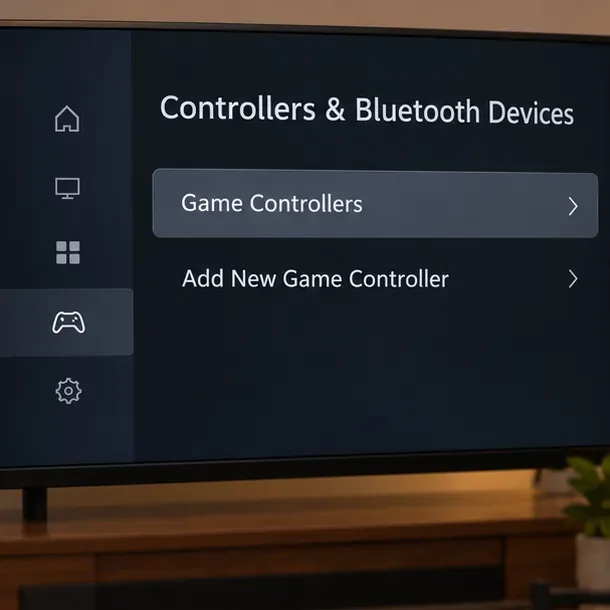
Google documents game controllers as Bluetooth accessories for Google TV, but a connected controller works only with apps and games that support it. The Xbox app’s current TV list does not include Android TV or Google TV. Read Google’s Bluetooth pairing instructions or the Android TV gamepad guide for model-specific help.
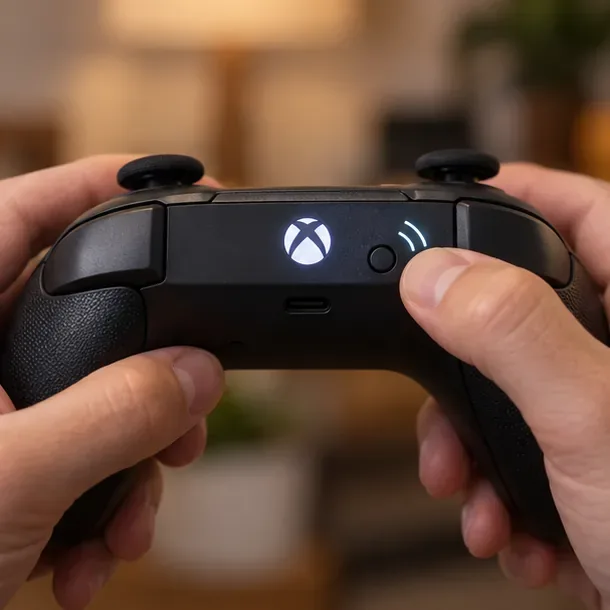
Amazon’s menu applies to compatible Bluetooth controllers; Xbox app streaming is separately limited to supported Fire TV models. Check the exact device on the Xbox on TVs page before installing or subscribing.
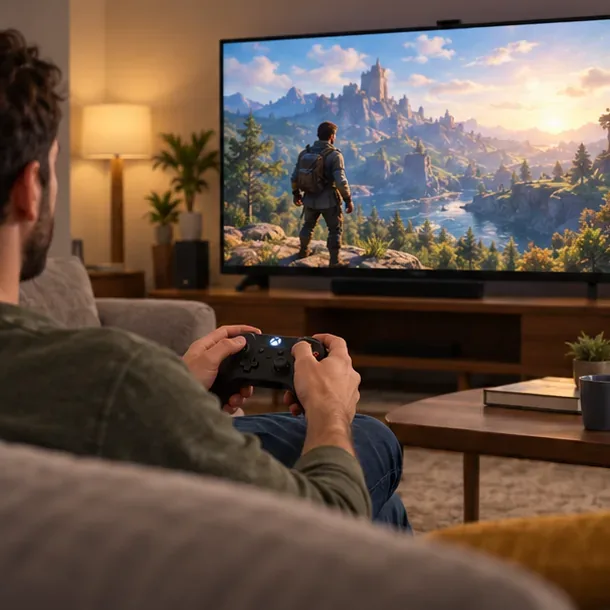
After pairing, use the D-pad or thumbsticks to navigate a menu that accepts gamepad input, then launch the intended game or streaming app and test a few buttons. A controller can appear as “connected” in TV settings while a particular app ignores it. In an Xbox cloud gaming app, sign in and check that the game is available in your region and plan. You need a reliable internet connection for streaming; a responsive Bluetooth link cannot compensate for a weak Wi-Fi or cloud connection.
| What you see | What to try |
|---|---|
| The controller does not appear | Charge or replace the batteries, restart pairing mode, move the controller closer, and check that Bluetooth is not reconnecting it to a nearby phone or console. |
| The TV shows an old or duplicate entry | In the TV’s accessory list, disconnect or forget the saved controller, then scan again. Menu wording differs by TV. |
| It pairs but buttons do nothing | Test a different game or app, confirm the game supports controllers, and check the maker’s supported-device list. Pairing does not add Xbox Cloud Gaming to an unsupported TV platform. |
| Input drops or feels delayed | Update the TV software, reduce distance and obstacles, and check the streaming service’s network guidance. Try USB only if the TV and app explicitly support wired gamepads. |
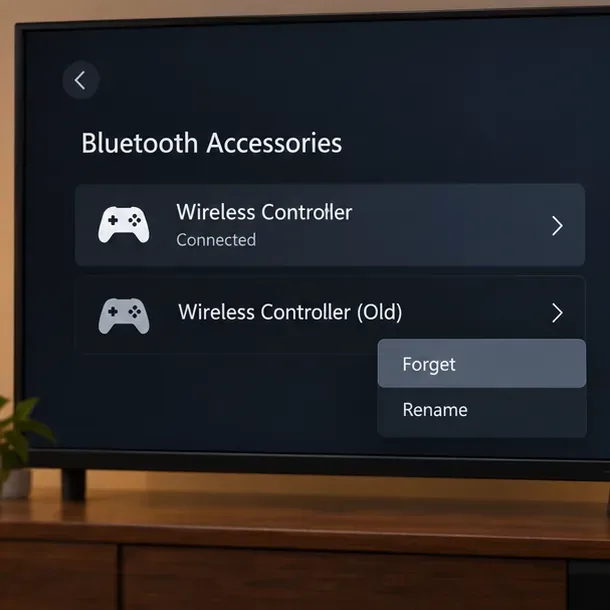
If the controller still fails, update its firmware using an Xbox console or the Xbox Accessories app on a supported Windows PC, then repeat the pairing steps. Use Microsoft’s controller update instructions and Xbox’s smart TV cloud gaming troubleshooting guide. Firmware updates and app features can vary by controller and device.
Enable PUBG’s network statistics HUD to monitor ping and packet loss in a match. See where to find it, what the numbers mean, and what they cannot diagnose.
Learn how to import VALORANT crosshair codes, compare presets with manual settings and spectator copy, and fix common import issues.
Choose Dota 2 minimap size, hero icons, team colors, and background settings by readability, fewer misclicks, and clear results on your own display.
Fix Fortnite texture pop-in on PC with official steps for GPU drivers, file verification, DirectX 12, high-resolution textures, VRAM, SSDs, and stutter.
Learn what Heroes of the Storm minimap size and position options are verified, improve readability, and choose camera-click controls that suit you.
Set Super Smash Bros. Ultimate Quickplay to prefer hazards-off stages. Follow the Preferred Rules menu steps and learn why matchmaking may not always honor them.
Enable Server Latency and Packet Loss in Warzone to monitor connection quality, read the overlay, and use recurring spikes to guide troubleshooting.
Learn how to carry from mid lane in League of Legends by setting up waves, choosing safe roam windows, reading side lanes, and converting pressure into objectives.
Fix Minecraft Evoker spell problems with a safe vanilla test, version checks, log review, and a step-by-step way to isolate mod or datapack conflicts.
Fix PUBG stuck on Initializing on Steam with a focused checklist for PC service notices, launch options, game files, downloads, and connection issues.








