Riot Vanguard Download and Install Guide (2026): VALORANT Setup
Riot Vanguard does not need a separate download. On PC, get VALORANT from Riot’s official download page; the Riot Client installs Vanguard as part of getting the game ready. Finish the setup, restart Windows when asked, then launch VALORANT. This Riot Vanguard download and install guide covers the current PC setup, system requirements, and the first fixes to try if Vanguard does not start.
What to know before you install Riot Vanguard
Vanguard is Riot’s game security software, made up of a client that runs while Riot games are active and a kernel-mode driver. Riot says the game installs Vanguard automatically when you launch a game that requires it. There is no need to download a separate Vanguard installer from a third-party site.
Check the current VALORANT PC requirements from Riot before installing. Riot lists Windows 10 64-bit (Build 19041 or later) and Windows 11 64-bit. Its Windows 11 requirements also include TPM 2.0 and UEFI Secure Boot. Keep enough free disk space for the game and updates; the installed size can change as VALORANT is updated.
- A supported Windows PC and an internet connection
- A Riot account to sign in and play
- Administrator access to approve the Windows installation prompt if it appears
- On Windows 11, TPM 2.0 and UEFI Secure Boot enabled, as listed in Riot’s requirements
How to download and install Riot Vanguard
-
1. Download the VALORANT installer from Riot
Open the official VALORANT download page and select the PC download. Sign in to your Riot account or create one if Riot requests it. Save and open the installer from your browser’s downloads list. Riot may update the download flow or installer file name, so use the official page instead of relying on a file name copied from an older guide.
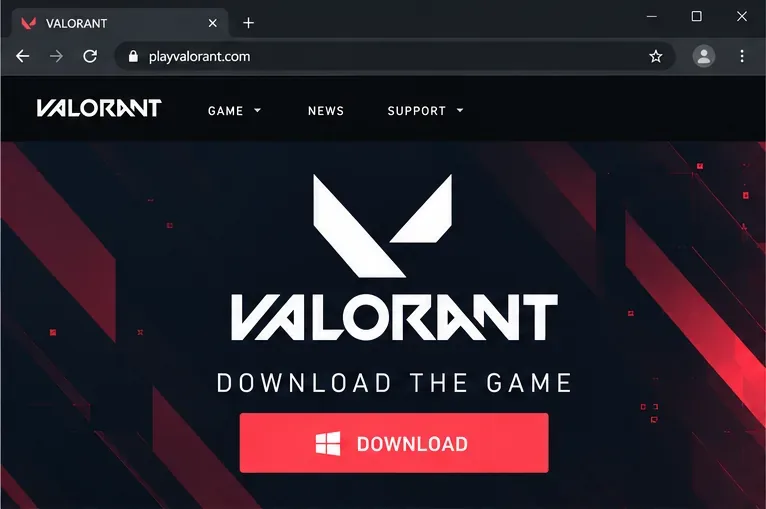
Start from the VALORANT download page on playvalorant.com. -
2. Run the installer and approve Windows access
Open the downloaded installer. If Windows displays a User Account Control prompt, check that Riot Games is shown as the publisher, then choose Yes to let the installer continue. If the installer does not open or cannot write files, close it, right-click the installer, and choose Run as administrator. Do not approve a prompt for an installer from an unfamiliar publisher.
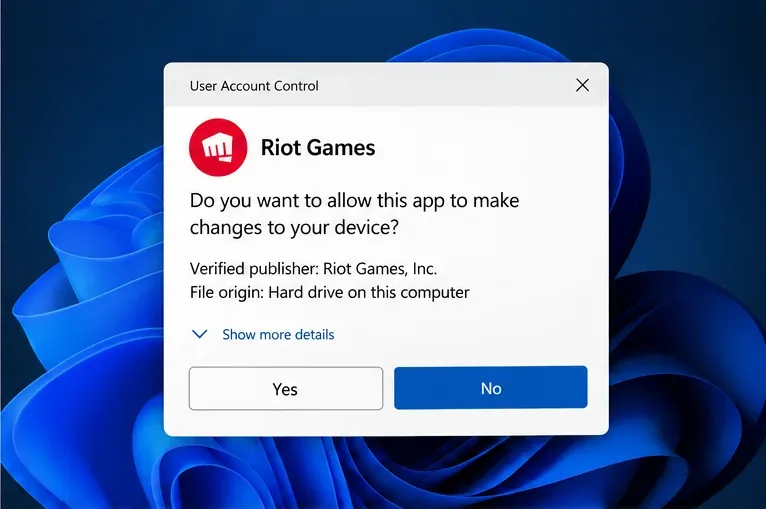
When Windows asks for permission, confirm the publisher is Riot Games before approving the installer. -
3. Let Riot Client finish installing VALORANT and Vanguard
Follow the Riot Client prompts and leave the client open while the game downloads and installs. Riot’s installation support lists VALORANT, Riot Client, and Riot Vanguard as available through the VALORANT installer. Vanguard is installed automatically for games that require it, so you do not need to hunt for a separate anti-cheat download. Installation time depends on your connection and the current game update.
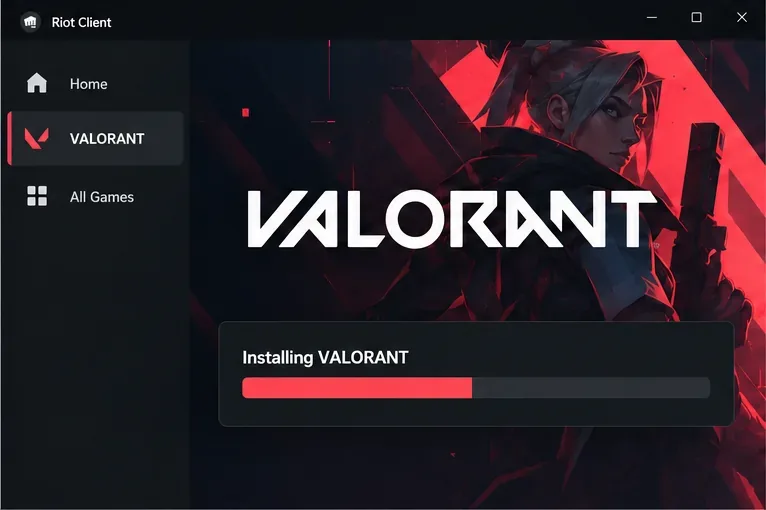
Wait for the Riot Client’s VALORANT installation to complete before closing it. -
4. Restart Windows, then launch VALORANT
Restart the PC when the installer or Vanguard asks you to. If no restart button appears, use Start → Power → Restart. Vanguard is usually an on-boot application, and Riot notes that restarting is needed for programs to install and update. After Windows starts again, open Riot Client, sign in, and launch VALORANT. The Vanguard icon in the Windows notification area can show Vanguard’s status; if you do not see it, open the hidden-icons menu beside the clock.
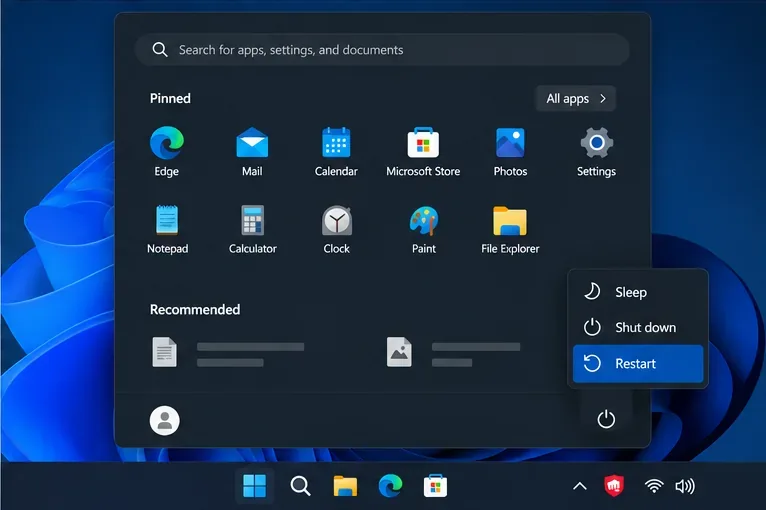
Restart Windows to load Vanguard, then check the notification area after signing in.
Fix common Riot Vanguard installation problems
The VALORANT installer will not open or gets stuck
Download the installer again from Riot’s official VALORANT page, then try Run as administrator. Check that Windows is up to date, that the install drive has free space, and that a firewall or security app is not blocking the Riot installer. Riot’s installation troubleshooting guide also recommends reinstalling through the official installer and updating Windows if setup continues to fail.
VALORANT says Vanguard is not initialized or asks for a restart
Restart Windows first, then open Riot Client and try again. If the error continues, use Windows Settings to uninstall Riot Vanguard, restart the PC, and launch VALORANT or Riot Client so Vanguard can reinstall. Riot’s Vanguard uninstall and reinstall instructions provide the current steps. A Riot game that requires Vanguard will not start normally while the anti-cheat is missing or disabled.
You see VAN 9003 or a TPM-related error
These messages point to a security requirement, not a problem with the download itself. Riot defines VAN 9003 as Secure Boot being disabled on a system where Vanguard requires it. Check Riot’s VAN 9003 support page and the official PC requirements. If Windows 11 reports that TPM 2.0 is missing or disabled, follow Riot’s TPM 2.0 guide and your PC or motherboard maker’s instructions before changing firmware settings.
Does Vanguard need to be downloaded or started separately?
No. For VALORANT on PC, use Riot’s official game installer and let Riot Client install Vanguard when required. Riot says the Vanguard client runs while its games are active, while the driver is usually loaded at startup. You can see its system-tray icon for status. If you exit or disable Vanguard, you may need to restart Windows before playing again.
For the current Vanguard overview, see Riot’s What is Vanguard? support article. If setup still fails after reinstalling, use VALORANT Player Support and include the exact error code shown in the Riot Client.









