How to Check Real-Time Server Latency in the PUBG HUD

Enable PUBG’s network statistics HUD to monitor ping and packet loss in a match. See where to find it, what the numbers mean, and what they cannot diagnose.
Quick verdict: The PlayStation Portal is a smart buy for a PS5 owner who wants a comfortable way to keep playing away from the TV. It is a dedicated streaming screen with DualSense-style controls, not a portable PS5. Remote Play sends a game from your console over Wi-Fi; cloud streaming can run select games without your console, but only with PlayStation Plus Premium in supported regions. If you expect offline play, an OLED display, or a flawless connection on any network, the Portal will disappoint.
This updated PlayStation Portal review checks Sony’s current specifications, support requirements, and system software notes. It does not claim lab-measured latency or battery tests: Sony says performance and battery life vary with the game, use, and network.
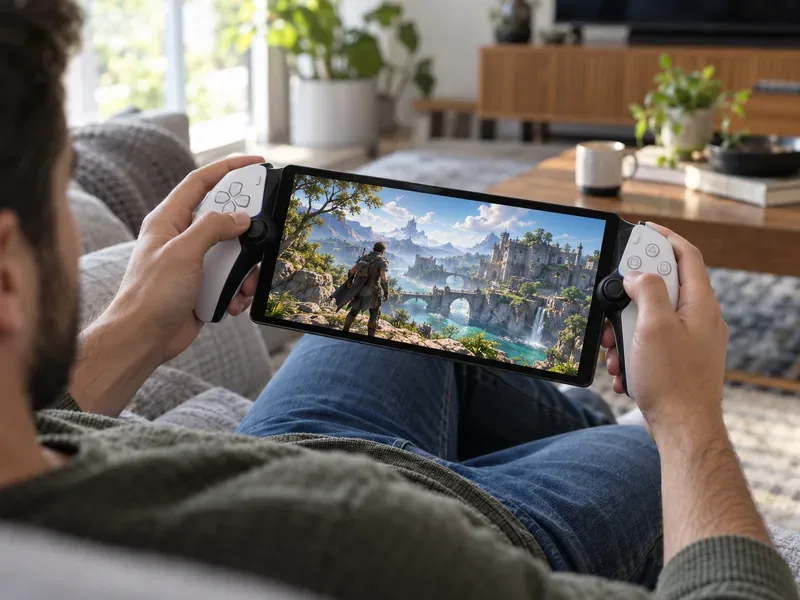
The Portal streams compatible games rather than running them locally. With PS5 Remote Play, the console renders the game and sends its picture and sound to the handheld. You can play compatible PS5 and PS4 titles installed on your PS5, but the console must be online and either powered on or prepared in Rest Mode for remote access. Setup and Remote Play do not require a PlayStation Plus subscription by themselves; a game’s online multiplayer may have its own membership requirement.
Sony lists an 8-inch LCD with 1080p resolution and gameplay up to 60 frames per second. “Up to” matters: the game, console output, and connection determine what you actually see. A PS5 Pro is not required, and it does not raise the Portal’s 1080p/60 display ceiling. Haptic feedback and adaptive triggers are available only in games that support those features.
The design’s biggest advantage is focus. The controls are built in, the screen is larger than a phone, and you do not have to balance a controller clip or repeatedly pair a separate gamepad. For a long RPG session from the couch or bed, that convenience is the product.
The biggest change since the Portal launched is that cloud streaming is now an official feature, not just a beta or rumor. Sony launched it on November 5, 2025, as described in its official announcement. It gives eligible PlayStation Plus Premium members access to select PS5 games from the Game Catalog and Classics Catalog, plus select digital PS5 games in their library. The Portal can stream those games while the home PS5 is off or being used by someone else.
| How you play | Where the game runs | What you need |
|---|---|---|
| Remote Play | Your paired PS5 | A PS5 with the game installed, a PlayStation account, and a stable internet connection. PS Plus is not required for Remote Play itself. |
| Cloud streaming | Sony’s servers | PlayStation Plus Premium, an eligible PS5 game, a supported adult account, and a supported country or region. |
Cloud streaming makes the Portal more flexible, but it does not turn it into an unrestricted handheld. Only selected games are available, the catalog and library eligibility change by region, and some console features are unavailable while streaming. Sony’s current support list includes Canada, the United States, Japan, and selected European countries; check the live list before buying if cloud access is part of your plan. If your country is not supported, the Cloud Streaming option may not be available.
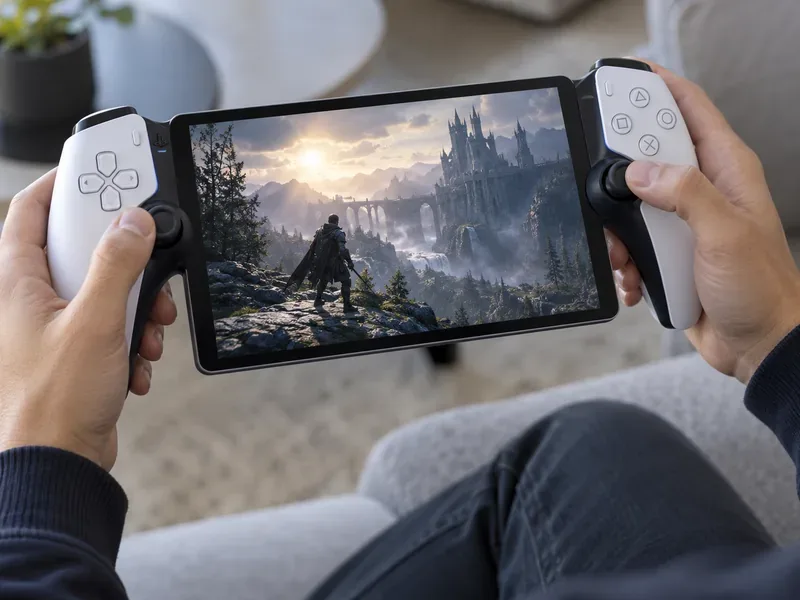
The 8-inch screen is roomy for a handheld and the 1080p image is sharp at normal viewing distance. The trade-off is familiar: this is an LCD, not an OLED panel, and Sony lists a maximum of 60fps. Buyers looking for OLED contrast, HDR, or a higher-refresh display should compare other handhelds before choosing. The Portal’s strengths are its large screen and PlayStation controls, not display technology leadership.
For sound, you can use the built-in speakers, a wired headset through the 3.5mm jack, or compatible PlayStation Link audio devices. Sony supports Tempest 3D Audio in compatible games with a suitable wired or PlayStation Link headset. Do not assume every Bluetooth headset will pair directly; check the device compatibility requirements first.
Software has continued to improve, but these updates refine the experience rather than change the hardware. Sony’s current system software page lists version 7.3.0, including a 3D Audio toggle, live search results, QR handoff for searches, and general stability and usability improvements. Another update added a 1080p High Quality option. These are useful touches, not evidence of a guaranteed latency figure or a new Wi-Fi 7 capability.
A fast internet plan helps, but raw download speed alone does not guarantee smooth play. Wireless interference, router placement, congestion, packet loss, and the quality of the connection at the PS5 all affect responsiveness. Sony says Remote Play needs at least 5 Mbps and recommends 15 Mbps or more for a better experience. Its cloud-streaming guide lists 5 Mbps to start a session, 7 Mbps for 720p, and 13 Mbps for 1080p.
Sony does not promise sub-20ms latency, and a Wi-Fi 7 router cannot remove every bottleneck between the console and handheld. The official guidance is to use a stable connection; Sony also cautions that public Wi-Fi quality may be outside your control.
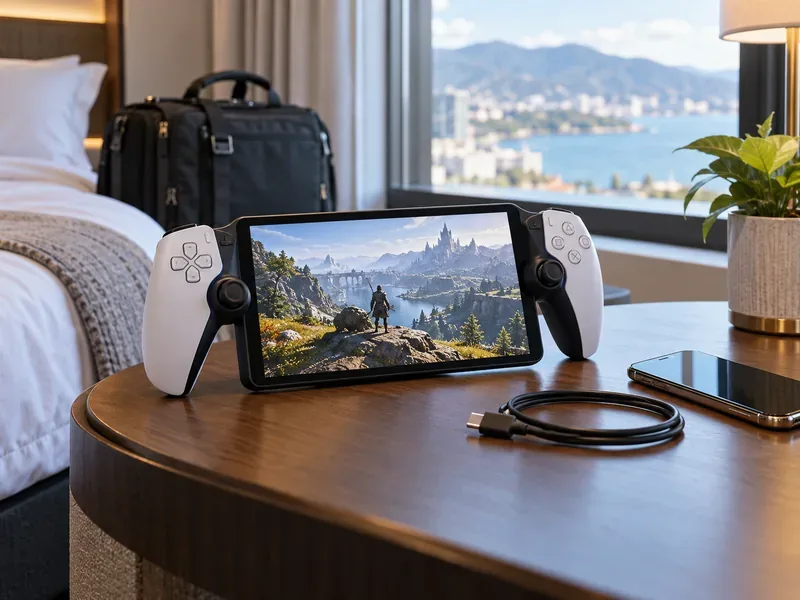
Battery estimates such as “six hours” are not a safe promise for every player. Sony says battery life varies with use, and the official materials do not set one guaranteed runtime for all conditions. A system update added a battery charge limit that defaults to 80% to help support long-term battery health; you can change it in Settings. That setting is a longevity option, not a firmware boost that makes a charge last longer during a session.
There is also no single worldwide price that makes the Portal an automatic bargain. Local retail prices, bundles, and promotions vary. For value, count what you already own: if you have a PS5 and want a second screen, the Portal may solve a real household problem. If you would buy a PS5 and a Portal only for handheld gaming, the total cost is much higher. Do not add PlayStation Plus Premium to the budget unless you plan to use its cloud-streaming library; Remote Play alone does not require it.
| Pros | Cons |
|---|---|
| Large 8-inch 1080p screen and built-in PlayStation controls | Requires a strong network; Remote Play also depends on a paired PS5 |
| Haptics and adaptive triggers in supported games | No offline, locally installed games |
| Remote Play does not require PS Plus by itself | Cloud streaming requires Premium, selected games, and a supported region |
| Can free the TV and keep a game available around the home | LCD screen and 60fps ceiling may not suit display-focused buyers |
Buy it if you already own a PS5, have reliable Wi-Fi where you play, and want a dedicated handheld for games that normally compete for the television. It is especially compelling for households where another person often uses the TV, or for players who prefer a full-size controller layout to a phone clip.
Skip it if offline play is essential, your home network is inconsistent, or you want a handheld that runs games independently. If you are curious, try Sony’s PS Remote Play app on a phone, tablet, or computer first. That lets you judge the network experience before paying for dedicated hardware.
The PlayStation Portal is worth it when you value a comfortable, purpose-built way to stream your PS5 and already have the console and network to support it. Cloud streaming gives it a second use in supported regions, but the core appeal remains simple: take your PS5 session to another screen. It is not a gimmick, but it is a niche accessory. The best buying test is to try Remote Play on your own network, confirm cloud availability in your region if needed, and then compare the Portal’s local price with how often you will actually use it.
For current details, see Sony’s PlayStation Portal product page, Remote Play setup and network guidance, cloud-streaming requirements and regions, and PS Portal system software notes.
Enable PUBG’s network statistics HUD to monitor ping and packet loss in a match. See where to find it, what the numbers mean, and what they cannot diagnose.
Learn how to import VALORANT crosshair codes, compare presets with manual settings and spectator copy, and fix common import issues.
Choose Dota 2 minimap size, hero icons, team colors, and background settings by readability, fewer misclicks, and clear results on your own display.
Fix Fortnite texture pop-in on PC with official steps for GPU drivers, file verification, DirectX 12, high-resolution textures, VRAM, SSDs, and stutter.
Learn what Heroes of the Storm minimap size and position options are verified, improve readability, and choose camera-click controls that suit you.
Set Super Smash Bros. Ultimate Quickplay to prefer hazards-off stages. Follow the Preferred Rules menu steps and learn why matchmaking may not always honor them.
Enable Server Latency and Packet Loss in Warzone to monitor connection quality, read the overlay, and use recurring spikes to guide troubleshooting.
Learn how to carry from mid lane in League of Legends by setting up waves, choosing safe roam windows, reading side lanes, and converting pressure into objectives.
Fix Minecraft Evoker spell problems with a safe vanilla test, version checks, log review, and a step-by-step way to isolate mod or datapack conflicts.
Fix PUBG stuck on Initializing on Steam with a focused checklist for PC service notices, launch options, game files, downloads, and connection issues.








