Home
» 🎮 Esports
»
Playing PUBG Mobile Online for Free: Download and First Match Guide
Playing PUBG Mobile Online for Free: Download and First Match Guide
Playing PUBG Mobile online for free is straightforward: download the official Android or iPhone app, complete the initial setup, sign in with a free account, select a mode, and join an online match. You do not need to buy UC, a Royale Pass, or a subscription to play the core battle royale game. You do need a compatible device, adequate storage, and an internet connection.
This guide focuses on the official PUBG MOBILE app, not PUBG: BATTLEGROUNDS on PC or console, similarly named regional editions, or unofficial “play in browser” sites. Exact store availability and some sign-in methods can vary by country, platform, and game update.
Is PUBG Mobile Online Really Free?
Yes. The official PUBG MOBILE listing on Google Play offers installation without an upfront charge and labels the game as containing ads and in-app purchases. The Apple App Store listing identifies it as free with in-app purchases. Classic battle royale, training, and other available free-to-enter modes provide ways to play without buying extras.
What you need
Does it cost money?
Download the official app
No upfront game price
Play supported standard online matches
No entry purchase required
Internet access
Your Wi-Fi or mobile carrier may charge for data
UC, paid passes, cosmetic items, and other shop offers
Optional purchases; terms and offers vary
Free-to-play does not mean completely free of possible expenses. Check your data plan, and remember that the in-game store contains optional paid items. You can ignore those offers when your goal is to learn the game and play online.
How to Play PUBG Mobile Online for Free: Six Steps
1. Check device compatibility, space, and internet access
Use an Android phone or tablet that Google Play identifies as compatible, or an eligible iPhone or iPad. Apple’s listing currently requires iOS/iPadOS 13.0 or later and lists an approximately 4 GB app size. That figure can change; extra downloads and updates can require more space. On Android, trust the requirements and compatibility message shown on your device’s store listing instead of an outdated fixed-size estimate.
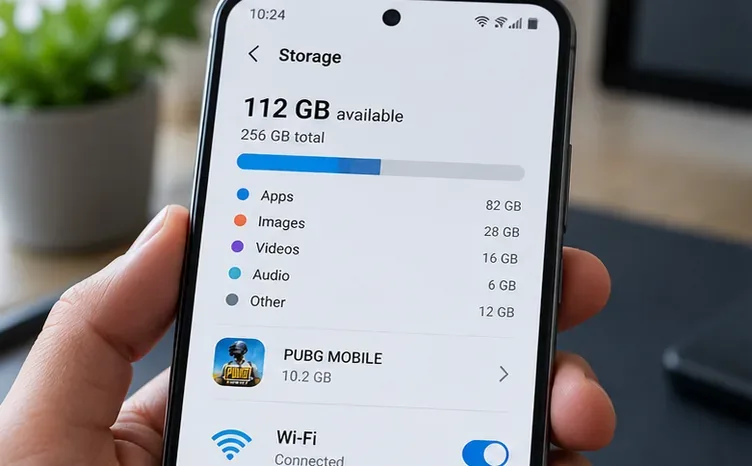
Open your phone’s storage settings, clear unneeded files if necessary, and connect to reliable Wi-Fi for a large download. Cellular data can work if your allowance permits it, but an unstable connection can interrupt installation or gameplay.
Confirm that your device has enough room for the game and updates, then choose a stable connection.
2. Download PUBG Mobile from an official store
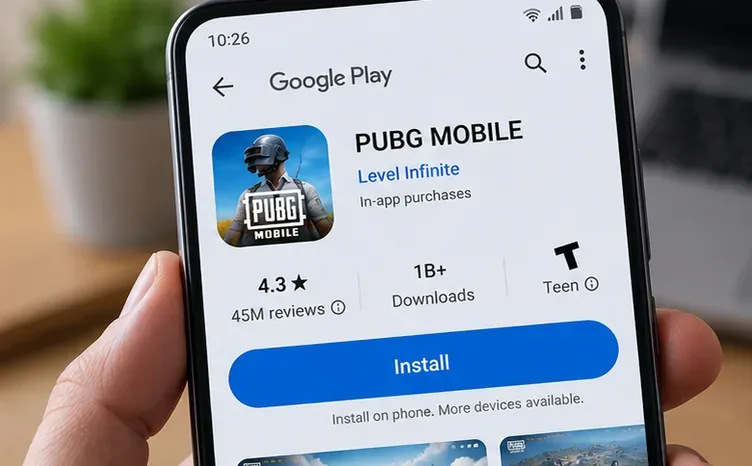
On Android, open Google Play and search for PUBG MOBILE; confirm that the global listing shows Level Infinite as the publisher. On iPhone or iPad, find the game in Apple’s App Store and confirm the publisher details. Tap Install or Get, then let the app finish installing.
Another safe starting point is the official PUBG MOBILE website, which links to store downloads. Avoid “unlimited UC,” modified APKs, unknown account-sharing services, and unrelated websites claiming to stream a fully functional game for free. Regional availability or naming may differ, so follow the official listing for your location.
Use the publisher’s official store listing rather than a modified download.
3. Launch the game and finish any resource downloads
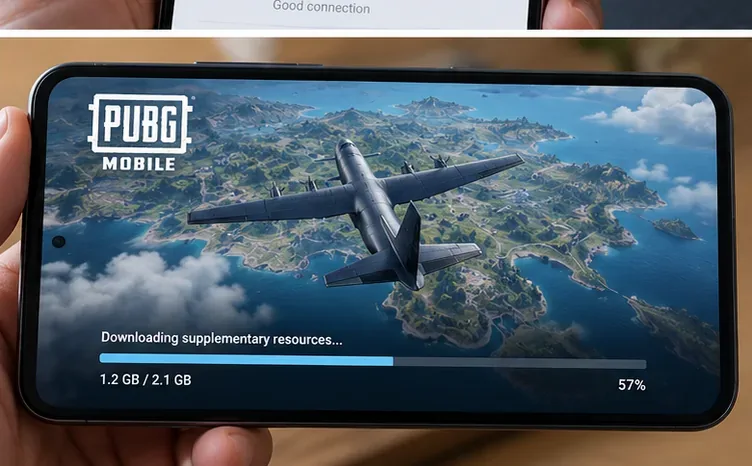
Open the app and follow its first-run prompts. PUBG Mobile may ask to download additional maps, textures, or other resources after the store installation. Keep enough storage free and allow the download to finish before trying to enter a match. If you prefer to conserve data, use Wi-Fi for this stage.
Menus and resource choices change with updates; you do not need to purchase a resource pack simply to begin the standard free game. If the download stalls, see the troubleshooting section below.
An initial install may be followed by an in-game resource download.
4. Sign in for free, and protect your progress
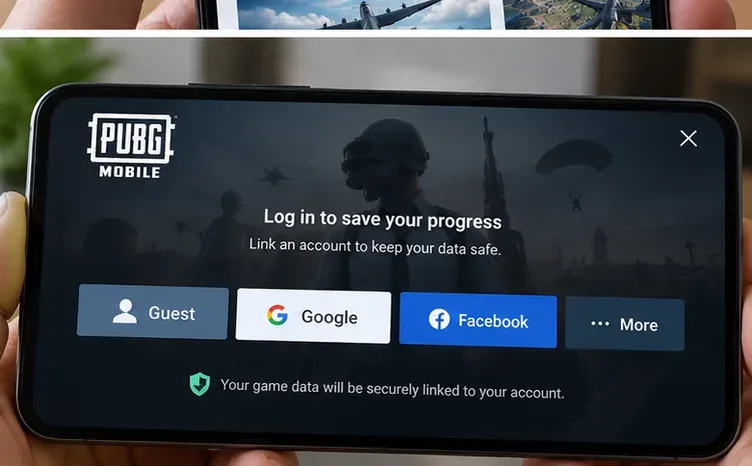
Select one of the sign-in methods actually offered by your version of the game. Options can depend on Android versus iOS and your region. A guest option may be available, but it is a poor long-term choice. PUBG Mobile’s help center warns that guest progress may be unrecoverable after a reinstall, reset, or phone change.
If you begin as a guest, open the lobby’s Settings, find the account-linking option, and connect a supported service while you still have access to that device. The exact menu labels can differ by update. See the official account-linking instructions for platform-specific details.
Important: PUBG Mobile’s help center currently lists restrictions for guest play, including a Solo-only team limitation and limits on rankings and chat. Link your account if you want the fuller multiplayer experience; see official guest-account restrictions.
A linked sign-in helps protect your game progress when you change devices.
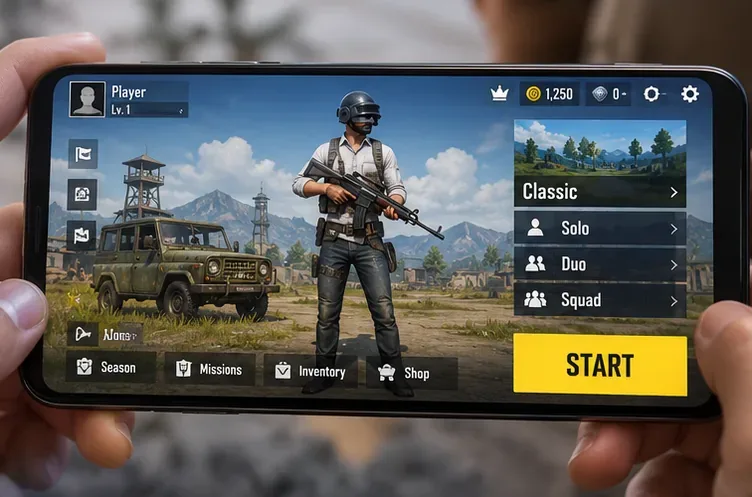
5. Select a free online match from the lobby
From the lobby, choose an available mode. Classic is the familiar battle royale experience, and the official Google Play description identifies its large matches as battles involving up to 100 players. The game also advertises options such as fast-paced 4v4 Arena and Payload, although the lineup and availability can change.
Select your preferred perspective, map, or team size if those controls appear and are available to your account. Solo, Duo, and Squad choices are not necessarily available for every mode or guest account. Press Start or the current matchmaking control to join an online session. Waiting time depends on region, mode, server conditions, and player population.
Choose an available mode and team option before you start matchmaking.
6. Parachute in, loot, and survive
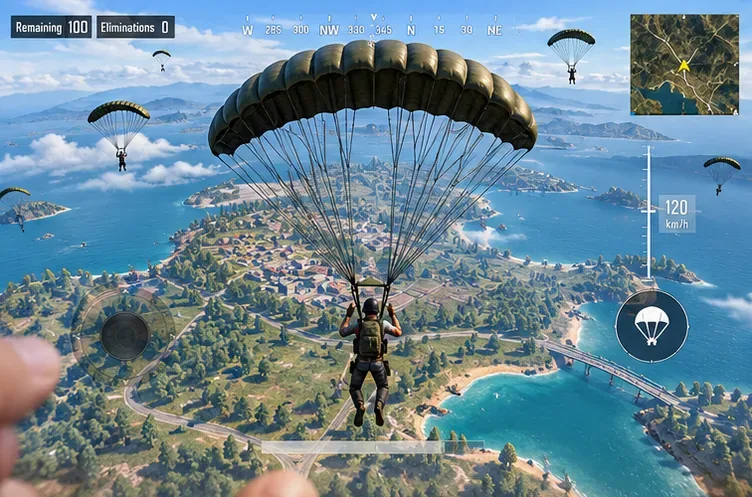
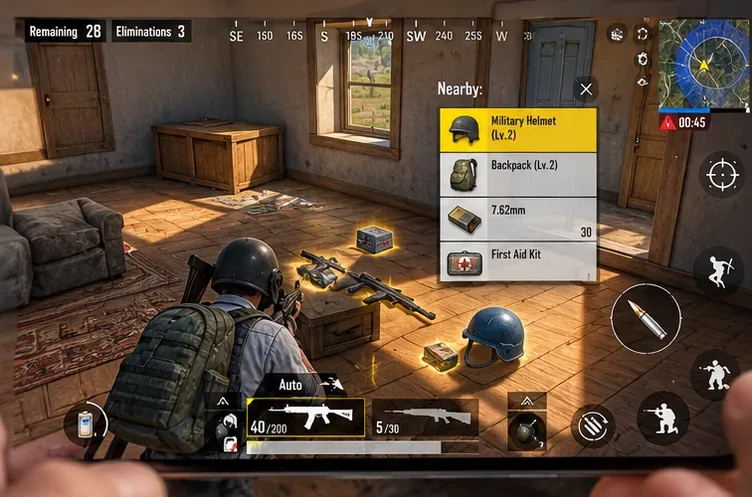
In a Classic match, watch the plane route and choose a drop location. After landing, search nearby buildings for a weapon, ammunition, armor, healing items, and a backpack. Prioritize basic protection before rushing into a fight. Move toward the playable zone as it shrinks, use buildings and terrain for cover, and pay attention to sound cues.
Your objective is to outlast opposing players or teams, whether you queue alone or with teammates. Match formats, special themes, and available maps vary by update, but the fundamental PUBG Mobile free online battle royale loop does not require buying items.
Watch your descent and select a landing area with useful cover.Loot protective gear and supplies, then watch the next safe-zone location.
What to Do Before Your First Competitive Match
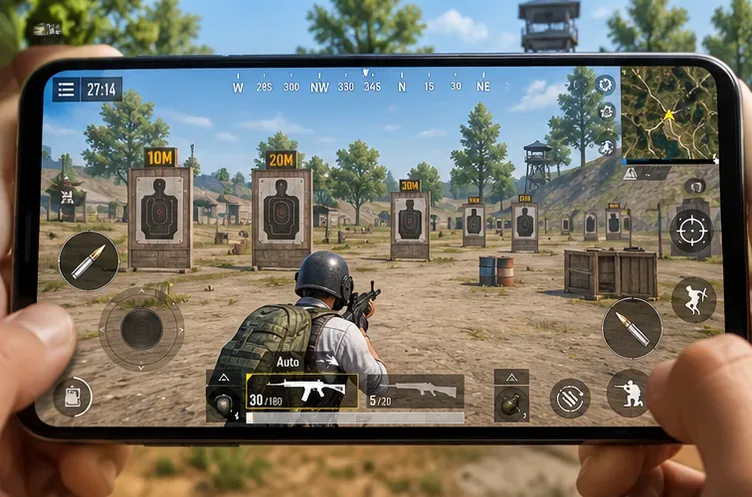
Start in Training if it is available from your current game menus. Practice dragging the camera, aiming down sights, firing in short bursts, moving between cover, and healing. On a touch screen, even a few minutes learning the controls can be more useful than changing every advanced setting at once.
Training lets you practice aiming and recoil before a live match.
If performance is uneven, try lowering the graphics preset before experimenting with more demanding effects. Pick a frame-rate setting your phone can sustain rather than assuming the highest number is always best. Also consider using headphones to hear directional audio, keeping your battery charged, and enabling voice chat only when you need it.
How to Avoid Paying While Enjoying PUBG Mobile
Skip optional store purchases. UC and premium passes are separate from the basic installation and standard gameplay.
Check free missions and time-limited events. Rewards and eligibility change, so verify the current requirements in-game rather than assuming a particular skin or amount of currency is guaranteed.
Use account security features. Link your progress early; never share verification codes or sign-in credentials with a seller offering free UC.
Control mobile-data usage. Use Wi-Fi for large downloads and updates where possible. The app itself may cost nothing, but data is not automatically free.
Fix Common Download, Login, and Connection Problems
Installation or an in-game download is stuck
Check your connection, free storage, and the store’s update screen. If the phone is configured for Wi-Fi-only downloads, a mobile-data connection may not start the download. Restart the app or phone if appropriate and retry from the official store. These are also the first checks recommended by PUBG Mobile support.
“Server not responding,” lag, or repeated disconnects
Test Wi-Fi and mobile data separately, close and relaunch the app, and restart the device. Avoid judging a connection solely by its download speed: signal stability and latency matter during online matches. PUBG Mobile’s connection troubleshooting guidance recommends switching between network types when possible.
Your character or inventory disappeared after reinstalling
First confirm that you are signing in with the same linked account and the appropriate game edition. If you played only as a guest, recovery may not be possible: the official account recovery FAQ explicitly warns about lost guest records.
Frequently Asked Questions
Can you play PUBG Mobile in a web browser without downloading anything?
The standard, officially supported way to play is through the mobile app. Do not confuse websites advertising “PUBG Mobile online free” with an official browser edition. Download from an authorized platform rather than entering your game credentials into an unverified site.
Can PUBG Mobile be played offline?
No. PUBG Mobile’s regular matches require internet access and server connectivity. You cannot play its standard online battle royale matches without an active connection.
Is PUBG Mobile the same as PUBG: BATTLEGROUNDS?
No. They belong to the same broader PUBG franchise but are separate game clients. This guide covers the mobile app on supported phones and tablets, not the PC or console game.
Do free players need the Royale Pass to win?
No. You do not need to buy a pass to enter ordinary matches or pursue a win. Shop offerings can change, and optional purchases are not a prerequisite for learning the controls, collecting loot, or surviving a Classic match.
Bottom line: To play PUBG Mobile online for free, install the official app, connect to the internet, link a free account, and select a match. Keep purchases optional and avoid unofficial downloads; the core game is ready to play without an upfront charge.