How to Check Real-Time Server Latency in the PUBG HUD

Enable PUBG’s network statistics HUD to monitor ping and packet loss in a match. See where to find it, what the numbers mean, and what they cannot diagnose.
You open Paladins, the game begins connecting, and then the screen appears to stop at “Loading Vendors” (sometimes described by players as “Loading Vendor”). Repeatedly relaunching might return to the same message. The important first move is not to delete files or reinstall everything: establish whether the game is waiting on an online service, whether your connection is unstable, or whether your local installation has a problem.
This guide focuses on the Windows PC version distributed through Steam. Some network and restart checks also apply to other platforms, but the Steam menus below do not. As of October 8, 2026, the official material reviewed for this guide does not establish one confirmed, universal cause—or a guaranteed vendor-specific fix—for this exact screen. The steps are conservative troubleshooting measures, not a claim that every loading stall is caused by damaged files.
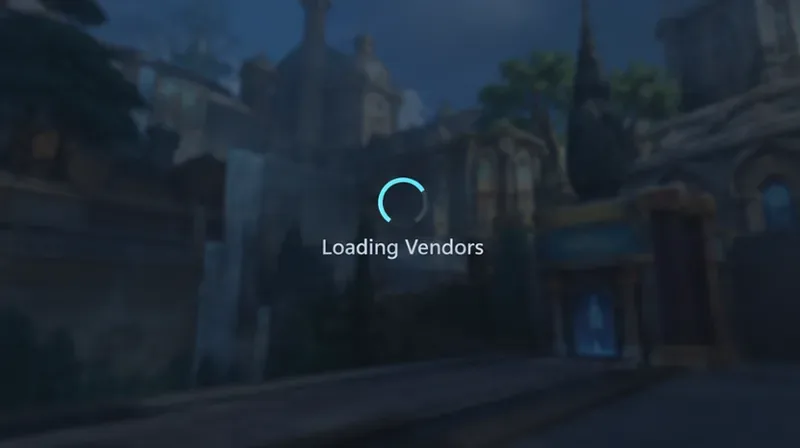
The message alone cannot distinguish a service-side stall from a local problem. A game that needs online resources may appear stuck when communication is interrupted; a client that cannot read required local content may also stop advancing. These are diagnostic possibilities rather than proven explanations of this particular Paladins bug.
If the issue started suddenly, look for dated announcements from official Paladins or Hi-Rez communication channels available through the game’s publisher pages. Compare what is reported with the time and region of your problem. If many players are reporting the same login or loading failure at that moment, keep local changes to a minimum and test again after official confirmation of recovery.
A lack of an official outage notice does not prove the servers are healthy; reports can lag behind an incident. Likewise, an old forum post about “Loading Vendors” is not evidence that the same cause applies today. Avoid changing DNS or deleting configuration files solely on the strength of an unverified anecdote.
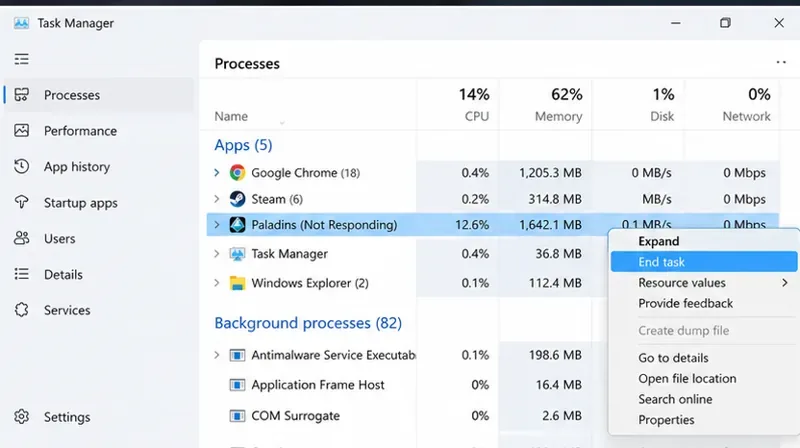
First exit the game normally. If the window is frozen, open Windows Task Manager with Ctrl+Shift+Esc, locate Paladins under Processes, and use End task. Close Steam fully using Steam > Exit rather than only minimizing the window. Start Steam again, let any pending game update finish, and then launch Paladins. If a restart of Steam does not help, reboot Windows once to clear temporary process and network state.
Do not repeatedly force-quit while an update is being installed or while Steam is verifying files. Wait for those operations to complete before another launch attempt.
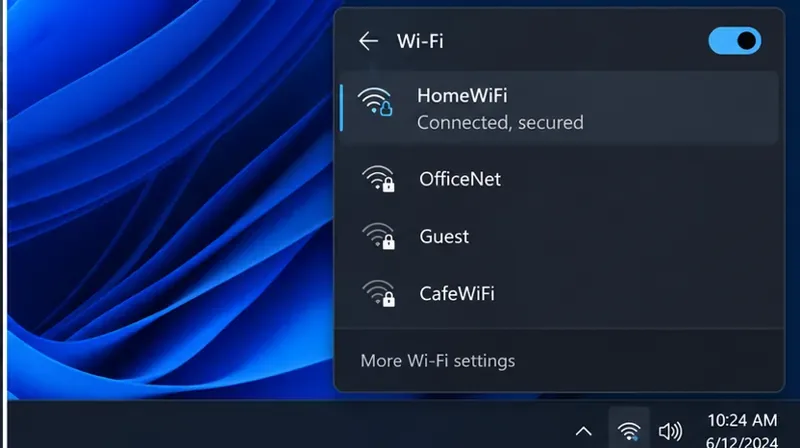
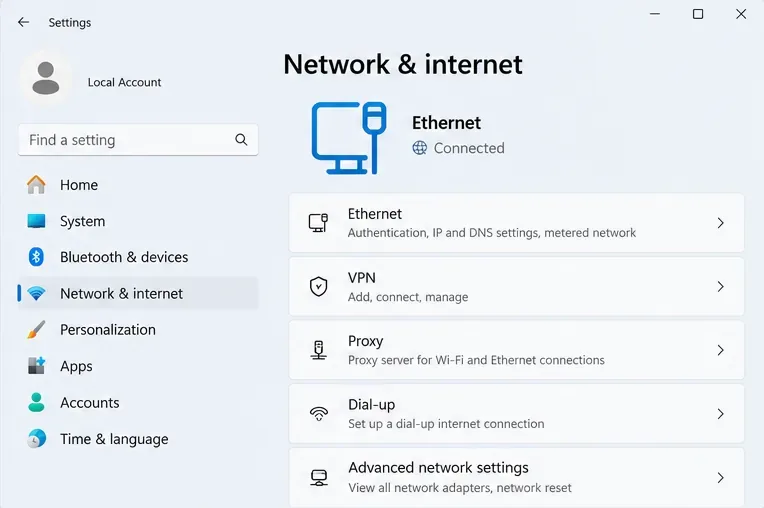
Open an ordinary website or another online service to check whether your connection is functioning, then verify that Paladins is not the only program having problems. If you are on Wi-Fi, try moving closer to your router or using a wired Ethernet connection temporarily. Pause large downloads, disconnect an optional VPN or proxy for one controlled test, and restart the router only if you are authorized to manage it.
Test one change at a time. For example, if Paladins loads over another trustworthy network but not your home connection, the difference points toward your home network, ISP route, or local filtering—not necessarily a damaged game installation. A phone hotspot can be a short diagnostic test, but data usage and mobile-network restrictions apply. Do not disable your firewall permanently just to see whether the game opens.
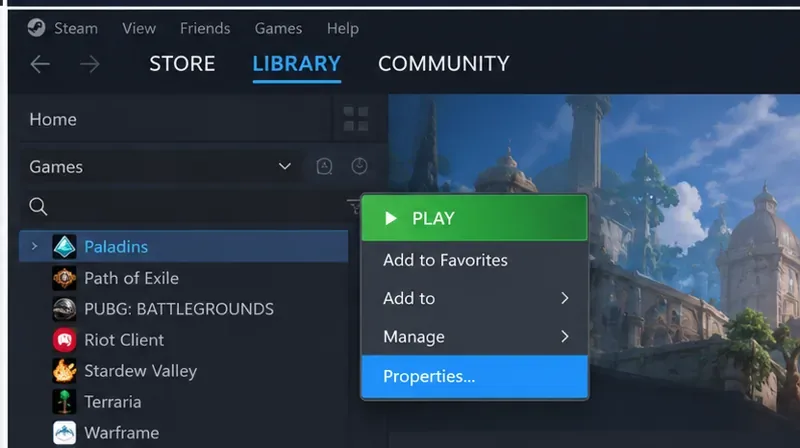
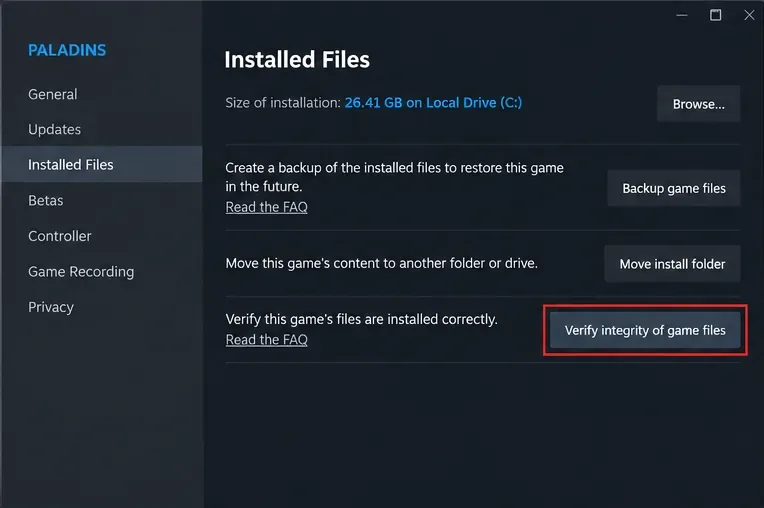
Steam provides an official integrity checker for installed games. The steps in Steam Support’s file-integrity instructions are: open your Library, right-click Paladins or use its gear icon, select Properties, open Installed Files, and choose Verify integrity of game files. Let Steam finish the scan and any necessary replacement downloads before launching the game.
This procedure checks local content; it does not repair an offline authentication service or guarantee that a vendor-loading issue will disappear. Steam also notes that certain local configuration files may be reported as not matching without representing a serious problem. If the scan completes without repair, record that fact instead of running the scan over and over without other evidence.
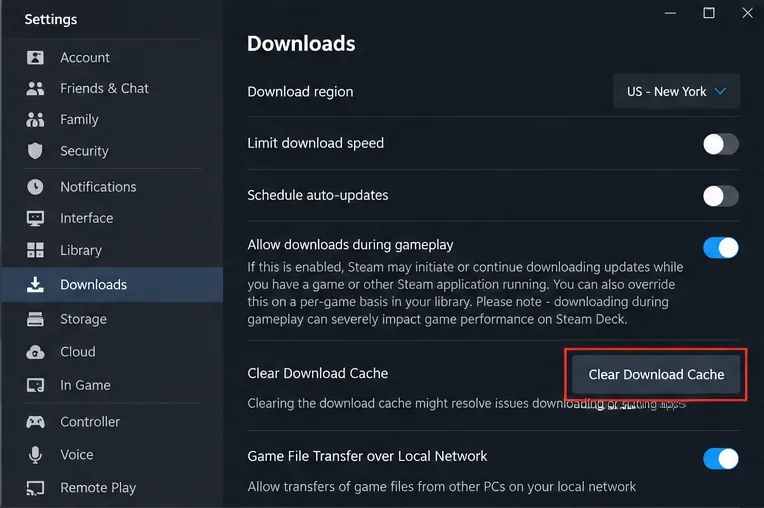
If Steam cannot complete an update, keeps retrying a download, or displays download errors, its cache is a more relevant suspect than when the game has updated successfully. Open Steam Settings, choose Downloads, and select Clear Cache or Clear Download Cache (wording can vary by Steam client version). Steam may require you to sign in again. The official Steam update and installation troubleshooting page documents this approach for download and installation problems, not specifically for Paladins “Loading Vendors.”
Once back in Steam, confirm that downloads are finished. Do not delete arbitrary Steam folders or workshop data in the hope of a faster fix.
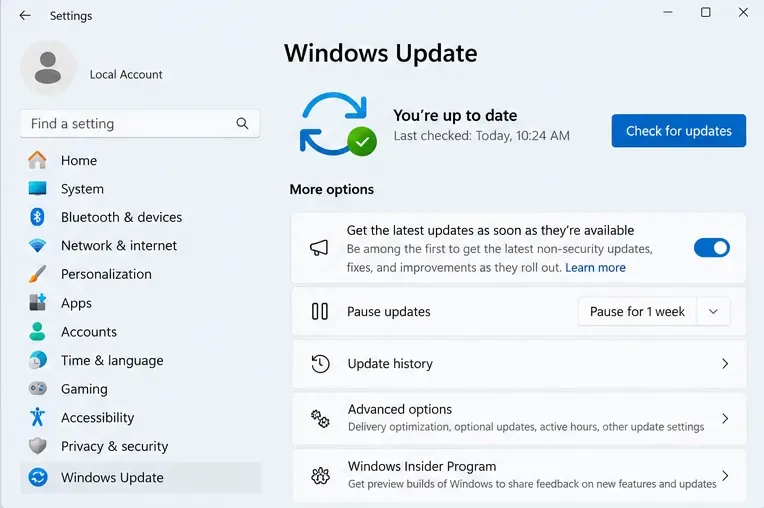
From Windows Settings, open Windows Update and check for pending operating-system updates. Install relevant stable updates and restart if requested. Confirm that your system drive and game-installation drive have free space for downloads and temporary files. If display driver failures, crashes, or black screens accompany the loading stall, check the driver update channel provided by your GPU manufacturer instead of installing an unknown “game fix” package.
The official Paladins Steam store listing specifies a broadband connection among its recommended PC requirements and lists 30 GB of available storage. Those figures are store requirements, not a diagnosis of your particular error. A machine meeting requirements can still have intermittent online failures.
If the game still hangs, close unnecessary background applications and temporarily turn off nonessential game overlays using their own settings. Run a controlled launch, then restore normal settings after the test. For security software, review quarantine records and blocked-application notices; allow the legitimate installed game only when you can verify the program and rule. Avoid disabling antivirus protection or adding broad folder exclusions without evidence.
A difference after disabling one overlay is a clue, not proof of a game-wide defect. Re-enable other tools one by one to find a reproducible conflict. If the issue occurs only under a managed school, workplace, or shared network, contact the network administrator instead of attempting to bypass network policy.
Reinstallation is a last resort, especially when the game files already passed Steam verification. Before uninstalling, write down whether the failure occurs before login, after login, or only when entering a particular game mode. Note the exact wording, the local time, whether the problem also appears on another network, and what you already tried. Capture a screenshot without exposing private account information.
If you decide to reinstall through Steam, first check any local settings or files you want to preserve. Uninstall through your Steam Library, restart if needed, reinstall to a healthy drive with sufficient space, and test with default launch settings. Reinstallation cannot guarantee a fix for a service-side or account-side problem. If the same failure returns immediately, stop repeating the process and seek support through the official publisher channels associated with Paladins on Steam.
A meaningful success check is more than seeing the loading message vanish for an instant. Launch the game normally, proceed beyond the stalled stage, load the relevant menu or mode, and—if possible—complete a normal session without being returned to the same screen. Quit and relaunch once to see whether the improvement persists. If the issue is intermittent, a single successful attempt cannot establish that the underlying cause is gone.
For a Paladins infinite “Loading Vendors” screen, start by checking for a current service incident, fully restarting Paladins and Steam, and testing the network. Next, use Steam’s documented file verification, escalating to cache, system, and software-conflict checks only when their symptoms fit. Preserve your evidence and avoid destructive fixes or unofficial downloads. Because an exact vendor-loading root cause has not been officially verified here, the strongest approach is an orderly test that narrows the problem rather than a promise that any single button will solve it.
Enable PUBG’s network statistics HUD to monitor ping and packet loss in a match. See where to find it, what the numbers mean, and what they cannot diagnose.
Learn how to import VALORANT crosshair codes, compare presets with manual settings and spectator copy, and fix common import issues.
Choose Dota 2 minimap size, hero icons, team colors, and background settings by readability, fewer misclicks, and clear results on your own display.
Fix Fortnite texture pop-in on PC with official steps for GPU drivers, file verification, DirectX 12, high-resolution textures, VRAM, SSDs, and stutter.
Learn what Heroes of the Storm minimap size and position options are verified, improve readability, and choose camera-click controls that suit you.
Set Super Smash Bros. Ultimate Quickplay to prefer hazards-off stages. Follow the Preferred Rules menu steps and learn why matchmaking may not always honor them.
Enable Server Latency and Packet Loss in Warzone to monitor connection quality, read the overlay, and use recurring spikes to guide troubleshooting.
Learn how to carry from mid lane in League of Legends by setting up waves, choosing safe roam windows, reading side lanes, and converting pressure into objectives.
Fix Minecraft Evoker spell problems with a safe vanilla test, version checks, log review, and a step-by-step way to isolate mod or datapack conflicts.
Fix PUBG stuck on Initializing on Steam with a focused checklist for PC service notices, launch options, game files, downloads, and connection issues.








