How to Check Real-Time Server Latency in the PUBG HUD

Enable PUBG’s network statistics HUD to monitor ping and packet loss in a match. See where to find it, what the numbers mean, and what they cannot diagnose.
If the Paladins item shop key works in menus but does nothing during a match, it is easy to assume the shop is broken. First separate three different problems: the shop window does not open, the window opens but purchases do not go through, or the game is using a different input device than the one you are pressing. Each points to a different fix.
The steps below start with quick checks and move toward repair. They focus on PC keyboard and mouse; console players should use the controller prompts and platform support path. Menu labels can vary between platforms and game builds, so use the active controls shown in your own client rather than relying on an old default-key list.
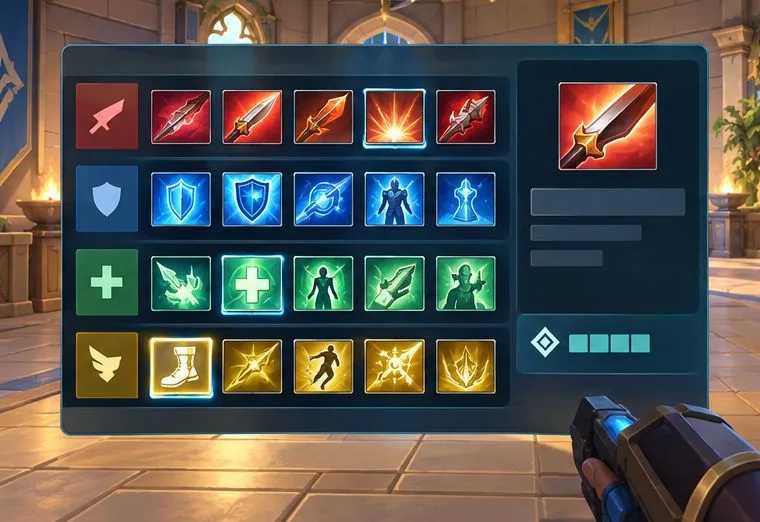
Paladins’ official New & Returning Player Guide, published June 24, 2024, says that players spend Credits on items in the spawn area and that Auto Purchase is enabled by default. That means a purchase being unavailable while you are away from spawn is not proof that the shop key is broken. It also means an item appearing automatically may be an Auto Purchase setting, not a keypress being registered.
Test the key when your Champion is safely in spawn. Note whether the shop interface appears, whether it appears but ignores clicks, or whether it opens and the item purchase is disabled. This simple distinction prevents you from changing bindings to fix a purchase restriction.
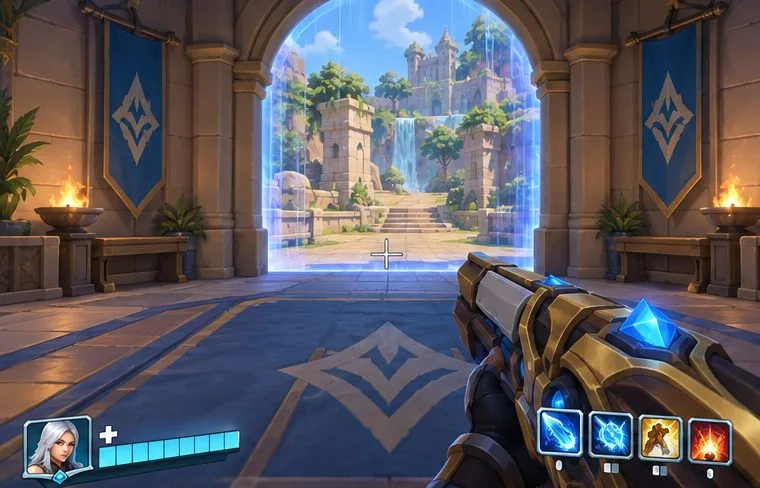
Do not assume that a key listed on an older wiki or forum post is still your key. Paladins has had changes to its menu and item-store interface; the official Wild Hoard update notes from January 2024 describe changes to the shop UI. Your personal binding, platform, and current client are the useful references for troubleshooting.
The exact tab names and whether a second binding is available can differ by platform or client build. If the control page does not show a separate item-shop action, do not guess a hidden command or copy a console command from an old guide. Use the visible in-game options and contact Hi-Rez support if the action is missing.
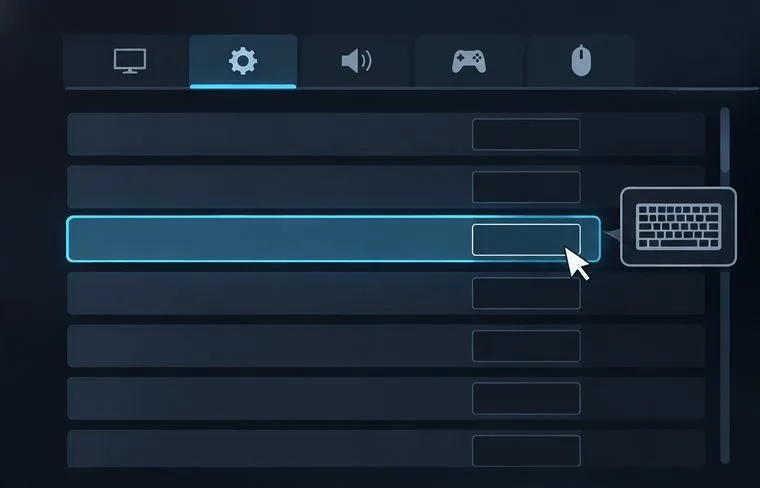
If a different key opens the shop, the old binding or a conflict was likely involved. Keep the temporary key long enough to test it in another match or training session, then decide whether to keep it. If the shop opens but mouse clicks fail, the binding is doing its job; troubleshoot pointer input or the open panel instead.
Auto Purchase can also make the result confusing. The official player guide says it is enabled by default and can be disabled for manual selection. If the shop panel opens but items are being selected automatically, look for the Auto Purchase control inside the store; do not remap the open-shop key to solve an auto-buy preference.
If the action is correctly assigned but fails across matches, restart Paladins and the launcher, then test again before making deeper changes. If you play on PC and the problem persists, use your launcher’s built-in file verification: Steam’s Verify Integrity of Game Files or Epic’s Verify feature. These utilities check the local install; they are a later step, not the first thing to try for one misassigned key.
Avoid editing configuration files or deleting settings folders unless support gives you instructions for your exact platform and build. Those changes can reset other controls and make it harder to identify the cause. If the in-game action is missing, the new binding does not persist, or the shop key fails while other keys work normally, submit a request through the Hi-Rez Paladins Help Center. Include your platform and launcher, the action and key you tested, whether the shop window opens, and whether the problem happens only in matches. A short clip can help show the difference between a key that does nothing and a shop that opens but cannot complete a purchase. Never include your password.
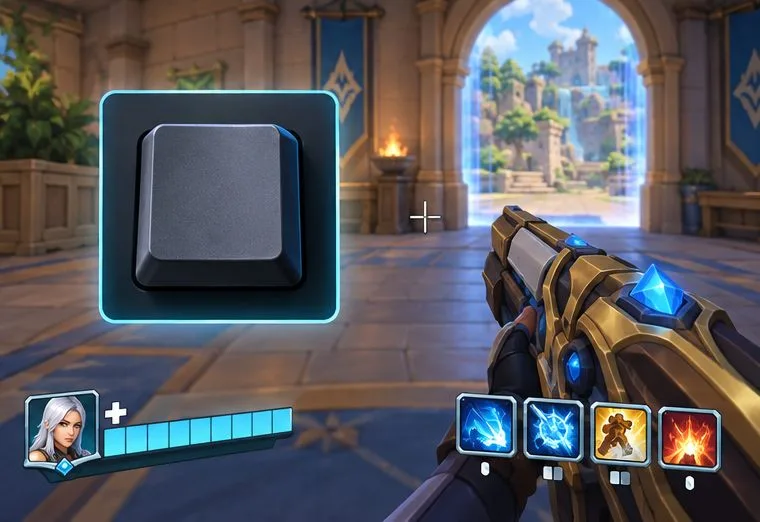
After changing a binding, restart the game once and confirm the chosen key is still displayed in the active controls page. Then enter a match or training area, wait in spawn, close chat and other panels, and press the key once. A successful fix has a clear sign: the item-store panel opens reliably. If it opens, confirm that the pointer or controller can select an item and that a purchase is permitted in the current context. If the panel opens but buying does not work, revisit spawn, Credits, item limits, and Auto Purchase instead of rebinding again.
If a new key works but your original one does not, keep the working assignment and avoid adding complexity until you have confirmed it stays saved. If no key works but other gameplay inputs do, report the reproducible issue to support. If all keyboard input fails, troubleshoot game focus or the input device first. This check gives you a useful result either way: a reliable keybind, a separate diagnosis for purchasing, or clear evidence for a support report.
The platform and match-context guidance above uses Hi-Rez’s Paladins player guide (June 24, 2024) and official Paladins update notes on Steam (January 2024). I could not verify a current official Paladins page that lists one universal default item-shop key or provides a dedicated fix for this exact bug. Treat the live binding displayed in your client as authoritative; menu labels and inputs may vary by platform or later updates.
Enable PUBG’s network statistics HUD to monitor ping and packet loss in a match. See where to find it, what the numbers mean, and what they cannot diagnose.
Learn how to import VALORANT crosshair codes, compare presets with manual settings and spectator copy, and fix common import issues.
Choose Dota 2 minimap size, hero icons, team colors, and background settings by readability, fewer misclicks, and clear results on your own display.
Fix Fortnite texture pop-in on PC with official steps for GPU drivers, file verification, DirectX 12, high-resolution textures, VRAM, SSDs, and stutter.
Learn what Heroes of the Storm minimap size and position options are verified, improve readability, and choose camera-click controls that suit you.
Set Super Smash Bros. Ultimate Quickplay to prefer hazards-off stages. Follow the Preferred Rules menu steps and learn why matchmaking may not always honor them.
Enable Server Latency and Packet Loss in Warzone to monitor connection quality, read the overlay, and use recurring spikes to guide troubleshooting.
Learn how to carry from mid lane in League of Legends by setting up waves, choosing safe roam windows, reading side lanes, and converting pressure into objectives.
Fix Minecraft Evoker spell problems with a safe vanilla test, version checks, log review, and a step-by-step way to isolate mod or datapack conflicts.
Fix PUBG stuck on Initializing on Steam with a focused checklist for PC service notices, launch options, game files, downloads, and connection issues.








