Mouse Cursor Vanishing in League of Legends? 7 Fixes to Try
If your mouse cursor is disappearing in League of Legends, start by restoring the game window’s focus, then test a different display mode and check the in-game cursor settings. If the pointer also disappears outside the match, troubleshoot Windows or the mouse itself. Work through these fixes in order, testing in Practice Tool after each change so you can identify what helped.
There is no single confirmed cause for every missing cursor, and no setting can guarantee an instant fix. A cursor that vanishes only after switching windows points to a different problem than a mouse that stops moving everywhere.
The interface images below are illustrations, not captured game or Windows screenshots. Menu layouts and wording can vary by client build, operating system, and localization.
First, identify when the cursor disappears
| What you notice | Start with |
|---|---|
| It disappears after Alt+Tab or opening an overlay | Restore game focus, change display mode, then disable overlays |
| It is hard to see but still moves | Increase the in-game cursor scale or contrast |
| The pointer also vanishes on the desktop | Check Windows pointer options and test another mouse |
| It started after a patch or settings change | Reset the game configuration after simpler checks |
1. Restore focus and test a different display mode
Click once inside the League match window. If the cursor is still missing, press Alt+Tab to switch to another app and back, then tap Esc to open and close the in-game menu. This can restore input focus after an interruption.
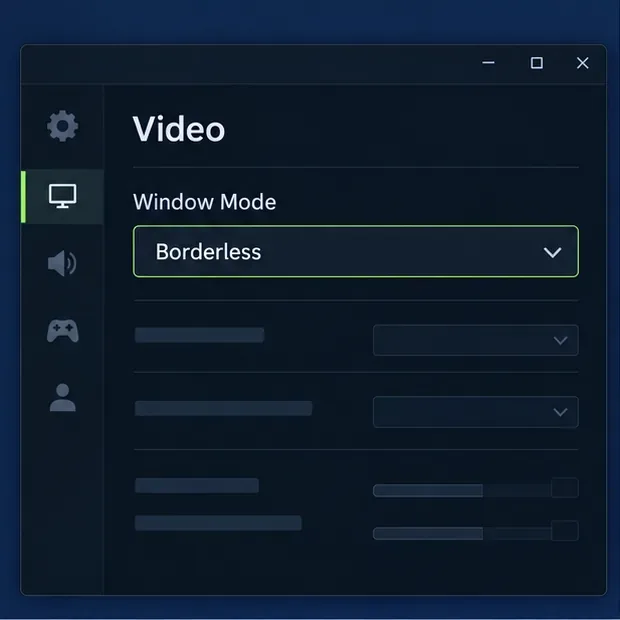
If the problem returns, open the in-game settings and select the Video tab. Change Window Mode from Fullscreen to Borderless or Windowed, apply the change, and test again. You can also set the game to your monitor’s native resolution. A different mode is a troubleshooting test, not a guaranteed fix; switch back if it causes performance or display problems.
2. Make the in-game cursor easier to see
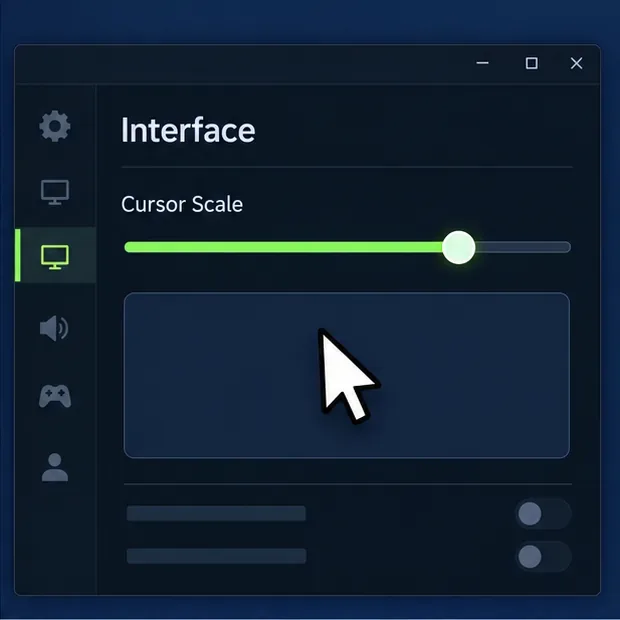
Open Settings > Interface during a match and raise Cursor Scale a few steps. A cursor that blends into a team fight can feel missing even while it is still on screen. If your settings include Enable Legacy Cursor, toggle it once and check whether the alternate cursor is easier to track. Keep the option that works for you, then test movement and clicks in Practice Tool.
3. Turn off overlays temporarily
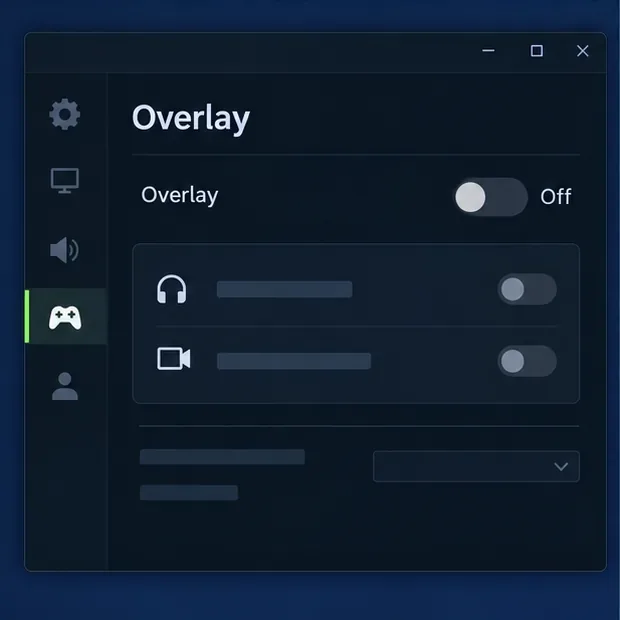
Overlays from chat, recording, or graphics apps can draw over a game or interfere with its input. Riot’s current overlay troubleshooting guide covers apps including Discord, NVIDIA ShadowPlay/Share, Xbox Game DVR, Overwolf, and Razer Stats.
Disable one overlay at a time, fully restart League, and test. In Discord, check User Settings > Game Overlay and turn off the overlay globally or for League. In NVIDIA’s app, temporarily disable the in-game overlay. If the cursor returns, re-enable other overlays one at a time to find the conflict.
4. Check Windows pointer visibility settings
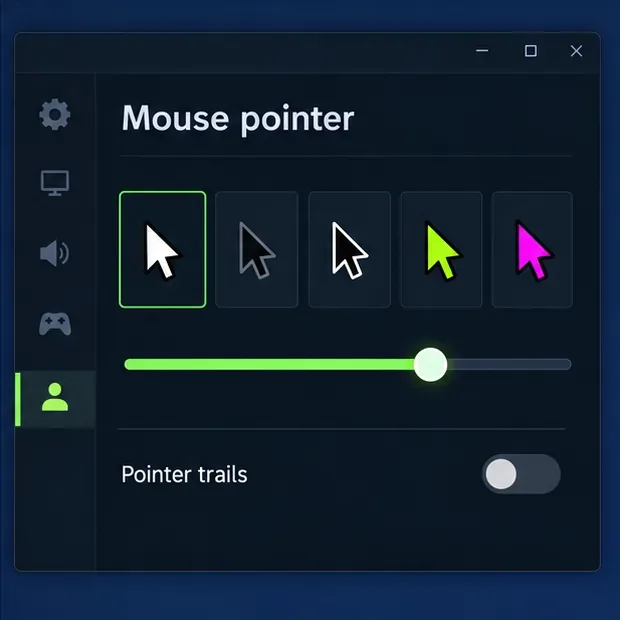
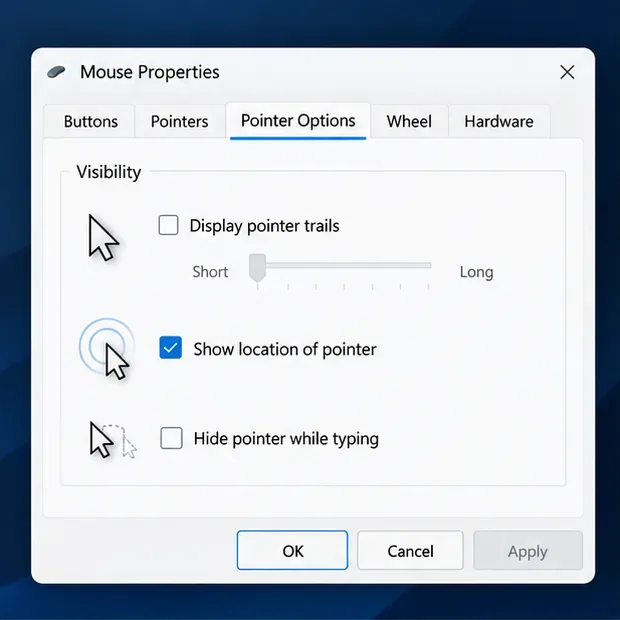
On Windows 11, open Settings > Accessibility > Mouse pointer and touch. Try a larger pointer or a high-contrast style if the pointer is difficult to distinguish. Under Settings > Bluetooth & devices > Mouse > Additional mouse settings > Pointer Options, check whether Hide pointer while typing is enabled if the issue happens as you type in chat. Microsoft documents these pointer options in its mouse settings guide.
Windows pointer styling may affect the desktop pointer without changing League’s game-rendered cursor, so use this check mainly to see whether the issue is system-wide. Pointer trails are an optional visibility aid; they are not a repair for a cursor that stops responding.
5. Test the mouse outside the match
Move the pointer around the desktop and another app. If it freezes or vanishes there too, reconnect the mouse, try another USB port, check the battery on a wireless model, or test a different mouse. Riot’s keyboard and mouse troubleshooting guide recommends trying another peripheral to determine whether the original device is at fault.
You can also enable Windows’ “Show location of pointer when I press the CTRL key” option in Pointer Options, then press Ctrl on the desktop. This only helps locate the Windows pointer; it does not prove that the in-game cursor is visible.
6. Update the mouse or graphics driver from its manufacturer
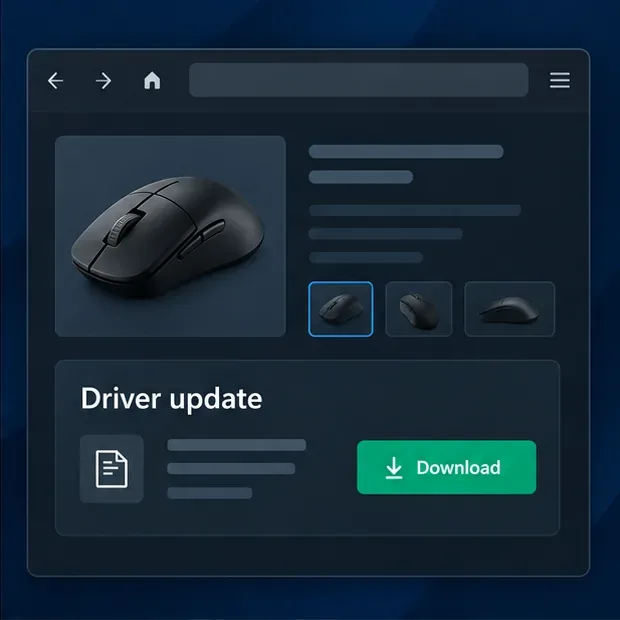
If the cursor also stutters, jumps, or fails in other apps, install the current driver for your mouse from its manufacturer. If the problem began after a graphics change or appears to be a rendering issue, check your GPU driver too. Riot explains how to identify and update NVIDIA, AMD, and Intel graphics drivers in its graphics driver guide, and its input troubleshooting page also recommends current device drivers.
Use the official support page for your exact device model, restart Windows after installation, and retest. Avoid installing several driver utilities at once; that makes it harder to tell which change affected the problem.
7. Reset League’s configuration, then repair or contact support
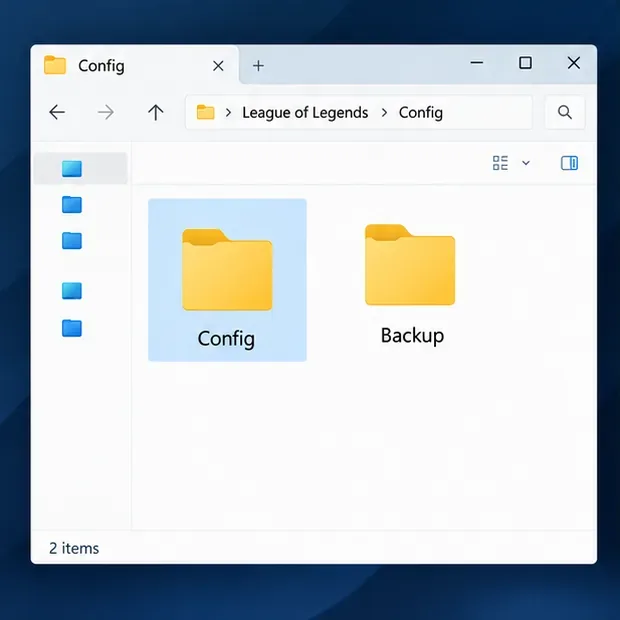
A damaged settings file can affect input. Before resetting, close League and the Riot Client and copy your current settings somewhere safe. The default League configuration folder is C:\Riot Games\League of Legends\Config; if you installed the game elsewhere, use that location instead. Riot’s Reset Configuration Files instructions explain the reset sequence. It can restore defaults, so expect to reconfigure your preferences afterward.
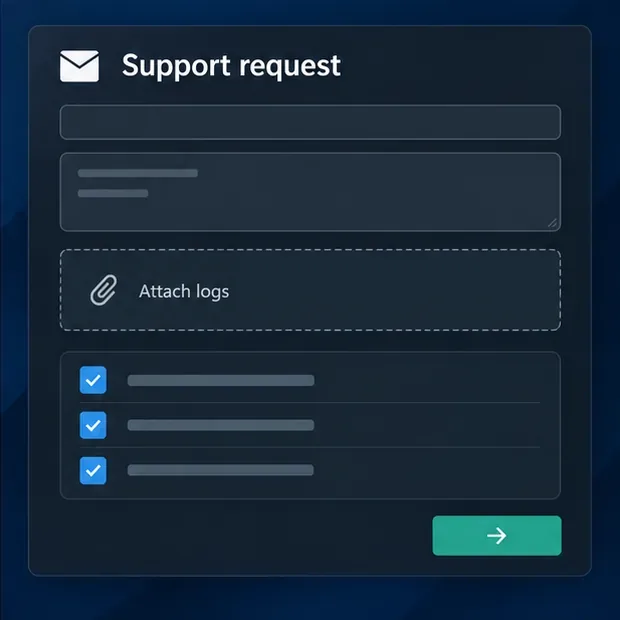
If the cursor still disappears after a clean configuration test, follow Riot’s standard uninstall and reinstall instructions, or submit a support ticket. Riot’s Riot Repair Tool guide explains how to attach diagnostic logs so support can investigate the issue.
When the cursor is back
Return to your preferred display and cursor settings, re-enable overlays only if you need them, and play a short Practice Tool session before queueing. If the mouse works on the desktop but the League of Legends cursor still vanishes, tell Riot Support which display mode you use, when the issue occurs, whether overlays are enabled, and which steps you tested. That detail helps separate an in-game rendering problem from a device or Windows input problem.









