How to Check Real-Time Server Latency in the PUBG HUD

Enable PUBG’s network statistics HUD to monitor ping and packet loss in a match. See where to find it, what the numbers mean, and what they cannot diagnose.
If Minecraft Java Edition crashes with java.lang.NullPointerException or a blank “empty” message, the exception alone does not identify the cause. A mod, game code path, server plugin, or world-specific problem may be involved. The useful clues are the crash report and what you were doing when it happened. Back up your world, test a clean profile, then isolate the failing mod or environment instead of deleting files or changing Java settings at random.
In Java, a NullPointerException (NPE) is thrown when code tries to use a reference that has no object assigned to it. Java permits an NPE to have no detail message, so a blank message is not a separate “empty error” with one universal fix. The stack trace may still show where the failure occurred. If the report is incomplete, logs/latest.log may contain more context.
Notice the pattern before troubleshooting: does Minecraft crash at launch, while loading every world, in one world only, after a particular action, or only on a multiplayer server? That distinction narrows the search far better than the exception name by itself.
Close Minecraft. Copy the affected world from the game directory’s saves folder to a separate, safe location before making changes. A custom launcher or profile may use a different game directory, so check that installation’s settings rather than assuming the default folder.
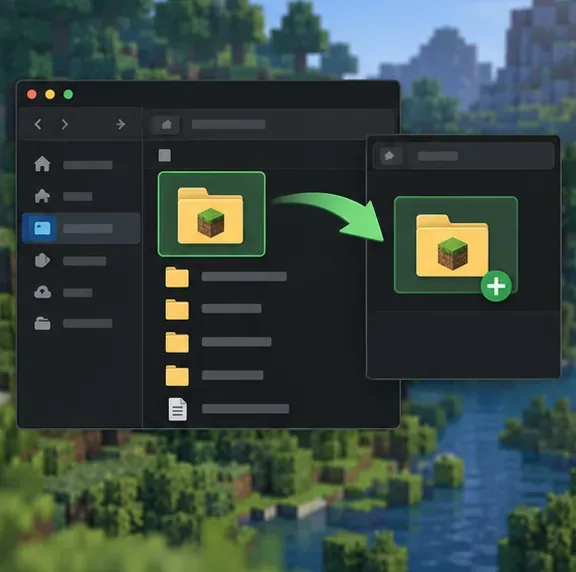
Open the newest file in crash-reports. If no crash report was created, inspect logs/latest.log. Search for java.lang.NullPointerException, then read the nearby stack-trace lines and any “Caused by” section. Record the Minecraft version, loader, mods, and the action that triggered the crash. On Fabric, the report’s system details and mod list can help identify compatibility clues. A mod name in a trace is a lead, not automatic proof that the mod itself is defective.
In the Minecraft Launcher, create a new Java installation for the same Minecraft version, with no mod loader or mods. Give it a separate game directory if that option is available, so it does not reuse the modded profile’s configuration and files. Start a new test world first; do not use the only copy of the affected save for the baseline test.
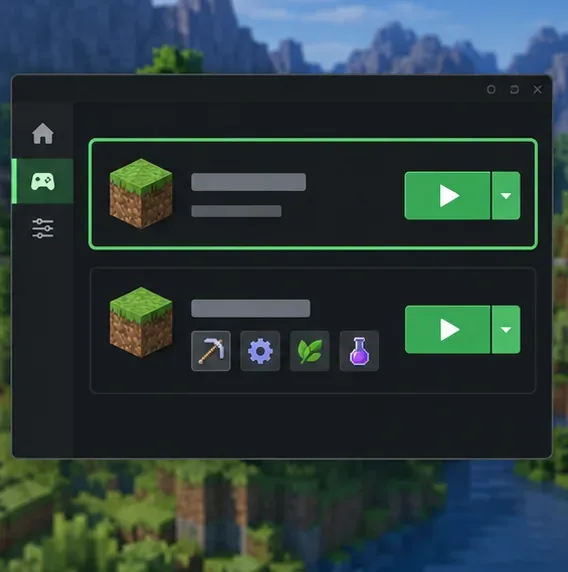
If the clean profile works, focus on the old profile’s mods, loader, settings, and custom JVM arguments. If it crashes too, keep the report and try a fresh installation as described in Minecraft’s launcher troubleshooting guide. This comparison helps locate the problem; it does not prove that a world or installation is corrupt.
If vanilla works but the modded profile fails, verify that every mod build matches the exact Minecraft version and loader used by that profile. Check required dependencies and remove or disable the most recently added or updated mods first. Do not mix mods made for different loaders, such as Fabric and Forge, in the same installation.
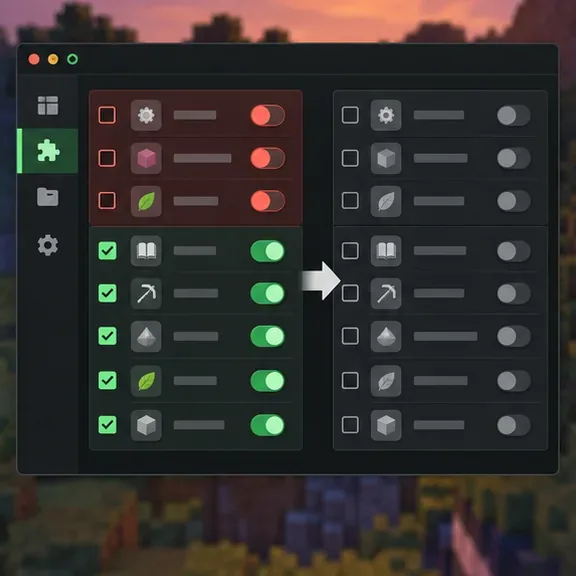
When the recent change is unclear, disable half the mods, test, and repeat with the failing half. This “binary search” is faster than toggling every mod one at a time in a large pack. Restore the original set between tests or work on a copied profile. Once you find a likely conflict, check for an updated compatible release or report the crash log to the mod author. Avoid deleting the whole config folder; if evidence points to one mod’s configuration, back it up and rename only that specific file for a reversible test.
If only one world crashes, test a new world in the same profile. That result suggests a world-specific trigger, but it does not prove save corruption. Keep the backup intact and avoid editing region or NBT files with third-party tools unless you understand the risks and are working on a copy.
For the Java runtime, first use the runtime selected or managed by your launcher. If you use a custom launcher or manually selected Java executable, confirm it meets the requirements for that Minecraft version and loader. Do not install a specific Java release just because an NPE appeared; a runtime mismatch often produces a different error. Likewise, do not paste in a fixed -Xmx8G argument as a general NPE fix. Restore default JVM arguments before testing, and change memory only when the evidence points to allocation or performance trouble. Minecraft’s memory-allocation guidance recommends backing up worlds before changing settings.
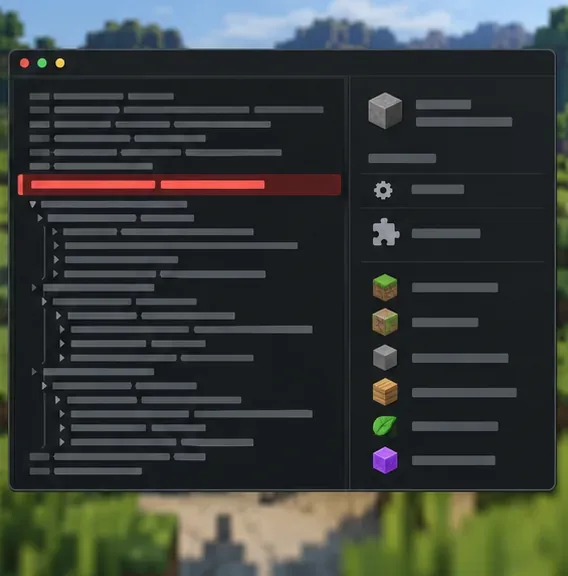
If the crash occurs only when joining a multiplayer server, save your client log and report the time and action to the server administrator. The server’s own logs and plugins may be involved, and a player cannot repair server-side code locally.
| What happens | First useful test |
|---|---|
| Crash begins after adding or updating a mod | Disable that change, then check version and dependency compatibility. |
| Vanilla works, modded profile crashes | Isolate mods in batches and compare the stack trace with the mod list. |
| Only one world crashes | Back it up and compare with a new world in the same profile. |
| Crash happens only on one server | Share the client log with the admin so they can check server logs and plugins. |
| Both clean and modded profiles crash | Use a new installation and review the new crash report before changing Java or memory. |
A crash report is more useful than a screenshot of the error popup. Share the full report with the relevant mod author or server administrator, but review it first for private details such as your computer username, local file paths, or server address. Fabric’s crash-report guide explains the report sections, stack traces, mod list, and log-sharing process.
For prevention, keep backups of important worlds, use a separate game directory for each modpack, and confirm compatibility before updating Minecraft, the loader, or several mods together. Change one variable at a time and keep a short note of what you changed. That makes the next Minecraft NullPointerException easier to trace—and makes it much less likely that troubleshooting will put a valued world at risk.
Enable PUBG’s network statistics HUD to monitor ping and packet loss in a match. See where to find it, what the numbers mean, and what they cannot diagnose.
Learn how to import VALORANT crosshair codes, compare presets with manual settings and spectator copy, and fix common import issues.
Choose Dota 2 minimap size, hero icons, team colors, and background settings by readability, fewer misclicks, and clear results on your own display.
Fix Fortnite texture pop-in on PC with official steps for GPU drivers, file verification, DirectX 12, high-resolution textures, VRAM, SSDs, and stutter.
Learn what Heroes of the Storm minimap size and position options are verified, improve readability, and choose camera-click controls that suit you.
Set Super Smash Bros. Ultimate Quickplay to prefer hazards-off stages. Follow the Preferred Rules menu steps and learn why matchmaking may not always honor them.
Enable Server Latency and Packet Loss in Warzone to monitor connection quality, read the overlay, and use recurring spikes to guide troubleshooting.
Learn how to carry from mid lane in League of Legends by setting up waves, choosing safe roam windows, reading side lanes, and converting pressure into objectives.
Fix Minecraft Evoker spell problems with a safe vanilla test, version checks, log review, and a step-by-step way to isolate mod or datapack conflicts.
Fix PUBG stuck on Initializing on Steam with a focused checklist for PC service notices, launch options, game files, downloads, and connection issues.








