Home
» 🎮 Esports
»
Minecraft Error 437 Virus Scare: Is the Warning Real?
Minecraft Error 437 Virus Scare: Is the Warning Real?
Minecraft Error 437 Virus Scare: Is the Warning Real?
A browser message claiming Minecraft Error 437 means your computer has a virus is not proof that Minecraft detected malware. The official Minecraft support material reviewed does not identify Error 437 as a Minecraft virus alert. A web page or notification can display any warning it wants, so treat the message as untrusted: do not click its scan button, download a “fixer,” call a phone number, or give anyone remote access.
If the alert appeared only in a browser tab, close the page and check the site’s notification permissions. If you downloaded or ran a file, or your browser keeps redirecting you, use a trusted security scan and investigate further. The steps below separate a fake warning from signs that deserve a closer look.
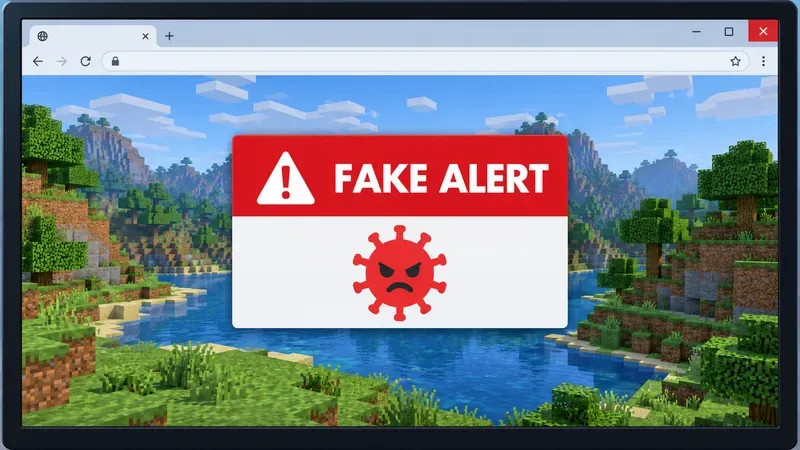
The red “FAKE ALERT” panel is an illustrative scare message, not an official Minecraft error screen.
What does Minecraft Error 437 actually mean?
There is no verified evidence in the Minecraft support pages checked for this rewrite that an “Error 437” alert is a built-in Minecraft virus detector. A real game or launcher problem should appear in the game or launcher context and should be checked against Minecraft’s official Help Center. A webpage that uses Minecraft’s name does not become an official diagnostic.
A browser message is not a Microsoft Defender result or an official Minecraft diagnosis. Verify problems with Windows Security and Minecraft’s own support channels.
“I must download the official Error 437 fixer.”
Do not install software from the warning. Go directly to a vendor’s official site if you decide a scan or repair tool is needed.
“My worlds are infected because the alert named Minecraft.”
The name in a pop-up does not establish that local worlds or game files were changed. Back up important worlds before making changes to Minecraft files.
“A clean scan means the popup was a real Minecraft error.”
No. A scan checks the device for threats; it cannot authenticate a message shown by a website.
What to do when the fake virus warning appears
1. Don’t interact with the alert
Do not click “scan,” “remove virus,” or “download,” and do not call a number shown in the message. If the page will not close, close the browser window; if needed, use your operating system’s task manager to end the browser. Reopen the browser without restoring the suspicious tab. The FTC recommends slowing down and using contact details from a company’s official website instead of a pop-up.
2. Block suspicious browser notifications
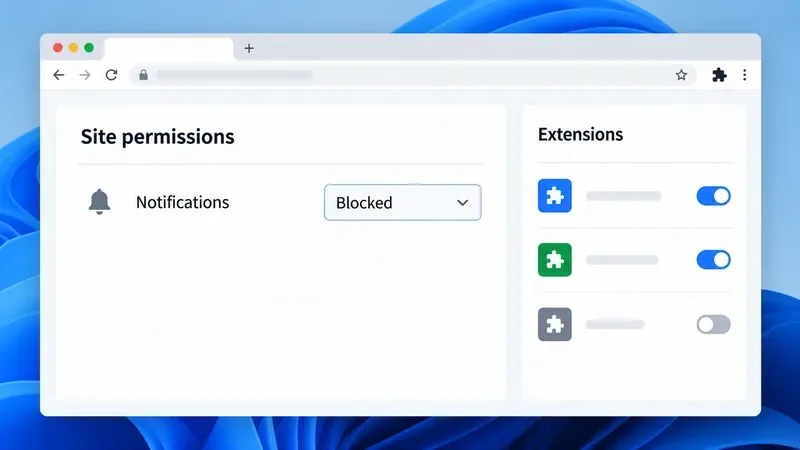
If the warning keeps appearing in the corner of your desktop even when the browser is minimized, it may be a website notification rather than a Minecraft dialog. In Chrome, open Settings → Privacy and security → Site settings → Notifications, then block or remove sites you do not recognize. Google’s Chrome instructions for managing pop-ups and notifications show the current controls. Other browsers have similar site-permission settings.
Use browser site permissions to block a suspicious website’s notifications; review extensions separately.
3. Review extensions and recently installed apps
Remove browser extensions you do not recognize or no longer need, especially if the behavior began after installing one. Check your device’s installed-app list for unfamiliar software added around the same time. On Windows, Google’s cleanup guidance points to Settings → Apps → Installed apps for removing unwanted programs. If your homepage, search engine, or new-tab page keeps changing, follow the browser maker’s reset instructions after removing the unwanted software.
4. Run a trusted security scan
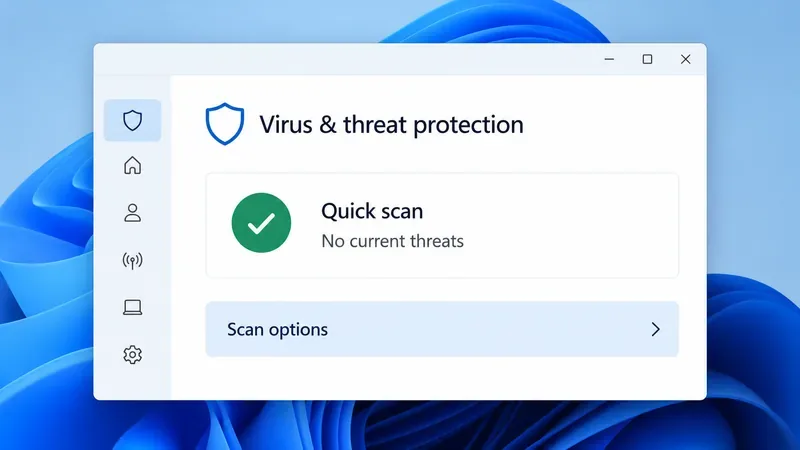
On Windows, open Windows Security → Virus & threat protection and start a Quick scan. If you still see redirects, unwanted programs, or repeated alerts, choose a Full scan. Microsoft Defender Offline is a deeper option that restarts the PC and scans before Windows fully loads, so save open work first. Microsoft explains the available scans in its Windows Security virus and threat protection guide.
Illustrative security dashboard; only a scan run on your own device can report whether it found threats.
If browser symptoms persist and you want a second opinion for adware or browser hijackers on Windows, Malwarebytes offers AdwCleaner from its official website. It is optional; avoid lookalike downloads and never disable security protection because a pop-up tells you to.
When should you worry about malware?
Take a real device scan seriously if you ran an unknown “fixer,” approved a browser extension you cannot identify, or see persistent redirects, unwanted apps, or security settings changing without your permission. If a stranger gained remote access or you entered a password or payment information, disconnect from the session, use a trusted device to change affected passwords, and contact the relevant service through its official website. Do not reuse contact details supplied by the alert.
A single browser scare with no downloaded file and no other symptoms is not enough to conclude that your Minecraft installation or saved worlds are compromised. You can still run a scan for reassurance, then make a separate copy of important worlds before changing game files.
Get Minecraft from an official source
If the Minecraft Launcher itself has a genuine installation or startup problem after you have closed the pop-up, use Minecraft’s official troubleshooting pages. Download or reinstall the Launcher only through the official Minecraft download page or Microsoft Store. Reinstalling Minecraft is not a fix for a browser notification, and a third-party “Error 437 remover” is not an official Minecraft tool.
The practical takeaway is simple: Minecraft Error 437 in a virus pop-up is an unverified claim, not a diagnosis. Ignore the alert, remove unwanted browser permissions if needed, and let trusted security software—not a scare page—check your device.