How to Check Real-Time Server Latency in the PUBG HUD

Enable PUBG’s network statistics HUD to monitor ping and packet loss in a match. See where to find it, what the numbers mean, and what they cannot diagnose.
If a Minecraft world has missing chunks, unexpected terrain, or a crash during creation, start by checking the game version and installed add-ons, then test the seed in a separate world. Minecraft Error 422 is not identified in Mojang’s official release notes or help pages as a standard vanilla seed error, so treat it as a label someone may be using for a particular crash, mod, server message, or online “error version.” The useful question is what your game actually did—and whether the same problem happens in a clean test world.
This guide helps you troubleshoot Minecraft seed and world generation problems without deleting region files, reinstalling Java unnecessarily, or risking your save. The steps apply broadly, but menu names and world storage differ between Java Edition, Bedrock Edition, consoles, and mobile.
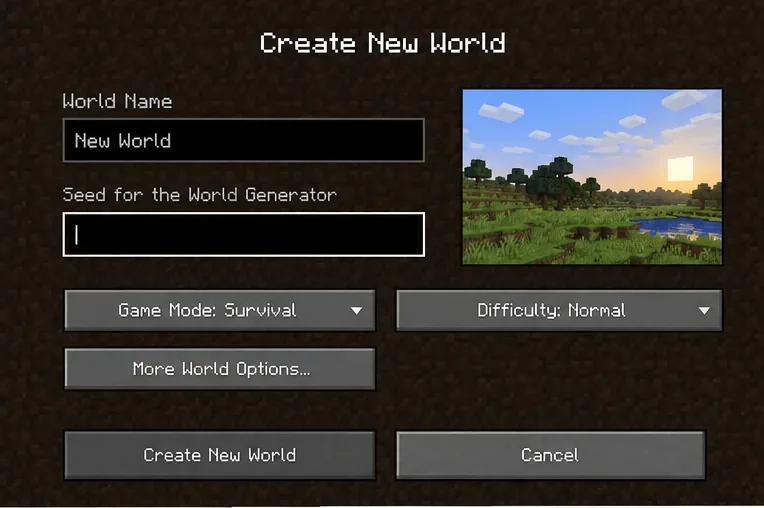
There is no verified Mojang documentation tying an “Error 422” code to oversized seeds, seed validation, a specific Minecraft 1.21 patch, or a known world-generation bug. The old claim that seeds above a certain size cause “generation overflow” is not supported by official documentation. A strange-looking world is not, by itself, proof that its seed is corrupt: terrain can look surprising by design, and maps or seed previews may target a different game version or edition.
World generation is version-sensitive. Mojang’s Java snapshot notes documented a world-generation random-number-generator change during 1.18 development that changed how many seeds generated terrain. That historical example is why a seed preview needs to match the edition and version you actually play. Java and Bedrock have also had cross-edition seed changes over time; do not assume every seed behaves identically on every platform.
| What you see | First check | Safe next move |
|---|---|---|
| The seed creates a different-looking world than a map preview | Edition, exact version, and any generator settings | Re-create a disposable test world using the same settings |
| New chunks do not match terrain already explored | Whether the world was upgraded or played across versions | Back up first; compare in a copy, since old and newly generated chunks can differ |
| World creation hangs or crashes | Crash report, game log, available memory, and recent changes | Try a clean vanilla installation/profile and one test world |
| Only one modded world has a problem | Mod loader, mod versions, data packs, and world-specific settings | Use a copy and test without add-ons; do not remove files from the original |
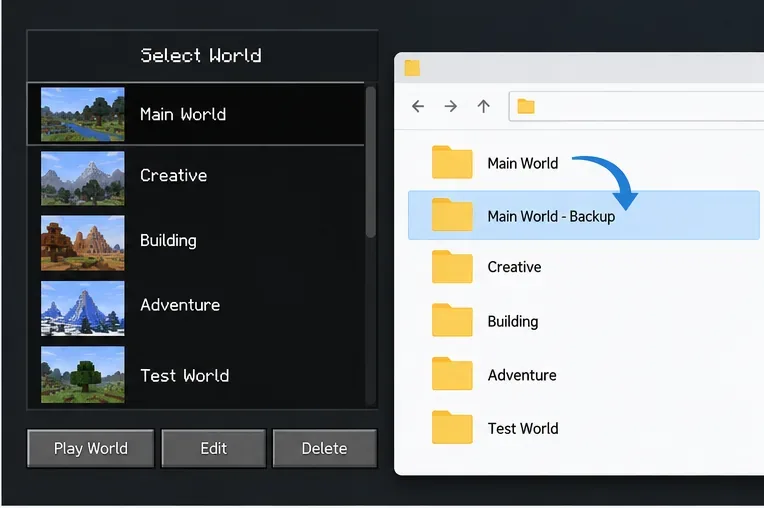
Close the world and make a separate copy before troubleshooting. For Java Edition, use the launcher’s world-folder option or locate the active game directory and copy the entire world folder to a different location. Mojang’s help center also explains how to create a dated ZIP backup of a Java world. Bedrock storage paths vary by device, so use the platform’s export or backup method where available. For a Realm, download or restore a Realm backup using the Realm controls. Confirm the backup exists before continuing.
Write down the seed exactly, along with Java or Bedrock, the full game version, world type, and any experimental options. Create a new test world with the same edition and version. If you are comparing against a seed-map website, set that tool to the same version and edition too. Do not use a random “safe seed” as a repair: a new seed only tests whether world creation works, while it cannot fix an existing world.
If the test world generates normally, the seed is unlikely to be the whole explanation. The affected save may have a version transition, add-on, data pack, or damaged chunk. If the test world also fails, note the exact crash text and gather the log or crash report for the game version you launched.
For Java, launch a separate vanilla profile for the same game version; keep the original modded profile intact. For Bedrock, test a fresh world without behavior packs or add-ons. If the clean test succeeds, re-enable add-ons in small groups in a copy until the issue returns. Then check those projects’ own compatibility notes for the precise Minecraft version and loader. Avoid deleting the game’s entire cache or changing JVM arguments as a first step: neither is a seed-specific fix, and extra memory does not correct incompatible world-generation data.
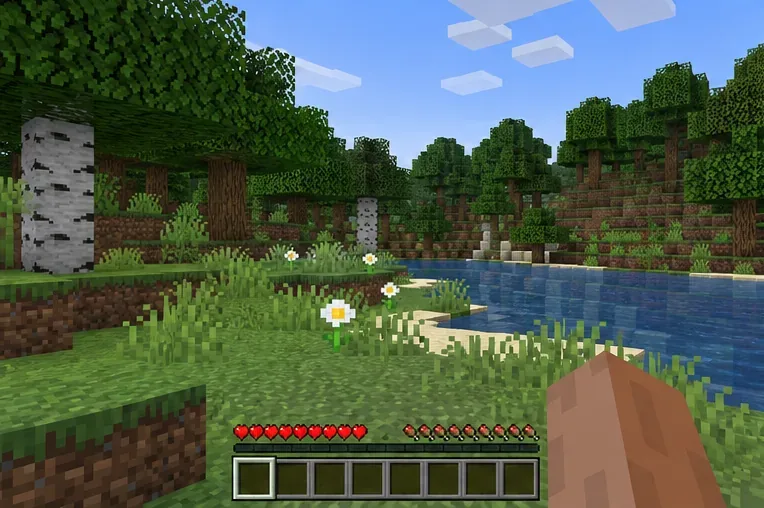
If only one save is affected, compare a copy with a known-good backup. Restore the backup through the game or platform workflow when you need to roll back. Do not delete the region folder as a quick fix: it contains saved chunks, and removing it can erase built areas or cause those chunks to be generated again with different terrain. Mojang’s Java 26.1 notes describe significant world-data-format changes and an upgrade flow for worlds, which makes a backup especially important before major-version transitions.
If a clean vanilla test still reproduces a crash, record the edition, version, seed, world settings, steps to reproduce, and relevant log or crash report. Submit a reproducible bug through the official Minecraft bug tracker. For crashes linked to memory allocation, follow the official Minecraft Java memory troubleshooting guidance rather than copying arbitrary JVM flags from a forum.
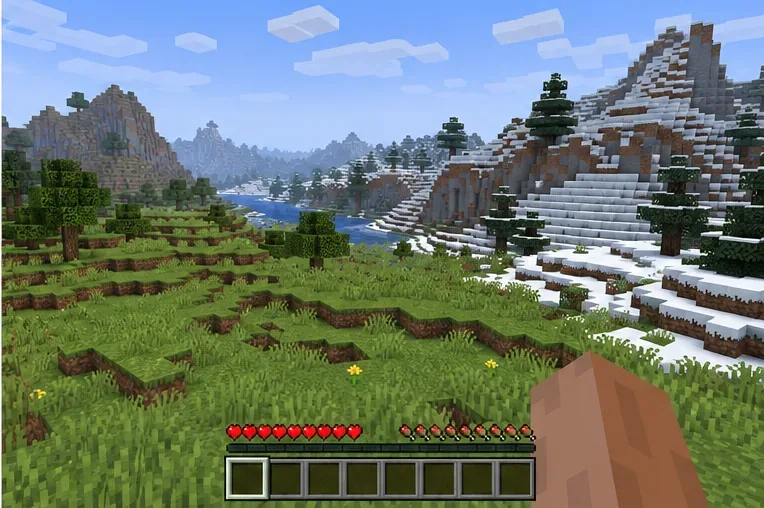
Mojang’s Java 1.21.1 notes describe that release as a hotfix focused on critical exploits—not a seed-validation patch. Release notes for later versions may change independently, so match troubleshooting to the version you are actually running. The practical fix for “Minecraft Error 422” is to identify the real symptom, compare a same-version vanilla test, and protect the original save before any repair.
Enable PUBG’s network statistics HUD to monitor ping and packet loss in a match. See where to find it, what the numbers mean, and what they cannot diagnose.
Learn how to import VALORANT crosshair codes, compare presets with manual settings and spectator copy, and fix common import issues.
Choose Dota 2 minimap size, hero icons, team colors, and background settings by readability, fewer misclicks, and clear results on your own display.
Fix Fortnite texture pop-in on PC with official steps for GPU drivers, file verification, DirectX 12, high-resolution textures, VRAM, SSDs, and stutter.
Learn what Heroes of the Storm minimap size and position options are verified, improve readability, and choose camera-click controls that suit you.
Set Super Smash Bros. Ultimate Quickplay to prefer hazards-off stages. Follow the Preferred Rules menu steps and learn why matchmaking may not always honor them.
Enable Server Latency and Packet Loss in Warzone to monitor connection quality, read the overlay, and use recurring spikes to guide troubleshooting.
Learn how to carry from mid lane in League of Legends by setting up waves, choosing safe roam windows, reading side lanes, and converting pressure into objectives.
Fix Minecraft Evoker spell problems with a safe vanilla test, version checks, log review, and a step-by-step way to isolate mod or datapack conflicts.
Fix PUBG stuck on Initializing on Steam with a focused checklist for PC service notices, launch options, game files, downloads, and connection issues.








