Installing the Riot Games Launcher for Valorant starts with the official Valorant download, not a separate third-party launcher download. Riot calls its PC launcher the Riot Client. Download the Valorant installer, run it on Windows, sign in with a Riot account, and follow the client prompts to install the game. Once Riot Vanguard is ready and any required restart is complete, you can select Play.
This guide focuses on setting up the Riot Client for Valorant on a Windows PC, including what to check before installing, where to find the game, and how to resolve common setup errors. Screen layouts and button positions can vary as Riot updates its client.
Before You Install: PC Requirements and Checklist
Make sure Windows and your hardware meet Riot's current requirements. According to Riot's official minimum and recommended PC specifications, the following basics apply to Valorant:
| Requirement | What to check |
|---|---|
| Operating system | Windows 10 64-bit (build 19041 or later) or Windows 11 64-bit |
| Memory | At least 4 GB RAM |
| Graphics | DirectX 11-capable graphics; dedicated GPUs need at least 1 GB VRAM |
| Processor | A supported x86-64 CPU with SSE 4.2 or AVX; ARM processors are not supported |
| Windows 11 security | TPM 2.0 and UEFI Secure Boot are required for Valorant |
Also have a reliable internet connection, access to a Windows administrator account, and sufficient free space for the game and future updates. There is no dependable fixed download-size figure: installation requirements change with patches, so check the storage estimate shown by your current Riot Client rather than assuming a specific number of gigabytes will always be enough.
Have an existing Riot account ready, or create one during setup. Valorant is free to play; purchasing optional cosmetic content is not needed to install or play. This PC installation process does not apply to the PlayStation or Xbox versions of Valorant.
How to Install the Riot Games Launcher for Valorant
Follow these five steps in order. If an installer combines some of the screens, follow the on-screen prompts instead of looking for an identical button arrangement.
Step 1: Download the official Valorant installer
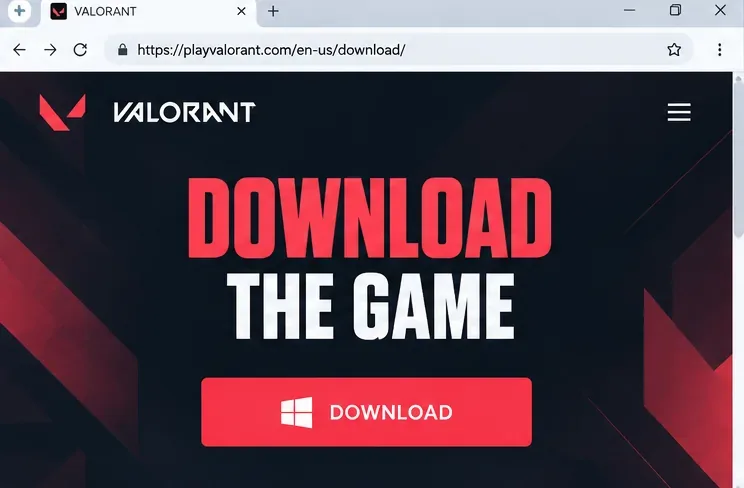
Open the official Valorant PC download page in your web browser and select Download. The downloaded Windows executable will start the Riot Client setup path for Valorant. Your browser may save it to Downloads automatically or ask where to put it.
Use the official playvalorant.com page rather than a file-sharing site or a third-party installer mirror. The exact executable name and size can change as Riot releases new installers.
Step 2: Run the installer and check the Windows permission prompt
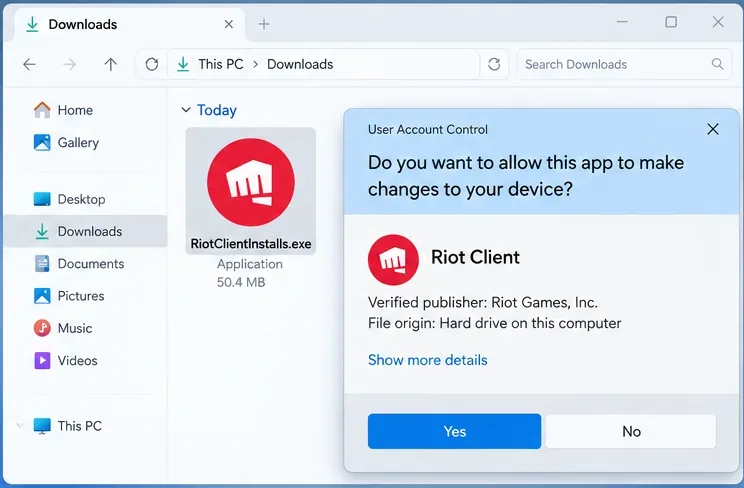
Open the downloaded .exe file from your browser or the Windows Downloads folder. Windows may display a User Account Control dialog asking whether the installer may make changes to your device. Verify that you obtained the file from Riot and that its publisher information identifies Riot Games before selecting Yes.
If Windows SmartScreen or your security software blocks the download, do not automatically treat the warning as a false alarm. Recheck the source and digital signature, then consult your security provider or Riot Support if the file still looks suspicious. Avoid disabling antivirus protection just to force the installation through.
Step 3: Let the Riot Client finish setting up
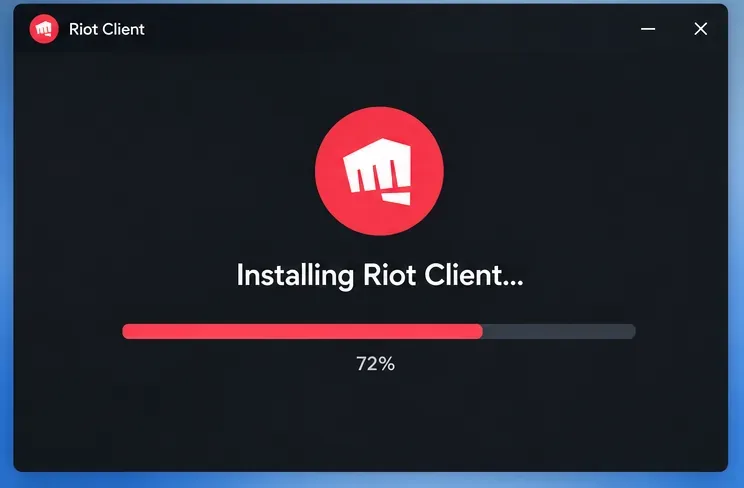
After the permission check, the installer may download additional files and display a progress indicator. Keep your connection active and leave the setup window open. You may be asked to confirm a destination folder or installation option, depending on the installer version.
Do not assume the process has failed simply because the progress bar pauses while files are being downloaded or verified. If it remains unresponsive, see the troubleshooting section below before deleting folders or reinstalling Windows.
Step 4: Sign in or create your Riot account
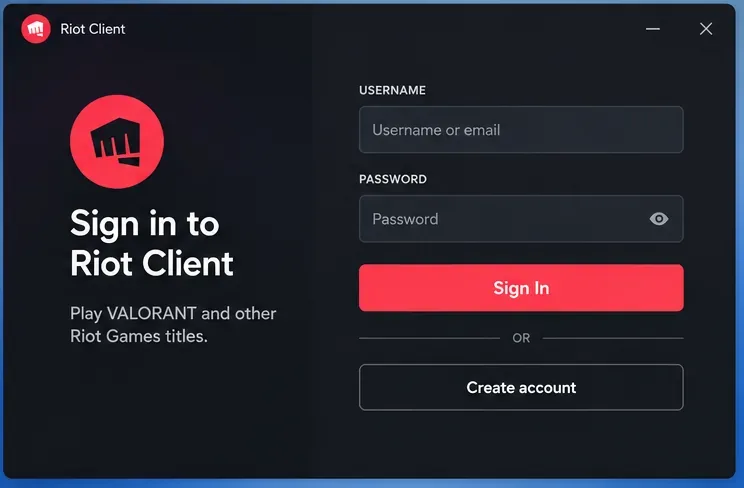
When Riot Client opens, log in with your existing Riot account. If you previously played League of Legends or Teamfight Tactics, you can generally use the same Riot account for Valorant. New players can choose the account-creation option and complete registration through Riot’s sign-up flow.
Use the credentials for the Riot account you want to play on; do not create a duplicate account simply because you do not recognize the client’s latest login screen. Account recovery and multi-factor authentication prompts, if shown, are handled through Riot’s official sign-in flow.
Step 5: Install Valorant, let Vanguard set up, and press Play
In Riot Client, find Valorant in the game selection or library and choose Install. If the original Valorant installer already brought you to its installation screen, continue there instead. Review any offered install location before confirming; the client downloads and applies the required game files.
Valorant also requires Riot Vanguard, Riot’s anti-cheat software. Let its installation complete. On the first installation, you may see a message stating that a system restart is required before you can play. Restart the PC when prompted, reopen Riot Client, return to Valorant, and click Play. Riot confirms this behavior in its system restart support guide.
In Riot’s 2026 PC launch experience, opening a Valorant desktop shortcut can take you to the Valorant page in Riot Client first; you then select Play there. This is an expected part of the Riot Client launch flow, not an indication that the game was uninstalled.
Riot Client Installed but Valorant Still Won’t Launch?
Check the symptom first. Different errors require different fixes, and reinstalling everything is rarely the best first move.
The installer does not start or gets stuck
- Confirm the file came from Riot’s download page and is a Windows executable.
- Restart Windows, then try opening the official installer again from your Downloads folder.
- Check that Windows has sufficient free storage and that your internet connection is stable.
- Check Windows Security or other security software for a specific blocked-file notification; investigate the cause instead of disabling protection indiscriminately.
If you already have Riot Client and the game files are corrupted, open Riot Client, select your profile icon, then Settings, choose Valorant, and select Repair where available. See Riot's Riot Client Full Repair Tool instructions.
The Riot Client opens, but the game says the PC needs a restart
Restart Windows using Start > Power > Restart, rather than only signing out. The first Vanguard installation commonly needs this step. If the message persists after restarting, follow Riot’s dedicated restart troubleshooting instead of repeatedly pressing Play.
Vanguard reports a security requirement or a VAN error
On Windows 11, Riot explicitly requires TPM 2.0 and UEFI Secure Boot. On some other configurations, Vanguard may request additional security features as well. Check the exact error message, your Windows version, and Riot's Vanguard security requirements before changing anything in the BIOS/UEFI.
For a basic Windows version check, press Win + R, enter winver, and review the version and build. Windows 10 systems older than the supported range can receive VAN 9006; Riot describes that error in its Windows compatibility guidance. Changing firmware settings without the hardware manufacturer's instructions can create boot problems, so follow the PC or motherboard maker's documentation.
Valorant is missing or the installation is damaged
Check that you are signed into the expected Riot account and that the install location is still accessible. If client repair fails, use Riot's uninstall and reinstall procedure. Close the Riot Client first and distinguish between removing the game, removing Vanguard, and removing shared Riot Client files used by other games. Do not delete broad system folders as a routine first step.
Frequently Asked Questions
Is the Riot Games Launcher the same as Riot Client?
Yes. “Riot Games Launcher” is a common way players refer to Riot Client, Riot’s PC application for signing in, downloading supported games, applying updates, and launching them. You do not need a second, unofficial launcher for Valorant.
Can I install Valorant on a Mac or Linux computer?
Valorant’s supported PC version is for Windows 10 or Windows 11 meeting Riot’s requirements. Riot Client also exists for certain other games on macOS, but that does not mean Valorant runs on macOS. Linux and virtual-machine setups are not supported for Valorant.
Is Riot Vanguard optional?
No. Vanguard is required for Valorant. Riot provides a separate process for uninstalling or disabling Vanguard, but removing or disabling it prevents Vanguard-dependent games from launching until it is reinstalled or re-enabled as required. Removing Valorant should not be assumed to remove Vanguard automatically, particularly if another installed Riot game also uses it.
How long will downloading the Riot Client and Valorant take?
It depends on your connection, disk speed, current patch size, and any required reboot. The Riot Client setup itself can be quick, while downloading and updating Valorant usually takes longer. For an accurate estimate, watch the progress and transfer information shown during your installation.
Do I need a different Riot account for each Riot PC game?
No. One Riot account can be used to access multiple supported Riot PC games. Game availability, progress, and any regional account restrictions still depend on the particular title and your account.
For a clean first launch, the essentials are the official Valorant installer, a working Riot Client login, completed game files, and a properly initialized Riot Vanguard installation. If a specific error interrupts that flow, use the corresponding Riot Support article rather than downloading a replacement launcher from an unofficial website.









